What’s actually slowing this PC down?
Pick the symptom - the matching free tool is one click away.
For the Intel Lenovo ThinkPad T14s Gen 7, the most dependable multi-display setup is Lenovo’s ThinkPad Thunderbolt 4 Workstation Dock (40B0), while the most complete single-cable monitor is the Lenovo ThinkVision P27u-20. The laptop’s Thunderbolt 4 connectivity is the deciding factor: it gives you more display bandwidth and peripheral flexibility than a basic USB-C dock. Before buying, confirm that your machine is the Intel configuration described by Lenovo’s specifications, then match the dock’s outputs, charging behavior and monitor arrangement to your desk.
What the ThinkPad T14s Gen 7 can drive
Lenovo’s published specifications for the Intel ThinkPad T14s Gen 7 list three Thunderbolt 4 ports with USB Power Delivery and DisplayPort 2.1, plus one HDMI 2.1 port. Lenovo rates the platform for up to four independent displays in total: the internal laptop panel and three external monitors. The display limit is a platform specification rather than an independent laboratory test.
As an Amazon Associate I earn from qualifying purchases.
Lenovo specifies HDMI output up to 4K at 60Hz and Thunderbolt output up to 8K at 60Hz. An 8K display uses two display pipes, so using one reduces the number of other displays that can be active simultaneously. In practice, this means a 4K multi-monitor office is a straightforward target, while an 8K panel requires careful planning of the remaining outputs.
What “three external monitors” means
The four-display figure includes the built-in screen. A setup with the laptop open can therefore contain up to three external monitors; closing the lid does not create another display pipe. The actual result also depends on the dock’s output wiring, the resolutions and refresh rates selected, and the capabilities of each monitor.
#1 Best Overall
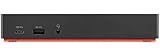
- Ports: 3x USB 3.1, 2x USB 2.0, 1x Combo Audio Jack, 1x Gigabit Ethernet.
- Video Ports: 1x HDMI, 2x DisplayPort.
- Max Number of External Monitors: 3. (Dock has the ability to support DisplayPort 1.4 and HDMI 2.0 for max 1 x 4K at 60Hz, but the real video output would depend on the system's output).
- What’s included: ThinkPad USB-C Dock Gen 2; 90W AC Power adapter; Power cord; USB-C Cable.
- See Description for Complete Compatibility Information.
Intel-only qualification
The port and display figures above are for the Intel model documented in Lenovo’s specification reference. If your T14s Gen 7 uses a different processor configuration, check its own specification sheet before ordering a dock or planning a display array.
Best dock: Lenovo ThinkPad Thunderbolt 4 Workstation Dock (40B0)
The 40B0 is the best-documented fit for an Intel T14s Gen 7 desk that needs several displays, wired networking and a large number of peripherals. Its outputs map directly to the laptop’s Thunderbolt display capability, and Lenovo lists support for USB-C, USB4, Thunderbolt 3 and Thunderbolt 4 hosts.
Rank #2
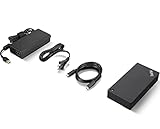
- One Dock. No Limits. One Cable. No Clutter.
- Ideal for both office-based and remote working, its an IT managers dream critical firmware updates are installed automatically and traditional IT tools, such as PXE boot, WOL, and MAC Address Pass Through, are also supported.
- ThinkPad Universal USB-C Dock lets you savour blazing-fast data transfers, rapidly charge USB-C notebooks, and plug and play displays and other PC accessories.
- This advanced one-cable docking solution gives you more desk-space to work and play with.
- Whether end users are in the office, hot-desking, or working from home, IT managers can remotely and securely gather key information about the dock and its attached devices with minimal interruption to the users workflow.
| Dock feature | Lenovo-listed specification | Why it matters with the T14s Gen 7 |
|---|---|---|
| Display outputs | Two DisplayPort 1.4, one HDMI 2.1, one downstream Thunderbolt | Provides several ways to connect external displays while retaining a one-cable host connection. |
| USB expansion | Four USB 3.2 Gen 2 ports rated at 10Gbps, plus one USB-C port | Suitable for high-speed storage and multiple input devices; check the connector type of each accessory. |
| Network | Gigabit Ethernet | Offers a wired network connection where a wireless link is not preferred. |
| Host support | USB-C, USB4, Thunderbolt 3 and Thunderbolt 4 | Broad host compatibility, with Thunderbolt 4 providing the strongest match for this laptop. |
| Power hardware | 300W adapter; workstation charging specification up to 230W | The adapter is sized for a wide workstation range, but the T14s must still be treated as a USB-PD host. |
| Regional example | 40B00300US in the United States; other 40B0 suffixes exist | Part numbers and availability vary by country. |
Why this dock is a better match than a basic USB-C hub
A basic USB-C hub may expose HDMI and a few USB ports, but it does not necessarily provide the bandwidth or display routing needed for multiple high-resolution screens. The 40B0’s Thunderbolt-oriented design is aligned with the T14s Gen 7’s native display path, so you can plan around direct DisplayPort, HDMI and downstream Thunderbolt connections instead of assuming that a software display adapter will do the work.
Interpreting the 230W charging headline
“Up to 230W” describes the dock’s workstation charging capability, not the amount of power the T14s Gen 7 automatically receives. The dock’s 300W adapter is intended to serve a broad ThinkPad workstation range. Connect the dock as a USB Power Delivery source and verify the charger requirement for your specific T14s configuration; do not choose it on the assumption that the laptop will accept 230W.
Rank #3
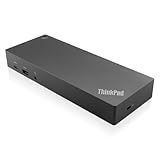
- USB Ports: 3x USB 3.1 gen2 (10Gbps, 1x always-on USB charging); 2x USB2.0; 1x USB-C port (Data,5V 3A power).
- Ports: 1x Gigabit Ethernet; 2x Display Port; 2x HDMI Port; 1x Stereo/Mic Combo Audio Port.
- Enterprise-class universal docking. Supports ThinkPad RapidCharge. Works with older Lenovo and non-Lenovo laptops.
- Can charge mobile devices with 15W and 10.5W from USB-C port and USB3.0 always power-on port respectively.
- Compatibility: E580, E480, E470, L580, L480, L470, L380, L380 Yoga, Lenovo Tablet 10, Miix 520-12IKB, T580, T570, T480, T480s, T470, T470s, T460, ThinkPad 25, X1 Carbon Gen 6, X1 Carbon Gen 5, X1 Yoga Gen 3, X1 Yoga Gen 2, X1 Tablet Gen 3, X1 Tablet Gen 2, 13 Gen 3 Windows, X280, X270, X260.
Best docking monitor: Lenovo ThinkVision P27u-20
The ThinkVision P27u-20 is the strongest one-monitor choice when you want the display itself to act as the desk hub. Its Thunderbolt input can carry the T14s connection, while the monitor provides charging, networking and USB expansion without a separate video cable to the laptop.
| Monitor feature | Lenovo-listed specification | Practical implication |
|---|---|---|
| Panel | 27-inch IPS | A conventional desktop size with IPS viewing characteristics. |
| Resolution and refresh | 3840×2160 at 60Hz | Provides a 4K workspace at the refresh rate Lenovo specifies. |
| Brightness | 400 cd/m² typical; 450 cd/m² peak | Peak and typical figures are different measurements; neither should be treated as a guaranteed sustained level in every mode. |
| Color coverage | 100% sRGB, 99.5% Adobe RGB, 99.1% DCI-P3 | Useful for workflows that require broad documented gamut coverage; calibration and application settings still affect results. |
| Video inputs and expansion | Thunderbolt 4 input and output, two HDMI 2.1 ports, DisplayPort 1.2, USB ports and Gigabit Ethernet | Supports a one-cable laptop connection and multiple peripheral or video sources. |
| Power delivery | Up to 100W over Thunderbolt | Can charge the laptop through the monitor, subject to the T14s configuration’s actual USB-PD requirement. |
| Daisy chaining | Thunderbolt output for a downstream Thunderbolt display in a compatible chain | Potentially reduces cable clutter, but the complete chain still has to remain within the laptop’s display-pipe and resolution limits. |
When the P27u-20 is the right purchase
Choose it when one 4K screen, a built-in hub and a single Thunderbolt cable are more valuable than the maximum number of independent displays. The monitor’s Ethernet and USB functions can remain on the desk, and its Thunderbolt output leaves a path to a compatible second display without adding another host cable.
Rank #4

- [Comprehensive Connectivity] - Seamlessly connect your devices with the thinkpad universal usb-c dock, featuring multiple ports including HDMI, DisplayPort, and USB-C
- [Enhanced Display Options] - Our Lenovo thunderbolt 4 docking station for laptop comes with included HDMI and DisplayPort cables, enjoy crisp and clear visuals on external monitors or projectors
- [Efficient Power Delivery] - This Thinkpad Dock includes a 90W AC adapter, ensuring stable power delivery to your devices while they're connected to the docking station
- [Package Includes] - 40AY0090US Thinkpad Thunderbolt 4 Workstation Dock, 90W AC Power Adapter, 1x USB-C Cable, 1x 4K HDMI Cable, 1x 4K Display Port Cable + Microfiber Cloth Included Supports 4K Display
- [𝐍𝐎𝐓𝐄] - Before purchasing please make sure your computer is USB C or Thunderbolt Compatible depending on the dock you are purchasing. If you are running into issues please try updating the dock firmware to make it compatible with your computer.
Dock versus docking monitor
| Choose a dock when… | Choose the P27u-20 when… |
|---|---|
| You need two or three external displays, or you already own monitors. | You want one 4K display to provide video, charging, USB and Ethernet. |
| You need the 40B0’s mix of DisplayPort, HDMI and downstream Thunderbolt outputs. | You prefer a clean desk with one Thunderbolt cable to the laptop. |
| You want to place the dock out of sight and keep monitors independently replaceable. | You value the documented IPS color coverage and 100W Thunderbolt charging. |
These are different solutions rather than competing specifications. A dock is the better expansion point for a multi-monitor workstation; a docking monitor is simpler for a one-screen desk and can later serve as the first link in a compatible Thunderbolt display chain.
How to plan a two- or three-monitor setup
Two external 4K monitors
- Decide whether the laptop will remain open. An open lid uses the internal panel as one of the four independent displays Lenovo permits.
- Connect the first monitor to a 40B0 DisplayPort 1.4 or HDMI 2.1 output, using a cable rated for the monitor’s required resolution and refresh rate.
- Connect the second monitor to another independent dock output. Avoid assuming that a passive splitter creates an additional display; the dock and laptop must expose separate display paths.
- Connect the 40B0’s host Thunderbolt cable to one of the T14s Gen 7 Thunderbolt ports, attach the dock’s power adapter, and allow the operating system to enumerate the displays.
- Set each screen to its native resolution and intended refresh rate, then arrange their positions in the operating system’s display settings.
Two 4K external monitors are within the Intel platform’s documented external-display allowance. The exact combination of outputs and refresh rates remains dependent on the dock, cables and monitors selected.
Best Value

- One Connection, No Limitations. Think of all the time you'd save if you could connect all your peripherals at once, transfer USB data at lightning - fast 10Gbps speeds, and have access to a stable, stress-free wired network connection Jaw-dropping 4K or multiple displays
- The days of being limited by your laptop's capabilities are over. Now you can experience vivid 4K on a single screen or take multitasking to the next level with multiple displays Ready for your command: Ideal for being the centerpiece of your workspace. Completely control your ThinkPad systems with PXE Boot, System Wake-on-LAN. It also supports passing ThinkPad MAC address through the dock
- Dock has the ability to support DisplayPort 1.4 and HDMI 2.0 for max 1 x 4K@60Hz, but the real video output would depend on the system's output
- 3 Years wolrldwide warranty
Three external monitors
- Use three independent outputs from the dock where possible: the two DisplayPort connectors and HDMI, or a downstream Thunderbolt connection for a compatible display.
- Keep the laptop’s internal panel enabled if you want the full four-display total; disable it only when you prefer a closed-lid arrangement.
- Check each display’s negotiated mode after connecting. If one screen falls back to a lower resolution, test a different dock output or cable before changing all displays.
Lenovo’s limit is three external monitors plus the native panel, not three 8K monitors. An 8K display consumes two display pipes, so an 8K plan can reduce the number of simultaneously active screens.
One monitor through the P27u-20
- Connect a Thunderbolt cable from a T14s Gen 7 Thunderbolt port to the P27u-20’s Thunderbolt input.
- Connect Ethernet and USB accessories to the monitor’s hub ports if you want them to travel through the same host cable.
- Attach the monitor’s power cable and confirm that the laptop recognizes both the display and the charging source.
- If you add a second Thunderbolt display, connect it to the P27u-20’s Thunderbolt output and verify the resulting resolution and display count.
Charging: dock, monitor and laptop requirements
USB-C charging is not determined by the shape of the connector alone. The source, cable and laptop negotiate a USB Power Delivery profile. The 40B0 and P27u-20 both advertise charging capabilities, but the laptop’s configured charger requirement remains the deciding check.
- Use the Lenovo charger specification for your exact T14s Gen 7 configuration as the reference point.
- For the 40B0, regard the 230W workstation figure as a dock capability, not a promise that the T14s will draw that level.
- For the P27u-20, treat 100W as the monitor’s maximum Thunderbolt delivery; verify that it meets the laptop’s requirement under your intended workload.
- If the operating system reports slow charging or battery drain while connected, test with the laptop’s original charger and compare behavior before blaming the display signal.
How to compare other docks
If the 40B0 is unavailable in your region or does not fit your desk, compare alternatives against the same criteria rather than shopping by the number of USB sockets.
The Tool Desk
Outbyte Driver Updater FREEScan for outdated or missing drivers - takes under a minuteDriver Scan →Outbyte PC Repair FREEClear out junk files and repair common Windows errorsFree Scan →| Criterion | Questions to answer |
|---|---|
| Host link | Is the upstream connection Thunderbolt 4, another Thunderbolt generation, USB4 or ordinary USB-C? Does it support the display features your Intel T14s requires? |
| Display outputs | Which physical outputs are present, and can they run your chosen resolutions and refresh rates simultaneously? |
| Charging | What USB-PD output is actually delivered to the host, and is that figure stated separately from the dock’s total adapter wattage? |
| Ethernet | Is the network port Gigabit, and does that match your wired-network requirement? |
| USB speed and count | How many ports are available at 5Gbps or 10Gbps, and which are USB-C rather than USB-A? |
| Operating-system support | Does the maker document support for your operating system and required display modes? |
| DisplayLink dependence | Does the dock require DisplayLink software? If so, account for driver installation, updates and the software-managed display path instead of treating it as native Thunderbolt video. |
How to compare monitors
For a monitor that will serve as part of the dock, evaluate the complete workstation function rather than resolution alone.
- Resolution and refresh rate: confirm the native mode you need and whether the laptop-and-dock combination can sustain it.
- Panel and color: identify the panel type and documented gamut coverage; color figures do not replace calibration for color-critical work.
- Power delivery: check the monitor’s USB-C or Thunderbolt output and compare it with the T14s charger requirement.
- Hub ports: count the USB connectors you will actually use and note their speed classes.
- Ethernet: decide whether integrated wired networking eliminates the need for a separate adapter.
- Daisy-chain output: confirm that a downstream Thunderbolt port is present if you intend to add another display.
- Ergonomics: check stand adjustment and VESA-mount support before mounting the screen on an arm.
Troubleshooting common failures
The monitor is detected but shows a lower resolution
- Confirm that the display is connected to the intended dock output and that the cable supports the target mode.
- Test the monitor directly from a Thunderbolt port on the T14s to separate a laptop limitation from a dock-path limitation.
- Disconnect other displays temporarily. If the target mode returns, the combined resolution or display-pipe budget is the constraint.
A second or third screen stays blank
- Check that the dock exposes independent outputs rather than a passive mirror arrangement.
- Reconnect the host Thunderbolt cable and the dock’s power adapter, then allow the operating system to rediscover the displays.
- If one screen is 8K, reassess the display-pipe budget because Lenovo says an 8K display uses two pipes.
The laptop says it is not charging
- Verify that the dock or monitor is powered and that the host cable is connected to its upstream Thunderbolt or USB-C port.
- Compare the source’s stated USB-PD output with the T14s configuration’s charger requirement.
- Use the original Lenovo charger as a control test; a working display connection does not prove that the charging negotiation is sufficient.
Ethernet or USB accessories disappear
- Check whether the accessory is connected to a downstream hub port rather than the host port.
- Reconnect the dock or monitor after the operating system has fully started.
- For high-speed storage, use a port documented at the appropriate 5Gbps or 10Gbps class and avoid assuming every USB connector has the same speed.
Buying checklist
- Confirm that your T14s Gen 7 is the Intel configuration covered by the documented Thunderbolt and display specifications.
- Count the external displays you need and include the internal panel when applying the four-display limit.
- Choose the 40B0 when you need several independent outputs, wired Ethernet and many USB connections.
- Choose the P27u-20 when one 4K/60Hz display with integrated hub functions and up to 100W Thunderbolt charging is the cleaner solution.
- Match every monitor’s resolution and refresh rate to the dock’s output capabilities and your cable plan.
- Verify host charging against the laptop’s actual charger requirement instead of relying on a dock’s total adapter rating.
- Check the country-specific 40B0 suffix, stock and warranty terms before ordering; 40B00300US is a United States example, not a universal part number.
Bottom line for the T14s Gen 7
For a multi-monitor Intel T14s Gen 7 workstation, start with the Lenovo ThinkPad Thunderbolt 4 Workstation Dock 40B0 because its DisplayPort, HDMI, downstream Thunderbolt, USB and Gigabit Ethernet layout is documented for the type of expansion this laptop supports. For a simpler one-screen desk, the ThinkVision P27u-20 combines a 27-inch 4K/60Hz IPS display with Thunderbolt connectivity, a USB hub, Ethernet and up to 100W host charging. In either case, plan around the laptop’s display-pipe limit and verify the configured charging requirement before purchase.
Quick Recap
Product prices and availability are accurate as of the date/time indicated and are subject to change. Any price and availability information displayed on Amazon at the time of purchase will apply.

