Recommended Free Tools
For most RTX Spark systems, begin at native 1440p with High or Ultra raster settings, then use DLSS Quality or Balanced and enable ray tracing only when the traditionally rendered frame rate remains steady. In the NVIDIA App, leave DLSS Override – Model Presets on Recommended. Choose DLSS Performance when the GPU cannot hold your target frame rate, enable NVIDIA Reflex in supported games, and test Dynamic Multi Frame Generation > Max refresh rate on a high-refresh display. Treat these as starting points rather than guaranteed results: RTX Spark performance varies with the laptop or desktop’s power and cooling limits, memory configuration, display and the game.
What RTX Spark is, and what its gaming target means
RTX Spark is NVIDIA’s platform for thin laptops and compact desktops with RTX graphics, AI acceleration, DLSS and Reflex. NVIDIA’s 2026 product material targets 1440p gaming at 100+ frames per second. That figure is a platform target, not an independently measured result for every RTX Spark computer. A low-power laptop and a well-cooled compact desktop can use the same platform branding yet deliver different sustained clocks, noise levels and frame rates.
| # | Preview | Product | Price | |
|---|---|---|---|---|
| 1 |

|
NVIDIA GX Spark - Founders Edition, W129251900 | $10,991.00 | Buy on Amazon |
| 2 |

|
NVIDIA GeForce RTX 3090 Founders Edition Graphics Card (Renewed) | $1,899.99 | Buy on Amazon |
| 3 |

|
NVIDIA Quadro RTX 6000 | $1,499.96 | Buy on Amazon |
| 4 |
|
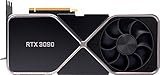
nVidia GeForce RTX 3090 Founders Edition Graphics Card | $2,399.99 | Buy on Amazon |
| 5 |

|
PNY NVIDIA Quadro RTX 4000 - The World’S First Ray Tracing GPU | $258.20 | Buy on Amazon |
As an Amazon Associate I earn from qualifying purchases.
The platform combines fourth-generation Ray Tracing Cores, fifth-generation Tensor Cores, DLSS 5, Reflex 2, G-SYNC support, Game Ready and Studio Drivers, and NVIDIA App support. NVIDIA also lists up to 1 petaflop of FP4 AI performance and up to 128 GB of unified memory for the product family. Those headline specifications describe the platform’s capability; they do not turn every game into a 100-FPS title, and unified-memory capacity is not the same thing as a fixed amount of graphics memory available in every configuration.
What’s actually slowing this PC down?
Pick the symptom - the matching free tool is one click away.
Display capability is similarly conditional. NVIDIA says the HDMI implementation can support up to 4K at 480 Hz or 8K at 120 Hz with Display Stream Compression (DSC), gaming variable refresh rate (VRR) and HDR, subject to what the computer manufacturer implements. The panel, cable, connector mode and firmware can therefore limit the result before a game setting does.
#1 Best Overall
The recommended starting profile
Use this profile before tuning individual games. It preserves image quality at 1440p while leaving clear options for recovering performance.
| Setting | Starting value | Reason |
|---|---|---|
| Output resolution | Native 2560 × 1440 when using a 1440p panel | Preserves the display’s native pixel structure. A non-native output can introduce scaling softness. |
| Raster quality | High; move to Ultra if the frame-time budget allows | Conventional lighting and geometry usually provide the largest visual return for the performance cost. |
| DLSS mode | Quality for fidelity, Balanced for additional headroom | These modes render at a lower internal resolution and reconstruct the native output. Quality keeps more source detail than Performance. |
| Ray tracing | Off initially, then enable selectively | Ray-traced effects can consume a large share of the frame-time budget. Test them after establishing a stable raster baseline. |
| DLSS model preset | NVIDIA App: DLSS Override – Model Presets > Recommended | NVIDIA’s automatic mapping selects the model appropriate to the chosen DLSS mode. |
| NVIDIA Reflex | On in supported games | Reflex reduces the queue of work between input and the rendered frame, which matters most when responsiveness is important. |
| Frame generation | Off while establishing the base frame rate; test later | Generated frames improve displayed smoothness but do not replace the latency characteristics of traditionally rendered frames. |
Why native 1440p is the useful first test
Native 1440p gives you a stable reference for both clarity and frame time. If you start with aggressive upscaling and frame generation, a high counter can hide a weak traditionally rendered frame rate, excessive latency or reconstruction artifacts. Establish the native output and raster settings first; then add one technology at a time so you can see what changed.
How to make the first pass reproducible
- Connect the display through the computer’s supported high-bandwidth output and select its native resolution and refresh rate in the operating system.
- Install a current Game Ready or Studio Driver appropriate to your use, then open the NVIDIA App.
- Set DLSS Override – Model Presets to Recommended. Do not force a specific preset until you have a reason to troubleshoot a title.
- In the game, select 1440p, High raster quality, Reflex if available, and no frame generation for the baseline run.
- Play a repeatable section for several minutes. Record the ordinary rendered frame rate, the one-percent-low behavior if the game exposes it, and whether camera movement remains clear.
DLSS Quality, Balanced and Performance: choosing the right mode
DLSS changes the internal rendering resolution and reconstructs the selected output resolution. At 1440p, the mode should be chosen by the combination of image priorities and the frame-time margin you need, not by a universal claim that one mode is always best.
Crashes, No Sound, or Screen Glitches?
Random freezes, missing sound and display glitches usually trace back to one bad driver. Find and replace yours safely.Free scan · under a minutePC Slower Than It Used to Be?
A free scan shows the junk files, broken settings and background clutter dragging Windows down - then fixes them in one click.Free scan · Windows 10 & 11| DLSS mode | Use it when | What to watch |
|---|---|---|
| Quality | You want the cleanest reconstruction and your baseline already approaches the target frame rate | Fine foliage, thin geometry, distant motion and specular highlights can still expose reconstruction limits in some games. |
| Balanced | Quality is close but heavy scenes dip below the display target | It provides more headroom than Quality while retaining more source detail than Performance. |
| Performance | The GPU cannot sustain the target at Quality or Balanced, especially with demanding ray tracing | Lower internal detail can make small text, wires, foliage and fast movement look less stable. |
| Ultra Performance | Only when a very demanding 4K or path-traced workload leaves no practical alternative | At 1440p it usually sacrifices too much source detail; reserve it for cases where the extra performance is genuinely needed. |
NVIDIA’s DLSS 4.5 guidance says the newer models deliver their largest quality and performance benefit in Performance and Ultra Performance modes. That does not make those modes the best choice for every 1440p scene: Quality or Balanced remains the sensible fidelity-first starting point, while Performance is the recovery step when the GPU is the limiting factor.
Using the NVIDIA App model override
Open the game’s graphics profile in the NVIDIA App and locate DLSS Override – Model Presets. Set it to Recommended first. NVIDIA maps Preset M to DLSS Performance, Preset L to Ultra Performance and Preset K to the remaining DLSS modes. The mapping means a manual preset can have a different effect depending on which DLSS mode the game is using; changing the preset without recording the underlying mode makes comparisons misleading.
Rank #2
- Item Package Dimension - 15.0L x 12.25W x 4.25H inches
- Item Package Weight - 6.0 Pounds
- Item Package Quantity - 1
- Product Type - VIDEO CARD
Use a manual preset only for a specific troubleshooting goal or a title where you have verified that the recommended choice produces an unwanted artifact. Change one value, restart the game if it does not immediately recognize the profile, and compare the same scene.
Ray tracing and Ray Reconstruction
Ray tracing should be treated as a budget decision. Reflections, global illumination, shadows and ambient-occlusion options do not all cost the same amount, and a title can place most of its ray-tracing load in one effect. Enable the effects that change the scene meaningfully, then reduce the least visible effect if frame time becomes inconsistent.
Free tools Windows power users keep installed
One-click scans. No signup required.
A practical ray-tracing sequence
- Run the High raster baseline with RT disabled and note the ordinary rendered frame rate.
- Enable the most valuable ray-traced effect, such as reflections or global illumination, while leaving other RT effects off.
- Repeat the same scene. If the frame rate remains comfortably above your display and latency target, add another effect.
- If the baseline becomes unstable, reduce RT quality or disable the least noticeable effect before lowering every raster setting.
- Only after this traditionally rendered frame rate is acceptable should you evaluate frame generation.
For supported ray-traced games, enable DLSS Ray Reconstruction with Recommended or Preset F through the NVIDIA App’s per-game DLSS override controls. The exact control label and availability depend on the game, driver and NVIDIA App version. Ray Reconstruction can improve the appearance of denoised ray-traced lighting, reflections and shadows, but it cannot add support to a title that does not expose the required DLSS integration.
Signs that RT or reconstruction needs adjustment
- Shimmering or crawling detail: compare Quality with Balanced and inspect thin geometry while moving the camera.
- Soft reflections: raise the DLSS mode before raising every raster setting; reflections may be limited by the game’s ray-tracing implementation.
- Large frame-time spikes: reduce the most expensive RT effect first and check temperatures and power behavior on a laptop.
- Missing Ray Reconstruction controls: verify that the title supports it and that the driver and NVIDIA App are current; do not assume the option exists globally.
Frame generation and Dynamic Multi Frame Generation
Frame generation inserts AI-created frames between traditionally rendered frames. It can make motion look smoother on a high-refresh display, but it does not render the game simulation or input response at the same rate as the displayed frame count. A low base frame rate can therefore remain perceptually or interactively unsatisfying even when the overlay reports a much higher number.
When frame generation is worthwhile
- The traditionally rendered frame rate is already stable and high enough that added frames will not merely mask stutter.
- Your display has a refresh rate high enough to show the additional frames.
- The game supports the required DLSS and Reflex path and remains responsive with it enabled.
- You are playing a cinematic, single-player or visually demanding title where smooth motion is more important than the minimum possible input latency.
For competitive play, keep the rendered base frame rate strong, use Reflex, and be conservative with ray tracing. Frame generation can improve smoothness, but it cannot replace the latency of the traditionally rendered frame.
Rank #3
- CUDA Cores: 4608 / NVIDIA Tensor Cores: 576 / NVIDIA RT Cores: 72
- GPU Memory: 24 GB GDDR6 with ECC / Bandwidth: 624 GB/Sec
- System Interface: PCI Express 3.0 x16
- Four DisplayPort 1.4 Connectors
- 3D Stereo Support with Stereo Connector
Dynamic mode for 240 Hz and 360 Hz displays
In the NVIDIA App, open the game’s frame-generation override and choose DLSS Override – Frame Generation Mode > Dynamic > Max refresh rate. NVIDIA designed Dynamic Multi Frame Generation to adjust toward the display’s refresh target. For a fixed target, choose Custom instead and set the target appropriate to the panel.
NVIDIA currently documents a limitation: Dynamic mode conflicts with frame-rate limiters and V-Sync. If Dynamic behaves erratically, disable the game’s limiter and V-Sync for the test, or switch to Custom and use a fixed target. Do not change several synchronization controls at once, because you will not know which one removed the problem.
Matching frame generation to VRR
G-SYNC or another VRR path can smooth changes within the panel’s variable range, but the monitor, connection and manufacturer firmware must all support the intended mode. Confirm the operating system is actually running at the advertised refresh rate, then test the game with VRR enabled and frame generation disabled. Add frame generation only after the baseline is stable. If you see repeated judder, flashing or a refresh-rate mismatch, return to the baseline and check the display mode before changing DLSS.
Reflex and latency-focused settings
Enable NVIDIA Reflex in supported games. Reflex is most useful when the CPU and GPU are producing frames faster than the display can consume them, because it helps keep the render queue from growing. It does not increase image quality, and it cannot make an overloaded GPU render a complex scene instantly.
For a latency-sensitive profile, use native 1440p or DLSS Quality, keep raster settings high, reduce or disable expensive RT effects, enable Reflex, and add frame generation only if motion remains responsive in your actual game. Measure by feel as well as an overlay: camera response, aiming and menu interaction can reveal a problem that an average frame-rate number hides.
Rank #4
- Chipset: NVIDIA GeForce RTX 3090
- Video Memory: 24GB GDDR6X
- Memory Interface: 384-bit
- Output: DisplayPort x 3 (v1.4a) / HDMI 2.1 x 1
- Nvidia India 3 Year *
Settings by gaming goal
| Goal | Recommended starting profile | Trade-off |
|---|---|---|
| Best 1440p image quality | Native 1440p, High or Ultra raster, DLSS Quality or Balanced, RT selected by effect, Ray Reconstruction Recommended or Preset F where supported | Lower headroom than Performance mode; heavy RT scenes may require a reduction. |
| Highest practical 1440p performance | Native 1440p, DLSS Performance, RT reduced or selective, Reflex on | Less internal source detail and potentially more reconstruction artifacts. |
| 4K or very heavy path tracing | DLSS Performance first, Ultra Performance only if necessary, Ray Reconstruction on supported titles | Performance depends heavily on the game’s implementation and the computer’s power limit. |
| 240 Hz or 360 Hz display | Dynamic Multi Frame Generation, Max refresh rate, Reflex on; use Custom for a fixed target | Dynamic currently conflicts with frame-rate limiters and V-Sync. |
| Competitive latency | Strong traditionally rendered frame rate, Reflex on, conservative RT, frame generation only after a responsiveness check | More visual effects may need to be sacrificed to protect latency consistency. |
A repeatable tuning workflow
- Confirm the display path. Select the panel’s native resolution and advertised refresh rate. Verify VRR and HDR separately; a monitor can support one without the other in a particular connection mode.
- Choose a baseline. Use High raster quality, native 1440p, RT off, DLSS off or Quality, Reflex on, and frame generation off. This gives you a meaningful traditionally rendered reference.
- Set the model override. Leave DLSS Override – Model Presets on Recommended. Record the game’s selected DLSS mode.
- Set a frame-time objective. A 60 Hz display has a 16.67-millisecond refresh interval, 120 Hz has 8.33 ms, 144 Hz about 6.94 ms, 240 Hz about 4.17 ms and 360 Hz about 2.78 ms. These are display intervals, not promises that the computer can meet them.
- Add DLSS. Use Quality first for image quality, Balanced when dips remain, and Performance when the GPU still cannot hold the target. Use Ultra Performance only for an unusually demanding workload.
- Add ray tracing one effect at a time. Keep the effects that visibly improve the scene and reduce the ones that consume time without a clear benefit.
- Enable Ray Reconstruction where supported. Compare the same RT scene with Recommended and Preset F if the game exposes both choices.
- Test frame generation last. Confirm that the ordinary rendered frame rate is stable, then test Dynamic at Max refresh rate on a high-refresh display or Custom for a fixed target.
- Validate a difficult scene. Check a busy fight, traversal area, weather effect or dense city rather than relying on a quiet opening scene.
Troubleshooting common RTX Spark problems
The frame-rate counter is high, but the game feels slow
Disable frame generation temporarily and inspect the traditionally rendered rate. If it is low, use DLSS Performance, reduce RT or lower the most expensive raster setting. Re-enable Reflex and test again. A generated-frame count is not a substitute for a healthy base frame rate.
Dynamic frame generation causes judder
Dynamic mode currently conflicts with frame-rate limiters and V-Sync. Turn off those controls for a controlled test, or change the mode to Custom and choose a fixed target. Also verify that the operating system and game are using the intended refresh rate.
Image quality is too soft at 1440p
Move from Ultra Performance or Performance to Balanced or Quality, then reduce RT effects if needed to recover the lost performance. Check for a second scaling pass in the game or display; double scaling can make a correct DLSS result look unnecessarily blurry.
Ray Reconstruction is unavailable
Support is title-specific. Confirm the game has a DLSS Ray Reconstruction implementation and that the NVIDIA App and driver expose the current per-game controls. If the option remains absent, use the game’s native RT and DLSS settings rather than forcing an unsupported override.
Do these 3 things before closing this tab:
1Clear out junk files and repair common Windows errors2Fix the driver behind crashes, sound loss and screen glitches3Repair Windows errors before they cause bigger problemsA laptop slows down after several minutes
RTX Spark systems have manufacturer-specific power and cooling limits. Compare the first minutes with a sustained section, check whether the system is plugged in and using its intended performance mode, and avoid treating a short peak result as a sustained rate. The same platform target can produce different results across laptop designs.
Best Value
- Experience fast, interactive, professional application performance
- Latest NVIDIA Turing GPU architecture and ultra-fast graphics memory
- NVidia RTX technology brings real time rendering to professionals
- 36 RT cores accelerate photorealistic ray-traced rendering
- Advanced rendering and shading features for immersive VR
HDR, VRR or high refresh is missing
Check the cable, connector mode, operating-system display settings and the manufacturer’s stated limits. NVIDIA’s maximum figures of 4K 480 Hz or 8K 120 Hz with DSC, VRR and HDR are implementation-dependent, not a guarantee for every RTX Spark computer.
How to interpret performance claims
NVIDIA’s 1440p 100+ FPS figure is useful as a design target, but it is not a universal benchmark. The available public material does not provide an independently measured, game-by-game table covering every RTX Spark laptop and compact desktop. Results depend on the OEM’s power limit, cooling, memory configuration, driver, display mode, game engine, graphics preset and whether the quoted rate includes generated frames.
When comparing your own settings, keep the resolution, scene, driver, DLSS mode, RT effects and frame-generation state identical. Report the traditionally rendered rate separately from the displayed rate with generated frames. That distinction tells you whether a change improved the GPU workload itself or only increased the number of images shown on the panel.
A concise profile you can save
For a general 1440p single-player profile, save native 1440p, High raster quality, DLSS Quality, NVIDIA App model preset Recommended, selective RT, Ray Reconstruction Recommended where supported, Reflex on, and frame generation off until the base rate is proven stable. For a 240 Hz or 360 Hz display, duplicate that profile and test Dynamic Multi Frame Generation at Max refresh rate; if synchronization problems appear, use Custom or return to the stable profile. For a demanding 4K or path-traced game, start with DLSS Performance and add Ultra Performance only when Performance cannot meet the target.
Quick Recap
Product prices and availability are accurate as of the date/time indicated and are subject to change. Any price and availability information displayed on Amazon at the time of purchase will apply.

