Linux Mint Cinnamon is the best default choice for most first-time Linux desktop users, especially people moving from Windows. It has a familiar taskbar-and-menu layout, conservative updates, and access to the broad Ubuntu/Debian software ecosystem. Your best choice changes if you prioritize official documentation (Ubuntu 26.04 LTS), a polished visual transition (Zorin OS 18.1), newer software (Fedora Workstation 44), or NVIDIA-focused workflows and tiling (Pop!_OS).
No distribution can guarantee that every laptop, Windows application, printer, or game will work. Test your hardware from a live USB and check your must-have software before replacing an existing operating system.
Quick comparison
| Distribution | Best for | Desktop | Update style | Main advantage | Main drawback | Official site |
|---|---|---|---|---|---|---|
| Linux Mint Cinnamon | Most Windows switchers | Cinnamon | Conservative, Ubuntu/Debian-derived | Familiar and low-drama | New hardware and desktop components may arrive later | linuxmint.com |
| Ubuntu 26.04 LTS | Documentation and broad compatibility | GNOME 50 | Long-term support | Largest mainstream ecosystem | GNOME and multiple package formats can feel unfamiliar | ubuntu.com/download/desktop |
| Zorin OS 18.1 | Polished Windows or macOS transition | Zorin desktop | Based on Ubuntu 24.04 LTS | Familiar layouts with little setup | Some layouts and features depend on edition; familiarity does not ensure Windows-app compatibility | zorin.com/os/download |
| Fedora Workstation 44 | Newer software and a modern upstream stack | GNOME | Each release updated approximately 13 months | Current kernel, desktop, and developer tools | More frequent major upgrades and occasional extra codec setup | fedoraproject.org/workstation/download |
| Pop!_OS | Selected NVIDIA, gaming, and keyboard-driven workflows | COSMIC | Project-specific release cadence | Separate NVIDIA image and strong tiling workflow | Not a universal choice; hardware and newer desktop behavior still need testing | system76.com/pop/download |
What a Linux distribution actually is
Linux is the kernel, the core software that communicates with hardware. A distribution combines that kernel with system utilities, package-management tools, installers, update services, and default applications. The visible interface is a separate desktop environment, such as Cinnamon, GNOME, KDE Plasma, Xfce, MATE, or COSMIC.
That is why two distributions can look similar, and why one distribution can offer several desktop editions. Choosing a distro is therefore a choice about hardware support, software sources, update policy, documentation, and defaults as much as appearance.
The Tool Desk
Outbyte PC Repair FREEClear out junk files and repair common Windows errorsFree Scan →Outbyte Driver Updater FREEFix the driver behind crashes, sound loss and screen glitchesFind Drivers →#1 Best Overall
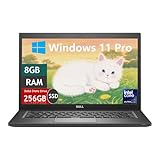
- Laptop Size: This renewed Dell Latitude 7280 Business Laptop, has a screen size of 12.5". The HD anti-glare screen, mostly reduces fatigue when using it, allowing you to focus on work.
- Processor: This Renewed Dell 7280 laptop is installed with Intel Core i5-6300(2.4GHz-3.0GHz, 2 Cores, 4 Threads, 3MB Smart Cache), meeting the fast and stable operation of most programs.
- Powerful Memory: This renewed Laptop computer has installed 8GB of RAM running memory and 256GB of Solid State Drive for you, allowing you to run multiple software and browsers at the same time with confidence, the Dell Latitude powerful hard drive gives you enough space to download files!
- System: Windows 11 Pro is recognized as the most stable operating system, which is mostly for both commercial and professional users. Windows 11 Pro provides more security and management features for this used Latitude Laptop notebook, as well as supporting virtualization and remote access. Meanwhile, it supports multiple languages, including English, French, Spanish, German, etc.
- 【Refurbished trait】-The power supply and charger of refurbished products may not be original, but they are compatible with the computer and fully functional. The product is delivered in an ordinary packaging box, not the original packaging box.
How these recommendations are judged
- Installation: a graphical installer, live-USB testing, sensible partitioning choices, and a recoverable failure path.
- Hardware: Wi-Fi, Bluetooth, graphics, webcams, printers, external displays, touchpads, suspend, and audio on supported hardware.
- Software: browsers, office tools, media players, communication apps, development tools, and games through native packages, Flatpak, or other clearly documented methods.
- Updates: release frequency, security-support period, upgrade burden, and recovery options.
- Help: official documentation and current, distribution-specific community guidance.
- Usability: application discovery, settings, window management, accessibility, scaling, and how much configuration is needed.
- Privacy: account prompts, cloud integration, telemetry, proprietary drivers, and codec installation—not absolute promises of anonymity.
Linux Mint Cinnamon: best overall for most beginners
Choose Linux Mint Cinnamon if you want Linux to feel understandable immediately. Its traditional menu, taskbar, system tray, and familiar settings model are comfortable for most Windows users. The graphical software manager and Ubuntu/Debian compatibility make common applications and troubleshooting instructions relatively easy to find.
Why it works well
- A familiar desktop metaphor reduces the initial learning curve.
- Cinnamon balances usability with moderate resource demands.
- The project has a large community and extensive troubleshooting material.
- Stable defaults suit browsing, documents, media, and everyday work.
What to accept
Mint generally favors stability over the newest kernel and desktop releases. A very new laptop may receive hardware support sooner on Fedora or a newer Ubuntu release. Its default styling can also feel less contemporary than Zorin or GNOME. Mint is a separate project, so do not assume it has exactly the same release and support policy as Ubuntu.
Which Mint edition?
- Cinnamon: the default recommendation for a normal modern computer.
- Xfce: worth testing on an older or lower-powered machine.
- MATE: a traditional, relatively lightweight option when hardware is older, although Cinnamon is usually easier for a first installation.
Download Linux Mint from the official project site.
Ubuntu 26.04 LTS: best for documentation and ecosystem support
Ubuntu 26.04 LTS is the safer ecosystem choice when tutorials, commercial software instructions, and broad community support matter most. Canonical’s current desktop release (April 2026) uses GNOME 50 and Linux kernel 7.0 according to its official download information. Canonical lists a 2 GHz dual-core processor, 6 GB of RAM, and 25 GB of free storage for the official desktop experience; those are published requirements, not a promise of comfortable multitasking on every machine.
Recommended Free Tools
Strengths
- Five years of free security and maintenance updates for the LTS release, with longer coverage available through Ubuntu Pro.
- Extensive documentation and a large user and developer community.
- Good support for newer hardware and straightforward live-USB installation.
- Official flavors such as Kubuntu, Xubuntu, and Ubuntu MATE provide other desktops.
Trade-offs
- GNOME’s overview, dock, and workspace workflow can feel unlike Windows.
- You may encounter native packages, Snap, Flatpak, and AppImage choices; none is universally best.
- LTS prioritizes a stable base, so not every application is the newest version.
- Ubuntu is often easiest to find help for, but that does not make it the most intuitive desktop for every newcomer.
See the official Ubuntu Desktop page and Ubuntu 26.04 release notes.
Zorin OS 18.1: best for a polished transition
Zorin OS 18.1 is designed for people arriving from Windows or macOS. Its layout options and guided presentation can make the first session feel familiar without extensive tweaking. Zorin’s technical details identify Ubuntu 24.04 LTS as the base, list kernel 6.17, and give April 15, 2026 as the 18.1 release date.
Rank #2

- 14” Diagonal HD BrightView WLED-Backlit (1366 x 768), Intel Graphics,
- Intel Celeron Dual-Core Processor Up to 2.60GHz, 4GB RAM, 64GB SSD
- 3x USB Type A,1x SD Card Reader, 1x Headphone/Microphone
- 802.11a/b/g/n/ac (2x2) Wi-Fi and Bluetooth, HP Webcam with Integrated Digital Microphone
- Windows 11 OS, Dale Blue
Advantages
- Optional layouts resemble common Windows and macOS arrangements.
- Polished defaults reduce the amount of visual configuration.
- The Ubuntu base provides access to much of the Ubuntu software ecosystem.
Limits
- Zorin offers free and paid editions; paid features are not required for ordinary Linux use.
- A familiar menu does not make Adobe Creative Cloud, every Microsoft Office workflow, or proprietary Windows utilities native.
- You still need to learn Linux concepts such as permissions, file paths, packages, and compatibility layers.
Check the current editions and downloads at zorin.com/os, technical details, and download page.
Fedora Workstation 44: best for newer software
Fedora Workstation 44 suits a beginner who wants a clean GNOME desktop, current kernels, and newer developer tools. Fedora released Workstation 44 on April 28, 2026 and says each version is updated for approximately 13 months. Fedora recommends 4 GB of RAM and 40 GB of disk space for most variants, while noting that doubling those amounts can provide a better experience.
Why choose Fedora
- Fast access to current kernels, drivers, GNOME components, and development tools.
- Strong upstream alignment and security defaults.
- Live media and Fedora Media Writer make hardware testing straightforward.
- Official Spins, including Cinnamon, can provide a more traditional desktop.
What makes it less beginner-friendly
- Approximately 13 months of support means upgrading more often than on an LTS-oriented setup.
- GNOME is not a traditional Windows-style interface.
- Some proprietary codecs and third-party applications require additional steps.
Fedora publishes download, live-media, and verification guidance at the Workstation download page and describes its desktop at the Workstation overview. The Cinnamon Spin is a useful compromise between Fedora’s newer base and a familiar layout.
Pop!_OS: best for selected NVIDIA and productivity use cases
Pop!_OS deserves a specialist recommendation rather than the universal top spot. It is attractive if you have NVIDIA graphics, want built-in tiling and keyboard-driven workflows, or use System76 hardware. System76 lists 64-bit x86 and Raspberry Pi 4 architectures, 4 GB RAM and 20 GB storage as requirements, 8 GB RAM as recommended, and separate generic, NVIDIA, and Raspberry Pi downloads.
Where it helps
- An NVIDIA-specific image can remove one common installation hurdle.
- COSMIC emphasizes launchers, tiling, and efficient window management.
- The live environment lets you test graphics and peripherals before installing.
- Its Ubuntu lineage makes many Ubuntu instructions relevant.
Important qualifications
- COSMIC is a newer desktop environment; do not assume it is more mature or stable than Cinnamon or GNOME in every area.
- An NVIDIA image means the driver is available, not that hybrid graphics, suspend, external displays, or every game will work perfectly.
- Secure Boot, firmware, GPU generation, and Wi-Fi chipset can change the result.
Use the official download page and installation guide.
Best choices for old laptops
Linux can make an old computer useful, but no distribution can overcome a failing drive, unsupported 32-bit hardware, obsolete Wi-Fi, or inadequate memory. An SSD and additional RAM may improve responsiveness more than changing distros.
Free tools Windows power users keep installed
One-click scans. No signup required.
Rank #3

- 【PROCESSOR】Intel Core 11th Generation i7-1165G7 Processor (Quad Core, Up to 4.70GHz, 12MB Cache)
- 【ABOUT THIS LAPTOP】14 inch FHD (1920 x 1080) Wide View Angle Anti-Glare 250-nits Non-Touch Display, WLAN Capable. Intel Iris Xe Graphics, WebCam, Backlit Keyboard, Intel Wi-Fi 6 AX201 + Bluetooth, USB Ports, HDMI Port, NO DVD.
- 【SPECIFICATIONS】16 GB Ram, 512GB PCIe M.2 NVMe Class 35 Solid State Drive (SSD).
- 【MICROSOFT WINDOWS 11 LATEST RELEASE】 A brand new installation of the latest Microsoft Windows 11 Operating System, free of bloatware commonly installed from other manufacturers.
- 【CUSTOM TAILORED FOR A SECURE START】Configured to tackle all the most commonly needed tasks right out of the box. All Renewed computers are backed by a 90-day warranty and 90-day tech support to ensure a smooth, easy, and secure introduction
- Try Mint Xfce or MATE first, using a live USB on the exact machine.
- Expect modern browsers, video calls, and multiple office documents to need more than a published minimum.
- Check battery health, suspend and wake, brightness keys, audio, and external displays rather than judging only boot speed.
Best choice for gaming
Steam and Proton make many Windows games playable on Linux, but compatibility varies by title, anti-cheat system, launcher, multiplayer support, and hardware. Verify each important game through current ProtonDB reports and the publisher’s support position before removing Windows. Pop!_OS can be convenient for selected NVIDIA systems, but gaming alone is not a reason to recommend it to everyone; Mint, Ubuntu, and Fedora can also be excellent gaming bases.
Software reality: native apps versus Windows programs
Firefox, Chromium-based browsers, LibreOffice, VLC, Steam, Visual Studio Code, and many communication and development tools have Linux versions or browser equivalents. Support still varies by distribution and package format.
For Windows-only software, distinguish among these options:
- Native Linux application: built for Linux and usually the simplest option.
- Web application: runs in a browser and may replace a desktop program.
- Wine or Proton: compatibility layers that attempt to run Windows software, with no universal guarantee.
- Virtual machine: runs another operating system inside Linux and needs enough memory and storage.
- Dual boot: keeps Windows and Linux separately installed and offers the highest native Windows compatibility.
Adobe Creative Cloud, some Microsoft Office workflows, specialized business software, certain anti-cheat games, and proprietary peripherals can remain poor fits. Choose based on your must-have applications, not only on the desktop’s appearance.
Do these 3 things before closing this tab:
1Repair Windows errors before they cause bigger problems2Scan for outdated or missing drivers - takes under a minute3Clear out junk files and repair common Windows errorsTest hardware before installing
- Back up important files to a separate drive or cloud service.
- Identify the exact computer model, graphics processor, and whether Windows device encryption or BitLocker is enabled.
- Download the ISO from the distribution’s official site and verify it where practical.
- Write the ISO to a USB drive with a real image writer such as Rufus, balenaEtcher, Ventoy, or Fedora Media Writer. Copying the ISO as an ordinary file is not enough.
- Boot from the USB and select the live-session option.
- Test Wi-Fi, Bluetooth, speakers, microphone, webcam, touchpad, brightness keys, sleep and wake, external monitors, printers, and graphics acceleration.
- Only after testing, choose a full replacement, dual boot, virtual machine, separate SSD, or continued USB use.
- Install, update immediately, and create a recovery plan before heavy customization.
Ubuntu documents the download-to-bootable-USB path at its desktop download page; Fedora promotes live media and Media Writer at its Workstation download page.
Independent reader supportYour contribution helps us test, update, and keep practical guides available for everyone.Verification, Secure Boot, and common failures
Verify downloads when practical
Fedora provides OpenPGP and SHA-256 instructions. Its documented example is distribution-specific:
Rank #4

- This Certified Refurbished product is tested and certified to look and work like new. The refurbishing process includes functionality testing, basic cleaning, inspection, and repackaging. The product ships with all relevant accessories, a minimum 90-day warranty, and may arrive in a generic box. Only select sellers who maintain a high performance bar may offer Certified Refurbished products on Amazon.com.
- (3) USB 3.1 Gen 1 (Type-A), USB Type-C 3.1 Gen 2
- Headphone and microphone combo, HDMI, RJ-45
- Laptop and AC Adapter
- A GRADE/CAM
gpgv --keyring ./fedora.gpg --output -
  Fedora-Workstation-44-1.7-x86_64-CHECKSUM
  | sha256sum -c --ignore-missing
For other projects, follow that project’s own verification instructions rather than treating this command as universal.
If the USB will not boot
- Use the computer manufacturer’s boot-menu key.
- Try another USB port.
- Recreate the drive with a different image writer.
- Check the ISO download for corruption.
If Wi-Fi is missing
- Use Ethernet or phone tethering temporarily.
- Check whether the chipset needs proprietary firmware.
- Test another distribution in live mode before installing.
If the display is black
- Use the distribution’s safe-graphics or compatibility boot option.
- Check the GPU model and monitor connection.
- Do not add random kernel parameters without understanding what they change.
If dual boot goes wrong
- Keep a verified backup and disable Windows Fast Startup before resizing partitions.
- Firmware mode, partition tables, encryption, and bootloaders interact; do not resize without a recovery plan.
Secure Boot caution
Do not disable Secure Boot automatically. Test the normal installation first. If a proprietary driver or bootloader issue requires a firmware change, understand the security trade-off; menu names differ by manufacturer.
Distributions that are not the easiest first choice
Arch, Kali Linux, Gentoo, and aggressive rolling-release distributions are not bad projects. They are simply poor defaults for someone seeking the least troubleshooting and a general-purpose desktop. Arch is an excellent learning project, Kali is specialized for security testing, and rolling releases trade newer packages for more frequent change and potentially less predictable maintenance.
Choose without replacing Windows
- Live USB: no permanent change, but slower and not a complete long-term setup.
- Virtual machine: safe for learning, with reduced graphics performance and hardware access.
- Dual boot: native performance in both systems, but partitioning and bootloader complexity.
- Separate SSD: a clean, reversible arrangement when the computer supports it.
- Full replacement: simplest day-to-day setup only after backups and compatibility tests.
What to buy, if anything
The distributions themselves are free. The most useful purchases are reliable installation media and a real backup, not “Linux optimizer” software or paid driver updaters.
- USB drive: a reputable 16–64 GB USB 3.x model from vendors such as SanDisk, Kingston, or Samsung. Avoid unbranded drives.
- Backup storage: an external drive or service such as Backblaze, Western Digital, or Seagate. Test restoration before deleting Windows.
- Linux-oriented hardware: exact-model support varies. Check System76, Framework, Lenovo Linux-certified systems, or TUXEDO listings, including Wi-Fi, fingerprint reader, webcam, suspend, and display details: System76, Framework, Lenovo Linux, and TUXEDO Computers.
Ubuntu Pro, Red Hat training, and Linux Foundation training are generally business or professional purchases rather than requirements for a home beginner: Ubuntu Pro, Red Hat training, and Linux Foundation training.
Quick Recap
Final decision tree
- Want the most familiar desktop? Choose Linux Mint Cinnamon.
- Want the most documented mainstream option? Choose Ubuntu 26.04 LTS.
- Want the most polished visual transition? Choose Zorin OS 18.1.
- Want newer software and GNOME? Choose Fedora Workstation 44.
- Have NVIDIA hardware or want built-in tiling? Try Pop!_OS, after live-USB testing.
Product prices and availability are accurate as of the date/time indicated and are subject to change. Any price and availability information displayed on Amazon at the time of purchase will apply.
Quick wins for a faster PC:
Fix the driver behind crashes, sound loss and screen glitchesFind Drivers →Clear out junk files and repair common Windows errorsFree Scan →



