There is no single best lightweight operating system for every old MacBook. The right choice depends first on the exact model and whether it has an Intel processor or Apple silicon. For an Intel MacBook that is listed as certified, ChromeOS Flex is the most straightforward browser-first experiment. Ubuntu Desktop is the safest general Linux starting point because you can run it from a USB drive and check the hardware before installing. M-series Macs need a separate Ubuntu Asahi path, and Canonical does not support that project.
Identify the MacBook, back up its data, and test a live USB before replacing macOS. Treat distribution names such as Debian, antiX, Xubuntu, and Lubuntu as candidates to investigate rather than proven winners for a particular MacBook generation.
As an Amazon Associate I earn from qualifying purchases.
Start with the exact MacBook, not the operating-system name
“Old MacBook” describes very different hardware. An Intel MacBook and an M-series MacBook do not use the same boot process, operating-system images, or driver assumptions. Even two Intel models with similar screen sizes can differ in Wi-Fi, graphics, storage, and firmware support.
Find the model and processor
- In macOS, open the Apple menu and choose About This Mac. Record the model name, approximate year, processor description, memory, and storage capacity.
- Open System Information if available and note the model identifier. Keep this identifier with your installation notes; “MacBook Pro” alone is not precise enough for a compatibility check.
- Classify the processor as Intel or Apple silicon. Intel models can use x86-64 operating-system images. Apple-silicon models require a project and image that explicitly support the relevant M-series machine.
- Check how much memory and internal storage remain available. These figures do not prove that an operating system will run well, but they determine whether published minimums are met and whether there is room for updates and applications.
Do not infer compatibility from the model’s age, processor label, or a forum post about a different revision. Google guarantees ChromeOS Flex functionality only for models on its certified-model list, and Linux hardware behavior must be checked on the actual computer.
#1 Best Overall

- Quad-core 8th-Generation Intel Core i5 Processor
- Brilliant Retina Display with True Tone technology
- Touch Bar and Touch ID
- Intel Iris Plus Graphics 645
- Ultrafast SSD
What “lightweight” should mean in this decision
A small installer or a low idle-memory figure is not enough. A usable replacement must also boot reliably, provide drivers for the hardware you need, receive security updates, and run your applications. Compare candidates on these seven points:
- Architecture: Intel x86-64 versus Apple silicon, including the image and boot instructions required by that architecture.
- Certification or project support: an exact ChromeOS Flex certification, or explicit support documentation for the Linux distribution and Mac model.
- Core hardware: Wi-Fi, graphics acceleration, audio, keyboard, trackpad, camera, Bluetooth, external displays, suspend, and battery reporting.
- Resources: RAM, internal storage, processor generation, and available space for updates.
- Applications: whether a browser is sufficient or you need Linux desktop software, development tools, peripherals, or media features.
- Maintenance: update policy, recovery options, and how comfortable you are solving a driver or boot issue.
- Reversibility: whether you can keep macOS intact while testing from a USB drive.
These criteria prevent a common mistake: choosing the distribution with the lightest desktop on paper and discovering that Wi-Fi, sleep, graphics, or the trackpad is unusable on the target MacBook.
How the main options compare
| Option | Best fit | What is established | Important limitation |
|---|---|---|---|
| ChromeOS Flex | Browser-first work on a certified Intel MacBook | Google publishes x86-64, memory, storage, USB-boot, and installer requirements, plus a certified-model list. It can be run temporarily from USB. | Google guarantees functionality only on certified models. Older processors and graphics combinations may be unsupported or not recommended. |
| Ubuntu Desktop | A mainstream Linux trial on compatible Intel hardware | Ubuntu documents a live Try Ubuntu session, Mac Startup Manager booting, and installation choices. | It is not evidence of a model-by-model performance ranking. You must test the required hardware on your Mac. |
| Ubuntu Asahi | Apple-silicon owners willing to follow a separate community project | Ubuntu directs M1-or-later Mac users to Ubuntu Asahi and describes Ubuntu Asahi 25.10 as running on M1 and M2 systems. | Canonical does not support the project; hardware support varies by machine and release. |
| Debian, antiX, Xubuntu, Lubuntu | Further Intel-Linux candidates, especially when a lighter desktop is desired | They appear in Mac and lightweight-Linux discussions and are reasonable projects to investigate. | The available evidence does not establish a tested winner or consistent component support for each MacBook generation. |
ChromeOS Flex: the browser-first route
ChromeOS Flex is attractive when the MacBook’s main job is web browsing, web applications, email, and document work. It is not a universal rescue operating system: the exact MacBook must appear on Google’s certified-model list for Google’s functionality guarantee to apply.
Published device and installer requirements
Google’s published baseline for the target device is an x86-64 Intel or AMD processor, at least 4 GB of RAM, and at least 16 GB of internal storage. Google also requires USB boot capability and administrative access to the firmware settings used to select a boot device. The installer USB must be 8 GB or larger, and creating the media erases the USB’s existing contents.
Those numbers are minimums, not speed measurements. They do not promise that an older MacBook will feel fast, that every component will work, or that current browser workloads will be comfortable. Google separately flags some older processor and graphics combinations as unsupported or not recommended, so check the model entry rather than relying on the year of manufacture.
Test it without replacing macOS
- Confirm that the exact model is certified and that its architecture is Intel x86-64.
- Use an empty USB drive of at least 8 GB. Copy anything important from it elsewhere because the media-creation process erases the drive.
- Create the ChromeOS Flex installer using Google’s current instructions.
- Shut down the MacBook, insert the USB, and use the Mac’s Startup Manager to select the external boot device. The available label and key behavior can vary by firmware, so follow the instructions for the model.
- Choose the temporary or trial path when offered. Test Wi-Fi, graphics, sound, keyboard, trackpad, camera, Bluetooth, suspend, and an external display before considering installation.
If the MacBook is not certified, you can still encounter reports of successful use, but those reports are not a Google guarantee. For a work computer, treat an uncertified result as an experiment that requires your own recovery plan.
When Flex is the wrong choice
Choose another route when you need a broad native Linux application environment, the certified list excludes the MacBook, or the live session exposes a missing device that matters to you. A browser-focused system also cannot compensate for failing storage, a weak battery, or a hardware fault.
Rank #2

- Apple-designed M1 chip for a giant leap in CPU, GPU, and machine learning performance
- Go longer than ever with up to 18 hours of battery life
- Up to eight GPU cores with up to 5x faster graphics for graphics-intensive apps and games
Ubuntu Desktop: the safest first Linux experiment
Ubuntu Desktop is a practical starting point for an Intel MacBook because its installer explicitly supports a live preview. You can inspect hardware and use the desktop before committing to an internal-drive installation. That makes it more useful than selecting a distribution solely from a lightweight-desktop list.
Create and boot the live USB
- Download the Ubuntu image that matches the MacBook’s architecture and follow Ubuntu’s instructions for creating bootable USB media. The USB is rewritten during this process, so use media with no files you need.
- Back up the MacBook before changing partitions or installing anything. Keep the backup disconnected or otherwise protected from an installation mistake.
- With the MacBook powered off, insert the Ubuntu USB and start the computer while holding Option (called Alt on some keyboards).
- In Startup Manager, select EFI Boot or the corresponding external-boot entry.
- Choose Try Ubuntu rather than installing immediately. The live system runs from USB and lets you evaluate the machine.
What to test in the live session
Do not stop after confirming that the desktop appears. Connect to both available Wi-Fi networks if possible, play audio through the built-in speakers and headphone jack, adjust brightness, test the trackpad’s gestures, use the camera, pair a Bluetooth device, attach an external display, close and reopen the lid, and check whether suspend and resume behave normally. Open the applications you expect to use and observe whether graphics rendering is adequate.
A live session is a compatibility check, not a performance benchmark. USB storage is slower than an internal drive, and the session does not reproduce every update or power-management condition. Still, a missing Wi-Fi adapter, unusable graphics, or failed resume is a strong reason to stop and investigate before installation.
Understand the installation choices
Ubuntu’s installer presents choices that affect the internal drive. An option described as erasing the disk uses the selected internal drive and removes its existing data and operating system. Do not select it until the backup is verified and you are certain the correct drive is selected. If you intend to preserve macOS, stop at the partitioning screen and confirm the exact layout and recovery method rather than guessing.
Outdated Drivers Are Slowing You Down
One free scan finds every outdated or missing driver and matches the right update for your exact hardware.Free scan · exact hardware matchWindows Errors? Fix Them Before They Spread
Repair common Windows errors and clear accumulated junk for a smoother, more stable PC - no reinstall needed.Free scan · no reinstallUbuntu’s documented Mac path is for Intel-style booting. It should not be treated as a universal method for an M-series MacBook.
Apple silicon: Ubuntu Asahi is a different project path
M-series MacBooks require separate treatment. Ubuntu’s guide directs users with M1-or-later Apple hardware to the community Ubuntu Asahi project and states that Canonical does not support it. The guide describes Ubuntu Asahi 25.10 as running on M1 and M2 systems; that version-specific statement should be checked against current Asahi documentation before you act, because support can change with project releases and individual machines.
What this means for your decision
- Do not boot an Intel Ubuntu image and assume it will install on Apple silicon.
- Do not describe Ubuntu Asahi as an officially supported Canonical product.
- Check the current Asahi documentation for the exact M-series model, supported features, installation sequence, recovery procedure, and known limitations.
- Expect hardware support to be machine-specific. A successful report for one M1 or M2 model does not establish support for every M-series MacBook.
If dependable sleep, camera use, external displays, or other hardware is essential, keep macOS available until the project documentation and your own testing show that the required features work.
Rank #3
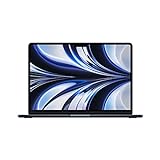
- STRIKINGLY THIN DESIGN — The redesigned MacBook Air is more portable than ever and weighs just 2.7 pounds. It’s the incredibly capable laptop that lets you work, play or create just about anything — anywhere
- SUPERCHARGED BY M2 — Get more done faster with a next-generation 8-core CPU, up to 10-core GPU and up to 24GB of unified memory
- BIG, BEAUTIFUL DISPLAY — The 13.6-inch Liquid Retina display features over 500 nits of brightness, P3 wide color and support for 1 billion colors for vibrant images and incredible detail
- ADVANCED CAMERA AND AUDIO — Look sharp and sound great with a 1080p FaceTime HD camera, three-mic array and four-speaker sound system with Spatial Audio
- VERSATILE CONNECTIVITY — MacBook Air features a MagSafe charging port, two Thunderbolt ports and a headphone jack
Other Linux candidates for older Intel Macs
Debian, antiX, Xubuntu, and Lubuntu are sensible names to investigate when an Intel MacBook needs a less demanding desktop or a conventional Linux environment. Their desktops and default software choices differ, so the practical experience can vary considerably even when two distributions use similar system requirements.
Quick wins for a faster PC:
Fix the driver behind crashes, sound loss and screen glitchesFind Drivers →Repair Windows errors before they cause bigger problemsFix Now →Scan for outdated or missing drivers - takes under a minuteDriver Scan →Available Mac-specific evidence does not support ranking one of these as the best distribution for every generation. The Debian MacBook wiki could not be verified here, and secondary lightweight-distribution comparisons do not establish performance, battery life, Wi-Fi behavior, graphics acceleration, sleep, or firmware compatibility on particular MacBook models. Use these projects as a shortlist, then apply the same live-USB hardware test used for Ubuntu.
How to compare them responsibly
- Confirm that the download image matches Intel x86-64 and that the project documents the Mac’s boot method.
- Prefer a live image when available so you can test without touching the internal disk.
- Use the same checklist for every candidate; otherwise a distribution may seem better simply because fewer features were tested.
- Record failures and recovery steps before installing. A lighter desktop is not useful if the wireless driver or suspend function is missing.
A safe installation workflow
The following sequence works as a decision process for either ChromeOS Flex or Linux, with project-specific differences at the boot and installation steps.
- Inventory the MacBook. Record the model identifier, processor architecture, RAM, storage, and the peripherals you cannot do without.
- Check official compatibility information. For ChromeOS Flex, look for the exact certified model and its feature status. For Linux, read the distribution’s current Mac and architecture instructions. Do not substitute a similar-looking model.
- Make and verify a backup. Copy personal files and confirm that important documents open from the backup. Keep recovery information available before changing partitions.
- Prepare the USB. Use an 8 GB-or-larger drive for ChromeOS Flex; Ubuntu also uses USB installation media. Assume media creation erases the drive and remove unrelated files first.
- Boot externally. On an Intel Mac using Ubuntu’s documented path, hold Option/Alt and select EFI Boot. Follow the target project’s instructions for other images and Apple silicon.
- Run the live test. Check networking, graphics, audio, input, camera, Bluetooth, suspend, battery behavior, storage visibility, and external displays.
- Decide whether failures are acceptable. A nonessential card reader may be tolerable; no Wi-Fi, broken suspend, or unusable graphics usually is not.
- Install only after the result is acceptable. Read every disk and partition screen. An erase-disk choice uses the selected internal drive and destroys its existing contents.
- Keep recovery media and the backup. Do not erase them when the new system first boots. You may need them after a failed update or an unexpected boot change.
Hardware checks that prevent most disappointments
Wireless and Bluetooth
Connect to Wi-Fi from the live session and test the exact networks you use. A desktop that boots but cannot get online may be unable to receive updates or install applications. Pair a Bluetooth keyboard, mouse, headset, or other essential device before installing.
Graphics and external displays
Change resolution and brightness, play a local video, and connect the monitor or projector you depend on. Look for flicker, missing acceleration, or a display that works only after a restart. Older graphics combinations are specifically called out by Google as potentially unsupported or not recommended for ChromeOS Flex.
Trackpad, keyboard, camera, and audio
Test clicking, scrolling, gestures, function keys, the built-in camera, speakers, microphone, and headphone output. These details determine whether a MacBook is practical for meetings and daily work, regardless of how quickly the desktop opens.
Power management
Close the lid, wait, and resume. Check charging and battery reporting. A system that works only while plugged in is not a successful lightweight installation for a portable MacBook.
Rank #4
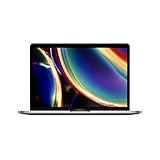
- Touch Bar and Touch ID
- Backlit Magic Keyboard
- Brilliant Retina display with True Tone technology
Security, updates, and application fit
A lighter operating system still needs a maintained update channel. Before installing, identify how the project delivers security updates, how long the release is supported, and how you will recover if an update prevents booting. The live trial cannot answer every maintenance question, so read the project’s current release and recovery documentation.
Match the system to your software. ChromeOS Flex makes the most sense when browser applications cover your work. Ubuntu, Debian, antiX, Xubuntu, and Lubuntu provide a Linux application environment, but the desktop, bundled tools, and troubleshooting burden differ. If a required application is available only for macOS, changing operating systems may remove more capability than it restores.
Free tools Windows power users keep installed
One-click scans. No signup required.
Common mistakes and how to avoid them
- Assuming every old MacBook is supported: verify the exact model and architecture.
- Treating minimum requirements as performance promises: 4 GB RAM and 16 GB storage are ChromeOS Flex minimums, not a guarantee of speed.
- Skipping the live test: booting successfully does not prove that Wi-Fi, audio, graphics, or sleep work.
- Using a USB with valuable files: both ChromeOS Flex media creation and Linux image writing can erase the drive.
- Choosing erase-disk casually: Ubuntu’s erase option applies to the selected internal drive and removes its contents.
- Applying Intel instructions to Apple silicon: M-series Macs need the documented Asahi route or another explicitly compatible project.
- Promising an upgrade without model evidence: do not assume that a RAM, SSD, or battery replacement fits a particular MacBook until that model is identified and the part is verified.
- Relying on an unverified ranking: no available evidence establishes one lightweight Linux distribution as the tested best choice for all MacBook generations.
Which route fits each use case?
You need only a reliable browser
Check ChromeOS Flex certification first. If the Intel MacBook is certified and the live USB test passes, Flex is the most focused option. If it is uncertified or a needed device fails, test Ubuntu or another Linux candidate instead.
You want a conventional Linux desktop
Start with Ubuntu’s Try Ubuntu session, then compare a lighter desktop candidate using the same hardware checklist. Install only after networking, graphics, input, audio, and suspend meet your needs.
You own an M-series MacBook
Begin with the current Ubuntu Asahi documentation and its model-specific support information. Do not use the Intel procedure as a shortcut, and retain macOS until the features you depend on are confirmed.
You are repairing an unknown hand-me-down MacBook
Identify the model before selecting an image or buying parts. A verified backup, a temporary USB boot, and a written hardware checklist cost less than recovering from an incorrect disk installation.
Do these 3 things before closing this tab:
1Repair Windows errors before they cause bigger problems2Scan for outdated or missing drivers - takes under a minute3Clear out junk files and repair common Windows errorsFrequently asked questions
Can I make the installer on a USB drive I already use?
Only if you have copied everything from it first. ChromeOS Flex requires an 8 GB-or-larger USB drive and erases its contents while creating installation media; Linux image-writing tools likewise overwrite the target media.
Best Value
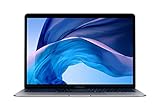
- Stunning 13.3-inch Retina display
- Touch ID and the latest Apple-designed keyboard
- Dual-core 8th-generation Intel Core i5 processor with Intel UHD Graphics 617
- Fast SSD storage and 8GB memory
- Stereo speakers with wider stereo sound
Does ChromeOS Flex work on Macs with less than 4 GB of RAM?
Google lists 4 GB of RAM and 16 GB of internal storage as baseline requirements for the target device. A configuration below a published minimum is outside that baseline and should not be presented as supported.
Is Ubuntu Asahi officially supported by Canonical?
No. Ubuntu’s guide directs M-series users to the community Ubuntu Asahi project and says Canonical does not support it. Support and hardware coverage depend on the specific machine and project release.
What should I do if the live USB has no Wi-Fi?
Stop before installing, record the exact MacBook model and adapter behavior, and check the distribution’s current hardware notes or a different candidate. Installing first will not make an unrecognized adapter reliable.
Recommended Free Tools
Can I claim that a lightweight operating system will make the MacBook faster?
No universal speed increase is established by the available requirements. Responsiveness depends on the MacBook’s processor, memory, storage health, graphics, workload, and the drivers supplied for that model. Treat the live session as your own compatibility and usability test.
Frequently Asked Questions
Can I make the installer on a USB drive I already use?
Only after copying everything from it elsewhere. ChromeOS Flex requires an 8 GB-or-larger drive and erases its contents during media creation; Linux image writing can also overwrite the target drive.
Does ChromeOS Flex work on Macs with less than 4 GB of RAM?
Google lists 4 GB of RAM and 16 GB of internal storage as baseline target-device requirements. Below those figures is outside that published baseline.
Is Ubuntu Asahi officially supported by Canonical?
No. Ubuntu directs M-series users to the community Ubuntu Asahi project and states that Canonical does not support it.
What’s actually slowing this PC down?
Pick the symptom - the matching free tool is one click away.
What should I do if the live USB has no Wi-Fi?
Do not install yet. Record the exact MacBook model and check the distribution’s current hardware notes or test another candidate.
Quick Recap
Product prices and availability are accurate as of the date/time indicated and are subject to change. Any price and availability information displayed on Amazon at the time of purchase will apply.

