The Tool Desk
Outbyte Driver Updater FREEScan for outdated or missing drivers - takes under a minuteDriver Scan →Outbyte PC Repair FREEClear out junk files and repair common Windows errorsFree Scan →There is no single best 3D printer for every child. A buyer’s guide reviewed July 9, 2026, points to three useful starting points: Toybox for a simplified, child-focused experience; the Bambu Lab A1 mini for older children ready to learn more general-purpose 3D printing with close adult supervision; and the FlashForge Adventurer 5M Pro when an enclosed machine is preferable for a classroom or shared space.
Those are shortlist candidates, not laboratory-tested winners. The right choice depends on the child’s maturity, how much setup an adult will handle, whether the printer is open or enclosed, what the child wants to make, room ventilation, and the support available where you live. Confirm the current model generation, price, stock, warranty, age labeling, materials guidance, and any filtration specification before buying.
As an Amazon Associate I earn from qualifying purchases.
Quick answer: the best kids’ 3D printer depends on the use case
| Printer | Best fit described by the reviewed guide | What stands out | Important limitation |
|---|---|---|---|
| Toybox | Young children who need a highly simplified workflow | Child-oriented app and catalog workflow; enclosed design; small build area | Verify the current build area, configuration, age labeling, and safety information with the manufacturer |
| Bambu Lab A1 mini | Older children who want a general-purpose family printer | Automated setup, open-frame design, and access to a model library | Hot and moving components remain accessible; adult supervision is essential |
| FlashForge Adventurer 5M Pro | Classrooms and shared-use settings | Enclosure, classroom-oriented interface, and stated filtration | Check the exact filtration specification and current configuration; an enclosure or filter does not prove zero exposure |
Use the table as a starting shortlist rather than a ranking. The guide’s model judgments are secondary-source recommendations, and the manufacturer pages were not inspected for this article. A current product page or manual should settle details that can change between revisions or regions.
Quick wins for a faster PC:
Fix the driver behind crashes, sound loss and screen glitchesFind Drivers →Repair Windows errors before they cause bigger problemsFix Now →Scan for outdated or missing drivers - takes under a minuteDriver Scan →What “for kids” should mean when you shop
“For kids” describes a use case, not a guarantee that a machine is safe to operate without an adult. Every filament printer has a hot nozzle or heated bed, moving mechanisms, electrical parts, and software that can fail. An open-frame design makes those components easier to reach. An enclosure can reduce direct access to the hot zone, but it does not remove the need for supervision, ventilation, or safe procedures.
#1 Best Overall

- 【Easy Start – Beginner Friendly 3D Printer】Tina2C mini 3d printer is designed for first-time users, with guided setup through the Poloprint Cloud app. Fully optimized for beginners, it allows users to start their first 3D print in as fast as 8 minutes, making 3D printing simple, fun, and frustration-free.
- 【AI Creativity & STEM Learning 3D Printer】Powered by the Poloprint Cloud app, users can access AI-powered search, photo-to-print features, and 25+ creative modules. With regularly updated STEM learning courses and interactive tools, this mini DIY 3d printer turns creativity into an engaging learning experience for beginners and families.
- 【WiFi & Offline Printing Flexibility】Mini 3d printer Tina2C supports both 2.4G WiFi printing and TF card offline mode, giving users flexible ways to create anytime. Users can print directly from the app or slice models from online platforms, making it easy to adapt to different learning and creative workflows.
- 【Self-Cleaning Nozzle & Easy Maintenance】Flexible magnetic build plate allows easy model removal with a simple bend. The improved nozzle design enhances print consistency, while the quick-swap printhead structure makes maintenance simple even for first-time users, reducing downtime and failed prints.
- 【Auto Leveling & Easy Printing】Intelligent auto-leveling reduces manual bed adjustment and helps ensure better first-layer adhesion. Combined with power-loss recovery, the printer helps users continue prints after interruptions, improving success rate and reducing material waste.
Age bands in buying guides are practical suggestions, not regulator-set operating ages. A child’s ability to follow instructions, keep hands away from moving parts, recognize a failed print, and ask for help matters more than a birthday cutoff. An adult should perform installation, loading, nozzle or bed maintenance, and any troubleshooting involving heat, sharp tools, or wiring.
Choose the printer around the child’s actual project
Young beginners who mainly want to pick a design and print it
Toybox is the most child-focused option in the reviewed shortlist. Its app and catalog workflow are intended to reduce the number of technical decisions between choosing a design and starting a print. The guide places it in an approximate five-to-eight age band. Treat that band as guidance only: an adult still needs to create the account or profiles, load material, check the first layer, and remain nearby while the machine operates.
The guide describes Toybox as enclosed and having a small build area. That combination can suit a child making small figures, simple nameplates, or other modest objects in a bedroom, family room, or makerspace. A small build area becomes a constraint when the child wants helmets, large vehicles, multi-part costumes, or several classroom projects at once, so inspect the current dimensions before purchase.
Children ready to learn design, slicing, and troubleshooting
The Bambu Lab A1 mini is described as a more general-purpose family option for roughly ages eight to twelve. Its automated setup can reduce calibration work, while the open frame makes the mechanism visible and easier to understand. It also leaves room for a child to progress from selecting models to editing designs and learning why a print succeeds or fails.
That openness is also the principal safety trade-off. The child can reach parts that become hot or move during operation. An adult should start and supervise prints, establish a no-touch boundary, and take responsibility for maintenance. The A1 mini’s model-library access is useful for beginners, but a library file is not automatically appropriate for a child or safe as a toy; inspect the design and material choices.
One machine shared by a class, club, or family
The FlashForge Adventurer 5M Pro is the reviewed guide’s enclosed option for classroom or shared use. An enclosure can make it easier to control access when many students are present, and a dedicated interface may simplify repeatable operation. The guide also mentions stated filtration.
Before relying on that feature, read the current manufacturer specification for the filter type, replacement interval, and the conditions under which it is expected to work. Neither an enclosure nor a built-in filter demonstrates that emissions are eliminated. Place the machine in a room with appropriate ventilation and create a checkout or supervision system so students do not open the enclosure or handle hot parts.
Crashes, No Sound, or Screen Glitches?
Random freezes, missing sound and display glitches usually trace back to one bad driver. Find and replace yours safely.Free scan · under a minuteWindows Errors? Fix Them Before They Spread
Repair common Windows errors and clear accumulated junk for a smoother, more stable PC - no reinstall needed.Free scan · no reinstallCompare workflow before headline specifications
For a child, the practical workflow determines whether the printer becomes a learning tool or an unused appliance. Evaluate these steps in order:
- Design source: Can the child choose from a curated catalog, download models from a library, or create original designs in a CAD tool?
- Preparation: Who slices the model, selects supports, checks orientation, and confirms the material profile?
- Calibration: Does the machine automate initial setup, or will an adult need to level a bed and tune settings?
- Monitoring: Can an adult quickly see the first layer and stop a failed print?
- Finishing: What tools are needed to remove supports, smooth edges, or detach a print?
- Learning path: Does the workflow leave room for the child to learn CAD, measurement, and troubleshooting rather than only pressing “print”?
Libraries such as MakerWorld, Printables, and beginner CAD tools such as Tinkercad are examples of ways to supply models and teach design. Availability, licensing, account requirements, and age policies can change, so check them directly. A model file should be reviewed for sharp points, fragile parts, and small detachable pieces before a child uses it.
Rank #2

- One-Click Automatic Printing: Experience hassle-free 3D printing with the Adventurer 5M Series. Enjoy automatic bed leveling for flawless first layers, ensuring consistent adhesion and saving time with no manual adjustments required.
- 12X Ultra Fast Printing: Featuring a CoreXY structure with 600mm/s travel speed and 20000mm/s² acceleration, the AD5M maximizes efficiency, reduces production cycles, and ensures high precision, making it ideal for rapid prototyping and mass production.
- Smart and Efficient Design: Quick 3-second nozzle changes, a high-flow 32mm³/s nozzle, and fast 35-second warm-up to 200°C deliver stable high-speed printing. Its dual-sided PEI platform and versatile options provide easy removal and adaptability for various creative projects.
- Superior Print Quality & Adaptability: Combines a 280°C direct drive extruder with dual-fan cooling and vibration compensation. Includes a standard 0.4mm nozzle and accepts optional sizes from 0.25mm to 0.8mm to fit various printing needs.
- Real-Time App Monitoring: Monitor print progress, adjust settings, and receive instant status alerts remotely with the Flash Studio. Smart mobile control ensures a seamless, effortless printing experience anytime, anywhere.
Open frame or enclosure?
An open frame offers visibility and often makes it easier to watch the nozzle and understand how the machine works. It also leaves the hot nozzle, heated bed, belts, and moving gantry more accessible. This design demands a clear workspace, a physical “do not touch while printing” rule, and an adult who can stop the job if the child approaches.
An enclosure can limit casual access and help contain some heat and odors, which is valuable in a shared room. It does not make the printer risk-free: doors can be opened, hot parts remain hot after a print, and emissions can escape when the enclosure is opened. An enclosure is a risk-control feature, not proof of safe exposure levels.
Do these 3 things before closing this tab:
1Fix the driver behind crashes, sound loss and screen glitches2Repair Windows errors before they cause bigger problems3Scan for outdated or missing drivers - takes under a minuteFDM and resin are different choices for children
FDM filament printing
Fused deposition modeling (FDM) melts solid filament and lays it down in layers. It is the process used by the three models in the shortlist. FDM avoids liquid-resin handling, but melting plastic can release fumes and particles. The CPSC staff report says more work is needed to characterize those emissions, so do not promise that a particular filament produces no fumes.
Use the material and temperature range specified for the printer, provide appropriate room ventilation, and keep children away from the nozzle and heated bed. If an adult notices unusual smoke, strong odor, grinding, or a failed print spreading material, stop the job, switch off the machine according to its instructions, ventilate the room, and investigate before printing again.
Resin printing
Resin systems add handling and post-processing steps. Liquid resin can contact skin, and the process can produce fumes from resin and from alcohol used during washing. Curing, washing, spill control, storage, and waste disposal all require procedures and protective equipment. Those demands generally make resin a poor first printer for unsupervised children.
The FDM-versus-resin decision is therefore about the whole workflow, not just surface detail. Unless an experienced adult can control every handling and cleanup step, choose an FDM machine and follow its ventilation and material instructions.
What the safety evidence actually establishes
The most authoritative evidence in the reviewed material is a U.S. Consumer Product Safety Commission staff report dated September 2022, Lifecycle Evaluation of 3D Printers. It was cleared for public release but explicitly marked as not reviewed or accepted by the Commission. It should be presented as staff testing and analysis, not as a Commission certification of any printer.
In the staff’s sample testing, printed products met the cited federal lead and phthalate limits, and no migratable heavy elements were found above applicable regulation limits. In some use-and-abuse tests, however, printed products liberated small parts. Staff also warned that incorrect materials or print parameters can make a children’s product less durable and less safe.
Those findings do not certify every printer, filament, model, or printed toy. A design that survives on one machine may fail when printed with a different layer height, infill, temperature, orientation, or material. Treat every printed object as a prototype until an adult has checked its strength, edges, pinch points, and detachable parts.
Rank #3
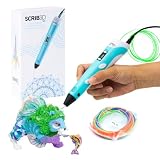
- [A GIFT FOR THE WHOLE FAMILY] Create, Draw, Doodle, and Build in 3D with this affordable yet high grade 3D pen. The new SCRIB3D P1 3D Pen helps improve spatial thinking, creativity and artistic skills. Great for quality family time and as a practical tool for making handmade gifts or decorations, or for everyday fixes around the home. The P1 Pen features a stepless speed function designed for optimal speed control no matter the task - whether slower intricate projects or faster infill work.
- [READY-TO-USE KIT] Includes 3 colors (30 feet) of PLA plastic to keep you Doodling for ages, as well as a power adapter, step-by-step manual, and a free stencil guide. Just plug in, heat it up and enjoy the fun of creating three-dimensional masterpieces. PLA is a versatile, easy-to-use printing plastic that is great for both first time and advanced users.
- [BEGINNER FRIENDLY] Plug the adapter into the back of the pen and choose your filament. The red light will turn on indicating warm up, this will take about 2-3 mins. Double click the forward button to start and feed the filament through the back of the pen. Once the filament has reached the nozzle of the pen, click forward to stop. Press and hold the forward button or double click for a continous flow. Once you have completed your design, press and hold the reverse button to retract filament.
- [MULTI-FUNCTIONAL] The SCRIB3D P1 Pen is temperature adjustable to accommodate multiple types of filament: PLA (160-210℃, 320-410°F) or ABS (210-235℃, 410-455°F). Unlike other 3D printing pens, the P1 has an easy-to-use stepless speed slider, designed for optimal speed adjustment. Perfect for any task, from slow & intricate projects to faster infill work.
- [SAFE & RISK FREE PURCHASE] The P1's ceramic nozzle and premium motor ensure safety and high performance without clogging. Equipped with 2 minute auto sleep function after 3D doodling stops, anti clogging features, and intititve controls ensure a seamless Doodling experience. 1 year guarantee and responsive customer service. Buy with 100% confidence. If there are any quality issues or you need getting started tips, please feel free to contact us and we'll be happy to help.
“Staff has not reached a conclusion whether any foreseeable consumer exposures during use of 3D printers or 3D printed products would result in a substantial risk of serious illness or injury.”
Recommended: PC Feels Slow? A Free Scan Shows What's Dragging Windows Down →Recommended: Crashes or Glitches? A Free Driver Scan Usually Finds the Culprit →Special offer. See more information about Outbyte and uninstall instructions. Please review EULA and Privacy policy.— CPSC staff, September 2022, Lifecycle Evaluation of 3D Printers
The report says appropriate ventilation can mitigate fumes, but it does not establish a universal safe exposure level for home or classroom printing. Plan the room and supervision accordingly.
Is PLA automatically safe for children?
PLA is a common FDM filament and is often chosen for beginner projects because it is easy to print. That does not make every PLA product non-toxic, risk-free, or suitable for mouthing. Additives, pigments, print temperatures, contamination, and the finished design all matter. The CPSC staff report specifically indicates that emissions from printing require further characterization.
Use filament from a traceable source, follow the printer’s temperature and storage instructions, and keep spools and scraps away from young children and pets. Do not make pacifiers, food-contact utensils, medical devices, or other safety-critical objects unless the relevant standards and material requirements have been independently established. A fun printed object is not automatically a compliant toy.
Free tools Windows power users keep installed
One-click scans. No signup required.
Build volume, footprint, and room placement
Build volume determines the largest single piece a printer can produce and how many parts fit in one job. A small machine can be easier to place and less intimidating for a young child, but large projects must be split into pieces and joined later. Ask what the child actually wants to make during the next year rather than buying for an imagined project.
Measure the printer’s footprint with room for the power cable, spool, ventilation, and access to the front or door. Keep it on a stable, nonflammable surface away from curtains, heaters, sinks, and high-traffic walkways. In a classroom, leave enough clearance for an adult to reach the power switch without reaching over a hot machine.
Independent reader supportYour contribution helps us test, update, and keep practical guides available for everyone.Costs and ownership decisions
Exact prices were not established reliably enough to publish as current figures. They vary by country, sales period, bundle, and model revision. Check the local manufacturer or retailer listing on the day you buy, and include more than the printer itself in the budget.
- Compatible filament and sealed storage for unused spools
- Replacement nozzles, build surfaces, or other wear parts specified by the manufacturer
- Basic tools required by the printer’s instructions, such as a scraper or cutters where approved
- Ventilation improvements or a suitable room location
- Shipping, taxes, warranty service, and support availability in your region
- Time for failed prints, maintenance, and adult supervision
Do not buy a “starter kit” solely because it contains many tools. Use only tools listed in the selected printer’s instructions, and store sharp implements where children cannot access them.
What’s actually slowing this PC down?
Pick the symptom - the matching free tool is one click away.
Rank #4

- [NOTE] PLA comes in multiple colors, but this printer supports single-color printing only. Multi-color designs can be created by printing separate parts and assembling them
- A Home Toy Factory with Endless DIY Fun: This mini 3D printer brings a toy factory home, helping families make new toys without extra store trips. With access to 12,000+ human-reviewed and print-tested models across 17 fun-themed design modules, kids can create age-appropriate characters, accessories, decorations, and DIY projects right at home. It’s a smart long-term educational gift that inspires creativity and keeps kids engaged
- AI-Powered Creativity Made Simple: This AI 3D printer lets kids bring their imagination to life. With AI Doodle, children can create custom 3D models using voice, text, or image prompts—no design skills required. AI MiniMe transforms photos into fun cartoon-style 3D figures, while MINIMAKIE enables kids to design personalized avatars, DIY toys, and unique creations. A built-in AI assistant provides guidance for a smooth and enjoyable creative experience
- Easy, Safe One-Tap Printing: Designed as a 3D printer for kids, it makes every project simple. Kids can print with one tap in the app, while parents can feel confident with its enclosed, pinch-resistant design, quiet operation, leveling-free platform, and TÜV Rheinland ISO 16000-tested PLA for a safer, kid-friendly choice in home 3D printing. Fast Wi-Fi, voice control, and iOS, Android, and Windows compatibility make creative projects easier, smoother, and more fun
- Fast, Precise Printing with Smart Detection: This 3D printer delivers precision up to 0.05 mm and upgraded speeds of 220–250 mm/s, with peaks up to 400 mm/s. Small toy projects can be completed in as little as 20 minutes, helping kids stay excited from idea to finished creation. A quick-release nozzle makes filament changes easier, while filament runout detection automatically pauses printing to help prevent failed prints
A practical buying checklist
- Child and supervision: Can the child follow a stop rule and stay away from hot or moving parts? Who will supervise every print?
- Construction: Is an open frame acceptable in the intended room, or is an enclosure useful for shared access?
- Workflow: Does the child need a catalog and app, automated setup, or a path into CAD and slicing?
- Materials: Which filaments are approved by the manufacturer, and what ventilation does the manual require?
- Capacity: Is the build area large enough for the child’s actual projects without consuming the whole workspace?
- Support: Are spare parts, manuals, warranty service, and technical support available locally?
- Evidence: Are age, enclosure, filtration, and safety claims backed by current documentation rather than a retailer headline?
- Printed-object use: Could a design break into small parts, create sharp edges, or be mistaken for a certified toy?
Safe setup for a first print
- Choose the room: Select a stable surface with appropriate ventilation and no nearby flammable clutter. Keep the printer out of unsupervised reach.
- Read the current manual: Confirm the model generation, approved materials, electrical requirements, and emergency stop or power-off procedure.
- Install updates and profiles: An adult should perform software setup, firmware updates, and the initial material profile.
- Inspect the machine: Check cables, the build surface, belts, doors, and moving paths before powering on.
- Prepare a simple model: Start with a small, non-fragile object that has no sharp points or detachable parts.
- Load material as instructed: Keep hands away from the hot end and follow the manufacturer’s loading and unloading sequence.
- Watch the first layer: Remain present until adhesion and extrusion look normal. Stop if material curls, drags, smears, or accumulates.
- Wait for cooling: Do not let a child remove a print until the machine indicates it is safe and the hot components have cooled.
- Inspect the result: Look for weak layers, sharp edges, loose fragments, and parts that could detach under normal handling.
- Store materials and tools: Seal filament as directed and return cutters, scrapers, and cleaning supplies to adult-controlled storage.
Troubleshooting branches an adult should handle
The first layer will not stick
Pause the print and check that the build surface is clean, correctly installed, and at the temperature specified for the material. Confirm the printer’s calibration or automatic setup has completed. Do not press the child’s hands near the nozzle while trying to correct adhesion.
The print becomes a loose nest of filament
Stop the job rather than allowing material to accumulate around a hot nozzle. Check whether the model detached, whether the surface needs cleaning, and whether the selected profile matches the filament. Remove cooled material only with the tools and procedure in the manual.
The machine makes unusual noise or movement
Use the prescribed stop or power-off control. Keep the child clear until the machine is motionless and cool. An adult should inspect for an obstruction, loose component, or software problem; contact support if the cause is not obvious.
A print breaks into small pieces
Do not give it to a young child. Reassess the model’s wall thickness, orientation, infill, material, and print parameters. A stronger reprint is not automatically a safe toy; inspect the revised object and keep small parts away from children who might mouth them.
Making a classroom or club printer manageable
Shared use requires a process, not just an enclosed machine. Assign one trained adult to approve models and materials, maintain the printer, and control access to tools. Use a sign-up queue, a visible “printing” indicator, and a rule that students do not open doors or remove objects without permission.
Keep a log of material type, model file, settings, operator, and any failure. This makes it easier to identify a bad profile or recurring mechanical problem. Teach students to design around age-appropriate objects and to distinguish a successful print from a product that meets toy-safety requirements.
When the shortlist is not enough
Choose a different model category if the child’s needs fall outside these three use cases. A larger-format printer may be justified for repeated full-size parts, while a machine with stronger access controls may suit a high-traffic school laboratory. Conversely, if an adult cannot provide ventilation, supervision, and maintenance, postponing the purchase is safer than choosing a machine solely because it is marketed to children.
Before committing, verify the exact model name and generation, current price and stock, warranty, support channels, compatible materials, age information, enclosure construction, and filtration details. Those checks are especially important because the shortlist comes from one reviewed buying guide rather than comparative laboratory testing.
Recommended Free Tools
Bottom line
For a young child who mainly wants an easy catalog-to-print experience, start by investigating Toybox. For an older child whose family can supervise an open machine and who wants to grow into design and troubleshooting, investigate the Bambu Lab A1 mini. For a classroom or shared room where limiting casual access is a priority, investigate the enclosed FlashForge Adventurer 5M Pro. In every case, make the decision on supervision, ventilation, workflow, and the child’s real projects—not on the word “kids” or a claim that any printer is automatically safe.
Quick Recap
Product prices and availability are accurate as of the date/time indicated and are subject to change. Any price and availability information displayed on Amazon at the time of purchase will apply.

