For the LG UltraGear OLED 27GS93QE-B, LG’s documented brighter-picture setup is: turn off Smart Energy Saving, select Gamer 1, set Brightness to 100, and set Peak Brightness to High. That is a maximum-brightness suggestion for this specific model, not a universally ideal preset for every UltraGear OLED, room, game, or user. LG also warns that the brighter choices can increase power consumption and that display burn-in may occur. Set refresh rate to the highest value supported simultaneously by your exact monitor, connection, computer or console, and graphics hardware. For HDR, use the monitor’s model-specific manual together with your platform’s HDR instructions; an HDR certification label alone does not define a universal setup sequence.
The settings to use first
If you own the 27GS93QE-B and want the brightest image LG documents, open the monitor’s on-screen controls and apply the following four choices:
As an Amazon Associate I earn from qualifying purchases.
- Turn off Smart Energy Saving.
- Set Game Mode to Gamer 1.
- Set Brightness to 100.
- Set Peak Brightness to High.
These are LG’s instructions for a brighter picture on the 27GS93QE-B, reproduced from its product guidance at LG’s 27GS93QE-B product page. They are not a promise that every UltraGear OLED has the same menu names or controls. LG says the brighter options may use more electricity and warns that display burn-in may occur, so use them as a deliberate trade-off rather than an automatic “best for everyone” profile.
For refresh rate, choose the highest rate that the exact monitor, input connection, computer or console, and graphics hardware can all support reliably. LG lists 240 Hz for the 27GS93QE-B and for the named 32GS95UE, 39GS95QE, and 34GS95QE models, but that figure must not be treated as a guarantee for the entire UltraGear OLED range.
#1 Best Overall

- LG UltraGear OLED Goes Glossy - Experience ultra-smooth, tear-free gameplay with up to 240Hz refresh rate and 0.03ms response time on a glossy, bright 27” QHD OLED display. React instantly, spot every detail, and outpace your opponents in every frame with outrageous speed and clarity.
- Next-Level OLED Brightness, for Next-Level Play - The brilliant OLED display brings every scene to life with jaw-dropping color and intensity. Delivering a standard 275 nits of brightness and peaking at 1300 nits, your games shine with vivid clarity—keeping dark corners detailed, explosions dazzling, and the action always visible no matter the environment.
- VESA DisplayHDR True Black 400 - An OLED display with VESA DisplayHDR True Black 400 and a 1.5M:1 contrast ratio deliver deep blacks and dazzling highlights, so you catch every hidden detail in dark scenes and every spark in the bright ones. With up to 98.5% DCI-P3 color, your worlds burst with vibrant intensity—making every game feel more alive.
- Three UL Certifications. One Clear Advantage for Eye Comfort. - This UltraGear OLED display is three times UL-certified—for Anti-Glare, Flicker-Free, and Low Blue Light. Combined with a glossy finish, the display helps reduce distractions, keep your view crisp, and maintain visual comfort—so you can stay focused and perform at your best, even during extended gaming sessions.
- 27” OLED Brilliance with up to 240Hz of Game-Changing Speed - Experience ultra-smooth, tear-free gameplay with up to 240Hz refresh rate on a glossy, bright 27” QHD OLED display.
HDR requires a separate decision. The 27GS93QE-B is identified by LG as DisplayHDR True Black 400, but certification describes a display capability; it does not supply a universal monitor-menu and operating-system sequence for every model and source device.
Identify the exact UltraGear model before changing anything
UltraGear OLED monitors share a gaming-oriented product family name, not one universal firmware interface. Before following a setting guide, read the model number from the rear label or from the monitor’s on-screen information panel. Record the complete suffix as well as the series number; a setting documented for one model should not automatically be copied to another.
Why the model number matters
- Menu labels such as Smart Energy Saving, Gamer 1, or Peak Brightness are not established as universal across the family.
- Maximum refresh rate varies by model and by the connected input path.
- HDR certification and brightness specifications are model-specific.
- A computer, console, cable, or graphics output can impose a lower limit than the monitor’s headline specification.
Keep the monitor manual for that exact model open while working. If a label in this article is missing, do not substitute a similarly named control or assume that a different UltraGear OLED uses the same logic.
Recommended Free Tools
Brightness: the LG-documented maximum-brightness setup
Apply the four settings on the 27GS93QE-B
- Open the monitor’s on-screen display.
- Locate the power-saving control and turn off Smart Energy Saving. LG’s wording is “Turn off the Smart Energy Saving mode.”
- In the game or picture mode controls, choose Gamer 1. LG’s wording is “Set Game Mode as Gamer 1.”
- Set Brightness to 100.
- Set Peak Brightness to High.
- Apply the changes, then view a bright and a dark scene at the distance and room lighting in which you normally play.
The four choices are a brightness-maximizing recipe specifically documented for the 27GS93QE-B. They should not be presented as a family-wide calibration standard. LG’s page also identifies the display as DisplayHDR True Black 400 and lists a 240 Hz maximum refresh rate for this model: LG 27GS93QE-B specifications and guidance.
Understand the trade-off before leaving Brightness at 100
A brighter image is useful when daylight or strong room lighting makes dark scenes difficult to read. It can be uncomfortable in a dim room, however, and a high setting is not automatically more accurate or more restful. LG explicitly says the brighter options may increase power consumption and that display burn-in may occur. Those warnings belong with the preset whenever you share it or save it as a profile.
Use the brighter recipe when visibility is the priority, then reduce the setting if the image is uncomfortable. Do not claim that Brightness 100 is the correct comfort level, color-accurate level, or long-term-longevity level for every owner; the available LG guidance establishes only that it is part of the company’s brighter-picture suggestion for this model.
What to do when a control is missing
- Smart Energy Saving is not listed: verify the complete model number and consult that model’s manual. Do not assume another energy setting has the same behavior.
- There is no Gamer 1 mode: use the exact model documentation instead of renaming another picture preset.
- Peak Brightness has different choices: treat the available labels as model-specific; the documented High setting applies to the 27GS93QE-B guidance.
- The picture does not look as bright as expected: check the selected input and platform mode, then remember that manufacturer specifications and product-page images are not independent measurements of every scene.
Brightness numbers: what can and cannot be compared
LG publishes different brightness figures for different UltraGear OLED models. They are specifications for the named products, not a family-wide promise.
Rank #2
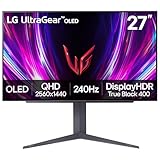
- 240Hz Refresh Rate - Gear up for smooth gameplay with an ultra-fast 240Hz OLED display. The faster speed lets you respond quickly to opponents and stay a step ahead of the competition. Plus, enjoy smoother scenes with less lag or ghosting thanks to LG UltraGear OLED's nearly instantaneous 0.03ms (GtG) response time.
- VESA DisplayHDR True Black 400 & 1.5M:1 contrast ratio - VESA DisplayHDR True Black 400 certified means this monitor meets industry standards for brightness as well as deep, rich black color expression. With a 1.5M:1 contrast ration, the benefit for gaming impeccable color and image detail in dark scenes for a stunning visual experience.
- NVIDIA G-SYNC Compatible and AMD FreeSync Premium Pro - Officially validated by NVIDIA as G-SYNC Compatible and equipped with AMD FreeSync Premium Pro means this UltraGear provides smooth, fast action that reduces screen tearing and stutter. Never miss a frame of the action as you clinch your victories.
- Anti-Glare / Low Reflection OLED - Play with less distractions thanks to an anti-glare screen that minimizes light reflections and lets you concentrate on winning.
- 2 Year UltraGear OLED Warranty - Game with peace of mind. This UltraGear OLED gaming monitor is protected by a two year limited warranty covering internal and functional parts and labor, including OLED Display Panel. See Warranty Information on this page for all warranty details.
| Model | Brightness information in the cited LG material | How to use the figure |
|---|---|---|
| LG UltraGear OLED 27GS93QE-B | LG documents the Brightness 100 and Peak Brightness High choices for a brighter picture. The page identifies DisplayHDR True Black 400. | Use the four-step brighter setup only as model-specific guidance. Do not transfer its controls to another model without checking that model’s manual. |
| LG UltraGear OLED 45GS96QB-B | 275 nits standard luminosity and up to 1300 nits peak brightness, as stated on LG’s product page. | These are specifications for the 45GS96QB-B. They are not a standard or peak value for all UltraGear OLED monitors. |
LG notes that images on its product pages may be simulated. Treat the listed values as manufacturer specifications, not independent laboratory measurements or a guarantee that every scene will reach the peak figure. The model-specific figures and caveat are published on LG’s 45GS96QB-B product page.
HDR: certification is not a complete setup recipe
What DisplayHDR True Black 400 tells you
For the 27GS93QE-B, LG identifies DisplayHDR True Black 400. That label tells you the monitor has been presented as meeting that HDR-class capability. It does not tell you which HDR switch to use in a particular operating system, game, console dashboard, or monitor firmware, and it does not establish one calibration sequence for every UltraGear OLED.
Use the monitor manual and source-device instructions together
- Confirm the exact monitor model and open its current manual or support documentation.
- Connect the monitor through an input and system configuration that your platform identifies as HDR-capable.
- Use the computer or console’s display settings to enable HDR according to that platform’s instructions.
- Check the monitor’s own picture or game controls for model-specific HDR behavior, following the labels and order in its manual.
- Launch HDR content and adjust only the controls documented for that model and source. If the platform reports that HDR is unavailable, troubleshoot the connection and output capability before changing unrelated picture controls.
No universal toggle path or calibration sequence is established for the entire UltraGear OLED family in the available LG material. Avoid telling readers to copy a Windows, console, or monitor sequence from another model as if it were official for theirs.
HDR problems and the safest response
- HDR is not offered: verify the model, input, platform output setting, and graphics hardware against the relevant manuals.
- HDR appears but looks wrong: return to the exact monitor and platform instructions, and confirm that the intended HDR mode is active rather than a similarly named SDR game preset.
- One game looks different from another: do not infer a panel fault from a single title; game and platform handling can differ, so check each title’s documented HDR controls.
- You are comparing two models: compare their stated certification and model-specific specifications, not a certification label alone.
Refresh rate: select the highest rate your whole setup supports
240 Hz is model-specific, not family-wide
LG lists a 240 Hz maximum refresh rate for the 27GS93QE-B. A separate LG specification table lists a 240 Hz maximum for the 32GS95UE, 39GS95QE, and 34GS95QE. The table lists two HDMI 2.1 inputs and one DisplayPort 1.4 input for those named models. See the published table at LG’s UltraGear specification PDF.
What’s actually slowing this PC down?
Pick the symptom - the matching free tool is one click away.
Those entries establish the figures for the named models; they do not prove that every UltraGear OLED reaches 240 Hz or that every connector on every model does so. The usable setting is the highest rate supported at the same time by the monitor, selected input, cable and connection mode, computer or console, and graphics hardware.
Set and verify the rate
- Read the monitor’s exact model specification and identify the input you are using.
- Confirm the maximum output rate of the connected computer, console, and graphics hardware for that input and resolution.
- Connect through the supported input path and open your platform’s display settings.
- Select the highest refresh-rate value the platform actually offers for the monitor’s current resolution.
- Apply the setting and verify that it remains active after restarting the game or application.
If 240 Hz is not offered, do not force it by assuming the product label guarantees it. A lower value may be the correct result for the particular monitor, input, resolution, system, or connection.
Refresh-rate troubleshooting
- The monitor is capped below its advertised maximum: check the exact model, input specification, graphics output, and selected resolution.
- The high rate disappears after changing inputs: treat each input path as a separate capability and recheck the model documentation.
- The platform offers several rates: select the highest one that the complete setup supports reliably rather than copying another owner’s number.
- You are comparing product pages: record whether the figure is a maximum specification and which models and inputs LG names.
A model-by-model comparison of the cited specifications
| Model or group | Maximum refresh rate | HDR information | Brightness information | Inputs listed in the cited material |
|---|---|---|---|---|
| 27GS93QE-B | 240 Hz maximum, according to LG. | DisplayHDR True Black 400. | LG’s brighter-picture choices: Smart Energy Saving off, Gamer 1, Brightness 100, Peak Brightness High. | Not stated in the cited product-page material. |
| 45GS96QB-B | Not stated in the cited brightness-focused product-page material. | Not stated in the cited material. | 275 nits standard; up to 1300 nits peak. | Not stated in the cited material. |
| 32GS95UE | 240 Hz maximum in LG’s specification table. | Not stated in the cited table. | Not stated in the cited table. | HDMI 2.1 x2; DisplayPort 1.4 x1. |
| 39GS95QE | 240 Hz maximum in LG’s specification table. | Not stated in the cited table. | Not stated in the cited table. | HDMI 2.1 x2; DisplayPort 1.4 x1. |
| 34GS95QE | 240 Hz maximum in LG’s specification table. | Not stated in the cited table. | Not stated in the cited table. | HDMI 2.1 x2; DisplayPort 1.4 x1. |
“Not stated” means the cited source does not establish that cell. It is not evidence that the monitor lacks the feature. Check the complete product page and manual for the exact regional model before buying or configuring it.
Rank #3

- World's First 5K2K OLED Gaming Monitor - Gaming like never before with the world's first 5K2K WUHD (5120 x 2160) resolution on a massive 45” curved OLED screen. This unparalleled clarity on an ultra-wide aspect ratio pulls you deep into the action, surrounding you with stunning visuals and astounding detail. Perfect for epic battles or cinematic adventures, this UltraGear is your window to ultimate gaming perfection.
- 125 PPI: Sharp Text Clarity with Reduced Color Fringe - Designed with an updated subpixel layout, the 5K2K UltraGear OLED screen reduces color fringing for sharper, clearer text. 125 pixels per inch (PPI) is perfect for both work and play: crisp text clarity paired with bold, vivid visuals.
- Bright 45" OLED Picture: Up to 1300 nits with Deep Blacks and Brilliant Color - Experience bright OLED visuals at up to 1300 nits peak brightness. With color up to 98.5% of DCI-P3 color coverage, a 1.5M:1 contrast ratio, and DisplayHDR True Black 400, every gaming scene pops with deep blacks, brilliant highlights, and cinematic color.
- Dual Mode: 5K2K 165Hz or WFHD at 330Hz - Dual Mode lets you take control of your gaming experience. Enjoy graphically stunning story-driven adventures in 5K/WUHD at up to 165Hz, immersing yourself in epic visuals and rich detail. Or press the hotkey to switch to Wide Full HD at an electrifying 330Hz for ultra-responsive gameplay in FPS, MOBA, or racing titles.
- 0.03ms (GtG): Astounding OLED Speed - Play with a near-instantaneous 0.03ms response time, which minimizes ghosting for gaming visuals that are sharp, clear and buttery smooth.
Choose settings by your priority
If maximum visible brightness is the priority
On the 27GS93QE-B, use LG’s four documented choices and accept the stated power and burn-in cautions. This is the clearest official route to a brighter picture for that model.
Free tools Windows power users keep installed
One-click scans. No signup required.
If comfort in a dark room is the priority
Do not assume Brightness 100 is comfortable. Start from the documented profile only if you need its visibility, then lower brightness to a level that does not cause glare or eye strain. The available material does not establish one correct comfort number.
If competitive motion clarity is the priority
Use the highest refresh rate that your exact monitor and complete connection path offer. The 240 Hz figures cited above apply to specifically named models, so verify yours before changing the platform setting.
If accurate HDR behavior is the priority
Follow the exact monitor manual and source-device instructions. Keep the monitor’s HDR certification separate from the platform’s HDR switch and from any game-specific HDR controls.
If power use or panel longevity is the priority
Do not treat the brightest profile as mandatory. LG says brighter choices may increase power consumption and warns that display burn-in may occur. Select a less aggressive picture configuration when your viewing conditions do not require maximum brightness, using only controls documented for your model.
The Tool Desk
Outbyte Driver Updater FREEFix the driver behind crashes, sound loss and screen glitchesFind Drivers →Outbyte PC Repair FREEClear out junk files and repair common Windows errorsFree Scan →Common mistakes to avoid
- Applying 27GS93QE-B menu instructions to every UltraGear OLED: the labels and controls are not established as universal.
- Calling 240 Hz a family-wide guarantee: LG’s cited 240 Hz figures apply to named models and must match the source and connection.
- Using HDR certification as a calibration guide: certification does not provide a universal operating-system, console, or monitor sequence.
- Transferring 45GS96QB-B brightness numbers to another model: 275 nits standard and up to 1300 nits peak are model-specific.
- Treating product-page imagery as a measurement: LG says images may be simulated, so specifications are not independent scene-by-scene test results.
- Ignoring the power and burn-in warning: brighter mode has a documented trade-off and should be chosen intentionally.
A repeatable setup checklist
- Write down the exact model and regional suffix.
- Open that model’s manual and note its available brightness, game, HDR, and input labels.
- If it is the 27GS93QE-B and you want LG’s brighter picture, turn off Smart Energy Saving, select Gamer 1, set Brightness to 100, and set Peak Brightness to High.
- Read the power-consumption and burn-in warning before keeping that profile active.
- Confirm the maximum refresh rate for the monitor, input, platform, and graphics hardware as a group.
- Select the highest rate the platform offers for the active resolution and connection.
- Enable HDR through the platform’s instructions and configure monitor HDR controls only as the exact manual specifies.
- Test a bright scene, a dark scene, and HDR content at your normal viewing distance. If a control or capability is missing, stop and recheck the model rather than substituting a setting from another UltraGear OLED.
What the evidence supports—and what it does not
The supported conclusion is model-specific: LG provides a four-choice brighter-picture recipe for the 27GS93QE-B, lists 240 Hz for that model and several other named UltraGear OLEDs, identifies DisplayHDR True Black 400 for the 27GS93QE-B, and publishes 45GS96QB-B brightness figures of 275 nits standard and up to 1300 nits peak. LG also identifies HDMI 2.1 x2 and DisplayPort 1.4 x1 for the named 32GS95UE, 39GS95QE, and 34GS95QE in its specification table.
The material does not support one universal best brightness, one family-wide menu path, one HDR calibration sequence, or one refresh-rate guarantee for every UltraGear OLED and every connection. Configure the exact monitor and source together, and carry LG’s power-consumption, burn-in, model-specific, and simulated-image qualifications with the relevant setting or number.
Quick Recap
Product prices and availability are accurate as of the date/time indicated and are subject to change. Any price and availability information displayed on Amazon at the time of purchase will apply.

