Gran Turismo Sport has no official native PC edition. It was released as a PlayStation 4-exclusive game, so “playing on PC” means an indirect setup such as remote play or a user-created emulation route. The settings below are useful only after that route is passing the game’s input and force-feedback data correctly.
For a reliable starting point, use Controller Steering Sensitivity 0, Force Feedback Max. Torque 3 and Force Feedback Sensitivity 2. The first value is for a gamepad; the latter two are the wheel baseline. Calibrate the hardware in its driver panel before making small, single-variable adjustments.
As an Amazon Associate I earn from qualifying purchases.
What “Gran Turismo Sport on PC” really means
Gran Turismo Sport is not a Windows release. Sony’s product material identifies it as a PlayStation 4 title, and the official service notice described it as “the PlayStation®4-exclusive software.” No official native PC edition is established by those materials. A PC in this context is therefore acting as an indirect host or display for a PlayStation 4 copy, or as a platform for a user-created compatibility route.
Free tools Windows power users keep installed
One-click scans. No signup required.
That distinction matters for steering wheels. A wheel can be perfectly supported by Windows and still fail to receive the game’s input or force-feedback commands if the intermediate software does not forward them correctly. Treat the PC route, the wheel driver and the game settings as three separate layers:
#1 Best Overall

- Immersive Gaming Experience: Perfect for Xbox and PC gaming titles, the Driving Force simulates the feeling of driving a real car with precision steering and pressure-sensitive pedals
- Premium Control: The Driving Force feedback racing wheel provides a detailed simulation of driving a real car, with helical gearing delivering smooth, quiet steering and a hand-stitched leather cover
- Customizable Pedals: These pressure-sensitive nonlinear brake pedals provide a responsive, accurate braking feel on a sturdy base - with adjustable pedal faces for finer control
- 900-Degree Rotation: Lock-to-lock rotation of the Driving Force means you can turn the wheel around two and a half times, hand over hand on wide turns - just like a real F1 race car
- Up Your Game: Take your racing simulation to the next level with Driving Force accessories like the Driving Force Shifter or desk and rig mounts
- Game layer: Gran Turismo Sport’s steering and force-feedback sliders.
- Driver layer: calibration, firmware, rotation and force-feedback behavior supplied by the wheel maker.
- Route layer: remote-play or compatibility software that carries the game and controller data to the PC.
Gran Turismo Sport’s online services ended on January 31, 2024, at 06:00 UTC. The official notice says the offline portions remain playable for owners. Settings in this guide are therefore aimed at offline driving and any remaining local functionality, not at restoring discontinued online services.
Best starting values
| Setting | Starting value | What it changes | Who should adjust it |
|---|---|---|---|
| Controller Steering Sensitivity | 0 | Steering response speed for a controller. Lower values are slower and smoother; higher values make the tyres react faster and more sensitively. | Gamepad users |
| Force Feedback Max. Torque | 3 | Overall steering-force character. Lower values make the car feel more responsive in hard cornering; higher values make the response duller. | Wheel users |
| Force Feedback Sensitivity | 2 | Initial resistance and on-centre weight. Higher values increase resistance as steering begins; lower values make straight-line steering gentler. | Wheel users |
These values combine the official Gran Turismo manual’s descriptions with a 2017 Thrustmaster GT Sport configuration that used 0/3/2. That configuration is a user example, not a universal competitive preset. It is a calm baseline from which to tune your own wheel, pedals and route.
Controller Steering Sensitivity: the best settings for a gamepad
Why start at 0
At 0, the analogue stick produces a less abrupt steering response. That gives you more time to make a correction when a car begins to understeer or oversteer, which is especially helpful when the controller is being passed through remote-play or compatibility software. The trade-off is slower turn-in: a stick held briefly may not request as much steering as you expect.
When to raise sensitivity
Increase the value one step at a time only when the car feels unwilling to turn because the stick response is too slow. Higher sensitivity is faster, but it also magnifies small thumb movements. If the car darts across the lane, oscillates around the apex or spins when you make a correction, return toward 0 rather than compensating with larger, less precise stick movements.
Rank #2
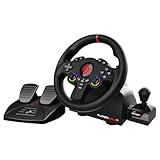
- MULTI-COMPATIBLE GAMING STEERING WHEEL: PS4, Switch 2, Switch, Xbox Series X/S, Xbox One, and PC. For setup, follow the connection instructions specific to each console (user manual included). An official controller must be connected for proper operation. Suitable for most racing games: GTA, Gran Turismo, Forza, Dirt, WRC, Farming Simulator, etc. This steering wheel is not compatible with PS5
- DOUBLE JOYSTICK: all the functions of a controller right on the steering wheel. Perfect for playing GTA: you steer and control your character without letting go of the wheel
- IMMERSIVE DRIVING EXPERIENCE: comes with analog pedals (accelerator and brake), 22 cm wheel diameter, 180° rotation angle, and steering wheel paddles for smooth and fast gear shifting. Programmable RGB LEDs around the 2 sticks and programmable buttons to suit all driving styles: 3 sensitivity modes depending on the type of circuit. Vibration motor available
- FINISH AND STABILITY: Robust ABS structure and ergonomic profile for excellent grip and improved comfort during long gaming sessions. For added stability, the wheel features a suction cup mounting system, ensuring perfect adhesion to most surfaces. Sold separately: clamping screws for mounting on cockpit
- WARRANTY & AFTER-SALES SERVICE: The Superdrive steering wheel comes with a 2-year manufacturer's warranty. Online support is available on the Subsonic website to answer your questions. Updates are also available in our FAQ section
Keep a separate controller profile
Do not copy a setting that feels good on a DualShock 4 or another gamepad to a wheel. Controller Steering Sensitivity describes stick response; it does not set wheel rotation, steering lock or force-feedback strength. Save or record a dedicated gamepad baseline before experimenting so you can return to it quickly.
Force Feedback Max. Torque: set steering weight without losing detail
Start at 3
Max. Torque is the broad strength control in the recommended baseline. A value of 3 gives a moderate starting point for a belt- or gear-driven wheel. The aim is to feel cornering load, kerbs and slides without having the wheel dominate every other signal.
Lower it when the wheel feels slow or masks information
The official manual explains that lower Max. Torque makes the car feel more responsive in hard cornering. Reduce it if the rim becomes tiring, if you cannot catch a slide quickly, or if a strong cornering load hides smaller changes in grip. Make one small change, then drive the same corners again.
Do these 3 things before closing this tab:
1Repair Windows errors before they cause bigger problems2Fix the driver behind crashes, sound loss and screen glitches3Clear out junk files and repair common Windows errorsRaise it only when the signal is genuinely too weak
If the wheel remains light through high-load turns and you can no longer distinguish increasing cornering force, raise Max. Torque gradually. More force is not automatically more information. Excessive strength can make the wheel feel dull, physically tiring or difficult to correct, particularly when the route software adds latency.
Rank #3

- Compatible with PlayStation 5, PlayStation 4, and PC .Use the HORI Device Manager app to download firmware, adjust settings and make up to 4 custom profiles
- Full-size racing wheel and pedals optimized for authentic racing simulation
- 270-degree turn radius with adjustable output options
- Mount security with sturdy clamp system
- Use the HORI Device Manager app to download firmware, adjust settings and make up to 4 custom profiles
Force Feedback Sensitivity: tune the first movement around centre
What the slider does
Force Feedback Sensitivity controls how quickly resistance builds as you begin steering. Higher values add more initial resistance and a heavier on-centre feel. Lower values make straight-line steering gentler and can make the rim easier to move during small corrections.
Use 2 as the neutral starting point
At 2, the wheel has some on-centre definition without making every tiny input feel blocked. If the car wanders or the wheel feels nervous around centre, lower the value. If turn-in feels vague and the rim offers almost no resistance at the first few degrees, increase it in small steps.
Do not use Sensitivity to fix clipping
Clipping occurs when a force signal reaches the wheel’s maximum and different loads become indistinguishable. Changing Sensitivity alters the response near centre; it does not restore detail that has been lost because overall force is too high. Address an overloaded signal with Max. Torque and, where available, the wheel driver’s gain.
What’s actually slowing this PC down?
Pick the symptom - the matching free tool is one click away.
Exact setup procedure for a wheel on a PC route
- Identify the route. Decide whether the PC is receiving the game through remote play or a user-created compatibility method. Confirm that the route can pass steering, pedal and force-feedback data before judging the in-game values.
- Install the manufacturer’s PC software. For a Thrustmaster wheel, install the PC drivers and open the Thrustmaster control panel. Use the equivalent driver utility for another wheel.
- Update firmware when the manufacturer provides it. Complete firmware work before launching the game route, then restart the driver utility if it requests one.
- Calibrate the wheel and pedals. Centre the wheel, sweep the pedals through their full travel and confirm that each axis reaches its intended minimum and maximum in the driver panel.
- Check force feedback outside the game where the driver allows it. A driver-level test can separate a hardware or USB problem from a Gran Turismo input-mapping problem.
- Connect the wheel before launching the game route. Indirect routes can enumerate controllers at startup; connecting afterward may leave the game listening to a different device.
- Apply the in-game baseline. Set Controller Steering Sensitivity to 0, Force Feedback Max. Torque to 3 and Force Feedback Sensitivity to 2.
- Drive a repeatable low-speed section. Use several corners with braking, turn-in and a short straight. Keep the same car and route while changing only one slider.
- Adjust Max. Torque first. Increase or decrease it until cornering load is clear but does not hide smaller changes or make corrections exhausting.
- Adjust Sensitivity second. Change the on-centre feel to suit your hands: lower it for nervous straight-line behavior, higher for a more definite initial turn.
- Change controller sensitivity only for a controller. Raise it from 0 only when a thumbstick response is demonstrably too slow.
- Save separate profiles. Keep one profile for a gamepad and another for the wheel. If your driver supports profiles, store the calibrated wheel state separately from any desktop or other-game profile.
Logitech G29 settings for Gran Turismo Sport
The official Gran Turismo steering-wheel manual names the Logitech G29 Driving Force among supported steering-wheel controllers. That makes it a sensible mainstream choice for a PlayStation 4-based setup. The cited material does not establish a universal G29 slider value beyond the 0/3/2 baseline, so begin there and tune by feel.
Rank #4

- REALISTIC RACING SIMULATION DUO: Feel what is like to drive a real race car with G920 Driving Force Racing Wheel & Pedals and Driving Force Shifter
- PAIRED FOR PRECISION: Take full control of the race with G920 Driving Force Racing Wheel & Pedals and Driving Force Shifter
- PRECISE CONTROL: Helical transmission gears reduce noise and vibration with anti-backlash keeping wheel and pedals tight. The six-speed “H” shifter helps you execute smooth, accurate gear transitions
- FORCE FEEDBACK: The dual motor force-feedback realistically simulates the feel of tires on a turn, understeer, oversteer, drifting and more
- PREMIUM BUILD: Look, feel and durability of a real race car wheel, pedals and shifter. Wheel cover, knob and boot are covered in high-quality, hand-stitched leather with a solid steel gear shaft and polished metal pedals
- Use the manufacturer’s PC driver utility to verify that the wheel is centred and the pedals report their full range.
- Apply Max. Torque 3 and Force Feedback Sensitivity 2 in the game before changing anything else.
- If hard corners feel heavy and slow, reduce Max. Torque; if the wheel is too light to communicate load, raise it carefully.
- If the rim feels twitchy on straights, lower Force Feedback Sensitivity rather than increasing controller sensitivity.
A G29 connected to a PC does not turn Gran Turismo Sport into a native Windows game. The route still has to forward the PS4 title’s controller and force-feedback data.
Thrustmaster T-GT II settings and PC limitations
Thrustmaster publishes a GT Sport mapping for the T-GT II and provides its drivers, firmware and manuals. That mapping is useful when the wheel is being used with the supported Gran Turismo configuration, but it is not evidence of official native PC support for the game.
What works on PC
The T-GT manual states that ordinary force feedback works on PC when the drivers are installed. It also states that the proprietary T-DFB effects system does not. Configure the wheel for standard force feedback and do not promise console-specific T-DFB effects when the game is reached through a PC route.
Recommended T-GT II starting process
- Install the current Thrustmaster PC drivers and open the Thrustmaster control panel.
- Complete wheel and pedal calibration, then confirm the device is recognised before starting the game route.
- Use Max. Torque 3 and Force Feedback Sensitivity 2 as the first in-game values.
- Test ordinary force feedback in a low-speed corner; judge only the forces that actually arrive through the PC route.
- If the wheel is too strong, reduce Max. Torque or the driver gain where the control panel provides that adjustment. If it is too weak, increase strength conservatively.
- Do not use missing T-DFB effects as evidence that the wheel or game is faulty on PC; the manual explicitly excludes that proprietary system from PC operation.
Wheel comparison for an indirect PC setup
| Comparison point | Logitech G29 Driving Force | Thrustmaster T-GT II |
|---|---|---|
| Gran Turismo documentation | Named in the official Gran Turismo steering-wheel manual as a supported controller. | Thrustmaster publishes a GT Sport mapping. |
| PC driver and firmware material | Not stated in the cited Gran Turismo material; use Logitech’s current PC support utility. | Thrustmaster provides drivers, firmware and manuals. |
| Force-feedback behavior on PC | Specific PC behavior is not stated in the cited material. | Ordinary force feedback is documented; T-DFB effects are not available on PC. |
| Pedal quality | Not stated in the cited material. | Not stated in the cited material. |
| Mounting options | Not stated in the cited material. | Not stated in the cited material. |
| Noise level | Not stated in the cited material. | Not stated in the cited material. |
| Price | Not stated; check the current listing for your region. | Not stated; check the current listing for your region. |
| Best fit from the documented facts | A mainstream wheel with explicit Gran Turismo manual support. | A Gran Turismo-oriented wheel with a published GT Sport mapping and clearly documented PC force-feedback limitation. |
This table deliberately avoids declaring a universally fastest or strongest wheel. The evidence identifies compatibility and driver behavior, not a controlled lap-time ranking, noise test or price comparison.
Best Value

- TRUEFORCE: Next-gen TRUEFORCE technology connects to game engines for high-definition feedback; experience the ultimate driving experience with processing at 4000 times per second
- Programmable dual clutch: Get off the starting line cleaner and faster; a programmable dual clutch simulates real race car launch assist right from the controller, when playing supported games
- Control your game: Fine-tune your speed with a built-in LED RPM indicator; integrated PlayStation 5, PS4, PC game controls, a 24-point selector and progressive brake spring keep steering under control
- Premium Racing Design: Refreshed Logitech G gear design includes premium materials like a hand-stitched black leather wheel cover and polished metal pedals; experience the pleasure of driving at home
- On-wheel game controls: Take charge of wheel sensitivity, force feedback levels and simulated steering; Logitech G Hub Gaming software enable button customisation right from the controller
How to diagnose common steering problems
The wheel is detected but does not steer
- Return to the manufacturer’s control panel and confirm that steering and pedal axes move through their full ranges.
- Reconnect the wheel before launching the route, then check which controller the route exposes to the game.
- Verify that a gamepad is not taking priority over the wheel.
- Reapply the wheel profile after calibration; do not assume a desktop profile is the same as a game profile.
There is steering but no force feedback
- Confirm that the driver utility recognises the wheel and that firmware installation completed.
- Check the route software’s controller mode; input forwarding and force-feedback forwarding are separate functions.
- For a T-GT II, distinguish ordinary force feedback from T-DFB. The latter is not documented as working on PC.
- Set Max. Torque to 3 while testing so an extreme value is not masking the result.
The wheel feels numb in corners
- Raise Max. Torque by a small amount and repeat the same corners.
- Check for clipping: if every heavy corner feels identical, reduce strength rather than continuing to increase it.
- Make sure the route is not adding enough delay to blur the force signal.
The wheel is nervous around centre
- Lower Force Feedback Sensitivity from 2 in small steps.
- Recheck calibration for a true centre position.
- Do not raise Controller Steering Sensitivity; that control is for a gamepad and will not cure wheel oscillation.
The wheel is too heavy at turn-in
- Lower Force Feedback Sensitivity to soften the initial resistance.
- If the entire corner remains excessively strong, lower Max. Torque as a separate adjustment.
- Test again after each change so you know whether the problem was the first movement or overall force.
Direct-drive and high-strength wheel caution
The 3/2 baseline is moderate for a belt- or gear-driven wheel, not a promise that it is safe or comfortable for every hardware type. A direct-drive wheel can produce substantially more force than the baseline equipment implied by the user configuration. Start with lower in-game strength and conservative driver gain, then increase only while the signal remains detailed and physically manageable.
Use wheel telemetry when your hardware or driver provides it. A clipped force signal can feel powerful while communicating less information. Stop testing if the rim becomes painful, the wheel moves unexpectedly or the mounting surface cannot hold it securely.
A repeatable tuning checklist
- Confirm that your PC route is indirect and that the game is receiving the intended controller.
- Install and verify the wheel driver, then update firmware if offered by the manufacturer.
- Calibrate steering and pedals before starting Gran Turismo Sport.
- Begin at Controller Steering Sensitivity 0, Force Feedback Max. Torque 3 and Force Feedback Sensitivity 2.
- Use the same car, corners and driving pace for every comparison.
- Change one slider at a time and record the value that changed.
- Adjust Max. Torque for overall strength, Sensitivity for initial on-centre resistance and Controller Steering Sensitivity only for a gamepad.
- Keep separate controller and wheel profiles.
- Remember that online services ended on January 31, 2024; tuning cannot restore those services.
Bottom line
For a gamepad, start with Controller Steering Sensitivity 0. For a supported wheel, start with Force Feedback Max. Torque 3 and Force Feedback Sensitivity 2, then tune in small steps after driver-level calibration. The Logitech G29 has explicit support in the Gran Turismo steering-wheel manual, while the Thrustmaster T-GT II has a published GT Sport mapping and documented PC force feedback but no PC T-DFB effects. None of these settings changes the platform reality: Gran Turismo Sport remains a PlayStation 4-exclusive title, and any PC experience is indirect.
Outdated Drivers Are Slowing You Down
One free scan finds every outdated or missing driver and matches the right update for your exact hardware.Free scan · exact hardware matchWindows Errors? Fix Them Before They Spread
Repair common Windows errors and clear accumulated junk for a smoother, more stable PC - no reinstall needed.Free scan · no reinstallQuick Recap
Product prices and availability are accurate as of the date/time indicated and are subject to change. Any price and availability information displayed on Amazon at the time of purchase will apply.

