Recommended Free Tools
The best replacement is a modular workflow, not one free Roxio clone. Use a compatible USB analog video-capture adapter to connect the VCR, record with OBS Studio (or VirtualDub on Windows), edit in Shotcut, process with FFmpeg when needed, and use DVDStyler if you still want a video DVD with menus. The adapter and its drivers remain essential; software alone cannot turn a VCR signal into a computer file.
What you are replacing
Roxio’s documented workflow combines three jobs: connect a VCR or camcorder through its capture device and RCA leads, record and edit the video, then export files or burn a DVD with chapters and menus. Roxio also says its Easy VHS to DVD software works only with the bundled Roxio Video Capture USB device, not arbitrary third-party capture hardware. Replacing the application therefore does not eliminate the hardware requirement.
The RCA cable is not included with the Roxio package described on its product page. If your VCR and adapter both support S-Video, that connection is an option; otherwise use composite video and the matching audio leads. A different connector cannot restore detail that is missing from the tape.
Best free and open-source tools by stage
| Stage | Tool | Best fit | Important limitations |
|---|---|---|---|
| Capture | OBS Studio | Cross-platform recording with a straightforward capture-card source | It is a general recorder, not a dedicated VHS wizard, and its guide does not promise support for every adapter. |
| Capture and processing | VirtualDub | Windows users who want detailed capture settings and codec control | Device, codec and format configuration is technical; preview trade-offs and possible long-capture audio-sync problems require care. |
| Editing | Shotcut | Free, open-source, cross-platform trimming and timeline editing | It is not an all-in-one analog-to-DVD workflow. |
| Conversion and filters | FFmpeg | Command-line conversion, batch jobs, stream handling, deinterlacing and scaling | Powerful but command-line oriented; filters cannot recreate information absent from the tape. |
| DVD authoring | DVDStyler | Free/open-source DVD video projects with menus and burning on Windows or Linux | It starts with digital video files and does not capture from a VCR. |
1. Capture VHS with OBS Studio
OBS is the easiest general starting point when your adapter appears as a supported video-capture device. Its official guide describes adding a Video Capture Source, choosing a capture card or webcam, selecting the appropriate audio device manually, and making a test recording.
The Tool Desk
Outbyte Driver Updater FREEFix the driver behind crashes, sound loss and screen glitchesFind Drivers →Outbyte PC Repair FREEClear out junk files and repair common Windows errorsFree Scan →#1 Best Overall

- 【Video to Digital Converter】Effortlessly convert and store analog video and audio signals into digital formats, Recording resolution up to 1080P 30Hz. Supports AV/RCA (CVBS+R/L), S-Video, and AUX inputs. Plug and play, No PC, Software, Driver Needed. NOTE: This is a Converter/Recorder/Capture box only, can NOT play with any tapes and DVDs independently.
- 【USB/SD Card for Storage】Equipped with a 3.0" preview LCD and built-in speaker. No capacity limitation for the USB drive or TF card (not included). Enables direct playback of recorded videos and audios, as well as preview snapshots on the capture box. For high-capacity USB storage devices, please ensure using its own power supply.
- 【Video & Audio Format】Store video in MP4 format or audio in MP3 format. Supports NTSC-M/J 3.58, NTSC 4.43, PAL B/G/H/I/D (PAL/N) standard TV formats input. Audio sampling rate up to 48KHz with uncompressed 2-channel LPCM digital audio output. Setup Reminders: Ensure either CVBS R/L (AV input) or AUX-IN (3.5mm) is properly connected. In settings (HOME -> Settings), verify Video-IN-Volume and AUX-IN-Volume are unmuted for the selected input.
- 【Broad Compatibility】Supports recording and digitizing video for VHS, VCR, DVR, DVD, Hi8, camcorders, Mini DV, Cassette Tape Player, and retro gaming consoles.
- 【What You Get】Video Recorder x1(Players Not included, Such as VHS, VCR, Camcorder, VHS, VCR, DVR, DVD, Cassette, Hi8, Mini DV Players, Camcorder, Gaming Consoles ), Power Adapter with USB type A to C Cable x1, Remote Control (2*AAA Batteries Not Included) x1, AV Cable x1, 3.5mm Audio Cable x1, User Manual x1 with a hassle-free 2-year warranty and lifetime technical support. Reach out to our friendly customer service for any questions.
- Connect the VCR’s composite or S-Video output and left/right audio to the adapter, then connect the adapter to the computer.
- Turn on the VCR and insert the tape. In OBS, add a scene source named Video Capture Device (the guide’s current label may appear as Video Capture Source).
- Select the adapter and confirm that live video appears. Add or select the adapter’s audio input, or the matching line-in device, rather than assuming OBS chose it automatically.
- Record a short sample, rewind and play it back, and check picture, audio, aspect ratio, and synchronization before capturing the entire tape.
- For the full transfer, monitor the recording and let the tape play in real time. Stop only after the tape reaches its end, then save a working master before editing.
OBS is a software choice, not a universal compatibility guarantee. If the device does not appear, investigate its driver and operating-system support before changing recording settings.
2. Use VirtualDub when you need Windows capture controls
VirtualDub is useful for Windows users willing to configure capture devices, codecs and formats more precisely. Its documentation discusses preview-performance choices, capture-format and codec constraints, and a compatibility-mode audio-sync risk during long captures.
Its examples distinguish PAL at 25 frames per second from NTSC at 29.97 frames per second. Treat those as standards-related examples, not a universal prescription: your tape region, VCR and adapter determine the appropriate format. Confirm the correct standard before a full recording, and avoid compatibility modes that can compromise long-capture synchronization unless you understand the consequence.
Rank #2
![Roxio Easy VHS to DVD 3 Plus | VHS, Hi8, V8 Video to DVD or Digital Converter | Amazon Exclusive 2 Bonus DVDs [Windows Disc]](https://m.media-amazon.com/images/I/51UBEF6uzZL._SL160_.jpg)
- Convert your VHS tapes to DVD or digital to enhance and preserve your home movies
- Capture analog video directly from your camcorder or VCR and burn to DVD or convert to popular digital formats to share freely across devices
- Trim video, make quick edits, enhance color, add transitions, reduce noise and stabilize old footage to breathe new life into your old videos
- Complete your video experience by selecting from creative, customizable DVD menu templates, or creating personalized disc labels
- Get 2 DVDs for your first projects: An Amazon exclusive extra
VirtualDub is better suited to a technically controlled setup than to a one-click beginner workflow. Current adapter and driver support must be checked separately.
3. Edit in Shotcut
After capture, Shotcut provides the practical editing layer: remove blank lead-in and lead-out footage, cut unwanted sections, and arrange clips on a timeline. Its project page also lists capture from Windows DirectShow devices and other named device sources, but that does not make it a replacement for the complete Roxio capture-and-DVD wizard.
Keep an untouched capture as your master. Export an edited viewing copy only after checking that cuts do not remove material you may later want. Shotcut is also appropriate when the destination is a normal video file rather than a disc.
Rank #3

- This Video Capture Card Can transfer video and audio from VHS, VCR, DVD, Hi8, DV tapes, camcorders, or other video source devices with RCA or S-Video interfaces to your PC or Mac synchronously.
- Convert analog RCA/S-Video audio and video signal input to high-definition 1080P/30fps USB-A/USB-C output, digitize and save your good memories with your friends and family on your computer, share with your friends and family, leaving precious memories
- Plug and play, easy to operate, just connect the RCA or S-Video interface of your video recorder to the USB-A/USB-C interface of your computer or notebook and it can be used without any driver. Note: It needs to be used with the acquisition software
- Compatible with USB-A/USB-C interfaces, not limited by computer interfaces, compatible with Windows and Mac OS, supports NTSC, PAL and other video formats, and supports brightness, contrast, hue and saturation control
- Note: This video converter needs to be used with capture software, which can be downloaded free of chargge . We recommend OBS Studio or PotPlayer for Windows and QuickTime Player for Mac. Please feel free to contact us if you need technical support.
4. Convert or filter with FFmpeg
FFmpeg is the flexible option for users comfortable with a terminal. Its documentation covers reading live grabbing or recording devices and includes filters for deinterlacing and scaling. That makes it useful for repeatable conversions, batch processing and technical cleanup between capture and editing or authoring.
- Deinterlace when appropriate: VHS-derived video commonly contains interlaced fields; choose a method that matches how the file will be viewed.
- Scale deliberately: enlarging a frame changes its dimensions, not the detail recorded on the cassette.
- Preserve a master: perform filtering on a copy so you can return to the original capture if settings produce artifacts.
FFmpeg does not provide Roxio-style guided menus, and its command-line nature makes it less suitable for users who want a visual wizard.
What’s actually slowing this PC down?
Pick the symptom - the matching free tool is one click away.
5. Author a DVD with DVDStyler
DVDStyler fills the part of Roxio’s workflow concerned with DVD-Video authoring. Import an already captured and edited video, create menus and chapters, and burn the project on supported Windows or Linux setups. It cannot replace the VCR, analog adapter or capture application.
Rank #4
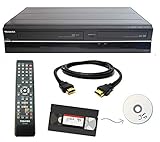
- Designed to easily transfer VHS tapes to DVD with the press of a button
- Convert tapes to DVD at home instead of shipping them off to a transfer lab
- Guaranteed 100% working, hassle free returns through Amazon
- Includes: remote, manual, HDMI and AV cable
- Bonus: includes blank DVDs, ready to start recording immediately
Choose DVD authoring only when a disc is genuinely required. If the recipient can play a digital file, retaining the capture and an edited export avoids the extra authoring step and the limitations of DVD-Video.
Independent reader supportYour contribution helps us test, update, and keep practical guides available for everyone.Hardware and connection checklist
The physical bridge is a USB analog video-capture adapter with composite RCA inputs; S-Video is useful when both the VCR and adapter provide it. No universal adapter model or compatibility matrix is established here, so match the connector type and verify current drivers for your operating system before buying.
- Confirm the VCR is powered on and actually playing the tape.
- Match video and audio plugs to the adapter’s input jacks; check cable direction and avoid confusing input with output.
- Verify that the adapter appears in the operating system and in the capture application.
- Select the corresponding audio source and watch its level meter.
- Make and review a short test recording before committing an entire tape.
Roxio troubleshooting identifies poor connections, a powered-off VCR, tape tracking and recording-input levels as possible causes of a missing or poor signal. Those checks apply to a modular setup as well.
Best Value

- Designed to easily transfer VHS tapes to DVD with the press of a button
- Save on expensive VHS transfer services and convert tapes to DVD at home
- assured 100% working, hassle free returns through Amazon
- Includes -remote, manual, HDMI and AV cable
Quality expectations and regional standards
Roxio’s support content states: “Low quality VHS video cannot be converted to high quality video by transferring it to a DVD disc.” Capture software can preserve, trim and process what is on the tape; it cannot manufacture lost detail. Roxio also describes sharpening and denoising, but cautions that such tools cannot exceed the source recording’s quality.
PAL and NTSC settings, tape condition, tracking, connection quality and audio levels all affect the result. Select settings for the actual tape and hardware rather than copying a frame-rate value from a different region.
Which workflow should you choose?
| Your goal | Recommended path |
|---|---|
| Capture with the least technical setup | Compatible adapter → OBS Studio → Shotcut if edits are needed |
| Windows capture with deeper controls | Compatible adapter → VirtualDub → Shotcut or FFmpeg |
| Batch conversion or technical filtering | Capture first, then FFmpeg on copies of the master |
| Menu-driven DVD for a player | Capture and edit → DVDStyler |
| Digital archive only | Capture → keep an untouched master → export an edited viewing file |
What this modular approach cannot promise
- No listed application is documented as a single free/open-source replacement for every Roxio function.
- Neither OBS nor VirtualDub is guaranteed to work with every third-party capture adapter.
- Historic Roxio guide requirements are not current compatibility guidance for modern systems.
- Software cannot compensate for a failing VCR, damaged tape, incorrect regional standard or missing source detail.
Frequently Asked Questions
Do I need a capture card to digitize VHS?
Yes. You need a compatible analog video-capture adapter to convert the VCR’s video and audio output into signals recording software can receive.
Can OBS capture VHS from a USB capture card?
OBS can use capture cards exposed as supported video-capture sources, but the OBS guide does not guarantee compatibility with every adapter. Verify the device appears, select its audio input, and test-record first.
Quick wins for a faster PC:
Clear out junk files and repair common Windows errorsFree Scan →Fix the driver behind crashes, sound loss and screen glitchesFind Drivers →How can I burn VHS captures to DVD for free?
Capture and edit the video first, then import the resulting file into DVDStyler to create menus and author a DVD. DVDStyler does not perform the VCR capture itself.
Quick Recap
Product prices and availability are accurate as of the date/time indicated and are subject to change. Any price and availability information displayed on Amazon at the time of purchase will apply.



