Start with Performance mode, 100% 3D Resolution, Far or Epic View Distance, Motion Blur off, and a frame-rate cap your PC can hold consistently. Keep shadows, effects, post processing, and textures at Low or Medium before lowering render resolution. If Performance mode makes distant geometry or trails too simple, compare DirectX 12 at the same output resolution. This setup gives small moving effects the best chance of staying sharp without trading away stable frame times.
There is no universal best preset: your GPU, monitor, output resolution, Fortnite patch, and target frame rate all change the result. Use the settings order below to find the clearest image your system can sustain.
As an Amazon Associate I earn from qualifying purchases.
Quick settings for seeing small moving effects
| Setting | Starting value | Why it helps | When to change it |
|---|---|---|---|
| Rendering Mode | Performance | Prioritizes stable frame rate and low latency. | Compare DirectX 12 if distant geometry or trails look overly simplified. |
| 3D Resolution | 100% | Preserves the detail used to draw thin edges and particles. | Lower in 10% steps only when the PC cannot sustain the target frame rate. |
| View Distance | Far or Epic | Keeps distant objects and effects visible for longer. | Drop one step if frame pacing becomes unstable. |
| Motion Blur | Off | Prevents camera movement from smearing a target and its trail. | There is little reason to enable it for visual tracking. |
| VSync | Off for lowest latency | Avoids the added queueing delay associated with synchronization. | Use a stable cap and variable-refresh display if tearing is distracting. |
| Shadows, Effects, Post Processing, Textures | Low or Medium | Frees GPU time while retaining render resolution. | Raise one option at a time if performance has headroom. |
| Anti-Aliasing or Super Resolution | Test the modes available to your GPU | Can smooth edges and stabilize moving images. | Keep the mode that makes thin trails sharp without shimmer. |
| Frame-rate cap | A rate the PC sustains consistently | Stable frame time makes a moving effect easier to follow. | Lower the cap when the displayed FPS repeatedly swings. |
| Display | 120Hz, 144Hz, or higher when practical | Lets the screen show more of the frames your PC produces. | Especially worthwhile when replacing a 60Hz display or when persistence blur is obvious. |
Why sprites and trails disappear
A tiny effect can be lost for several different reasons. At long range, View Distance determines whether the relevant scene detail is retained. At the pixel level, 3D Resolution, anti-aliasing, and super-resolution determine how many samples describe a narrow edge. During a fast turn, Motion Blur and inconsistent frame times can smear or interrupt the visual path. Finally, a display with a low refresh rate can hold each frame long enough to create visible persistence blur even when the game is rendering more frames.
The Tool Desk
Outbyte Driver Updater FREEScan for outdated or missing drivers - takes under a minuteDriver Scan →Outbyte PC Repair FREEClear out junk files and repair common Windows errorsFree Scan →These controls interact. Raising View Distance while leaving expensive effects and shadows high can create a GPU-time spike. Lowering 3D Resolution may recover that performance, but it also removes the fine pixels that define a sprite or trail. The useful strategy is therefore to protect render resolution and frame-time consistency first, then spend remaining GPU headroom on distant detail and image-quality options.
#1 Best Overall

- Now Including Hall Effect Modules – Say goodbye to stick drift with contact-free magnetic sensors in the thumbsticks giving you smoother control, enhanced precision, and increased longevity
- Code for Bonus Virtual Item Included – Moon Bounce Emote
- 2 Types of Glow – Bring the spirit of the arcade to your controller with a glow in the dark effect and a reaction when a UV light is applied giving off a fluorescent glow
- Advanced Gaming Buttons – Get an edge over the competition with two mappable buttons you can program on-the-fly, mid-game—no system settings to configure
- 3-Way Trigger Locks – Set the travel distance of the triggers with three different positions to pull off quicker actions in your favorite FPS games or go full throttle in a high-end race car
Set Fortnite up in the right order
1. Open the Video settings and establish a baseline
Enter Fortnite’s Settings, open the Video tab, and note the current output resolution, rendering mode, frame-rate limit, and 3D Resolution. Use the same Creative area and camera route for every comparison. A repeatable scene is more useful than judging a setting after one unusual match.
- Choose the display’s native output resolution.
- Record the current average FPS and whether frame time feels smooth while turning quickly.
- Pick a distant, small moving effect or trail to use as your visual target.
- Change one setting at a time, then repeat the same movement and observation.
Do not compare one mode at 1080p with another mode at a different output resolution. That changes the amount of work being measured and makes the visual result difficult to interpret.
2. Choose a rendering mode
Performance mode, also labeled Performance – Lower Graphical Fidelity in Epic documentation, is the best first test when stable frame rate and low latency matter most. It often gives a competitive system more consistent frame times, which helps you follow a moving target. The trade-off is simplified graphics; distant geometry or a faint trail can look less detailed.
Windows Errors? Fix Them Before They Spread
Repair common Windows errors and clear accumulated junk for a smoother, more stable PC - no reinstall needed.Free scan · no reinstallOutdated Drivers Are Slowing You Down
One free scan finds every outdated or missing driver and matches the right update for your exact hardware.Free scan · exact hardware matchIf a sprite remains hard to identify because the scene is too simplified, switch to DirectX 12 and repeat the same test at the same output resolution. DirectX 12 can preserve richer detail, but the extra rendering cost may reduce headroom or introduce less stable frame pacing on some systems. Keep the mode that makes the target both legible and smooth, not simply the one that reports the highest peak FPS.
3. Keep 3D Resolution at 100% when possible
3D Resolution controls the resolution Fortnite uses to render three-dimensional objects. At 100%, the game renders at the selected 3D resolution rather than deliberately reducing it to gain performance. This is the strongest starting point for thin sprite edges and narrow trails.
If your system cannot hold its target frame rate, reduce 3D Resolution gradually in 10% steps. Test 90%, then 80%, rather than jumping directly to a very low value. After every change, inspect the same distant edge and moving trail. Stop lowering when the image loses the detail that lets you distinguish the effect from the background. A stable 90% image is usually more useful for tracking than an erratic 100% image, but the threshold depends on your output resolution and GPU.
4. Raise View Distance for distant targets
Set View Distance to Far or Epic when the problem is an effect that vanishes at range. A competitive preset using Near may protect immediate performance, but it can discard or simplify distant scene information before a sprite reaches you.
Raise the control one step at a time. After each step, make the same long-range turn and watch frame pacing rather than only the FPS number. If Far or Epic causes repeated stutter, return to the lower setting and recover performance by reducing shadows, effects, post processing, or textures before sacrificing 3D Resolution. View Distance is valuable only when the system can deliver it without uneven frame times.
5. Turn Motion Blur off
Set Motion Blur to Off. Blur blends the image during camera movement, which can smear a fast target and the trail behind it. Epic’s Unreal Engine 5.1 documentation identifies Motion Blur as a video setting and lists it as off by default in that documentation. Enabling it may make a cinematic image, but it works against precise visual tracking.
Rank #2
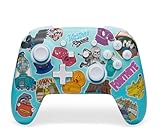
- Works with Nintendo Switch 2. C button not available
- Bonus Fortnite virtual item included (Googly Glider)
- Wireless controller with Bluetooth 5.0 technology
- Rechargeable lithium-ion battery: Up to 30 hours per charge*
- Two mappable Advanced Gaming Buttons
6. Decide how to handle VSync and tearing
Turn VSync Off when minimizing input latency is the priority. Synchronization can reduce visible tearing, but it may add latency or make the game wait for the display’s next refresh. For a player who needs to react to a small moving effect, that delay can matter more than a clean tear-free frame.
If tearing is distracting, test a variable-refresh-rate display with a frame cap that your PC can sustain. The goal is not the largest uncapped FPS reading; it is a predictable frame delivery pattern. Compare the same camera movement with VSync off, then with your display’s VRR and a stable cap. Keep the arrangement that gives you the clearest motion without erratic frame times or an uncomfortable delay.
7. Reduce expensive quality options before reducing render resolution
Begin Shadows, Effects, Post Processing, and Textures at Low or Medium. Raise one control at a time only after the target frame rate and frame pacing are stable.
- Shadows: Lower values free GPU time and can reduce distracting dark detail around a target.
- Effects: Lower values are often the quickest way to recover performance from particles and other visual effects.
- Post Processing: Lower values reduce additional image work that does not necessarily improve the readability of a tiny trail.
- Textures: Lower values can help systems with limited graphics memory; raise them only when performance remains stable and texture detail genuinely helps you separate the target from its surroundings.
This order protects the number of pixels used to draw the target. If you still cannot meet the frame-time goal after lowering these options, then reduce 3D Resolution in measured steps.
8. Test anti-aliasing and super-resolution modes
Fortnite may expose different anti-aliasing or super-resolution choices depending on your GPU and installation, including TSR, DLSS, XeSS, FXAA, SMAA, or TAA. Anti-aliasing smooths jagged edges and can stabilize an image while the camera moves. Super-resolution methods render fewer pixels and reconstruct the result to improve performance.
There is no single winner for every GPU and resolution. Some modes make a thin trail look cleaner; others introduce shimmer, ghosting, or a soft edge. Test each available mode in the same Creative area:
- Keep output resolution, rendering mode, View Distance, and frame cap unchanged.
- Choose one anti-aliasing or super-resolution mode.
- Follow the same moving target while turning slowly and quickly.
- Check both a stationary thin edge and a trail in motion.
- Keep the mode that preserves the trail’s shape without obvious shimmer or smearing.
If every reconstruction mode looks soft, native rendering with a lower quality preset may be preferable, provided the resulting frame rate remains stable. If native rendering produces uneven frame times, a quality mode that is slightly softer but consistent can be easier to track.
Three practical presets
| Preset | Rendering mode | 3D Resolution | View Distance | Other controls | Best for |
|---|---|---|---|---|---|
| Spotting-first | DirectX 12 if Performance looks too simplified; otherwise Performance | 100% if sustainable | Epic | Motion Blur Off; VSync Off; Shadows, Effects, Post Processing, Textures Low or Medium; test AA or super resolution; cap to a stable rate | Players who regularly lose distant sprites or trails and have GPU headroom. |
| Balanced | Performance | 100%, then reduce in 10% steps if required | Far | Motion Blur Off; VSync Off; expensive quality options Low or Medium; stable cap | Most systems seeking clear motion without a major performance hit. |
| Latency-first | Performance | The highest value that never causes hitching | Far or the next lower step if frame pacing suffers | Motion Blur Off; VSync Off; low expensive settings; stable cap rather than uncapped swings | Competitive play where predictable input and frame time matter more than richer distant detail. |
These are starting points, not guarantees. The spotting-first preset is useful only if the additional detail does not create stutter. Conversely, the latency-first preset may make a distant trail harder to see if View Distance is reduced too far.
How to choose a frame-rate cap
Use a cap your PC can sustain in the busiest scene you normally play, not the maximum number it reaches while looking at an empty area. A lower, steady cap gives your GPU predictable work and makes camera motion easier to read. If the frame rate repeatedly falls below the cap, reduce the cap or lower an expensive quality setting before changing 3D Resolution.
Rank #3

- Code for Bonus Virtual Item Included – Tooth Pick Pickaxe
- Hall Effect Thumbsticks and Triggers – Contact-free magnetic sensors in the thumbsticks and triggers provide a more fluid pro-level feel to help with precision and longevity
- Low Latency Wireless – Play wirelessly on Xbox Series X|S, Xbox One, and Windows 10/11 using the included Wireless USB Adapter
- Advanced Gaming Buttons – Get an edge over the competition with 4 mappable buttons that you can program on the fly, mid-game—no system settings to configure
- 3-Way Trigger Locks – Set the travel distance of the triggers with three different positions to pull off quicker actions in your favorite FPS games or go full throttle in a high-end race car
Judge smoothness by frame pacing: repeated pauses, uneven camera motion, or a trail that appears to jump indicate instability even when the FPS counter looks high. Test after a match or replay in the same location because a quiet lobby can hide the performance cost of combat effects and dense geometry.
Quick wins for a faster PC:
Fix the driver behind crashes, sound loss and screen glitchesFind Drivers →Clear out junk files and repair common Windows errorsFree Scan →Display settings that affect trail visibility
Epic’s 2026 competitive guidance recommends a 120Hz or higher gaming monitor, with 144Hz or higher also listed as a practical target. A faster refresh rate can show more of the frames your system produces and reduce the time each frame persists on screen. This is most noticeable when moving the camera quickly or when a target crosses a high-contrast background.
A 60Hz display is still usable, but it can show more persistence blur during rapid turns. If you are deciding where to spend an upgrade budget, a 120Hz-or-higher display is the clearest hardware path supported by that guidance, provided your PC can produce a meaningfully higher and stable frame rate. Do not buy a faster panel expecting it to fix a game that is already stuttering; first stabilize the in-game frame time.
Use a repeatable visibility test
Fortnite does not provide a published statistic that measures sprite or trail visibility, so use a controlled visual test instead of treating one setting as objectively best.
- Choose a Creative area with a long sightline, a textured background, and a predictable moving effect.
- Stand at a fixed point and record the first distance at which you can identify the effect and its direction of travel.
- Make a slow camera sweep, then a fast sweep, without changing your mouse or controller sensitivity.
- Note whether the trail stays continuous, shimmers, disappears, or blends into the background.
- Change only one video option and repeat the same route.
- Keep the configuration that improves recognition without adding stutter, excessive softness, or distracting tearing.
Repeat the test at the resolution and aspect ratio you actually use in matches. A setting that looks excellent in a quiet test area may fail when combat adds particles and geometry to the frame.
Do these 3 things before closing this tab:
1Clear out junk files and repair common Windows errors2Scan for outdated or missing drivers - takes under a minute3Repair Windows errors before they cause bigger problemsTroubleshooting by symptom
The sprite is visible nearby but disappears at long range
- Raise View Distance from Near to Far, then to Epic if frame pacing remains stable.
- Confirm 3D Resolution is 100% or the highest value your system can sustain.
- Compare Performance with DirectX 12 at the same output resolution if distant geometry looks overly simplified.
- Test a different anti-aliasing or super-resolution mode for edge stability.
The trail is smeared during a turn
- Confirm Motion Blur is Off.
- Check whether frame rate is oscillating; use a lower stable cap or reduce Shadows, Effects, Post Processing, or Textures.
- Compare anti-aliasing modes for ghosting or temporal smearing.
- If the display is 60Hz and persistence blur remains obvious, evaluate a 120Hz-or-higher monitor.
The image is sharp but the game hitches
- Keep 3D Resolution unchanged initially.
- Lower Shadows, Effects, Post Processing, and Textures one at a time.
- Reduce View Distance one step if the hitch occurs when looking far away.
- Use Performance mode if DirectX 12 cannot maintain even frame pacing.
- Set a frame cap below the unstable peak rather than leaving the game uncapped.
The image tears and feels delayed
- Test VSync Off for lower latency.
- If tearing is unacceptable, use a variable-refresh display with a stable cap and compare the resulting input feel.
- Do not assume the highest FPS is best if frame delivery is irregular.
The trail shimmers or looks unstable
- Try another anti-aliasing or super-resolution mode available to your GPU.
- Compare the modes at identical output and 3D resolutions.
- Prefer the option that keeps thin edges stable during motion, even if its static image looks slightly less crisp.
What to change after a Fortnite update
Updates can alter rendering behavior, available anti-aliasing modes, or the performance balance between Performance and DirectX 12. After a major patch, revisit the same Creative test instead of assuming your previous preset still behaves identically. Check that Motion Blur remains Off, 3D Resolution has not changed, and your frame cap is still sustainable in a busy match.
Keep a short note of the values that worked: rendering mode, output resolution, 3D Resolution, View Distance, anti-aliasing mode, frame cap, and display refresh rate. If a patch introduces stutter, return first to the last known stable configuration, then change one control at a time.
Limits of a universal best setting
The clearest setting depends on the GPU’s available headroom, the monitor’s refresh rate, the selected output resolution, and the visual contrast of the area where the effect appears. A high-end system may hold Epic View Distance and 100% 3D Resolution in DirectX 12, while another system may need Performance mode and Far View Distance to keep frame pacing consistent. Super-resolution quality also varies by GPU and resolution.
Use the practical priority order: preserve stable frame time, keep 3D Resolution as high as possible, raise View Distance when distance is the problem, disable Motion Blur, then tune anti-aliasing and the remaining quality controls for the cleanest moving edge. That sequence improves the odds of seeing a small sprite or trail without claiming a result that every Fortnite setup cannot deliver.
Free tools Windows power users keep installed
One-click scans. No signup required.
Quick Recap
Product prices and availability are accurate as of the date/time indicated and are subject to change. Any price and availability information displayed on Amazon at the time of purchase will apply.

