PC Slower Than It Used to Be?
A free scan shows the junk files, broken settings and background clutter dragging Windows down - then fixes them in one click.Free scan · Windows 10 & 11Outdated Drivers Are Slowing You Down
One free scan finds every outdated or missing driver and matches the right update for your exact hardware.Free scan · exact hardware matchFor the best balance in Enshrouded, start with the Performance or Balanced preset, keep your monitor at its native resolution, and use Quality upscaling before lowering it to Balanced or Performance. Reduce shadows, volumetric lighting or fog, foliage, and draw distance before cutting texture quality. Disable motion blur for clearer movement, use a frame cap when pacing is uneven, and judge changes by actual game FPS and frame time—not a generated-frame counter alone.
There is no universal FPS gain for any individual setting. Your result depends on your GPU, CPU, resolution, VRAM, game version, drivers, and the scene being rendered, so use the workflow below to tune your own system without sacrificing more image quality than necessary.
As an Amazon Associate I earn from qualifying purchases.
What to change first
Enshrouded can look dramatically different between a dense settlement, a forest, and an open vista. A setting that is inexpensive in one area may become a major bottleneck in another. Use this order so each change has a visible purpose:
- Choose Performance or Balanced as your starting preset.
- Restart the game if a major patch has changed the available preset list or graphics behavior.
- Set the display to your monitor’s native output resolution.
- Enable an upscaler only if native rendering misses your FPS target. Start at Quality, then try Balanced, and use Performance only when necessary.
- Lower shadows, volumetric lighting or fog, foliage, and draw distance one group at a time.
- Keep textures as high as your available VRAM allows.
- Turn off motion blur when movement or combat readability matters.
- Apply a frame cap close to the monitor’s refresh rate if frame pacing is inconsistent.
Change one group, test the same area, and record actual FPS, frame time, image clarity, foliage stability, and input response. This prevents a broad preset change from hiding which option helped.
#1 Best Overall

- Chipset: NVIDIA GeForce RTX 2070 Super
- Boost Clock: 1770 MHz
- Video Memory: 8GB GDDR6
- Memory Interface: 256-bit
- Output: DisplayPort x 3 (v1. 4) / HDMI 2. 0b x 1
Check whether your hardware is within the official baseline
Steam’s current Enshrouded listing specifies the following Windows PC requirements. The minimum tier is a starting point for running the game, not a promise of a particular frame rate or visual preset.
| Requirement | Minimum listed hardware | Recommended listed hardware |
|---|---|---|
| Operating system | Windows 10 | Windows 10 |
| Memory | 16GB RAM | 16GB RAM |
| Graphics processor | GTX 1060 6GB, RX 580 6GB, or Intel Arc A380 | RTX 2070 Super 6GB, RX 6700 XT 6GB, or Intel Arc A770 |
| Storage | 60GB | SSD recommended |
The same 16GB RAM figure appears in both tiers. An SSD is recommended, particularly for reducing asset-streaming delays, but it does not turn a below-minimum GPU into a recommended-class system. If your graphics card has less VRAM than the listed 6GB examples, texture quality and resolution may need to be reduced earlier.
Recommended Free Tools
Build a repeatable test before tuning
Use the same scene
Pick a location that represents the problem you want to solve. For general play, test a busy base or settlement with construction pieces, foliage, lights, and distant terrain. For exploration, use a forest or a broad view with long sight lines. For combat, repeat the same short movement and camera sweep. Do not compare a quiet interior with a crowded outdoor scene.
Keep the variables fixed
- Use the same resolution and display mode.
- Run the same game version and graphics-driver version for every comparison.
- Close background applications that can alter CPU or memory load.
- Allow shaders and assets to finish loading before recording a result.
- Make one meaningful change per test, then return to the same camera position.
Record the measurements that matter
Steam’s performance monitor can distinguish generated-frame FPS from actual game FPS when DLSS or FSR frame generation is involved. Record the actual game FPS, frame-time consistency, and how responsive input feels. A larger displayed FPS number may include generated frames and therefore may not represent a proportional improvement in simulation or input latency.
Resolution and upscaling: the largest image-quality decision
Start at native output resolution
Set Windows and the game to the monitor’s native output resolution first. This gives you a stable reference for sharpness and distant visibility. Reducing output resolution can improve performance, but it also makes the entire image softer and can make foliage, signs, and terrain details harder to read.
Choose DLSS or FSR by testing clarity
DLSS and FSR render internally at a lower resolution and reconstruct the final image. They can raise performance, but the trade-off is reduced internal detail and possible changes in fine foliage, distant geometry, or temporal stability. Use the highest-quality mode that meets your target:
| Mode | When to try it | What to inspect |
|---|---|---|
| Native rendering | Your GPU already meets the target comfortably | Fine texture detail, foliage edges, and distant objects |
| Quality | First upscaling step when native performance is insufficient | Shimmering leaves, thin geometry, and moving detail |
| Balanced | Quality still misses the target | Softness on terrain, structures, and far-away silhouettes |
| Performance | Only when the GPU remains the limiting factor | Loss of clarity, unstable foliage, and reconstruction artifacts |
Do not run DLSS and FSR together. Select the option supported by your hardware and compare it against native rendering in the same scene. If a mode raises the counter but makes movement or foliage look unstable, move back to the previous mode.
Settings that usually buy performance first
Shadows
Lower shadow quality before textures when you need more headroom. Enshrouded’s scenes can contain many buildings, trees, lights, and objects that cast or receive shadows. Reducing shadow quality can lessen the cost of those calculations and often has less impact on material detail than lowering textures.
Rank #2
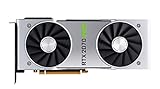
- NVIDIA GeForce RTX 2070 Super Founders Edition Graphics Card
- RTX 2070
- Founders Edition Graphics Card
- item package weight: 2.018 kilograms
Point-light shadows deserve special attention in bases and interiors. Keen Games has reported work to reduce their performance impact, but the effect can still vary with the number and placement of lights in your world. If performance collapses near a heavily lit settlement, test shadow settings there rather than in an empty field.
Volumetric lighting and fog
Volumetric effects add depth to mist, shafts of light, and atmospheric areas. They can be expensive in scenes with a lot of fog or light scattering. Lower this setting when outdoor traversal produces large frame-time spikes, then check whether the atmosphere remains acceptable at your chosen level.
The Tool Desk
Outbyte PC Repair FREERepair Windows errors before they cause bigger problemsFix Now →Outbyte Driver Updater FREEFix the driver behind crashes, sound loss and screen glitchesFind Drivers →Foliage
Foliage affects both the number of visible objects and the amount of fine detail that temporal reconstruction must stabilize. Lowering it can help in forests and grassy areas, but it may also make the world look sparser. If leaves shimmer or crawl while moving, compare anti-aliasing and upscaling modes before dropping foliage to its lowest level.
Draw distance
Draw distance controls how far objects and terrain remain detailed. Lowering it can reduce scene complexity and help GPU or CPU-limited views, but distant structures, trees, and landmarks may disappear sooner. Use the smallest reduction that solves the problem; excessive reduction hurts navigation and long-range visibility.
Textures and VRAM
Texture quality primarily consumes video memory rather than determining every rendering cost. Keep it high when your GPU has enough VRAM, because lowering textures can make surfaces look muddy without fixing a shadow, fog, or geometry bottleneck. If you see texture streaming problems, hitching, or missing detail, reduce texture quality one step and retest rather than lowering every option.
Clarity settings for exploration and combat
Anti-aliasing and reconstruction
When distant surfaces shimmer, foliage looks unstable, or thin objects break apart during camera movement, test the available anti-aliasing and upscaler combinations. A lower preset is not automatically clearer: a well-chosen Quality mode may preserve more usable detail than a very low native-resolution setting.
Free tools Windows power users keep installed
One-click scans. No signup required.
Motion blur
Disable motion blur if you want readable movement, clearer turns, or less visual smearing during combat. Keeping it enabled is a stylistic choice, not a reliable performance strategy; turn it off when your priority is seeing targets and terrain while the camera moves.
HDR
HDR is display-dependent. Enable it only when your monitor supports HDR properly, then calibrate the game’s brightness and paper-white or peak-brightness controls according to the display. If the image looks gray, crushed, or excessively bright, compare HDR off and on after calibration rather than changing unrelated quality settings.
Rank #3

- Product Type -Video Card
- Package Quantity-1
- Package Dimension-14.1338582533 inchesL X 8.4645669205 inchesW X 4.8031496014 inchesH
- Package Weight -3.6155810968 Lbs
Practical profiles for different bottlenecks
These profiles are starting points, not benchmark guarantees. Keep the native output resolution unless the profile specifically calls for upscaling, and verify the result in your own repeatable scene.
| Goal | Resolution and upscaling | Priority changes | Watch for |
|---|---|---|---|
| Clear image with modest extra FPS | Native; add DLSS or FSR Quality only if needed | Lower shadows and volumetrics one step; keep textures high | Shadow softness and fog detail |
| Stable play in dense bases | Native or Quality upscaling | Reduce point-light shadow burden, shadows, foliage, and draw distance | Frame-time spikes near many lights and structures |
| GPU-limited exploration | Quality, then Balanced if required | Lower volumetrics, foliage, and distant detail before textures | Foliage shimmer and landmark visibility |
| Older or below-recommended GPU | Balanced; Performance only as a last step | Reduce shadows, volumetrics, foliage, and draw distance; lower textures if VRAM is tight | Soft reconstruction, streaming hitches, and input delay |
| Combat readability | Highest mode that holds your target | Disable motion blur; favor stable anti-aliasing and foliage | Ghosting, shimmer, and blurred camera pans |
Frame caps and frame pacing
If FPS swings sharply, set a cap close to the monitor’s refresh target. A cap can reduce oscillation between very high and very low frame rates and make camera movement feel more consistent. Choose one limiter first—either the game’s cap or a driver-level cap—and test it. Stacking multiple limiters can make it difficult to identify which one is controlling frame time.
Use frame time as the diagnostic signal. A nominally higher average FPS is not necessarily better if repeated spikes cause hitching. Compare a short route through the same scene and note whether input response remains consistent during turns, combat, and traversal.
How to diagnose the limiting component
GPU-limited symptoms
- GPU utilization remains high while lowering shadows, volumetrics, or upscaling improves actual FPS.
- Resolution changes have a noticeable effect.
- Frame time rises in foggy, heavily lit, or visually dense views.
Use Quality or Balanced upscaling, then lower the expensive visual groups in small steps. Keep textures as high as VRAM permits.
CPU- or scene-complexity-limited symptoms
- Lowering output resolution produces little improvement.
- Frame time worsens around large bases, many constructed objects, or crowded scenes.
- One or more CPU threads are busy while the GPU has unused headroom.
Test draw distance, foliage, shadows, and the density of the scene. An SSD can help asset streaming, but it will not remove a CPU simulation bottleneck.
What’s actually slowing this PC down?
Pick the symptom - the matching free tool is one click away.
VRAM-limited symptoms
- Textures stream late, surfaces become temporarily blurry, or hitching appears when turning quickly.
- Reducing texture quality improves stability more than lowering shadows.
Lower textures one step, close other GPU-heavy applications, and retest after the world has finished loading.
Independent reader supportYour contribution helps us test, update, and keep practical guides available for everyone.Patch and driver changes can alter the result
Keen Games has reported performance work affecting handheld devices and lower-end graphics cards, reduced video-memory use, additional performance methods, updated automatic GPU-detection presets, and changes to point-light shadow impact. Those updates mean a preset that worked before a patch may no longer be the best starting point.
After a major game or driver update, repeat the same test route. Confirm that the preset list, upscaler options, frame-generation behavior, and frame cap are still set as intended. Do not compare an old FPS note with a new one unless the resolution, scene, driver, and game version match.
Rank #4

- Real Boost Clock: 1800 MHz; Memory Detail: 8192 MB GDDR6.
- Real-time ray tracing in games for cutting-edge, hyper-realistic graphics.
- Dual HDB fans offer higher performance cooling and much quieter acoustic noise.
- All-metal back plate & adjustable RGB
- 3 year & EVGA's top notch technical support.
A repeatable tuning checklist
- Confirm Windows, the game, and the graphics driver are up to date.
- Check that your hardware is near the official minimum or recommended tier.
- Select Performance or Balanced and restart after a major preset change.
- Set native output resolution and disable motion blur for clarity testing.
- Run your chosen test route and record actual FPS, frame time, and input feel.
- Add DLSS or FSR at Quality, then step down only when the target is still missed.
- Lower shadows, volumetrics, foliage, and draw distance individually.
- Keep textures high unless VRAM symptoms appear.
- Apply one frame cap if pacing is uneven.
- Repeat the route after every patch or driver update that changes rendering behavior.
Frequently asked questions
Should I choose DLSS or FSR?
Choose the option available for your GPU that produces the clearest stable image at the highest mode meeting your target. Start at Quality, compare foliage and distant detail with native rendering, and move to Balanced or Performance only if necessary.
Quick wins for a faster PC:
Fix the driver behind crashes, sound loss and screen glitchesFind Drivers →Repair Windows errors before they cause bigger problemsFix Now →Scan for outdated or missing drivers - takes under a minuteDriver Scan →Why did the FPS counter rise but the game still feel laggy?
The counter may include generated frames. Steam’s performance monitor separates generated-frame FPS from actual game FPS. Check actual game FPS, frame time, and input response before deciding that performance improved.
What should I lower first in a crowded settlement?
Test shadows—especially point-light shadows—then volumetric effects, foliage, and draw distance. These settings address scene complexity without immediately sacrificing texture detail.
Is 16GB of RAM enough?
Steam lists 16GB for both minimum and recommended configurations. Other factors, including GPU VRAM, CPU speed, storage, background applications, and the current game version, still determine how smoothly your system performs.
Do the official requirements guarantee 60 FPS?
No. They identify minimum and recommended hardware tiers, but they do not publish a universal FPS result for every setting, resolution, scene, or patch.
Frequently Asked Questions
Can lowering every setting give the best FPS?
Not necessarily. Lower shadows, volumetrics, foliage, and draw distance first, and retain texture quality when VRAM allows; lowering everything can reduce clarity without addressing the actual bottleneck.
When should I use a frame cap?
Use one when frame pacing is uneven. Set it near your monitor’s refresh target and avoid stacking multiple limiters until you know which cap is active.
Why does Enshrouded look blurry after enabling upscaling?
Upscaling reduces internal rendering detail. Move from Performance to Balanced or Quality, or return to native resolution if your GPU can maintain the target.
Quick Recap
Product prices and availability are accurate as of the date/time indicated and are subject to change. Any price and availability information displayed on Amazon at the time of purchase will apply.

