Recommended Free Tools
The most reliable starting point is a portrait-oriented inner display with the two Nintendo DS screens stacked vertically, each kept at its original proportions. Use the emulator’s layout editor to enlarge both screens until they use the available panel, then tune the gap and position. Treat that as a starting layout rather than a universal preset: folded and unfolded displays can differ sharply in size and aspect ratio, and readability, touch reach, emulator build, game controls and phone posture all affect the result.
Start with a portrait vertical stack
Unfold the phone fully and hold it in portrait orientation. A vertical stack follows the DS’s original top-screen/bottom-touch-screen relationship and usually gives the touchscreen a natural position below the main display. Preserve the aspect ratio of both screens while you adjust their size. Stretching either screen to fill an unusual panel can make text, sprites and menus look visibly distorted.
As an Amazon Associate I earn from qualifying purchases.
- Open the emulator’s display, video or layout settings while the phone is unfolded.
- Choose the custom layout editor, or the option to select, create or edit a layout.
- Place one DS screen above the other. Keep the original proportions enabled if the editor offers an aspect-ratio lock.
- Increase the scale of both screens until they are easy to read without being cropped by the inner display.
- Adjust the gap between the screens. A narrow gap uses more area; a wider gap can make the two displays easier to distinguish.
- Move the pair so neither screen is hidden by a hinge area, rounded corner, camera cutout or an emulator overlay.
- Save the result globally, then save a game-specific version when the title needs a different balance.
There is no source-established percentage for screen scale or gap that works across foldables. Measure success by whether the main screen is legible, the lower screen is comfortable to tap and the complete pair fits without unwanted cropping.
Free tools Windows power users keep installed
One-click scans. No signup required.
Why the unfolded panel needs its own layout
Android’s foldable guidance treats folded and unfolded states as substantially different display configurations. The inner panel may be much wider, taller or differently proportioned than the cover screen, and the usable region can change again when the device rotates. An emulator that looks correct while folded can therefore produce tiny screens, excessive empty space or clipped controls when opened.
#1 Best Overall

- Stylus Pen for Touchscreen: No Bluetooth or charging needed—use instantly on any capacitive touch screen (iPad, iPhone, Android, Samsung). Dual rubber tips (5mm/6.6mm) ensure precise control for writing, drawing, or gaming. Lightweight aluminum body with vibrant colors.
- Precision & Comfort Redefined: High sensitivity rubber tip glides smoothly without lag or scratches. Ergonomic design reduces wrist strain for extended use. Compatible with tablets, phones, and Laptops.
- Dual-Tip Flexibility: Switch between 0.20” and 0.26” rubber nibs for detailed art or bold notes. Anti-scratch, fingerprint-resistant tip. Pretty bright metal colors inspire creativity.
- Effortless Multi-Device Compatibility: Works seamlessly on Apple, Samsung, Android, and more. No apps or setup—just pick up and write. Perfect for notes, games, or gifts—ready to spark ideas instantly. Replaceable tips included for long-term use.
- Creative Freedom, Anywhere: Lightweight aluminum stylus with natural grip. Includes 6 replaceable tips and 3 color stylus pens. Perfect for sharing with friends, family, or colleagues, this bundle ensures you’re always equipped to capture inspiration.
Do not assume that every emulator will automatically rebuild its layout correctly after unfolding or rotating. Android supports changing display configurations, but general platform guidance does not certify the behavior of a particular emulator on every phone. After each posture or orientation change, check the screen bounds and touch target positions before starting a long session.
Vertical stack versus landscape side-by-side
Portrait stacking is the sensible first test, not a guarantee that it will be best for every inner screen. Landscape side-by-side can make better use of a wide panel, but it can also shrink each DS screen or place the touchscreen too far from the hand holding the phone.
| Layout | When to try it | What to check | Main risk |
|---|---|---|---|
| Portrait, screens stacked | Default for a fully opened phone held upright | Main-screen text, lower-screen reach, balanced vertical spacing | Unused side margins or a stack that is too tall for the panel |
| Landscape, screens side by side | When the inner display is wide enough to keep both screens readable | Whether each screen remains large and whether the touchscreen is comfortable to tap | Small screens, awkward reach or a gap that consumes valuable width |
| Single-screen view | Games that rely mainly on one DS display | Whether the emulator lets you switch screens quickly and reach required controls | Important information or touch controls remain hidden |
| Screen-swapped view | Games where the normally secondary screen is the one you need to watch | Whether the installed build provides a swap command and whether touch input follows the visible screen | Touch coordinates or on-screen buttons no longer match expectations |
Compare every candidate layout on three axes: main-screen readability, touchscreen reach and accuracy, and how completely the pair fits the visible inner panel. A layout that wins on one axis but fails another is not an improvement.
The Tool Desk
Outbyte PC Repair FREERepair Windows errors before they cause bigger problemsFix Now →Outbyte Driver Updater FREEScan for outdated or missing drivers - takes under a minuteDriver Scan →Using DraStic’s custom layout controls
DraStic’s documented settings guide describes a custom screen editor. It allows screens to be moved and resized, with an option to preserve or disable their aspect ratio. It also describes layout tools for positioning and scaling and a tool for arranging the screens in the original vertical orientation with a gap.
- Open DraStic’s display or video settings and enter the custom screen editor.
- Select the vertical arrangement as the base layout.
- Leave aspect-ratio preservation enabled while establishing the initial size. Disable it only if you have a deliberate reason to accept geometric distortion.
- Resize the top and bottom screens independently if the editor permits it, keeping both readable and within the visible panel.
- Use the positioning controls to center the pair or align it with the way you hold the phone.
- Set a gap that separates the screens without creating a large dead strip.
- Save the configuration globally for a general default, or save it for the current game when that title needs a special arrangement.
The DraStic instructions come from a third-party settings guide rather than an official vendor manual, so labels and exact menu placement may differ between releases. If a control is missing in your build, use the equivalent layout, scale, gap or position control that is available instead of assuming the feature is supported.
Rank #2
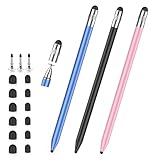
- 2026 Upgraded 3-in-1 Capacitive Stylus Pen: On the basis of the original double rubber pen tip, this stylists pens for touch screens adds a more sensitive transparent disc tip, you can switch from 3 different tips, meet all your needs for writing, taking notes, playing games etc
- 3 pen tips, highly sensitive: This stylus pen for android is equipped with 0.18" and 0.27" rubber tips, good at scrolling web pages or playing games. The transparent disc tip of stylus pens for touch screens allows visibility of the contact point, so it is more responsive and accurate. 180° flexible writing angle avoids lag, interruption
- Wide Compatibility: This stylus pen for iPad, also compatible with all capacitive touchscreens, for iphone duo,smart phones, tablets, iPad, iPhone, Tablet, Galaxy, kindle, Fire MAX, Chromebook, nintendo switch stylus, for switch 2 stylus,etc. One tablet pen use in all touchscreen devices
- Easy to Use: This iPad stylus tips are replaceable, easy to finish the replacement process without any tool within seconds, effectively extending the lifetime of the stylus. it is easy to use,just pick up and use directly
- Stylus Pen Set: the stylus pen for iphone delivers a better touch point than your finger, avoids the troubles caused by accidental touch. It's the perfect tool for kids learning, adults working, and seniors navigating their devices effortlessly. It also helps with arthritis, allowing for easy writing when hand movement is restricted. Also the ideal gift for the back-to-school season, Mother's Day, Father's Day,Thanksgiving, Christmas and other holiday occasions. Get more replacement tips, please search the Asin: B0GYPKMMTP
Using melonDS Android layout settings
The melonDS Android settings documentation describes selecting, creating and editing layouts. It also covers software-input visibility and touch feedback, which matter when the lower DS screen is being used as a virtual control surface.
- Open the Android build’s settings and select an existing layout or create a new one.
- Edit the layout for the unfolded portrait posture, placing the screens vertically and preserving their proportions.
- Adjust screen size, position and the mid-screen gap until the complete pair fits the panel.
- Review software-input visibility. Keep virtual buttons or other input controls visible when a game needs them, and hide unnecessary overlays when they obstruct the display.
- Enable touch feedback if you need a visible confirmation while tapping the lower screen; disable it if the feedback obscures small controls.
- Save the layout and test it after rotating or refolding the phone.
The main melonDS FAQ lists display options such as screen rotation, a mid-screen gap, layout, sizing, filtering and framerate limiting. The Android settings documentation and the main project should not be treated as identical support channels: the FAQ states that the project does not develop or support unofficial Android ports. A download page lists Android among supported platform downloads, but that listing does not establish which Android build is best for a particular foldable or whether it will handle every posture transition correctly.
Do these 3 things before closing this tab:
1Repair Windows errors before they cause bigger problems2Fix the driver behind crashes, sound loss and screen glitches3Clear out junk files and repair common Windows errorsBuild a per-game layout instead of forcing one preset
DS games use the two screens differently. Some keep dialogue, maps or inventory on the lower display; others make the upper display the focus and use the touchscreen only occasionally. A single global layout can therefore be excellent for one title and frustrating for another.
Games dominated by the upper screen
Keep the upper screen large enough for text and status information. You can reduce the lower screen slightly, move it closer to the upper screen or use a single-screen mode if the game does not require constant touch interaction. Confirm that any menu or map on the lower display remains reachable before committing the layout.
Touch-heavy games
Give the lower screen enough physical area for accurate taps. Avoid placing it against a curved edge, hinge boundary or the hand that supports the phone. A slightly smaller upper screen is often preferable to a touchscreen that forces repeated misses.
Rank #3

- The round head of the stylus is made of silicone, which is used for mobile phones and tablets.
- The stylus pen tip is made of hard plastic, which can only be used for resistive screens such as GPS and navigator.
- The round head and pointed head of the stylus are compatible with all the capacitive and resistive screens at present.
- SILICONE ROUND HEAD, FOR MODERN DEVICES: The soft, conductive silicone round head is designed specifically for all capacitive touch screens, including iPad, iPhone, Samsung Galaxy, Android tablets/smartphones, and other similar devices. Perfect for scrolling, tapping, and general navigation.
- PLASTIC TIP, FOR SPECIFIC RESISTIVE SCREENS ONLY (PLEASE NOTE): The fine plastic tip is ONLY compatible with older resistive touch screens, such as those found on some GPS devices, Nintendo DS/3DS, and certain POS machines. It will NOT work on capacitive screens like iPhones, iPads, or modern smartphones/tablets.
Games that alternate attention
Keep both screens prominent and use a moderate gap. If the emulator offers screen swapping, map it to an accessible command so you can temporarily make the important display larger or easier to monitor.
Save and name your variants
Use the emulator’s game-specific save option where available. Keep a general portrait layout as a fallback, then create a title-specific version only after testing actual play. If you change orientation, remember that a portrait layout and a landscape layout may need separate saved configurations.
Choosing between stacked, swapped and single-screen modes
Screen swapping and single-screen layouts are useful tools, but availability and behavior depend on the installed emulator build. Verify that the command exists and that touch input still maps to the visible screen after switching.
- Use both screens when the game continuously presents information or controls on each display.
- Use a larger primary screen with a smaller secondary screen when one display is important but the other must remain available.
- Use screen swapping when you need to watch the lower display temporarily or when a game’s important content changes during play.
- Use a single-screen layout only after confirming that hidden information and touch controls are not needed during the section you are playing.
Touch controls, feedback and an optional stylus
The lower DS display is a touchscreen, so visual layout is only half of the setup. Test taps at the edges, corners and smallest buttons, not just the center of the panel. Software-input controls can consume space or cover game elements; move them away from active areas, reduce their visibility when appropriate or disable them when the phone’s touch surface is sufficient.
A capacitive stylus for an Android touchscreen is an optional accessory for games that demand precise drawing or repeated small taps. It is not proven necessary for every foldable. Before buying one, check compatibility with the phone, case and screen protector, and make sure the tip does not interfere with the display’s touch response.
What’s actually slowing this PC down?
Pick the symptom - the matching free tool is one click away.
Rank #4

- 【Enhanced Precision with Dual Rubber Tips - Smooth, Comfortable, and Stylish】Experience unparalleled accuracy with our dual-tip stylus, featuring two premium silicone rubber tips (7mm/5mm) designed for smooth, responsive performance across tasks like browsing, writing, drawing, and gaming. These soft, durable tips protect your screen from scratches and reduce fingerprints, making it perfect for users with long nails or larger fingers. Crafted with a sleek aluminum body, this stylus blends functionality and elegance, ensuring a seamless and stylish digital experience every time.
- 【High Precision & Scratch Protection】 This stylus Pen for Touchscreen is equipped with a highly sensitive rubber tip that glides effortlessly across the screen, delivering pixel-perfect precision for seamless writing, drawing, and navigation. Its anti-scratch design safeguards your device from fingerprints, smudges, and scratches, keeping your screen pristine. Perfect for unleashing creativity and enhancing productivity with smooth, lag-free performance.
- 【Ready to Use, No Hassle Setup】Experience instant creativity with our iPad stylus pen—no Bluetooth connection or charging required. Simply pick it up and start writing or drawing effortlessly. Perfect for jotting down ideas, sketching designs, or unleashing your creativity, it delivers a smooth, natural, and reliable performance every time.
- 【Universal Compatibility】 Our stylists pens for touch screens is designed to seamlessly work with all capacitive touch screen devices, including iPhone, iPad, Nintendo Switch, Android phones, Samsung Galaxy, tablets, Chromebooks, Microsoft Surface, and more. Perfect for drawing, writing, note-taking, browsing, and gaming, this versatile tool effortlessly adapts to your needs, enabling you to switch between devices and unleash your creativity with ease. One stylus is all you need for a smooth, pen-like experience across multiple platforms!
- 【Comprehensive Stylus Set and After-Sales Support】Elevate your touchscreen experience with this stylus set, designed for precision and versatility. It includes replaceable accessories, featuring two different-sized rubber tips for adaptable use. Both ends are easy to replace without any tools, ensuring effortless functionality. Perfect for personal use or sharing with family and friends, these styluses deliver exceptional accuracy. Have questions or need assistance? Our responsive customer support team is here to provide prompt and reliable solutions, ensuring your satisfaction every step of the way.
Display options that affect comfort
Aspect ratio
Keep aspect-ratio preservation enabled as the default. The documented editors allow custom sizing, and DraStic documents an option to turn aspect preservation off, but stretching should be a conscious trade-off rather than the first fix for unused space.
Gap
The gap separates the DS screens and can prevent a tap from being mistaken for a screen edge. Start modestly, then widen it only if the screens visually merge or the hinge area creates confusion. There is no foldable-wide standard gap.
Rotation
Use the orientation that gives the largest practical screens and the most comfortable touch reach. Recheck the layout after rotation because a configuration that fits portrait can be cropped or too small in landscape.
Filtering
If the emulator offers filtering, compare it at the actual scale you use. Filtering can soften small text, while an unfiltered image can look harsh when enlarged. Choose the setting that keeps fonts and fine interface details readable on your panel.
Quick wins for a faster PC:
Clear out junk files and repair common Windows errorsFree Scan →Fix the driver behind crashes, sound loss and screen glitchesFind Drivers →Repair Windows errors before they cause bigger problemsFix Now →Framerate limiting
Framerate limiting is listed among melonDS display options, but the available sources do not establish a foldable-specific performance target or benchmark. Treat it as a stability and comfort option: test the game at the limit offered by your build and keep the setting that avoids distracting speed or timing changes.
Best Value

- [Universal Stylus Pen] Our stylus pens for touch screens have broad compatibility and works seamlessly with iPhone, iPad, Android devices, tablets, Samsung and most capacitive touchscreen devices. You can enjoy a versatile digital experience.[Note]: This stylus does not have a function to prevent accidental touches.
- [One Touch Switch] Experience easy and comfortable control with the one-touch switch design. Save time and realize quick creativity by turning your iPad pen on or off with just one touch
- [Magnetic Adsorption Design] The iPad pencil with an authentic magnetic design that securely attaches to the side of your iPad.This innovative feature ensures that your stylus stays within reach and prevents it from getting lost! Note: Only support iPad Pro11"& iPad Pro12.9"(3th/4th Gen)
- [Accuracy & Sensitivity] This stylus pen for iPad works without delay or lag, won't damage the screen, and comes with 2 complimentary nibs, giving you more options for a more precise writing and drawing experience
- [Quick Charge] The iPad pen can be fully charged in just 40 minutes and can be used continuously for 9-10 hours. Keep your creative juices flowing without worrying about charging, it won't affect your creativity!
Troubleshooting common inner-screen problems
Both screens are too small
- Confirm that the phone is fully unfolded and the emulator is using the inner display rather than a cover-screen configuration.
- Open the layout editor and enlarge the screens while preserving their proportions.
- Reduce excessive gaps and move the pair into unused margins.
- Try landscape side-by-side only if each screen remains readable.
One screen is cropped
- Check whether the layout extends beyond the visible panel after rotation or unfolding.
- Reduce scale slightly and reposition the pair.
- Look for rounded corners, a hinge boundary or an overlay occupying part of the display.
Touch taps miss their targets
- Increase the lower screen’s physical size rather than enlarging only the upper screen.
- Move the touch display away from the edge where your palm rests.
- Check software-input visibility and touch-feedback settings.
- After swapping screens, verify that touch coordinates still follow the displayed touchscreen.
The layout changes unexpectedly after unfolding
Close and reopen the layout editor, confirm the active orientation and reload the saved configuration. If the emulator does not reliably react to posture changes, keep separate portrait and landscape layouts and select them manually when needed.
Text looks stretched
Re-enable aspect-ratio preservation and resize the screen uniformly. A panel’s unusual shape is better handled with margins or a controlled gap than by distorting the DS image.
How to choose an emulator for a foldable
There is no evidence-backed universal winner for foldable DS play. Choose the build that gives you the controls you actually need and behaves consistently on your phone.
Outdated Drivers Are Slowing You Down
One free scan finds every outdated or missing driver and matches the right update for your exact hardware.Free scan · exact hardware matchWindows Errors? Fix Them Before They Spread
Repair common Windows errors and clear accumulated junk for a smoother, more stable PC - no reinstall needed.Free scan · no reinstall| Capability to compare | Why it matters | Questions to answer on your device |
|---|---|---|
| Custom screen editor | Lets you fit both DS displays to the inner panel | Can you move and resize screens independently? |
| Aspect-ratio control | Prevents accidental stretching | Is preservation enabled by default, and can it be changed? |
| Gap and positioning tools | Controls how the pair fits around margins and hinge areas | Can you set a gap and save its position? |
| Game-specific layouts | Allows different games to use different screen balances | Can the current layout be saved per title? |
| Screen swapping or single-screen mode | Helps games that emphasize one display | Does the installed build provide the command, and does touch mapping remain correct? |
| Software-input visibility and touch feedback | Improves control accuracy without covering the game | Can overlays and feedback be shown, moved or hidden? |
| Orientation handling | Determines whether unfolding and rotation are convenient | Does the layout remain usable after changing posture, or must you select it again? |
Test the emulator with one text-heavy game, one touch-heavy game and one title that uses both screens continuously. That small set reveals more about inner-screen usability than choosing an app by name alone.
A practical setup checklist
- Unfold the phone completely before editing the layout.
- Start in portrait with a vertical stack.
- Preserve each DS screen’s original proportions.
- Enlarge both screens until text is readable without cropping.
- Set a moderate gap and keep the lower screen reachable.
- Check software-input overlays and touch feedback.
- Test taps at corners and on small controls.
- Try landscape side-by-side only when readability and touch comfort improve.
- Save a game-specific layout for titles with unusual screen demands.
- Recheck the layout after unfolding, refolding or rotating.
- Use screen swapping or single-screen mode only after confirming availability and touch behavior in your build.
The best settings are the ones that fit your particular inner panel and the game in front of you. Start with the preserved-proportion portrait stack, measure it against readability and touch accuracy, then make deliberate per-game changes instead of searching for one scale or gap that every foldable must share.
Quick Recap
Product prices and availability are accurate as of the date/time indicated and are subject to change. Any price and availability information displayed on Amazon at the time of purchase will apply.

