What’s actually slowing this PC down?
Pick the symptom - the matching free tool is one click away.
The best Cyberpunk 2077 settings depend on your GPU, resolution, target frame rate and tolerance for ray-traced lighting. Start with the closest non-ray-tracing preset for your hardware, verify performance in the same demanding scene, then change one setting at a time. Move to standard ray tracing or Overdrive only when your baseline frame rate and image-reconstruction settings are already sound.
What “best settings” means in Cyberpunk 2077
There is no universal best preset for every PC. A setting that is sensible for 1080p/60 FPS can be inappropriate for 4K, while a configuration built around path tracing can feel worse than a conventional rasterized setup if the underlying frame rate is too low. Decide your goal first:

As an Amazon Associate I earn from qualifying purchases.
- Stable performance: prioritize a consistent response at your monitor’s target refresh rate.
- Higher image quality: keep the rendered resolution and visual preset high, accepting a lower frame rate when necessary.
- Ray-traced lighting: use standard ray tracing or Overdrive only when your GPU and baseline performance justify it.
CD PROJEKT RED’s published figures are system-requirement targets, not repeatable benchmarks for every computer. The publisher says performance varies with hardware, software configuration, individual graphics settings and output resolution. Use the table below to choose a starting point, then validate it on your own system.
Do these 3 things before closing this tab:
1Scan for outdated or missing drivers - takes under a minute2Repair Windows errors before they cause bigger problems3Fix the driver behind crashes, sound loss and screen glitchesCurrent system targets by resolution and graphics mode
The following targets apply to the Update 2.0/Phantom Liberty generation of the game and come from CD PROJEKT RED’s current requirements information. They describe the listed CPU, GPU and memory combinations; they do not guarantee identical results in every scene.
#1 Best Overall
| Output and target | Preset or mode | CPU target | GPU target | Memory | Important qualification |
|---|---|---|---|---|---|
| 1080p, 30 FPS | Low, non-ray-tracing | Core i7-6700 or Ryzen 5 1600 | GeForce GTX 1060 6 GB, Radeon RX 580 8 GB or Arc A380 | 12 GB RAM | Publisher requirement target |
| 1080p, 60 FPS | High, non-ray-tracing (recommended) | Core i7-12700 or Ryzen 7 7800X3D | GeForce RTX 2060 Super, Radeon RX 5700 XT or Arc A770 | 16 GB RAM | Publisher requirement target |
| 2160p, 60 FPS | Ultra, non-ray-tracing | Core i9-12900 or Ryzen 9 7900X | GeForce RTX 3080 or Radeon RX 7900 XTX | 20 GB RAM | Publisher requirement target |
| 1080p, 60 FPS | Ray Tracing Ultra | Core i9-12900 or Ryzen 9 7900X | GeForce RTX 3080 Ti or Radeon RX 7900 XTX | 20 GB RAM | Publisher requirement target |
| 2160p, 60 FPS | Ray Tracing Overdrive | Not stated | GeForce RTX 4080 | 24 GB RAM | Target measured with DLSS Frame Generation enabled |
The current table does not include a 1440p row. Do not treat the 1080p or 2160p figures as a guaranteed 1440p result. Use the nearest non-ray-tracing tier as a starting point and test your own frame rate.
Choose a starting preset before changing individual options
For entry-level or older hardware
Select the Low or Medium non-ray-tracing preset at your output resolution. If the game is below your target, enable the supported upscaling mode before turning on frame generation. Keep ray tracing disabled while establishing a stable baseline. This approach separates ordinary performance problems from the much larger cost of ray-traced lighting.
For mainstream 1080p gaming
Use High non-ray-tracing as the initial preset when your hardware is close to the publisher’s 1080p/60 target. Run through a busy city area rather than judging only from a quiet interior. If the result is inconsistent, reduce demanding options incrementally and retest the same route.
For high-end 1440p or 4K systems
Begin with High or Ultra non-ray-tracing, depending on your GPU and desired frame rate. Because CD PROJEKT RED does not publish a current 1440p requirement row, treat 1440p as a tuning exercise rather than a promised performance tier. At 4K, the Ultra non-ray-tracing target is the closest official reference unless you deliberately choose ray tracing.
A repeatable setup procedure
- Confirm the installed game build. Patch 2.13 introduced FSR 3 with Frame Generation and XeSS 1.3. Update 2.3 announced FSR 4, FSR 3.1 Frame Generation and XeSS 2.0, while Patch 2.21 added DLSS 4 features for compatible hardware. The options shown in your menu depend on the build and GPU, so do not assume every feature is present.
- Check storage and memory. The updated requirements call for an SSD. Compare your CPU, GPU, VRAM and system RAM with the closest official target rather than choosing a preset by GPU name alone.
- Select the output resolution and refresh rate. Set the game to the resolution you actually intend to play. A lower internal render resolution can improve performance through upscaling, but it is not equivalent to native rendering.
- Apply the closest non-ray-tracing quick preset. This gives you a known baseline. Do not begin by combining several aggressive changes, because you will not know which adjustment helped or caused a visual problem.
- Run the same test scene. Use a repeatable route with traffic, crowds and combat when possible. Record average smoothness and noticeable stutter rather than relying on a brief menu benchmark.
- Enable the supported upscaler. Choose the image-reconstruction option exposed by your hardware and game version. Compare its quality at the same output resolution before considering frame generation.
- Change one setting at a time. Lower a costly option one step, repeat the scene, and keep the change only if the performance or image-quality trade-off suits you. Current evidence does not establish a universal FPS gain for each individual toggle.
- Test ray tracing separately. Capture a baseline with ray tracing off, then enable standard ray tracing. Only after that should you evaluate Overdrive, which is a substantially more demanding path-traced mode.
Best settings for a stable frame rate
Use the non-ray-tracing preset closest to your target resolution and GPU. If performance is under target, try the supported upscaler first, then reduce expensive visual options in small steps. Keep a note of each change and test in the same area so that a busy scene does not make one configuration appear better by chance.
Rank #2

- The perfect quick reference tool for Cyberpunk RED.
- Includes all the tables a Gamemaster or Player needs to play the game.
- Four panels of gorgeous art, complete with a great view of Night City.
- Shield your notes from the prying eyes of others at your table
- Made of sturdy thick cardstock
Do not enable frame generation to conceal a weak baseline. CD PROJEKT RED recommends at least 60 FPS before enabling FSR Frame Generation and warns that lower starting rates can produce artifacts and poor frame pacing. A generated frame can increase the displayed counter while input response still reflects the underlying rendered rate.
If your display supports it, the publisher’s support guidance recommends a 120 Hz-or-higher monitor for frame-generation use and enabling Hardware-Accelerated GPU Scheduling in Windows. These are setup recommendations, not a promise that every system will feel equally smooth.
Ray Tracing and Overdrive: two different decisions
Standard Ray Tracing
Ray Tracing Ultra has its own official target: 1080p at 60 FPS with a Core i9-12900 or Ryzen 9 7900X, a GeForce RTX 3080 Ti or Radeon RX 7900 XTX, and 20 GB of RAM. That is a different hardware class from the 1080p High non-ray-tracing target. Compare ray tracing on and off using the same scene; if the response becomes inconsistent, the non-ray-tracing configuration is the better practical choice for your goal.
Overdrive path tracing
Overdrive is an optional high-end path-tracing mode. CD PROJEKT RED describes it as highly GPU intensive, disables it by default and recommends RTX 40 Series hardware from the 4070 Ti upward. The listed 2160p/60 target specifies a GeForce RTX 4080 and 24 GB of RAM, with DLSS Frame Generation enabled for that measurement. Do not present this as a normal Ultra preset or expect the same result without the stated frame-generation assumption.
For a stable response, establish a playable non-ray-tracing baseline first. Then test standard ray tracing, and only move to Overdrive if the visual improvement matters more to you than the additional GPU load and possible need for reconstruction.
Rank #3
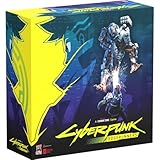
- Command Edgerunners like David, Lucy, and Maine in intense tactical battles against the Arasaka Corporation and Adam Smasher.
- Features a complete 2-player starter set with acrylic StandUpz, double-sided game board, scenery, and essential components for immediate play.
- Utilizes Monster Fight Club’s [RE]action System for fluid, cinematic combat that rewards smart strategy and quick decisions.
- Fully compatible with Cyberpunk RED: Combat Zone, allowing cross-play and expanded tactical possibilities.
- Immerse yourself in a dark futuristic world of rebellion, cybernetic warfare, and street survival.
Upscaling, DLSS, FSR and XeSS
Upscaling renders internally at a lower resolution and reconstructs the selected output resolution. The available choices vary by vendor, GPU and patch:
Recommended Free Tools
- FSR 3: Patch 2.13 added FSR 3 and its Frame Generation option. FSR 3 upscaling must be enabled before its Frame Generation control can be used.
- FSR 4 and FSR 3.1 Frame Generation: Update 2.3 announced these additions. They may not appear in an older installed build.
- XeSS: Patch 2.13 added XeSS 1.3, and Update 2.3 announced XeSS 2.0.
- DLSS 4: Patch 2.21 added DLSS 4 features for compatible hardware. Multi Frame Generation is for RTX 50 Series cards; the publisher describes the Transformer model for Super Resolution and Ray Reconstruction as available across RTX cards.
Choose the option your installation actually exposes, then compare its image stability in motion, on fine geometry and around bright lights. The available evidence does not establish a universal quality ranking between DLSS, FSR and XeSS, so avoid declaring one technology automatically best for every GPU.
Crowd Density and CPU-limited scenes
Update 2.0 moved Crowd Density into the Graphics tab. It remains linked to the quick presets but can be adjusted independently. This makes it a useful test when the GPU is not fully loaded but busy streets still produce inconsistent performance. Lower it one step, repeat the same crowded route and keep the change only if the result improves without an unacceptable loss of atmosphere.
Because Crowd Density is independently adjustable, you do not need to abandon an otherwise suitable preset just to change the number of pedestrians and vehicles. Treat it as a targeted adjustment rather than an automatic recommendation for every PC.
Frame-generation checklist
- Confirm that your installed patch and GPU expose the desired Frame Generation option.
- Establish a rendered baseline of at least 60 FPS before enabling FSR Frame Generation, following CD PROJEKT RED’s guidance.
- Use a display running at 120 Hz or higher when following the publisher’s recommended setup.
- Enable Hardware-Accelerated GPU Scheduling in Windows if you are using the recommended configuration.
- Check for ghosting, shimmering, UI artifacts and uneven pacing in motion, not only the FPS counter.
- Remember that DLSS Multi Frame Generation is limited to RTX 50 Series hardware; it is not a general RTX feature.
Common problems and how to troubleshoot them
The game is below target immediately
Return to the closest non-ray-tracing preset, verify the output resolution, and enable the supported upscaler. Retest before changing several settings. If the system remains below target, your hardware may be below the publisher’s tier for that resolution and preset; use a lower preset or output target rather than adding frame generation to an unstable base.
Crashes, No Sound, or Screen Glitches?
Random freezes, missing sound and display glitches usually trace back to one bad driver. Find and replace yours safely.Free scan · under a minutePC Slower Than It Used to Be?
A free scan shows the junk files, broken settings and background clutter dragging Windows down - then fixes them in one click.Free scan · Windows 10 & 11Rank #4

- FOR CYBERPUNK 2077 VIDEO GAME FANS: You might lose your sanity in Night City, but at least you won't lose your keys
- QUALITY DESIGN: Molded flat relief design; sturdy metal alloy construction with enamel color finish
- IDEAL SIZE: Keychain design measures approximately 2.75 inches x 0.84 inches
- AUTHENTIC CYBERPUNK 2077 KEY CHAIN: Officially licensed by CD PROJEKT RED; designed and created by JINX
Frame generation feels laggy or uneven
Disable it temporarily and compare the underlying rendered rate. If the baseline is under 60 FPS, follow the publisher’s warning and improve the base first. Confirm the display refresh rate and Hardware-Accelerated GPU Scheduling settings, then check for artifacts and pacing rather than judging by the displayed FPS alone.
Overdrive causes a large performance drop
That behavior is expected for a mode the publisher labels highly GPU intensive. Compare standard ray tracing and ray tracing off, and verify whether your hardware is near the RTX 40 Series recommendation. The 4K/60 target assumes an RTX 4080 and DLSS Frame Generation, so it is not a baseline for lower-tier cards or a test without frame generation.
An expected upscaling option is missing
Check the installed patch and GPU compatibility. FSR 3, XeSS 1.3, later FSR and XeSS versions, and DLSS 4 features arrived in different updates. A missing option may therefore reflect the game build or hardware rather than a configuration error.
Performance changes between areas
Use the same route for every comparison and include a crowded exterior. The publisher explicitly notes that hardware, software, settings and resolution affect performance; a quiet interior cannot stand in for the entire game.
How to choose among three practical profiles
| Profile | Starting point | When to use it | What to verify |
|---|---|---|---|
| Stable performance | Closest non-ray-tracing preset; supported upscaler; no frame generation until the baseline is sound | You value consistent control response and fewer pacing surprises | Repeatable busy-scene performance and motion clarity |
| High image quality | High or Ultra non-ray-tracing at the intended output resolution | You prefer detail and native-like reconstruction over maximum FPS | Whether the GPU remains within your target in demanding areas |
| Ray-traced lighting | Non-ray-tracing baseline, then standard RT; Overdrive only on suitable high-end hardware | Lighting and reflections matter more than efficiency | Baseline FPS, artifacts, frame pacing and the hardware assumptions for the selected RT tier |
What older optimization guides can and cannot tell you
Digital Foundry published an optimized-settings breakdown in 2020 with resolution-specific suggestions. It predates major subsequent updates, including the Update 2.0 requirements changes and later upscaling features. You can use it as historical context for settings worth testing, but you should retest every recommendation against your installed game build and current hardware.
Best Value

- From the award-winning game Cyberpunk 2077
- The ex-nomad of the Aldecaldo family is recreated with incredible detail
- Stands approximately 9” tall
- Display base included
No current, comprehensive setting-by-setting test establishes one universal best preset or a definitive quality ranking across DLSS, FSR and XeSS. The defensible method is therefore hardware-specific: begin with the publisher’s nearest target, alter one control, and measure the result in a repeatable scene.
Frequently asked questions
Is there a guaranteed 1440p preset?
No. CD PROJEKT RED’s current requirements table does not publish a 1440p row. Start from the nearest 1080p or 2160p tier, then validate your own frame rate and image quality.
Should I turn on Overdrive first on a high-end PC?
No. Establish a non-ray-tracing baseline, compare standard ray tracing, and then test Overdrive. It is a separate, highly GPU-intensive path-tracing mode, and the published 4K/60 target assumes an RTX 4080 with DLSS Frame Generation.
Free tools Windows power users keep installed
One-click scans. No signup required.
Can frame generation fix low FPS?
It can raise the displayed frame count, but CD PROJEKT RED recommends a minimum 60 FPS rendered baseline for FSR Frame Generation. Enabling it below that can cause artifacts and poor pacing, so it should not replace a sound base configuration.
Why is Crowd Density not where I expect it?
Since Update 2.0 it is in the Graphics tab. It follows the quick preset but can still be changed independently.
Do I need an SSD?
Yes. The updated system requirements specify an SSD.
Quick Recap
Product prices and availability are accurate as of the date/time indicated and are subject to change. Any price and availability information displayed on Amazon at the time of purchase will apply.
The Tool Desk
Outbyte PC Repair FREERepair Windows errors before they cause bigger problemsFix Now →Outbyte Driver Updater FREEFix the driver behind crashes, sound loss and screen glitchesFind Drivers →
