For a strong competitive starting point, use the Black Ops 6-era controller, display, graphics, and audio profile below, then adjust one variable at a time over several sessions. It prioritizes consistent aim, readable targets, stable frame pacing, and directional audio rather than claiming a universal best setup.
What this setup is—and what it is not
The settings in this guide are a documented Black Ops 6-era Warzone and Multiplayer starting profile published by ONE Esports on May 19, 2025. They are useful defaults for competitive play, but they are not a guaranteed optimum for every player, display, controller, game mode, or hardware configuration. Professional settings change, and individual preferences differ, so use the official Call of Duty League player-settings page for current examples when you want to compare your own setup with active competitors.
As an Amazon Associate I earn from qualifying purchases.
No cited source provides a controlled statistic showing that a particular sensitivity, field of view, graphics preset, or audio mix increases win rate or K/D. The practical goal is narrower and more measurable: remove avoidable input delay, maintain stable frame pacing, keep important visual information readable, and make directional sounds easier to interpret.
Apply the baseline first. Play several sessions, record what feels wrong, and change only one setting category at a time. That prevents a sensitivity change, a deadzone change, and a field-of-view change from masking one another.
#1 Best Overall

- Iconic Monkeybomb Design: This officially licensed Call of Duty collectible features the legendary Monkey Bomb character rendered as a detailed 8.5 in tall gaming accessory that expresses your passion for the franchise
- Dual-Purpose Controller Holder: Heavy-duty PVC construction with a sturdy base securely holds gaming controllers, smartphones, and devices without tipping, combining functional organization with display appeal
- Universal Device Compatibility: Grips most gaming controllers including PlayStation 5 DualSense and Xbox Series S/X, plus iPhones, Android phones, TV remotes, and eBook readers for complete desk organization
- Authentic Licensed Collectible: Officially licensed by Activision, this Cable Guys figure delivers genuine Call of Duty authenticity that counterfeit alternatives cannot match for true COD gamers
- Premium Gaming Desk Accessory: Transforms any gaming setup into a professional space while keeping your devices within reach, perfect for streamers, competitive players, and collectors who value quality
Controller settings: the competitive baseline
| Setting | Starting value | How to use it |
|---|---|---|
| Controller vibration | Off | Removes vibration that can obscure fine stick feedback during gunfights. |
| Horizontal stick sensitivity | 7 | Provides a responsive turn rate without starting at the most aggressive end of the scale. |
| Vertical stick sensitivity | 7 | Keeps vertical and horizontal movement matched for a predictable baseline. |
| ADS sensitivity multiplier | 0.80 | Slows aiming-down-sights movement relative to hip-fire sensitivity, helping fine tracking. |
| ADS sensitivity transition timing | Instant | Applies the ADS multiplier immediately when you aim. |
| Target aim assist | On | Retains the game’s target-assist behavior for controller play. |
| ADS aim assist | On | Retains aim-assist behavior while aiming down sights. |
| Left-stick minimum deadzone | 3 | Use the lowest value that does not produce unwanted movement. |
| Right-stick minimum deadzone | 3 | Use the lowest value that does not produce unwanted camera movement. |
| Left-stick maximum deadzone | 65 | The cited guide lists this value; change it only after deliberate testing. |
| Right-stick maximum deadzone | 99 | The cited guide lists this value; change it only after deliberate testing. |
| Motion sensor behavior | Off | Turn it on only if you intentionally use gyro aiming and have practiced with it. |
| Button and stick layout | Default initially | Change later to suit a claw grip, paddles, or a remapped controller. |
How to tune the controller without losing consistency
1. Fix drift before chasing speed
Minimum deadzone is the threshold below which the game ignores stick input. A lower threshold feels more immediate, but a worn stick can report movement while untouched. Start at the listed minimums and leave them there if the reticle and character remain still. Raise a minimum only until drift stops; do not add extra deadzone simply because a higher number sounds safer, since unnecessary deadzone can hide small adjustments.
Test each stick separately. Leave the controller untouched for at least a minute, then make slow circular movements and small taps. If the camera creeps, the character walks, or the aim settles away from the point where you release the stick, increase only the affected minimum. Recheck after the controller warms up, because intermittent drift may not appear immediately.
2. Separate turning speed from ADS precision
Horizontal and vertical sensitivity govern broad camera movement. ADS sensitivity governs the smaller corrections made while a sight is up. If you can turn quickly but over-correct when tracking a distant target, keep the general sensitivity and lower the ADS multiplier slightly. If close-range fights feel sluggish before you can center on an opponent, test a small increase in the general sensitivity while leaving ADS unchanged. Make one change, then play enough engagements to judge it; changing both values together removes the reference point.
Recommended Free Tools
3. Treat transition timing as a timing preference
Instant transition makes the ADS multiplier apply as soon as the aim input begins. It is a clear, repeatable starting behavior. If the first fraction of an ADS movement feels abrupt, the issue may be the multiplier itself or the physical timing of your trigger press rather than the transition option. Test the transition setting only after your basic sensitivity and deadzones are stable.
Rank #2

- ✅【Using Tips】These Mobile Game controllers are using the sensitive real mouse micro switch inside. So there are several phones which have the electromagnetic problems. This will cause the triggers touch the screen automatically. Please do not worry about this and you just need to turn off the screen for 10 seconds and turn on the screen again. This issue will solved right away.
- ✅【Perfect Compatibility】These Mobile Game controllers are compatible with iPhone, iPad and most Android Phones, without even remove your case.(The thickness of the compatible mobile phone should be not more than 13mm.) These 6-fingers-operation mobile game controllers are suitable for a variety of shooting games, including PUBG, Call of Duty, Fortnite, Knives Out, Rules of Survival, Survivor Royale, Critical Ops etc. As long as the game allows customizing and draging the keys.
- ✅【Small and Lightweight】The PUBG game triggers are portable and tiny for you to put them into your pocket, and have them for gaming when in office, school, trip, camping and play games anywhere and anytime. With the 6 trigger PUBG mobile controller, you can simultaneously move, turn, aim and shoot by using the index fingers to press the buttons, which can eliminate the trouble that use thumbs only to make all operations.
- ✅【Mechanical Touch】4 triggers PUBG mobile controller designed for longevity with greater durability and responsiveness, more than 2 million click. Fast mechanical keys with medium resistance, precise actuation, audible click sound, and tactile bump feedback. Easy To Use, High Sensitive, Physical Button Feedback. Using this PUBG mobile game controller, you can move, angle adjust, aim and shoot at the same time with the thumbs and index fingers of the left and right hand.
- ✅【Super Gaming Experience】This PUBG game triggers is made of ABS and alloy, durable and ergonomic. 6 trigger PUBG mobile controller electroplated alloy materials, mouse buttons, smooth touch, six-finger linkage, auxiliary pressure grab, one-second burst, dominate the game battlefield, and enjoy the ultimate gaming experience. Call of Duty mobile controller are sensitive to shoot and aim, no Power supply and driver needed, easy to use and high precision, increase your game score!
4. Keep aim assist consistent while you learn
Both target aim assist and ADS aim assist are on in the baseline. Turning either off while also changing sensitivity makes it difficult to tell whether a missed track came from a control change or from removing an assistance behavior. Keep them consistent during your initial comparison. If you later experiment, change one assist option at a time and use the same practice routine for each trial.
5. Choose a layout that reduces unnecessary finger movement
Default button and stick layouts are the least disruptive starting point. Once your aim values feel predictable, change the layout to match how you actually hold the controller. A claw grip, rear paddles, or a remapped layout can let you jump, crouch, reload, or change stance without removing your thumb from the aim stick, but the benefit depends on comfort and practice. A layout that causes hand strain or accidental presses is not competitive merely because another player uses it.
6. Use motion aiming only deliberately
Motion sensor behavior is off in the baseline. Gyro aiming can be useful for a player who intentionally trains with it, but accidental controller movement can make the reticle wander. If you enable it, practice with the same sensitivity and deadzone test used for stick aiming, and decide whether the added precision is worth the learning curve.
PC graphics and display settings
| Category | Starting value | Reason and qualification |
|---|---|---|
| Display resolution | Match the monitor’s native resolution | Preserves the display’s intended image scale instead of introducing avoidable scaling. |
| Refresh rate | Use the monitor’s supported refresh rate | Lets the game present frames at the display’s actual capability. |
| Display mode | Fullscreen Exclusive | Use this PC mode as the starting point for a direct, competitive presentation. |
| V-Sync during gameplay | Off | Avoids the added synchronization behavior while playing; test your own display for tearing tolerance. |
| Gameplay frame-rate cap | Start at the monitor’s refresh rate | Use a stable ceiling first, then adjust only if your system cannot hold it consistently. |
| Render resolution | 100 | Maintains the selected output resolution as the baseline. |
| Dynamic resolution | Off | Prevents the game from changing internal resolution to chase a frame-rate target. |
| FidelityFX CAS sharpening | About 90 | Adds edge definition without making sharpening the main source of clarity. |
| VRAM target | 90 | Lower to 85 or 80 if you experience hitching. |
| Variable-rate shading | On | Uses the guide’s performance-oriented baseline. |
| Frame generation | Off | Avoids generated frames as a substitute for consistent rendered frames in competitive play. |
| Texture resolution | Normal | Preserves useful surface detail without selecting the highest quality tier. |
| Particle resolution | Very Low | Reduces effects that can obscure targets during combat. |
| Shader quality | Low | Favors a lighter rendering workload. |
| Screen-space shadows | Low | Limits shadow processing while retaining the selected low setting. |
| Screen-space reflections | Off | Removes a reflection effect that is not essential to identifying opponents. |
| Screen-space occlusion | Off | Removes an occlusion effect in the visibility-oriented profile. |
Field of view, motion, and target identification
Start at 110 FOV
Use 110 as the initial field of view. The documented practical range is 100–120, so test within that range rather than treating 110 as a rule. A higher FOV reveals more peripheral space and can make movement feel less constricted, but it also makes distant opponents appear smaller. A lower value enlarges targets relative to the screen while showing less of the surrounding area.
Rank #3

- ✅【4 Fingers-Operation】 Just use your index and middle fingers to press the L1R1 triggers, that shooting, aiming, left/ right tilted head, moving, jumping, squatting and and lying operations can be performed at the same time, It will be a breeze to defeat the thumb-hold players, also a massive advantage in close range combat because difference in milliseconds can be life or death. No disconnection, response delay, root request or system incompatibility issues.
- ✅【Ergonomic Grip Controller】People may get hands cramps after playing hours of battle royal games with cellphone. DELAM gamepad is specially designed for mobile shooting games, it extends your phone into a traditional Xbox or PS controller, more comfortable for big hands. Phone body and controller are firmly fixed through three contact points covered of rubber pads to prevent the phone sliding, and won't press your on off button and volume keys, or scratch your phone.
- ✅ 【Wide Range Applicable for 4.7-6.5" iPhones & Android Phones (Max Phone Length: 16.8cm include Phone case) 】 Work for PUBG Mobile/ Call Of Duty Mobile/ Free Fire/ Critical Ops/ Rules of Survival/ Knives Out/ Cross Fire/ Terminator 2 Judgment Day/ Survivor Royale as long as the game allows customize and drag the touch points. Please feel free to contact us at the first time.
- ✅【High Sensitive Finger Sleeves】100% brand new. With copper fiber covered, finger sleeves for gaming ensures your every touch is accurate and effective. More sensitive than silver fiber.
- ✅【Sweat-Absorbent & Breathable】High-quality copper fiber mobile gaming sleeves is lightweight, breathable and has good sweat absorbing ability. They allow you to separate your thumb with the touch screen, fast sweat kick-away and fast dry.
Set ADS FOV to Affected and weapon FOV to Wide for the visibility-oriented profile. If distant target identification becomes unreliable, compare a lower FOV using the same map, weapon, and display distance. Judge whether you can identify targets before you judge whether the camera feels fast.
Remove avoidable camera effects
Turn world motion blur and weapon motion blur off. Set first-person camera movement to the least option, 50 percent. These changes reduce visual movement that can make a target harder to read while sprinting, sliding, or turning. They do not increase the game’s underlying image information; they reduce effects layered over it.
Console graphics guidance
Console graphics controls vary by console generation and game mode, so the full PC profile cannot be copied exactly. Select the highest stable performance mode your display supports, disable motion blur, and apply the controller and audio settings in this guide. “Highest” should mean the mode you can hold consistently during real matches, not a short-lived peak in an empty area. If a quality mode produces uneven frame pacing, a steadier performance mode is the more useful competitive choice.
PC Slower Than It Used to Be?
A free scan shows the junk files, broken settings and background clutter dragging Windows down - then fixes them in one click.Free scan · Windows 10 & 11Outdated Drivers Are Slowing You Down
One free scan finds every outdated or missing driver and matches the right update for your exact hardware.Free scan · exact hardware matchAudio settings for footsteps and positioning
| Audio setting | Starting value | Purpose |
|---|---|---|
| Master volume | 100 | Preserves the available overall output level; control listening loudness at the device or safe system level. |
| Effects volume | 100 | Keeps gameplay effects, including movement and weapon cues, prominent in the mix. |
| Gameplay music | 0 | Removes music that can compete with moment-to-moment cues. |
| Cinematic music | 0 | Removes nonessential music during cinematic sequences. |
| Dialogue | 100 | Retains spoken callouts in the starting mix. |
| Output device | Correct headphones or speakers device | Confirm that the game is sending audio to the device you are actually wearing or using. |
| Enhanced Earphone Mode | On for headphones | Uses the game’s HRTF-based processing to improve directional perception; Activision says it works with any headphone or earbud model. |
Why Enhanced Earphone Mode and HRTF can help
Activision describes Enhanced Earphone Mode as HRTF processing. HRTF, or head-related transfer function, models how sound changes as it reaches the ears after interacting with the shape of the head and ears. Audio Engineer William Cornell called HRTF “the gold standard for maximizing directional perception” when listening on headphones. Your hearing, ear shape, fit, and personal preference still affect the result, so a spatial effect that helps one player may feel unnatural to another.
Rank #4
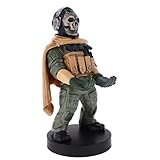
- Officially licensed Call of Duty Ghost figure: Heavy-duty PVC construction with sturdy black base holds gaming controllers, mobile phones, remotes, and more without tipping over during intense gaming sessions
Treyarch Lead Audio Designer Collin Ayers described Black Ops 6’s goal as “the adaptive battlefield,” a more purposeful and directional soundscape that focuses on information players need while reducing extraneous noise. The audio team has also described Project Acoustics for spatial reverberation and a dynamic priority system that can emphasize imminent enemy movement over less urgent sounds. These are developer explanations of how the mix is designed, not controlled evidence that one preset raises K/D.
How to test the audio profile
- Connect the headphones or earbuds you normally use in matches and select that exact output device in the game’s audio settings.
- Apply the volume mix in the table, then enable Enhanced Earphone Mode.
- Use a consistent practice route or match situation and listen for front-versus-back, left-versus-right, and near-versus-far movement cues.
- If the image feels inside your head, voices sound unnatural, or directions are harder to identify, compare the same route with Enhanced Earphone Mode off.
- Keep the option that gives you the clearest, most repeatable directions at a comfortable listening level; do not compensate for unclear audio by listening at unsafe volume.
Four trade-offs that decide your final settings
| Decision | What you gain | What you give up | How to decide |
|---|---|---|---|
| Higher sensitivity versus lower ADS control | Faster turns and quicker close-range reactions. | More risk of over-correction during fine tracking. | Raise general sensitivity only if turning is the problem; adjust ADS separately when precision is the problem. |
| Higher FOV versus larger distant targets | More peripheral information and a wider view. | Smaller-looking distant opponents. | Use the highest value at which you can still identify and track distant targets reliably. |
| Frame rate versus image quality | Lower effects and a stable frame cadence can make visual information easier to read. | Less texture or effect detail. | Prefer the highest stable performance your CPU, GPU, and display can sustain, not a fluctuating peak. |
| Directional processing versus comfort | HRTF and Enhanced Earphone Mode may make spatial cues easier to place. | Some listeners may dislike the tonal or spatial change. | Compare both modes with the same headphones and test route. |
| Low deadzone versus drift resistance | More immediate micro-adjustments. | Greater chance that worn hardware produces movement. | Use the lowest minimum that remains still when untouched. |
A repeatable tuning routine
- Save the baseline. Record the controller, graphics, FOV, and audio values before changing anything.
- Check physical stability. Confirm that neither stick drifts and that the selected audio device is correct.
- Stabilize performance. Watch for hitching or uneven frame pacing in the situations where you actually lose fights. If hitching appears with the VRAM target at 90, test 85 and then 80.
- Test aim at two distances. Use close-range turns for general sensitivity and distant tracking for ADS behavior. Do not judge both with one engagement type.
- Test FOV with identification, not only comfort. At each value, ask whether you can see peripheral movement and still recognize distant targets.
- Test audio direction. Compare Enhanced Earphone Mode on and off with the same headphones, route, and volume.
- Change one variable. Keep a short note of the setting, date, and result. Revert changes that solve one scenario but create a larger problem elsewhere.
Troubleshooting common problems
The character or camera moves while the sticks are untouched
Increase only the affected minimum deadzone until the movement stops, then retest after the controller has been used for several minutes. Do not raise both minimums automatically; the left and right sticks can wear differently.
Aim feels too fast at long range
Test a lower ADS multiplier while keeping general sensitivity unchanged. If the problem is only vertical recoil control, verify that your vertical sensitivity is not the variable causing the over-correction.
Quick wins for a faster PC:
Scan for outdated or missing drivers - takes under a minuteDriver Scan →Repair Windows errors before they cause bigger problemsFix Now →Close-range turns feel too slow
Test a small increase in general sensitivity while leaving ADS at its established value. Evaluate hip-fire turns separately from scoped tracking so a faster turn does not force an unnecessarily fast ADS response.
Best Value

- CHARACTER DEVICE HOLDER: Call of Duty Ghost Warzone in Zombie skin! Great for techies and gamers.
- 8.5" COLLECTIBLE FIGURE: Heavy duty PVC statue and sturdy base that holds your stuff without tipping over. 8.5" tall Zombie Ghost figure.
- VERSATILE: Compatible with most types of smartphones and console controllers, including the next-gen PlayStation 5 DualSense, Xbox Series S/X and all iPhones.
- THE PERFECT COMBINATION OF FUNCTIONALITY & DESIGN: Upgrade your gaming experience today and enjoy a clutter-free setup with this innovative accessory.
- OFFICIALLY LICENSED COLLECTIBLE: Your favorite pop culture characters - With A Purpose! A pefect gift for all those Call of Duty fans.
Distant enemies are hard to identify
Compare a lower FOV within the documented 100–120 range, keeping ADS FOV and weapon FOV consistent during the comparison. Also confirm that the game is rendering at the intended resolution and that sharpening is not creating distracting halos.
The image hitches despite an apparently high frame rate
Lower the VRAM target from 90 to 85, then to 80 if necessary, and reassess frame pacing rather than looking only at the displayed average FPS. Keep dynamic resolution off while testing so internal resolution changes do not hide the cause.
Footsteps are difficult to place
Verify the selected output device, use headphones or earbuds that fit consistently, and compare Enhanced Earphone Mode on and off. Keep music at zero while testing. If neither mode produces reliable direction, the limitation may be hearing, fit, the game’s current mix, or the acoustic situation rather than a missing secret setting.
Matches still feel delayed after tuning
Local settings can improve responsiveness and readability, but they cannot repair server-side latency or packet loss. Activision’s January 2025 update documented continuing work on servers, packet loss, and Ranked Play stability. Check the connection and match conditions before assuming a sensitivity or graphics value is responsible.
What the ban figures do—and do not—tell you
Activision reported more than 136,000 Ranked Play account bans in a January 17, 2025 community update while discussing competitive-integrity enforcement. That figure describes enforcement activity, not the effectiveness of any controller, graphics, or audio setting. It should not be used as evidence that a particular setup improves performance or that a player using these values is more likely to win.
Choosing compatible audio hardware
A gaming headset is simply one possible output device for this profile. Enhanced Earphone Mode is described as compatible with any headphone or earbud model, so compatibility does not depend on a particular commercial brand. Prioritize a secure fit, clear left-right reproduction, comfortable long-session wear, and a microphone arrangement that does not interfere with the seal. Hardware cannot compensate for an incorrect output-device selection or for server-side packet loss.
Bottom line for a competitive starting point
Begin with the documented Black Ops 6-era profile: vibration off; matched 7/7 stick sensitivity; a 0.80 ADS multiplier with instant transition; both aim-assist options on; minimum deadzones of 3 until drift requires more; motion sensing off; native-resolution Fullscreen Exclusive on PC; V-Sync off; a refresh-rate frame cap; the visibility-oriented low-effects graphics profile; 110 FOV with Affected ADS FOV and Wide weapon FOV; motion blur off; and the 100/100/0/0/100 audio mix with the correct output device and Enhanced Earphone Mode enabled for headphones. Then tune only the variable that matches the problem you can actually observe.
What’s actually slowing this PC down?
Pick the symptom - the matching free tool is one click away.
Quick Recap
Product prices and availability are accurate as of the date/time indicated and are subject to change. Any price and availability information displayed on Amazon at the time of purchase will apply.

