Free tools Windows power users keep installed
One-click scans. No signup required.
For a dedicated Android streaming handheld, the Logitech G Cloud is the clearest fit in the documented lineup: official pages list remote play from PC, Xbox and PS5, plus GeForce NOW and Xbox cloud gaming. AYANEO Pocket S is a premium Android alternative with Steam Link and the same major cloud services. If you already own a suitable Android phone, a Backbone One PlayStation Edition can provide a lower-commitment setup, particularly for PS Remote Play.
These recommendations are based on published compatibility and specifications, not controlled latency, battery, display-motion or comfort tests. Your network, host device and service account will determine how good streamed games feel.
| # | Preview | Product | Price | |
|---|---|---|---|---|
| 1 |
|
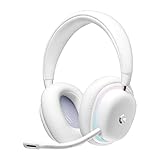
Logitech G735 Wireless Gaming Headset Customizable LIGHTSYNC - White Mist | $139.99 | Buy on Amazon |
| 2 |
|
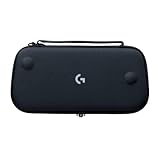
Logitech G Cloud Gaming Handheld Official Carrying Case Protective - Black | $14.99 | Buy on Amazon |
As an Amazon Associate I earn from qualifying purchases.
Quick comparison
The right choice depends first on whether you want a standalone handheld or intend to reuse a phone. The table separates documented compatibility from information that the cited product pages do not establish.
Quick wins for a faster PC:
Fix the driver behind crashes, sound loss and screen glitchesFind Drivers →Repair Windows errors before they cause bigger problemsFix Now →| Option | What it is | Documented streaming support | Published device information | Best fit |
|---|---|---|---|---|
| Logitech G Cloud | Dedicated Android handheld | Remote Play from PC, Xbox and PS5; GeForce NOW; Xbox cloud gaming; Google Play games | Android 11; 7-inch Full HD 1080p touchscreen; 60Hz refresh rate, according to Xbox | Readers who want one device built around remote and cloud play |
| AYANEO Pocket S | Premium dedicated Android handheld | Steam Link, Xbox cloud gaming (Game Pass) and GeForce NOW, listed by AYANEO | Snapdragon G3x Gen 2; other configuration details vary by model and market | Readers who want a higher-end Android handheld and also value native Android gaming |
| Backbone One PlayStation Edition for Android | Telescopic controller that holds a compatible Android phone | Streaming from console or PC and cloud services; Android PS Remote Play support is specifically associated with the PlayStation Edition | PlayStation says Android 10 or later is required for this controller; Android 9 or later supports PS Remote Play with on-screen controls | Phone owners who do not need a separate handheld |
Current street prices, stock, shipping, warranty differences, measured latency, streaming battery life and comfort are not established by these official pages. Check your local listings and the exact model configuration before buying.
#1 Best Overall
- Unmatched Fit: Wireless gaming headset with intentional design to fit all gamers inclusive of people with smaller head sizes and those who wear glasses or small earrings.Specific uses for product : Movies and Gaming
- Cool and Comfy: Play the day away in this Logitech gaming headset with breathable cloud-soft, rotatable ear cups; lightweight weighing in at only 273g
- Play Across Screens: Multi-device gaming headset made for play; connects to PC, mobile, and aux input with pro-grade Logitech LIGHTSPEED wireless, Bluetooth, or 3.5 mm wired play flexibility
- Dual Audio Mixing: Hear two devices with Logitech wireless gaming headset, one with Bluetooth and the other with LIGHTSPEED or 3.5 mm; mix them to dial-up or down in-game audio, voice chat and more.Note:If you face issue in Bluetooth connectivity please turn off the Bluetooth function for a couple of minutes, then turn it back on
- Sound in Color: Soft, dual-zone LIGHTSYNC RGB lighting with preloaded Play Mood animations; customize your own one-of-a-kind look on Logitech G HUB for your RGB gamer headset
What game streaming actually does
Streaming does not move a PC or console game onto the handheld. The game continues running on a host computer, a console or a cloud server. That host renders the video, sends compressed picture and sound to the Android device, and receives your controller input in return. The handheld therefore needs compatible software and a reliable connection; a fast processor alone cannot overcome a poor route between you and the host.
Remote play from equipment you own
With PC remote play, your gaming computer runs the title while an Android app displays it. Valve documents Steam Link as the Android route for Steam Remote Play and lists Android 6.0 or later as the requirement on its Steam Remote Play page. Your PC must be on, signed in and able to run the game. A handheld can be elsewhere in the home or away from it, subject to the network path and your Steam configuration.
Console remote play works similarly. Xbox and Logitech list Xbox Remote Play for the G Cloud, while PlayStation Remote Play streams from a PS4 or PS5 to supported devices. Remote play uses your own console, so it is separate from a cloud subscription and depends on the console being configured for remote access.
Cloud gaming
Cloud gaming puts the host hardware in a provider’s data center. Logitech lists NVIDIA GeForce NOW and Xbox cloud gaming for G Cloud, and AYANEO lists GeForce NOW and Xbox cloud gaming for Pocket S. The catalogue, account, subscription, supported titles and regional availability are controlled by each service and can change independently of the handheld. An app appearing in a device description is not a guarantee that every game or plan is available in your country.
Logitech G Cloud: the most straightforward dedicated choice
G Cloud is the strongest fit when your priority is streaming rather than a handheld that happens to run streaming apps. Logitech’s product page explicitly describes remote play on PC, Xbox and PS5, alongside GeForce NOW, Xbox cloud gaming and local Google Play games: Logitech’s G Cloud page. That combination covers the three source types most readers ask about without requiring a phone.
Screen and software
Xbox identifies a 7-inch Full HD 1080p touchscreen with a 60Hz refresh rate and a 16:9 presentation on its G Cloud page. The same page specifies Android 11 with Google Mobile Services. Those are manufacturer- and platform-published specifications, not independent measurements of response time, motion clarity or viewing comfort.
What G Cloud does not prove
Published compatibility does not establish lower latency than another Android handheld, longer battery life while streaming, a more comfortable grip or better image quality in motion. No controlled comparison for those traits is supplied here. Treat G Cloud as the clearest documented match for a streaming-first brief, not as a tested performance champion.
Who should choose it
- Choose it when you want integrated controls and a screen in one standalone device.
- Choose it when you expect to switch among PC Remote Play, Xbox Remote Play, PS5 Remote Play and cloud services.
- Look elsewhere if your priority is proven competitive latency, a particular native Android game, or a specific price; those decisions require current listings or hands-on testing.
AYANEO Pocket S: a premium Android alternative
AYANEO’s official Pocket S page identifies a Snapdragon G3x Gen 2 platform and lists Steam Link, Xbox cloud gaming (Game Pass) and GeForce NOW as ways to reach game libraries: AYANEO Pocket S. That makes it a legitimate streaming-capable alternative for someone who also wants a higher-end Android handheld for native applications.
How it differs from the G Cloud choice
The available documentation establishes the services Pocket S supports, but it does not provide a comparative streaming test against G Cloud. It also does not, in the cited material, establish a common display specification, battery runtime during streaming, ergonomics result or measured network latency. Pocket S should therefore be selected for its platform and configuration, not on an unsupported claim that it is faster or more comfortable.
Check the exact configuration
AYANEO sells devices in multiple configurations and markets. Confirm the localized model, memory and storage, operating-system build, included charger and warranty terms for your region before ordering. Service support can change with Android updates or app policies, so install and sign in to the intended streaming apps before relying on a particular workflow.
Android phone plus Backbone One PlayStation Edition
A compatible phone and telescopic controller can deliver the same basic control layout without purchasing a second screen and computer. Backbone describes its controller as compatible with streaming from console or PC and with cloud services. For Android PS Remote Play, its product information specifically identifies the PlayStation Edition as the officially supported variant: Backbone’s product page.
The Tool Desk
Outbyte PC Repair FREERepair Windows errors before they cause bigger problemsFix Now →Outbyte Driver Updater FREEFix the driver behind crashes, sound loss and screen glitchesFind Drivers →Android-version requirements
PlayStation states on its PS Remote Play page that Android phones and tablets running Android 9 or later can use PS Remote Play with on-screen controls. Android 10 or later is required for the Backbone One PlayStation Edition. These are separate conditions: a phone may run the app with touch controls at Android 9, while the controller path requires Android 10 or newer.
Advantages and compromises
- Lower commitment: you reuse the phone, display and cellular or Wi-Fi connection you already own.
- Easy portability: removing the controller returns the phone to normal use.
- More variables: phone dimensions, USB-C placement, case thickness, battery level and thermal behaviour affect the fit and session length.
- Not a dedicated handheld: notifications, calls and other phone tasks can interrupt play, and the phone must be available whenever you want to stream.
Match the device to your source
Streaming from a Windows gaming PC
Steam Link is the documented path for Steam Remote Play on Android. Install Steam Link from Google Play on the handheld or phone, pair it with the Steam account and host computer shown in the app, then launch a game from the displayed library. Steam’s published Android requirement is version 6.0 or later; it does not promise smooth play on every network.
Rank #2
- Stow and Go: Take your Logitech G Cloud Handheld anywhere you want without having to worry about getting it there safely.
- Hand Strap: Attached strap for comfortable carrying. Pick up and go wherever you want to play.
- Detachable Strap: A detachable and size-adjustable strap gives you more options on how you want to carry and secure your Cloud Handheld device.
If your games are outside Steam, use the remote-access application supported by that launcher or service. Do not assume that Steam Link exposes every non-Steam title without additional configuration.
Streaming from an Xbox console
Xbox and Logitech list Xbox Remote Play on G Cloud. The console must be configured for remote features, signed in to the relevant Microsoft account and able to remain available. Xbox Remote Play is different from Xbox cloud gaming: the former uses your own Xbox, while the latter runs games in Microsoft’s cloud and is subject to its service, account, subscription, title and regional rules.
Recommended Free Tools
Streaming from a PlayStation 4 or PS5
PlayStation Remote Play is the console-owned route. On a phone, PlayStation supports Android 9 or later with on-screen controls; the Backbone One PlayStation Edition requires Android 10 or later. On a dedicated Android handheld, verify that the current Remote Play application installs and recognizes the device before purchase. Logitech documents PS5 remote play for G Cloud, but app policies can change independently of the hardware page.
Using a cloud service
Install the service’s current Android application, sign in and confirm that your plan and region include the games you want. G Cloud’s Logitech listing includes GeForce NOW and Xbox cloud gaming; AYANEO lists both on the Pocket S page. Neither listing establishes the current catalogue, subscription cost or availability for every country, so those details must be checked with the service directly.
Independent reader supportYour contribution helps us test, update, and keep practical guides available for everyone.Setup checklist before your first session
- Update the handheld or phone. Install available Android system and Google Play updates. Confirm that the Android version meets the app’s published requirement.
- Prepare the host. For PC streaming, install or update Steam and leave the gaming PC signed in. For console remote play, enable the console’s remote-play feature and follow the console maker’s power and network guidance.
- Install the correct client. Use Steam Link for Steam Remote Play, the Xbox app or supported Xbox workflow for Xbox Remote Play and cloud gaming, and the official PS Remote Play app for PlayStation. Avoid treating a cloud app as a replacement for remote access to your own console.
- Pair controls. Built-in controls on a dedicated handheld should appear to the Android app as available input. With Backbone, connect the controller to the phone and confirm that the PlayStation Edition is the model required for Android PS Remote Play.
- Test close to the host. Start in the same home network as the PC or console. This isolates account and app problems before you add distance or a different network.
- Check video and input behaviour. Look for dropped frames, audio crackle, delayed button response and unreadable text. If the stream is unstable nearby, changing handhelds is unlikely to solve the underlying connection problem.
- Test away from home only after local success. Remote access over another network adds routing, upload and download variables. Confirm that the host remains reachable and that your account permits the connection.
Network and host factors that matter more than the logo
Streaming quality is a chain: the host renders the game, the network carries the stream in both directions, and the Android device decodes video while sending input. A device can list every desired app and still feel poor if any link is congested or unreliable.
- Host capacity: the PC or console must run the game normally while encoding the outgoing stream.
- Connection stability: brief packet loss can cause visible pauses or audio glitches even when a speed test looks high.
- Distance and routing: playing in the same home is usually a different problem from connecting over the internet; do not assume one test predicts the other.
- Wireless congestion: other users, crowded channels and simultaneous downloads can compete with the stream.
- Display and controls: a sharp screen cannot remove input delay introduced before the frame reaches it.
No numeric latency or bandwidth threshold is established by the cited sources, so a universal “you need X Mbps” rule would be misleading. Test the exact host, network and room where you intend to play.
Features and facts that are not established
It is tempting to choose by a specification sheet, but the available official pages leave several buying questions unanswered:
| Question | What can be stated | What remains unverified |
|---|---|---|
| Price | Not stated in the cited evidence | Current retail price, discounts, taxes and regional currency |
| Battery while streaming | Not stated in the cited evidence | Runtime with a particular brightness, Wi-Fi connection and game stream |
| Latency | App and service compatibility is documented | End-to-end response time or advantage over another device |
| Comfort | G Cloud and Pocket S are dedicated handhelds; Backbone is a phone accessory | Grip comfort, weight balance and long-session fatigue |
| Availability | Products and services have official pages | Stock, shipping regions, warranty and support in your country |
These gaps are reasons to avoid absolute performance language, not reasons to dismiss the devices. They tell you what to verify locally or through hands-on testing.
Which setup should you buy?
Choose Logitech G Cloud when
- You want a self-contained screen and controls dedicated to streaming.
- Your sources include more than one of PC, Xbox, PS5 and cloud gaming.
- You value the documented 7-inch 1080p, 60Hz display and Android 11 platform.
Choose AYANEO Pocket S when
- You want an Android handheld identified with Snapdragon G3x Gen 2 hardware.
- Steam Link, GeForce NOW and Xbox cloud gaming cover your intended services.
- You are prepared to verify the exact regional configuration rather than relying on a generic model name.
Use a phone with Backbone when
- You already own an Android phone that meets the app and controller requirements.
- You want to avoid buying and charging a second display device.
- PS Remote Play is important and your phone runs Android 10 or later for the PlayStation Edition.
Troubleshooting common streaming problems
The app will not install
Check the Android version, country availability and Google Play certification first. Steam lists Android 6.0 or later for Steam Link; PlayStation lists Android 9 or later for touch-based PS Remote Play and Android 10 or later for the Backbone One PlayStation Edition. A device page listing a service does not override that service’s own compatibility policy.
The controller is not detected
Update Android and the controller firmware if an official updater is available, reconnect the USB-C plug, remove a thick phone case and confirm that you have the PlayStation Edition when using Android PS Remote Play. Test the controller in another supported app to distinguish a hardware connection issue from an app-specific one.
Do these 3 things before closing this tab:
1Repair Windows errors before they cause bigger problems2Scan for outdated or missing drivers - takes under a minute3Clear out junk files and repair common Windows errorsVideo stutters or audio breaks up
Test near the PC or console, pause other downloads, close background streams and check whether the host is busy encoding. If local play is stable but remote play is not, investigate the outside network and host reachability before replacing the handheld.
Buttons respond late
Compare a local-network session with an internet session, then check for wireless congestion and host load. The cited product pages do not provide a latency guarantee for any of these devices, so a delayed response is usually a network or host-path diagnosis rather than proof that one Android handheld is inherently faster.
Final buying guidance
Start with the source you actually intend to stream. Steam Link is the documented Android route for a Steam PC; Xbox Remote Play and PlayStation Remote Play address consoles you own; cloud apps use separate service accounts and catalogues. Once that path is clear, decide whether you need a dedicated handheld. G Cloud has the broadest directly documented remote-play coverage in this comparison, Pocket S supplies another Android option with the major streaming services listed by AYANEO, and Backbone lets an existing Android phone become the controller-and-screen setup. Confirm current app support, regional availability and the exact hardware configuration immediately before purchase.
Quick Recap
Product prices and availability are accurate as of the date/time indicated and are subject to change. Any price and availability information displayed on Amazon at the time of purchase will apply.

