The closest replacement for an Android laptop is a supported Chromebook with Google Play. It installs compatible Android apps locally, works without a phone, and still provides a conventional keyboard, trackpad and laptop display. A Windows laptop with Phone Link is better when you only need occasional access to apps already installed on your phone. Samsung DeX is the strongest phone-as-computer option for owners of a compatible Galaxy device, while Android-x86 is mainly a hands-on experiment for technical users.
There is no single universal substitute. The right choice depends on whether apps must run locally, whether you already own a compatible phone, how much desktop-style multitasking you need, and how much setup and maintenance you will accept.
As an Amazon Associate I earn from qualifying purchases.
What “Android laptop” replacement actually means
People use “Android laptop” to describe several different goals:
Quick wins for a faster PC:
Clear out junk files and repair common Windows errorsFree Scan →Scan for outdated or missing drivers - takes under a minuteDriver Scan →- Installing Android apps directly on a laptop.
- Using a laptop keyboard and large screen while the phone remains the app host.
- Turning a phone or tablet into a desktop-like workstation.
- Installing Android on a spare PC for testing or experimentation.
Those goals produce very different experiences. Local execution gives the laptop its own app environment and can work independently of a phone. Mirroring and desktop modes leave the apps running on a mobile device, so the phone’s battery, wireless link, processor and compatibility still matter.
#1 Best Overall

- POWER YOUR STUDY, FUEL YOUR PLAY – Discover smarter learning with the Lenovo Idea Tab. Stay campus-ready with all-day battery life, AI-powered apps to enhance your work, and sharp graphics for tv marathons with friends.
- SMOOTH, POWERFUL, IMMERSIVE – The MediaTek Dimensity 6300 processor is more powerful than ever, with the AI-enhanced multitasking you need to stay ahead.
- CIRCLE IT, SEARCH IT – Use your Lenovo Tab Pen or fingertip to circle items for instant search results or to translate other languages without switching apps. Circle to Search with Google ensures answers are only a circle away.
- SHARP VIEW, CLEAR SOUND – Experience sharp visuals and immersive sound for study sessions and streaming breaks. With 72% NTSC and quad Dolby Atmos-tuned speakers you can enjoy your study breaks with vivid videos and crystal-clear sound.
- LEVEL UP YOUR STUDY – Write, organize, sketch, and calculate with four learning apps built to match your flow. Lenovo AI Note, Squid, Nebo, and MyScript Calculator help you stay clear, focused, and ready for every study session.
The most important distinction is therefore local versus mirrored execution:
- Local: supported Chromebooks and Android-x86 run Android applications on the computer itself.
- Mirrored: Windows Phone Link displays and controls apps running on a connected Android phone.
- Phone desktop mode: Samsung DeX presents apps in a desktop-style interface, but the Galaxy device remains the computer.
Microsoft’s Windows Subsystem for Android should not be treated as a current new-purchase route. Microsoft states that, starting March 5, 2025, Windows Subsystem for Android and the Amazon Appstore are no longer available in the Microsoft Store.
Quick comparison
| Option | Where apps run | App installation or access | Needs a phone? | Best fit | Main limitation |
|---|---|---|---|---|---|
| Supported Chromebook | On the Chromebook | Google Play on supported models | No | Most people who want a standalone laptop | Support and compatibility vary by exact model and app |
| Windows laptop with Phone Link | On the connected Android phone | Apps already installed on the phone | Yes | Occasional large-screen access without buying another computer | Not local Android execution; requires supported phone, software and connection |
| Samsung DeX | On the Galaxy phone or tablet | Apps installed on the Galaxy device | Yes, a compatible Galaxy device | A phone-as-computer setup with monitor, keyboard and mouse | Model and software support are specific, and some apps do not behave like desktop programs |
| Android-x86 | On the PC after installation | Manual APK installation and third-party sources | No | Technical users, testing and a dedicated spare PC | More variable hardware support and no direct Google-licensed Android Market access |
1. Supported Chromebook: the closest laptop-shaped alternative
A Chromebook is the most direct answer when you want Android apps installed on a portable computer rather than streamed from a phone. On supported models, ChromeOS provides Google Play access, so compatible apps can be downloaded and updated in much the same way as on an Android phone.
The Chromium Projects states: “Unless specified elsewhere, all devices that launched in or after 2019 support Android Apps.” That is a useful starting rule, not a substitute for checking the exact model. Google notes that only some Chromebook models support the Play Store, that individual apps may not work on every Chromebook, and that work or school administrators can block Play access.
Rank #2

- 【Android 16.0 tablet】 CUPEISI tablet adopts the 2026 latest version of Android 16.0 system and has passed Google GMS certification, The android 16 tablets offer personalized security systems, lightning fast application launches, super smooth gaming, and stunning netflix multimedia experiences.
- 【20GB RAM+128GB ROM+2TB Expandable】 The CP31M android 16 tablet PC built-in a powerful storage combination of 20GB RAM (4GB + 16GB achieved through expansion technology) and 128GB ROM, comes with new generation ultra-high performance and low power consumption 2.0GHz CPU, achieve faster and more stable running and storage speeds. In addition, it can be expanded up to 2TB with a microSD card (card not included) for even more storage.
- 【Portable 2 in 1 Tablets with Keyboard】 This 10.1 inch android tablet equipped with a bluetooth keyboard, wireless mouse, and stylus as well as a foldable protective case, allowing you to seamlessly transform your 10'' tablet into a laptop-style device. This versatility makes it the ideal device for those who need to be productive on the go, whether it be for work, study, or play.
- 【10.1 inch Touchscreen & HD Camera】 The android 16.0 tablet has a 10.1in IPS display, 1280x800 resolution, a tablet with sensitive screen sensing, equipped with 8MP+2MP HD cameras, narrow edge screen design. The high-definition screen brings you more detailed natural colors and advanced visual effects. The "Reading Mode" can reduce harmful light to the eyes so you get to enjoy a comfortable night reading.
- 【2.4G/5G Wi-Fi 6.0+6000mAH Battery】 10 inch Wifi tablet support 5Ghz Wi-Fi 6 or 2.4Ghz, it has a more stable wireless signal, achieves faster transmission speed, and makes wireless devices more power-saving. In addition, it is equipped with a 6000mah battery, a single charge can last up to 6-8 hours, perfect for long-distance commuting and travel, reading, watching movies, dramas, listening to music and so on.
How to verify Play Store support before buying
- Identify the complete model name and model number, not just the product family.
- Check the manufacturer’s specifications and the ChromeOS Systems Supporting Android Apps list maintained by the Chromium Projects.
- Confirm that the model has Google Play Store support, rather than only Linux app support or browser-based web apps.
- Check the device’s ChromeOS update-support end date. Android-app support is less useful if security and operating-system updates are close to ending.
- Search for the specific apps you need on Google Play using a supported Chromebook, or verify each app’s compatibility notes.
- If the Chromebook is managed by an employer or school, confirm that the administrator permits Google Play and Android apps.
What to inspect beyond the Play Store label
- Keyboard: Android apps designed for touch may have incomplete keyboard shortcuts or unusual focus behavior.
- Trackpad and touch: A touchscreen can help with apps that assume taps, swipes or long presses, but it is not mandatory for every app.
- Screen orientation: Some mobile apps remain portrait-oriented or open in a narrow phone-sized window.
- Window behavior: Resizing, split-screen use and full-screen modes vary by app.
- Ports: Check USB-C, USB-A, display-output and headphone requirements before choosing a model.
- Battery: Android apps can consume more power than ordinary browser tabs, especially when they use location, video or background synchronization.
- Storage: Leave room for app data, downloads and ChromeOS updates rather than filling the internal drive with media.
Chromebook strengths
- Standalone operation without a paired phone.
- Local app execution and local app data.
- Simple Google Play installation on supported models.
- Conventional laptop input for documents, email and browser work.
- Lower setup complexity than replacing the operating system on a PC.
Chromebook limitations
- Android compatibility is model-specific, not guaranteed by the Chromebook name alone.
- Some apps are unavailable, refuse installation or expose only a phone-style interface.
- Apps that require specialized phone hardware, carrier services, SMS access or sensors may behave differently.
- Organizations can disable Play Store access through device management.
Choose this route if: you want one independent laptop, local Android apps and the least technical setup. Verify the exact model rather than relying on a seller’s generic “runs Android apps” claim.
2. Windows laptop with Phone Link: use the phone you already own
Phone Link is useful when your main requirement is a larger display and keyboard for apps that already live on your Android phone. Microsoft is explicit about the architecture: “No, apps you open will be running from your Android device.” The Windows laptop is displaying and controlling the phone app; it is not installing an Android copy locally.
What Phone Link can and cannot do
- Can do: expose supported phone apps in Windows, let you interact with them using the PC’s mouse and keyboard, and provide a convenient bridge between the two devices.
- Cannot do: run those apps when the phone is switched off, replace the phone’s processor or storage, or guarantee that every app can be mirrored.
Microsoft’s documented multiple-app requirements include Windows 10 May 2020 Update or later, Android 11, current Phone Link and Link to Windows versions, and selected Samsung or HONOR devices for multiple simultaneous apps. Availability can also depend on the phone model, region, software version and wireless conditions.
Free tools Windows power users keep installed
One-click scans. No signup required.
Basic setup path
- Update Windows and install the current Phone Link app.
- On the Android phone, install or update Link to Windows where it is supported.
- Sign in with the same Microsoft account on both devices.
- Pair the phone and PC using the QR-code or pairing flow shown by Phone Link.
- Approve the requested permissions for notifications, contacts, photos and app access according to the features you intend to use.
- Open the Apps section in Phone Link and select a supported app.
The exact labels can change with Windows and phone updates, so follow the prompts displayed in the current versions rather than an old screenshot.
Rank #3

- SLIM. LIGHTWEIGHT. READY TO GO: The all-new slim design is perfect for busy lives on the go.
- SKILLFULLY DESIGNED. MILITARY TOUGH: Built with premium craftsmanship to withstand the occasional drop or ding.
- ALL-DAY, ALL-IN-ONE CHARGING: Power through your school day – and beyond – with a long-lasting 12-hour battery.¹
- 3X FASTER THAN THE PREVIOUS GENERATION OF WIFI: Crush your schoolwork in record time with Wi-Fi that’s three times faster than the previous generation of Wi-Fi.
- YOUR PHONE AND CHROMEBOOK WORK BETTER TOGETHER: Easily transfer files between devices, and control your phone right from your Chromebook.
When Phone Link is a good choice
- You already own a capable Android phone and Windows laptop.
- You need occasional access to messaging, social, shopping or authentication apps on a bigger screen.
- You do not want to buy another computer or alter the laptop’s operating system.
- Your phone stays nearby, charged and connected during use.
Common failure points
- Apps do not appear: the phone model, Android version or app may not support mirroring.
- Connection drops: check Wi-Fi, Bluetooth, battery-saving restrictions and whether both devices are on the same network when required.
- Input feels wrong: touch-first apps may not map cleanly to a mouse and keyboard.
- Protected content is blank: banking, video and security-sensitive apps may restrict capture or remote display.
- Phone becomes hot or drains quickly: rendering still happens on the phone, so sustained use has a mobile-device power cost.
Choose this route if: the phone should remain the source of truth and you only need a convenient Windows window. Do not buy a Windows laptop expecting Phone Link to become an offline Android computer.
3. Samsung DeX: a phone-as-computer setup
Samsung DeX turns selected Galaxy phones and tablets into a desktop-style environment. Apps still run on the Galaxy device, but DeX can present them in resizable windows on a compatible monitor, television or PC. With a keyboard and mouse, this can feel closer to a lightweight desktop than ordinary phone mirroring.
Samsung lists DeX support for selected Galaxy S, Note, foldable and tablet models. Support is not universal across the Galaxy range. Samsung also says DeX can be installed on compatible Windows 10-and-later PCs, while DeX on PC is unavailable on several newer models running Android 15 and One UI 7 or later. Check the current support list for the exact device and software combination.
What’s actually slowing this PC down?
Pick the symptom - the matching free tool is one click away.
Ways to use DeX
- External display: connect a compatible Galaxy device to a monitor or television, then add a keyboard and mouse.
- Wireless display: use a compatible display without a cable when the network and display support the required wireless features.
- DeX on PC: use a compatible Windows computer as the display and input surface where Samsung still supports that configuration.
Questions to answer before choosing DeX
- Is your exact Galaxy model listed as DeX-compatible?
- Does its Android and One UI version still support the DeX mode you want?
- Will you connect by USB-C, HDMI adapter, dock or wireless display?
- Do you need the phone to charge while driving the external display?
- Will your important apps open in resizable windows, or do they remain portrait-only?
- Can your keyboard layout, mouse and monitor work with the required adapter or dock?
DeX advantages
- One device can serve as phone and light workstation.
- Apps, accounts and files remain on the Galaxy device.
- Desktop-style windows, taskbar controls and multitasking can be more practical than ordinary screen mirroring.
- A monitor can provide a much larger workspace than a phone screen.
DeX trade-offs
- The phone remains essential; there is no independent Android laptop if it is unavailable.
- Compatibility depends on the Galaxy model and software release.
- Some mobile apps are not designed for free resizing, keyboard shortcuts or pointer input.
- Long sessions can involve heat, charging and cable-management issues.
- DeX on PC availability is changing, particularly on newer models using Android 15 and One UI 7 or later.
Choose this route if: you already own a supported Galaxy device and want the fewest duplicate apps and files. It is especially attractive for a desk setup, travel monitor or occasional work session rather than as a guaranteed replacement for every desktop program.
Rank #4
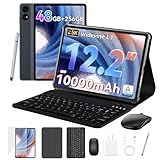
- 1.** 🚀 🤖 [Upgrade Your Digital Life: Native Android 16 & Gemini AI] This tablet with keyboard is the first to experience the cutting-edge Android 16 OS, stripped of bloatware for a pure, lightning-fast interface. Unlike older Android 13/14 tablets, the T60 utilizes Google's Gemini AI to smartly manage background apps and assist with writing summaries, ensuring your device stays snappy for years. Features "Private Space" for sensitive data and "Predictive Back" for intuitive navigation. It's designed for Canadians who demand a device that "just works" right out of the box—secure, intelligent, and future-proof.
- 2. **🖥🎨 [Pro-Grade Visuals: 12.2" 2.5K CSOT Display with 99% sRGB] Why settle for washed-out screens? Our premium CSOT LCD panel covers 99% sRGB color gamut, restoring colors with professional accuracy. This makes the T60 an ideal choice for graphic designers requiring precise color calibration or movie lovers seeking cinematic immersion. Featuring Anti-Glare technology and Eye-Comfort protection, it significantly reduces eye strain during long binge-watching sessions or late-night reading. Whether you are reviewing design proofs in a sunlit café or watching 4K content in bed, the view remains sharp, vibrant, and natural.
- 3. **💾🔥 [Multitasking Beast: 48GB RAM (12+36) & Gaming Power] Say goodbye to freezing screens.This small laptop Crushing the industry standard, our massive 48GB RAM (12GB Physical + 36GB Virtual) effortlessly handles resource-heavy tasks like Roblox gaming, CapCut 4K video editing, and split-screen multitasking. Keep 30+ apps active without reloading. The 256GB UFS storage (expandable to 1TB) acts as your offline warehouse for 500+ HD movies. Whether you are a gamer or a power user, enjoy a silky-smooth experience that cheaper 4GB/8GB tablets simply can't match.
- 4. **💻 ✏️ [Instant "Laptop Mode": Complete 8-in-1 Productivity Bundle] Why carry a heavy laptop? This value-packed bundle includes a Magnetic Keyboard, Mouse, Stylus Pen, and Protective Case ($100+ value), transforming the T60 into a mobile office instantly. Utilizing Android 16's Desktop Windowing Mode, you can attend Zoom/Teams calls while taking notes in Google Docs seamlessly. It is the ultimate budget solution for students and remote workers to handle essays in lecture halls or work from a coffee shop.
- 5. **🌲 🔋 [Unbound Freedom: GPS & 10000mAh Battery] Built for the nomad lifestyle and outdoor enthusiasts. The 10000mAh massive battery supports all-day usage, perfect for camping trips or long shifts. Unlike WiFi-only tablets, With precise GPS Navigation, it serves as a reliable large-screen navigator for truck drivers or road trippers, ensuring you never lose your way even without WiFi.
4. Android-x86: install Android on a PC
Android-x86 documents the project as a way to “Run Android on your PC.” It is the most literal way to turn compatible PC hardware into an Android computer, but it requires significantly more technical judgment than buying a supported Chromebook.
Android-x86 explains that it cannot use Android Market directly because only Google-licensed vendors can provide it. In practice, users must enable installation from unknown sources and install third-party applications manually. That changes the security, maintenance and compatibility model substantially.
What the installation involves
- Choose a spare or noncritical PC and back up every file on it.
- Check the Android-x86 documentation for the release image and hardware guidance.
- Create bootable installation media using a separate computer.
- Test the live environment before committing to an installation, where the release supports that workflow.
- Decide whether Android-x86 will use a separate drive, a separate partition or a virtualized environment. Each choice has different performance and recovery implications.
- Install only after confirming that keyboard, trackpad, Wi-Fi, audio, graphics and display output work adequately.
- Enable unknown-source installation only when needed, then obtain APKs from sources you can evaluate and trust.
Why Android-x86 is not the default recommendation
- Hardware support varies more widely than on a certified Chromebook.
- Updates, drivers, boot configuration and app installation require ongoing maintenance.
- Manual APK handling increases the risk of installing malicious or tampered packages.
- Google Play services and device certification may be absent or incomplete.
- Apps that expect a certified phone, specific sensors or mobile security features may fail.
Choose this route if: you enjoy operating-system installation, have a spare machine and can recover from driver or boot problems. It is a poor fit for a dependable family, school or work laptop unless you have validated every required application first.
Do these 3 things before closing this tab:
1Fix the driver behind crashes, sound loss and screen glitches2Repair Windows errors before they cause bigger problems3Scan for outdated or missing drivers - takes under a minuteWhy Windows Subsystem for Android is no longer a normal option
Windows Subsystem for Android was once presented as a way to run mobile apps inside Windows. Microsoft’s current support guidance says that “Starting March 5, 2025, Windows Subsystem for Android™ and the Amazon Appstore aren’t available in the Microsoft Store.”
Best Value

- LATEST ANDROID 16 SYSTEM: Experience the cutting-edge Android 16 OS with enhanced privacy controls and ultra-smooth multitasking. Featuring 24GB RAM (3+21) and 64GB ROM storage, this tablet handles educational apps, business software, and streaming with zero lag | See less
- 2-IN-1 VERSATILE LAPTOP MODE: Seamlessly transform your tablet into a high-productivity workstation. The comprehensive bundle includes a responsive Bluetooth keyboard and a silent wireless mouse, paired with a premium folding leather case that offers 360-degree protection and multiple viewing angles | See less
- OPTIMIZED FOR STUDENTS AND PROFESSIONALS: Designed for online learning, digital note-taking, and remote collaboration. The high-sensitivity capacitive stylus allows for precise sketching and annotation, while dual HD cameras provide crystal-clear video quality for Zoom meetings and virtual classrooms during travel | See less
- ULTRA-FAST WIFI6 AND PD CHARGING: Stay connected anywhere with high-speed dual-band WiFi for lag-free streaming and rapid file downloads. Equipped with a PD fast charging kit, this tablet significantly reduces recharge time, making it a suitable companion for long-haul business trips and outdoor use | See less
- COMPLETE BUNDLE AND ONE-YEAR WARRANTY: What's in the box: 10 inch Android 16 Tablet, Bluetooth Keyboard, Wireless Mouse, Stylus Pen, Protective Leather Case, and PD Fast Charger. Includes One-year brand warranty and 24/7 technical support | See less
That means a new buyer should not select a Windows laptop on the assumption that Microsoft provides a supported Android-app layer. Existing installations, archived packages and sideloading scenarios are separate technical cases with their own risks and support limits; they are not a straightforward consumer purchasing path.
Decision framework: which alternative fits your situation?
Pick a Chromebook when independence matters
Choose a supported Chromebook when you need Android apps to work without a nearby phone, want local storage and installation, and prefer a normal laptop form factor. This is the best default for students, travelers and households that want a simple setup.
Pick Phone Link when you already have the right phone
Choose Phone Link when the laptop is already available, your phone supports the feature, and your use is occasional. It avoids a second Android installation, but it cannot help if the phone is out of battery, out of range or incompatible.
Pick DeX when one Galaxy device should do both jobs
Choose DeX when your Galaxy model is supported and you are comfortable connecting a display and peripherals. It can reduce device duplication, but it is still a mobile-device workflow with mobile-app limitations.
Pick Android-x86 when experimentation is the point
Choose Android-x86 for testing, learning or a dedicated spare PC. Do not choose it solely because the word “Android” appears in the project description; evaluate recovery, security and app compatibility first.
Local versus mirrored execution: practical consequences
| Consideration | Chromebook | Phone Link | DeX | Android-x86 |
|---|---|---|---|---|
| Works without a phone | Yes | No | No | Yes |
| Apps installed locally on the computer | Yes | No | No; they remain on the Galaxy device | Yes |
| Official app-store path in the documented setup | Google Play on supported models | Phone’s installed apps | Galaxy device’s installed apps | Manual APK handling; Android Market is not directly available |
| Hardware compatibility certainty | Model-specific but generally curated | Phone, Windows and app-specific | Galaxy-model and software-specific | Broadly variable by PC hardware |
| Technical maintenance | Low | Low to moderate | Moderate, including peripherals | High |
App compatibility checks that prevent disappointment
Before buying hardware, make a list of the exact apps and classify what each one requires:
- Account and cloud apps: usually easier to move between devices, but verify sign-in, two-factor authentication and notification behavior.
- Camera, GPS and sensor apps: check whether the target device exposes the required hardware and permissions.
- Banking and security apps: certification, secure hardware and screen-capture restrictions can block Chromebook, DeX or mirrored use.
- Games: test graphics performance, controller support, orientation and whether the game permits keyboard or mouse input.
- Streaming and protected video: mirroring or external-display restrictions may produce a blank image or reduced resolution.
- Messaging and calling: determine whether the app requires a phone number, SIM, background notifications or a paired handset.
- Enterprise apps: administrators may block installation, Play Store access or screenshots.
Buying and setup checklist
- Write down the five or ten apps that matter most; do not evaluate platforms using an abstract “Android compatibility” label.
- Decide whether local execution is mandatory. If yes, remove Phone Link from the shortlist.
- For a Chromebook, verify the exact model’s Play Store support and ChromeOS update horizon.
- For Phone Link, verify Windows, Android, Phone Link and Link to Windows versions plus the phone model’s supported features.
- For DeX, verify the Galaxy model, Android/One UI version, display method and peripheral requirements.
- For Android-x86, reserve a spare machine, create backups and test hardware before installation.
- Test orientation, keyboard input, external display, notifications, sign-in and file access with the most important apps.
- Plan a fallback: retain access to the phone, recovery media or the original operating system before changing a computer.
Bottom-line recommendation by user type
- Most buyers: a supported Chromebook with confirmed Google Play access.
- Existing Windows users: Phone Link for occasional, phone-hosted app access.
- Galaxy owners with a monitor: DeX for a unified phone-and-desktop setup.
- Technical hobbyists: Android-x86 on a spare PC, with manual app installation and recovery planning.
The deciding question is simple: do you want a laptop that independently runs Android apps, or a laptop that gives you a better interface to apps still running on your phone? A supported Chromebook answers the first question. Phone Link and DeX answer the second. Android-x86 offers the most control, but also the most responsibility.
Recommended Free Tools
Quick Recap
Product prices and availability are accurate as of the date/time indicated and are subject to change. Any price and availability information displayed on Amazon at the time of purchase will apply.

