There is no universal replacement firmware for a 3D printer with locked-down updates. Klipper and Marlin are the two serious open-source candidates, but either one is usable only when your exact printer model, board revision, bootloader, peripherals and flashing route are compatible. A firmware name by itself cannot unlock a printer that blocks controller access.
Start by identifying the printer and controller board, then confirm that you can reach the host system and reprogram the board. If you cannot establish those facts, the safest answer is not to flash anything yet.
As an Amazon Associate I earn from qualifying purchases.
What “locked-down updates” means
“Locked down” is not a single technical condition. A manufacturer may restrict one or more of the following:
Quick wins for a faster PC:
Fix the driver behind crashes, sound loss and screen glitchesFind Drivers →Clear out junk files and repair common Windows errorsFree Scan →- Firmware files or source code may not be published for your model.
- The bootloader may reject unsigned or unapproved images.
- Flashing may require a manufacturer application, cloud authorization or a service tool.
- The operating system hosting the printer interface may be inaccessible.
- Critical functions may be permission-controlled even when local printing still works.
- Downgrades, recovery images or replacement-board procedures may be undocumented.
Those restrictions determine whether alternative firmware is feasible. They are different from a printer that simply has a difficult update process. A machine with an exposed bootloader and accessible controller can often be rebuilt; a machine that verifies signed images and hides its controller may require a board replacement or may not be a practical candidate at all.
#1 Best Overall
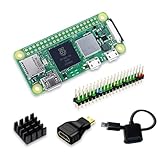
- Powerful Performance: Equipped with a quad-core 64-bit ARM Cortex-A53 processor, the Raspberry Pi Zero 2 W delivers a significant performance boost compared to its predecessor. And built-in Wi-Fi and Bluetooth support enable easy wireless communication and Internet access for your projects, five Times Faster.
- SANOOV Basic Starter Kit for Pi Zero 2 W Include: 1. Raspberry Pi Zero 2 W Board 2.Mini HDMI to Standard HDMI adapter 3.Micro-USB to Standard USB OTG Adapter 4.Aluminum Heatsink 5.40 Pin Header.NOTICE: The kit does NOT include , supply power, case, SD card, keyboard, mouse or monitor.
- SANOOV for Raspberry Pi Zero 2 W features: 1GHz quad-core, 64-bit ARM Cortex-A53 CPU VideoCore IV GPU 512MB LPDDR2 DRAM 802.11b/g/n wireless LAN Bluetooth 4.2 / Bluetooth Low Energy (BLE) MicroSD card slot Mini HDMI and USB 2.0 OTG ports Micro USB power HAT-compatible 40-pin header Composite video and reset pins via solder test points CSI camera connector.
- Video Output & Efficient Cooling: Supports 1080p30 video output via the mini HDMI port, making it ideal for multimedia applications and streaming.The aluminum heatsink helps dissipate heat, ensuring stable performance even under heavy workloads.
- Compact Size: The tiny size of the Raspberry Pi Zero 2 W makes it perfect for space-constrained projects and embedded applications.Ideal for a variety of uses, including IoT projects, home automation, media centers, educational tools, and more.
Bambu Lab provides a useful dated example. In a post published January 16, 2025 and updated January 20, the company described authorization controls for the X Series firmware covered by that announcement. It said authorization would apply to firmware upgrades, remote video, binding, network or cloud print initiation, motion, temperature, fan, AMS and calibration controls. Status reporting and prints started from an SD card were stated to remain unaffected. The announcement also described Bambu Connect as the route for sending already-sliced files from third-party slicer workflows, and said users on older firmware could continue using Bambu Studio and Bambu Handy without the new restrictions. Those statements apply to the models and versions named in that announcement, not automatically to every Bambu printer or current firmware release.
This distinction matters: a network authorization policy does not prove that the motion controller can accept Klipper or Marlin, and an SD-card print path does not imply that the board can be reflashed.
The two realistic alternative firmware projects
Klipper: host computer plus printer microcontroller
Klipper splits the system into two parts. A host computer runs the main Klipper software, while one or more microcontrollers run the printer-side firmware. The host performs much of the motion planning and communicates with the controller over a connection such as USB or serial.
The Tool Desk
Outbyte Driver Updater FREEScan for outdated or missing drivers - takes under a minuteDriver Scan →Outbyte PC Repair FREEClear out junk files and repair common Windows errorsFree Scan →Klipper’s official FAQ lists Raspberry Pi Zero 2 W and Raspberry Pi 3, 4 and 5 among recommended host devices, and warns that older hardware may not provide enough processing power. The host requirement is not optional: installing Klipper means operating and maintaining another computer, its storage, power supply and network connection. A Pi Zero 2 W can be a suitable host only after you have confirmed that the printer’s controller and peripherals can be rebuilt for Klipper.
Klipper’s advantages are its configurable motion system, web-based management options and support for distributing work across multiple microcontrollers. Its risks are equally concrete. You must compile firmware for the exact board, select the correct communication and boot settings, and perform a board-specific flash. If the printer’s vendor hides the controller, uses proprietary peripherals or blocks the bootloader, Klipper may stop at the hardware-access problem.
Marlin: firmware compiled for the target board
Marlin runs directly on a supported printer controller. It is widely used across open and semi-open printer designs and supports many common microcontroller families. However, Marlin is not a universal binary that can be copied to any machine.
Rank #2

- Includes Raspberry Pi 4 4GB Model B with 1.5GHz 64-bit quad-core CPU (4GB RAM)
- Includes Pre-Loaded 32GB EVO+ Micro SD Card (Class 10), USB MicroSD Card Reader
- CanaKit Premium High-Gloss Raspberry Pi 4 Case with Integrated Fan Mount, CanaKit Low Noise Bearing System Fan
- CanaKit 3.5A USB-C Raspberry Pi 4 Power Supply (US Plug) with Noise Filter, Set of Heat Sinks, Display Cable - 6 foot (Supports up to 4K60p)
- CanaKit USB-C PiSwitch (On/Off Power Switch for Raspberry Pi 4)
A usable Marlin build needs a configuration matching the target hardware: controller type, processor, display, endstops, thermistors, heaters, fans, stepper drivers, bed-leveling sensor, probe offsets, storage and any vendor-specific devices. The Marlin project points users to contributed configurations and build tools, but the existence of a configuration repository does not establish that your particular model has a maintained, correct configuration or that its board accepts Marlin.
Marlin is therefore most realistic on printers whose electronics and peripherals are documented, whose bootloader can be reached, and whose community has produced a trustworthy model configuration. A generic Marlin download without a matching configuration can cause incorrect temperature readings, uncontrolled motion or nonfunctional safety systems.
How to decide whether your printer is a candidate
Before downloading firmware, collect the information below. If any critical item is unknown, treat the installation as unverified rather than guessing.
1. Identify the exact machine and electronics
- Record the full model name, region or edition and hardware revision.
- Photograph or transcribe the controller-board markings, processor and revision number.
- List every major peripheral: display, toolhead board, extruder or AMS system, probes, accelerometers, cameras and auxiliary controllers.
- Note the current firmware version and whether the printer reports a bootloader or recovery mode.
Two printers sold under a similar name can use different boards. A configuration for one revision can be unsafe on another.
2. Determine what access you actually have
- Can you reach a USB, serial, SD-card or other documented programming interface?
- Can you access the printer’s host operating system, if it has one?
- Can the controller enter bootloader mode without proprietary authorization?
- Is there a documented recovery image or a way to verify a successful flash?
- Can you make a complete backup of the existing firmware, configuration and calibration data?
A printer that exposes only a cloud update button but no board-level interface is not equivalent to an open controller.
Do these 3 things before closing this tab:
1Fix the driver behind crashes, sound loss and screen glitches2Clear out junk files and repair common Windows errors3Scan for outdated or missing drivers - takes under a minute3. Check the non-firmware dependencies
Alternative firmware must operate every component required for safe printing. Check heater and thermistor types, fan voltage, stepper-driver assignments, probe signaling, display protocol, filament sensors and any multi-material hardware. Proprietary toolhead or motion boards may require separate firmware or may not be supported at all.
Rank #3

- Orange Pi Zero 2W 1GB is powered by Allwinner H618 high-performance quad-core Cortex-A53 processor with up to 1.5GHz, integrated Mali G31 MP2 graphics processor, supporting OpenGL ES 1.0/2.0/3.2, OpenCL 2.0, Vulkan 1.1. It has 1GB LPDDR4 memory specification options, supports 16MB SPI Flash. Outperform the Raspberry Pi Zero 2W.
- Orange Pi Zero 2W 1G mini pc can be extended with USB2.0, 100M Ethernet, IR receiver, audio output, TV-out, power button, etc. via 24Pin connector with adapter board. In addition, the 40Pin expansion port on the board further enriches the motherboard's functional interfaces and enhances the development potential.
- Orange Pi Zero 2W 1gb adheres to the compact and exquisite design concept of the Zero series, with a PCB size of 30mm X 65mm X 1.2mm, and can be widely used in TV boxes, smart screen casting devices, smart home, smart gateway, IoT and other fields.
- Wi-Fi5+BT 5.0, with BLE support: 2.4G/5G dual-band Wi-Fi5 and Bluetooth 5.0 with BLE support, enjoy the wonderful network anytime, anywhere.
- Orange Pi Single Board Computers is open source.
Klipper installation requirements and flashing realities
Klipper’s board documentation makes clear that flashing methods vary by controller. Some boards can be updated from an SD card after an initial manual installation; others require USB, serial, DFU or a special boot procedure. The SD-card update script works only for supported boards. It does not convert an unsupported printer into a supported one.
Hardware you need
- A supported host such as a Raspberry Pi Zero 2 W, Pi 3, Pi 4 or Pi 5, with an appropriate power supply and storage.
- The exact printer-controller board and its documented Klipper build parameters.
- A reliable data cable or other board-specific programming connection.
- A way to preserve the original firmware and restore the printer if the flash fails.
- Access to configuration data for motors, heaters, thermistors, endstops, probes and limits.
Generic Klipper workflow
The following is a decision sequence, not a model-specific flashing recipe. Do not substitute it for the instructions for your board.
- Confirm support. Match the board processor, bootloader, communication interface and peripherals to Klipper’s board documentation. If the board is not listed or the vendor has not documented a compatible path, stop.
- Prepare the host. Install the supported Linux-based host software on the chosen computer, connect it to stable power and verify that you can administer it locally or over your network.
- Compile for the exact controller. Select the processor family, clock, bootloader offset and communication interface required by the board. A wrong bootloader offset can produce a file that appears valid but will not boot.
- Back up and document. Save the factory firmware where possible, photograph connector positions and record calibration values. Do not rely on cloud copies of settings.
- Perform the initial flash manually. Follow the board’s documented method. Depending on the board, this may involve an SD card, USB, serial adapter, DFU mode or a jumper and power cycle.
- Verify communication before motion. Confirm that the host detects the microcontroller and that the firmware reports the expected identity. Do not home axes or heat the tool until the pin mapping and sensor readings are checked.
- Validate safety functions. Test thermistors at room temperature, heater shutdown, endstops, fans, probe behavior and emergency-stop handling. Keep a hand on the power switch during the first tests.
- Only then tune and print. Calibrate steps or rotation distance, motor current, input shaping, pressure advance, bed mesh and temperature after basic safety checks pass.
If a later update is supported by Klipper’s SD-card script, use it only after the initial manual flash has established a valid board setup. Some boards require a particular power-cycle sequence or a verification step after the card is inserted. Those details are board-specific.
Marlin installation requirements
Marlin is generally the better fit when you want firmware running entirely on the printer controller and your machine has a documented, conventional electronics stack. It still requires a build tailored to the hardware.
What a correct configuration must cover
- Processor family, board definition and bootloader size.
- Motor direction, steps or rotation distance, acceleration and travel limits.
- Thermistor tables or sensor definitions for every heater.
- Heater, fan and thermal-protection pins.
- Endstops, probe type, offsets and bed-leveling method.
- Display, encoder, SD-card and USB behavior.
- Filament runout, power-loss recovery and any second controller or toolhead board.
Safe Marlin workflow
- Find a matching configuration. Prefer a configuration for the exact model and board revision. Treat an unofficial configuration as a starting point that requires verification, not as proof of compatibility.
- Install the project’s build tools. Use the build environment specified by the Marlin project and compile locally for the selected board.
- Compare every pin and limit. Read the board definition and configuration files rather than assuming that a similar model uses identical wiring.
- Back up factory data. Save EEPROM or configuration values, calibration measurements and the original firmware when the board allows it.
- Flash using the documented interface. Depending on the controller, that may be an SD card, USB bootloader or hardware programmer. If the board does not expose a supported route, do not force the process.
- Run electrical and thermal checks. Verify sensor readings, heater cutoffs, fan outputs, endstops and motor direction before attempting a print.
Do not use a binary built for a different processor, board revision or display. A successful upload only means that data reached the controller; it does not mean that the resulting firmware is safe.
Can you downgrade the original firmware?
Sometimes, but only when the manufacturer leaves a documented downgrade path or the board accepts an older signed image. A downgrade can be blocked by bootloader version checks, anti-rollback counters, encrypted packages or a requirement for online authorization.
Rank #4

- 🍊[Incredibly Powerful]: Orange Pi Zero 2W is a powered by Allwinner H618 quad-core Arm Cortex-A53 SBC with 1GB/1.5GB/2GB/4GB LPDDR4 RAM memory, embedding a larger 16MB SPI flash. And features Wi-Fi 5 and Bluetooth 5.0 connectivity.
- 🍊[Practical Design]: Despite Orange Pi Zero 2W has only a small size of 30mmX65mmX1.2mm, but it is equipped with 2*USB 2.0, 1Micro HDMI, 1*MicroSD card slot, 1*24 pin functional interface, 1*40 pin headers.
- 🍊[Support Expansion Board]: Orange Pi Zero 2W can be extended with USB2.0, 100M Ethernet, IR receiver, audio output, TV-out, power button via 24 pin functional interface with adapter board. In addition, the 40 pin expansion port on the board further enriches the motherboard's functional interfaces and enhances the development potential.
- 🍊[Small But Powerful]:Orange Pi Zero 2W adheres to the compact and exquisite design concept of the Zero series, and can be widely used in TV boxes, smart screen casting devices, smart home, smart gateway, IoT and other fields. Orange Pi Zero 2W supports Android 12 TV, Debian11, Debian12, Ubuntu22.04, Ubuntu20.04 ,Orange Pi OS(Arch)and other operating systems.
Before attempting one, determine:
- Which exact model and firmware versions the downgrade instructions cover.
- Whether the older image is signed for your board.
- Whether settings, calibration or user files will be erased.
- How to recover if the update stops midway.
- Whether returning to the older version removes security fixes or cloud compatibility.
Never interrupt power during a board flash unless the manufacturer’s procedure explicitly requires it. If no documented downgrade or recovery method exists, an alternative firmware project is not automatically a safer escape route; you may first need hardware access or a replacement controller.
Free tools Windows power users keep installed
One-click scans. No signup required.
What Bambu Lab’s restrictions illustrate
The January 2025 X Series announcement is useful for understanding the difference between service restrictions and firmware replacement. According to that dated statement, authorization controls covered a broad set of network, motion, temperature, fan, AMS and calibration operations, while status reporting and SD-card-started prints remained unaffected. Older firmware users were described as retaining Bambu Studio and Bambu Handy workflows at that time.
That does not establish that an X Series printer can accept Klipper or Marlin. The missing facts are the controller model, bootloader access, proprietary peripheral support and a documented recovery path. A local SD-card workflow can remain available even when controller flashing is closed.
Bambu Lab’s March 2024 custom-firmware statement provides a separate, model-specific example. It said X1 owners could install Official Rootable Firmware (Firmware R) and X1 Plus, while explicitly stating that X1 Plus was not offered, maintained or supported by Bambu Lab. The same statement warned that custom firmware could damage a printer and affect warranty support. Those warnings apply to the X1 custom-firmware context described by Bambu Lab and should not be generalized to other brands or models.
Independent reader supportYour contribution helps us test, update, and keep practical guides available for everyone.Comparing Klipper, Marlin and staying stock
| Criterion | Klipper | Marlin | Remain on manufacturer firmware |
|---|---|---|---|
| Runs where | Host computer plus one or more printer microcontrollers | Primarily on the printer controller | Manufacturer-defined controller and services |
| Required access | Host administration and a supported controller flashing route | Supported board and bootloader or programming interface | Usually the vendor’s update mechanism |
| Configuration burden | Detailed board and machine configuration; host maintenance | Detailed compile-time hardware configuration | Lower user configuration, but vendor-controlled features |
| Best fit | Documented boards with an accessible host and users comfortable maintaining Linux hardware | Conventional, documented electronics with a matching model configuration | Printers whose controller access or proprietary peripherals are closed |
| Main failure mode | Incorrect board build, failed flash or host-to-controller communication | Wrong pins, sensors, limits or board definition | Authorization, cloud dependence or restricted update and feature policy |
| Recovery certainty | Depends on board-specific manual flash and recovery instructions | Depends on bootloader, programmer and manufacturer documentation | Depends on the vendor’s supported recovery process |
No column is automatically “best.” Compare the exact model and board, your ability to reflash, host requirements, dependence on authorization or cloud services, documented recovery, and the effect on support and warranty.
Crashes, No Sound, or Screen Glitches?
Random freezes, missing sound and display glitches usually trace back to one bad driver. Find and replace yours safely.Free scan · under a minutePC Slower Than It Used to Be?
A free scan shows the junk files, broken settings and background clutter dragging Windows down - then fixes them in one click.Free scan · Windows 10 & 11Common failure modes and what to do
The printer will not detect the firmware file
Check the filename convention, card format, bootloader requirements and board-specific update method. Some controllers require a particular card size, partition format or power-cycle sequence. If the board is unsupported, changing the filename will not solve the underlying problem.
Best Value
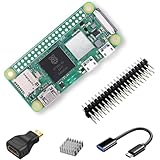
- RasTech Pi Zero 2W Kit: The Pi Zero 2W pack includes Raspberry Pi Zero 2 W Board x1, Mini HDMI to Standard HDMI Adapter x1, Micro USB OTG Cable x1, Aluminum Heatsink x1, 40-Pin Header x1.
- Powerful Performance: Equipped with a quad-core 64-bit ARM Cortex-A53 processor, the Raspberry Pi Zero 2 W delivers a significant performance boost compared to its predecessor.
- Compact Size: The tiny size of the Raspberry Pi Zero 2W makes it perfect for space-constrained projects and embedded applications.
- Efficient Heat Dissipation: The Aluminum heatsink helps dissipate heat, ensuring stable performance even under heavy workloads.
- Versatile Connectivity: The Raspberry Pi Zero 2 W basic kit is an ideal equipment for beginners to learn programming, electronics, and DIY projects. And the included HDMI adapter and USB OTG cable provide essential interfaces to connect a display, keyboard, mouse and other peripherals.
The board flashes but does not boot
Recheck processor selection, clock, bootloader offset and communication settings. Disconnect nonessential peripherals only if the board documentation permits it. Use the documented recovery or programmer route rather than repeatedly interrupting power.
Klipper connects but motion or sensors are wrong
Stop motion and heating. Verify pin assignments, motor direction, endstop logic, thermistor type, heater output and probe wiring against the physical board. Do not proceed to tuning until sensor values are plausible and safety shutdowns work.
Marlin boots but the display or accessories fail
The display protocol, auxiliary board firmware or vendor-specific peripherals may not be supported by the configuration. A working boot screen is not evidence that the complete printer is supported.
Recommended Free Tools
You lost calibration or factory settings
Restore the saved configuration only after confirming that the replacement firmware uses compatible units, pin mappings and calibration semantics. Never import values blindly between different boards or firmware families.
The manufacturer refuses service
Expect support and warranty consequences whenever the vendor warns that custom firmware can damage the printer or affect warranty coverage. Keep the original firmware, board photos and a reversible recovery plan before experimenting.
A practical decision checklist
- Write down the exact model, edition, firmware version and board revision.
- Confirm whether the bootloader or programming interface is accessible without vendor authorization.
- Inventory proprietary toolheads, displays, sensors and multi-material hardware.
- Find a model-specific Klipper or Marlin configuration, not merely a project homepage.
- Confirm the required host computer, cables, storage and power supplies.
- Locate a documented initial flash, verification and recovery procedure for the board.
- Back up firmware, EEPROM or configuration values and all calibration data.
- Decide whether losing manufacturer support is acceptable.
- Perform sensor, heater, endstop and emergency-stop tests before any print.
- Keep a stock-firmware restoration route available until the new setup has been proven.
When a replacement controller board is the better route
A replacement controller can make an otherwise closed printer more accessible, but it is a rebuild, not a simple firmware-unlock switch. You must match motor voltage and current, heater loads, thermistors, connectors, display and toolhead wiring, mechanical limits and power distribution. Enclosure space and cooling may also change.
Because no exact printer model or board revision is specified here, no replacement board can be recommended responsibly. Treat the project as a model-specific electrical redesign, document every connection and retain the original board until the rebuilt machine has passed safety checks.
Bottom line
Klipper is the strongest alternative when the printer has an accessible, supported controller and you can operate a suitable host computer such as a Raspberry Pi Zero 2 W, Pi 3, Pi 4 or Pi 5. Marlin is a sound option when the board and peripherals are conventional and a matching configuration exists. Neither project bypasses a locked bootloader, missing hardware documentation or proprietary components.
The responsible answer to “How do I unlock firmware updates?” is therefore model-specific: identify the board, prove the flashing and recovery route, compare support consequences, and only then choose firmware. Without those facts, staying on stock firmware is safer than guessing.
Quick Recap
Product prices and availability are accurate as of the date/time indicated and are subject to change. Any price and availability information displayed on Amazon at the time of purchase will apply.

