Quick wins for a faster PC:
Fix the driver behind crashes, sound loss and screen glitchesFind Drivers →Repair Windows errors before they cause bigger problemsFix Now →For the documented workflows, the Miyoo Mini Plus is easier. After installing the Onion community frontend, you copy each game file into the appropriate Roms subfolder, add BIOS files only when an emulator requires them, and refresh the games list. The documented Anbernic RG35XX 2024 firmware route involves downloading and unzipping firmware, preparing a FAT32 TF1 card, and writing an image before you have completed that separate maintenance task.
That is an inference from the published steps, not a timed laboratory comparison. Anbernic’s flashing instructions explain how to reinstall firmware; they do not establish that every RG35XX 2024 owner must reflash merely to add games. The practical choice therefore depends on whether you want a simple Onion-based file-copy workflow or want to keep an Anbernic setup and are willing to verify its exact model and card arrangement.
As an Amazon Associate I earn from qualifying purchases.
What this comparison actually covers
“Anbernic” and “Miyoo” each refer to multiple handhelds, so a broad brand-versus-brand verdict would be misleading. The concrete comparison here is the Anbernic RG35XX 2024 and the Miyoo Mini Plus running Onion. Their setup paths are different:
Do these 3 things before closing this tab:
1Repair Windows errors before they cause bigger problems2Fix the driver behind crashes, sound loss and screen glitches3Clear out junk files and repair common Windows errors- The Miyoo procedure is a fresh Onion installation followed by copying games to named folders on the SD card.
- The Anbernic procedure documented by support is a firmware-flashing route for the RG35XX 2024. It requires a computer and card reader, a downloaded and unzipped firmware package, a FAT32 TF1 card, and an image-writing step.
Neither set of instructions proves that every owner needs to replace the supplied software before copying games. Treat “installing a frontend,” “flashing firmware,” and “adding game files” as three separate tasks.
#1 Best Overall
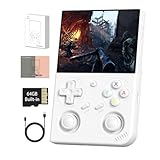
- 【TRUE DUALJOYSTICKS AND UPGRADE CHIP】This RG35XX Pro is equipped with dual joysticks, which can significantly enhance your gaming experience.Precise direction control, showcasing advancedgameplay operation. his video game console uses H700 quad-core ARM Cortex-A53, 1.5GHz frequency,dual- core G31 MP2 which can solve the problem of frame dropping in the game.
- 【Anbernic RG35XXPro HANDHELD GAME CONSOLE】 RG35XX Pro Retro game console , Built in 64G SD Card classic games, support more than 30+ Simulators. Linux System can add emulators and games with related format.3.5-inch IPS full viewing angle, OCA full lamination/ 640*480 , very clear display. Tempered glass, double protection with scratch proof and anti-fall, brings exciting gaming experience and better eye protection.
- 【SEAMLESS CONNECTIVITY】The RG 35XXPro retro gaming console supports HDMI output, vibration motor, WIFI online pairing, streaming, 2.4G wireless and wired controller, expanding your entertainment options beyond gaming.Not only can you enjoy a good game time alone, but you can also call your friends and have fun together.
- 【3200MAH HIGH CAPACITY BATTERY】 The RG 35XXPro Retro Handheld Game Console built-in 3200mAh high capacity lithium battery for ultra-long standby time and battery life.Support up to 8 hours game playing.Support fast charging with USB Type-C cable.Brings lots of joy and happiness to you during a trip or a long journey.
- 【QUALITY AFTER-SALES SERVICE】The RG35XXpro is suitable for carrying aroundis a great for boyfriend, husband, brother, son, father and friends for birthday, Father's Day, Christmas, Valentines Day, Thanksgiving Day etc. We are committed to providing customers with satisfactory products and services,if you have any questions,please contact us, we are 24 hours online will certainly provide you with satisfactory solutions.
Quick comparison
| Question | Miyoo Mini Plus with Onion | Anbernic RG35XX 2024 |
|---|---|---|
| What software path is documented? | Install the Onion community frontend from files placed on the SD card, then boot with the card inserted. | Download, unzip, and write the RG35XX 2024 firmware image to a prepared TF1 card. |
| How are your own games added? | Copy each game into the matching folder under Roms, put required BIOS files in BIOS, then use Games > refresh all ROMs. |
The cited flashing article does not document a universal game-copy folder or require reflash before every game transfer. |
| Card preparation stated by the documentation | Onion recommends formatting the card as FAT32 and using a reputable card. | The flashing article directs you to format the TF1 card as FAT32. The required card slot and package vary by model and firmware release. |
| Computer or reader | You need a way to place Onion and game files on the SD card; the guide does not specify one universal reader setup. | A computer and card reader are explicitly required for the documented flashing process. |
| Where the ease advantage comes from | Once Onion is installed, the documented game-import action is a short, repeatable file-copy and refresh routine. | Flashing has more preparation steps, but that does not mean flashing is required for normal game copying on every unit. |
How to set up your own games on a Miyoo Mini Plus
1. Confirm that you are following the Onion workflow
Onion is a community software frontend, not the name of the handheld itself. The fresh-install guide puts installation files on the SD card and has the device install them when it boots with that card inserted. If you intend to keep the factory software, do not assume Onion’s folder names or menu labels apply.
Use the current Onion fresh-install guide for the files and release-specific directions. The page is version-sensitive, so follow the labels shown there rather than relying on an old screenshot or a package copied from another release.
2. Prepare the card
- Use a reputable microSD card, as Onion recommends for a fresh installation.
- Format the card as FAT32, following the guide’s preparation instructions.
- Copy the Onion installation files to the card exactly as the current guide specifies.
- Insert the card into the powered-off Miyoo Mini Plus and boot it. The device should detect the installation files and complete the Onion installation.
Formatting and replacing files are points at which a backup is sensible. Keep a copy of anything on the card that you want to retain before preparing it.
3. Put game files in the matching Roms folder
After Onion is installed, open the SD card’s Roms directory. It contains subfolders corresponding to the systems supported by the frontend. Copy a game file into the subfolder for its game type; do not place every file in the top level of Roms. The Miyoo Mini Plus manual describes the same basic rule: copy a ROM into the folder corresponding to the type of game.
The documentation does not establish one universal filename extension list for every Onion release. Use the folder names and compatibility information supplied with your installation rather than inventing a new folder or renaming a file solely because another device uses a different convention.
4. Add BIOS files only when they are required
Some emulators need a BIOS file and others do not. When a BIOS is required, place it in the SD card’s BIOS directory, not alongside ordinary game files. Onion’s fresh-install instructions specifically separate BIOS placement from the Roms folders.
Rank #2

- 【MiGoFee Exclusive Bonus Accessories Bundle】 Includes a complimentary HD Tempered Glass Screen Protector and a custom keychain. The screen protector offers full coverage against scratches and smudges, while the stylish keychain serves as both a practical accessory and a collectible item for retro gaming enthusiasts.
- 【Immersive Display, Precise Controls & Long Battery Life】 Features a vibrant 3.5-inch IPS HD screen with wide viewing angles, paired with responsive dual analog sticks and an optimized button layout for accurate gameplay. A large 3200mAh battery ensures extended playtime for hours of uninterrupted fun.
- 【Optimized Linux Operating System】 Powered by a Linux system optimized for retro gaming, ensuring fast loading speeds, smooth performance, and reliable stability for uninterrupted gameplay.
- 【Wireless Connectivity, Streaming & HDMI】Anbernic RG35XX Pro supports WiFi, Bluetooth, and HDMI output. Connect wireless controllers or stream to a TV for multiplayer fun. It also supports Moonlight streaming, allowing you to connect to your PC and play modern AAA games on the go, truly a versatile device.
- 【Perfect Gift for All Occasions】 With its classic retro design and user-friendly controls, it makes an excellent gift for Christmas, Birthdays, Children's Day, or New Year. Ideal for gaming enthusiasts, retro collectors, or teens. Compact and portable, it brings joy anytime, anywhere— a thoughtful and entertaining present for loved ones.
If a system works without a BIOS, adding random files to BIOS does not improve it. Check the emulator or system guidance for the exact requirement and filename; the cited instructions do not provide one universal BIOS package for all systems.
What’s actually slowing this PC down?
Pick the symptom - the matching free tool is one click away.
5. Refresh the games list
- Eject the card safely from the computer and return it to the Miyoo Mini Plus if you removed it.
- Open the Games menu.
- Choose the command to refresh all ROMs.
- Open the relevant system list and check that the copied title appears.
This refresh is the final step in the documented Onion workflow. A file can be present on the card yet absent from the menu until the frontend rescans the folders.
What makes the Miyoo path comparatively simple
The work divides cleanly into one installation event and a repeatable import routine. You prepare the card once, install Onion by booting with it inserted, then repeat “copy to the correct Roms subfolder, add a needed BIOS, refresh” whenever you add games. There is no firmware-image-writing step in the cited Onion game-import instructions.
How the documented Anbernic RG35XX 2024 flashing route works
1. Verify the exact model before downloading anything
Anbernic publishes model-specific packages. Its download page includes card-specific firmware packages and, for one RG35XX Plus package, describes separate TF1 and TF2 arrangements. That example is a warning not to transfer a card layout from one Anbernic model to another.
Start at Anbernic’s current firmware download page and confirm that the package is for your exact handheld and card arrangement. The RG35XX 2024 support article is available at How do I flash the firmware for RG35XX 2024?. The support article was modified March 11, 2025; a later package or hardware revision can change the files or layout.
2. Gather the required equipment
- A computer for downloading, unzipping, and writing the firmware image.
- A card reader, which Anbernic explicitly calls for in the flashing instructions.
- The card used as TF1, prepared according to the RG35XX 2024 instructions.
- The firmware package for the exact model, not a similarly named Plus, H, or other RG35XX variant.
The cited instructions do not establish a universal card capacity or a single card brand that works for every Anbernic model. Match the package and card requirements shown for your unit.
Rank #3

- [RG35XX H Handheld Game Console]The RG35XX H retro handheld game console is powered by an H700 quad-core ARM Cortex-A53 processor with a 1.5GHz clock speed, delivering smooth and responsive performance for an enhanced gaming experience.
- [Massive Storage for Game Downloads] The RG35XXH hand held game console comes with 64GB TF card, supporting expansion up to 2TB. It allows users to add emulators and games in various formats.
- [3.5-Inch IPS Display] Featuring OCA full lamination and multi-touch support, the 640*480 resolution IPS screen ensures sharp visuals. The tempered glass provides dual protection (scratch-resistant and drop-proof) while reducing eye strain.
- [3300mAh High-Capacity Battery] With long-lasting battery life, the RG 35XXH retro gaming console handheld offers up to 8 hours of continuous gameplay and supports fast charging via USB Type-C, making it perfect for gaming on the go.
- [Multiple Connectivity Modes for Interactive Fun] The RG35XX H handheld gaming console supports 2.4G wireless/wired controllers, Bluetooth controllers, HDMI TV output, vibration feedback, Wi-Fi multiplayer, and game streaming. The HDMI mode is ideal for family gatherings or parties, adding excitement to social gaming sessions.
3. Prepare and write the firmware
- Download the RG35XX 2024 firmware package from the applicable Anbernic support or download page.
- Unzip the downloaded package so that you can access the firmware files and image.
- Format the TF1 card as FAT32, as the flashing article directs.
- Use the prescribed image-writing process to write the firmware image to the prepared card.
- Insert the card into the handheld and follow the device’s first boot behavior described by the current support instructions.
Writing an image is not the same operation as dragging a game file onto a storage folder. It changes the card’s firmware contents, which is why the Anbernic route has more preparation than the documented Onion game-import routine.
Flashing is not automatically the same as adding games
The Anbernic article explains how to flash firmware; it does not say that every owner must perform that operation before copying personal game files. If your RG35XX 2024 already boots normally, first look for the current instructions for adding games to that exact stock software and card layout. Reflash only when you have a documented reason, such as installing the firmware package intended for your model or recovering a software installation.
Because the cited Anbernic material does not publish one universal Roms folder procedure for all of its devices, this comparison cannot responsibly assign Miyoo’s folder names to the RG35XX 2024. Follow the package’s own directory and card instructions.
Recommended Free Tools
Why the Miyoo workflow wins on the narrow question
If “easier” means “fewest documented steps from a working handheld to a visible personal game,” Miyoo has the clearer path in the supplied documentation:
- Onion’s game step is explicit: use the appropriate
Romssubfolder. - BIOS placement is explicit: use
BIOSonly when needed. - The menu action is explicit: Games > refresh all ROMs.
- The Anbernic article’s extra work is firmware preparation, not a measured requirement for every game transfer.
This does not prove that the Miyoo hardware is faster, more reliable, or easier for every owner. It means the documented file-import instructions are more direct for the particular Miyoo Mini Plus and Onion combination.
Choose by the job you actually want to do
| Your priority | More suitable documented path | Reason |
|---|---|---|
| You want a repeatable, folder-based way to add games after initial setup. | Miyoo Mini Plus with Onion | The guide names the Roms and BIOS locations and provides a refresh command. |
| You want to retain the Anbernic software and only investigate game copying. | RG35XX 2024 stock workflow | Do not flash by default; find the exact model’s current game-folder instructions first. |
| You need to reinstall or recover firmware. | RG35XX 2024 flashing route | Anbernic documents the download, unzip, FAT32 TF1, and image-writing sequence. |
| You are comparing two different Anbernic models or packages. | Neither can be generalized without checking the model. | Anbernic’s download materials distinguish card-specific packages and TF1/TF2 arrangements. |
| You do not want to manage a community frontend. | Use the stock software for whichever exact device you own. | Onion is an additional software choice, not a requirement inherent to the Miyoo name. |
Troubleshooting the Miyoo setup
Onion does not install when you boot
- Confirm that the card was prepared as FAT32.
- Check that the installation files are on the card in the locations specified by the current Onion guide.
- Boot with the card inserted, as the installation process depends on the device detecting those files at startup.
- Recheck that you downloaded instructions for the current Onion release rather than mixing files from different versions.
A copied game does not appear
- Check that the file is inside the subfolder under
Romscorresponding to its game type. - Open Games and run refresh all ROMs.
- If the emulator requires a BIOS, place the required BIOS file in
BIOSand verify the emulator-specific requirement. - Do not assume a folder name from another handheld is valid on Onion.
You are unsure whether a BIOS is needed
Do not treat BIOS files as universal game files. Onion’s instructions call for them only where the emulator requires them. Check the relevant system guidance, then place the file in BIOS rather than in a game folder.
Rank #4

- 【Anbernic RG35XXPro Retro Handheld Game Console】The RG35XX Pro is built with an H700 quad-core 1.5GHz CPU,Mali-G31 dual-core GPU and 1GB RAM,delivering instant game loading,stable framerates and fluid multitasking for a smooth retro gaming experience.It runs flawlessly fully offline and in airplane mode with no mandatory updates or internet dependency,perfect for uninterrupted play on the go.Its open-source system unlocks vast customization potential:hobbyists can modify it into a portable e-reader,dedicated music player,expanding at home and travel entertainment possibilities.
- 【Massive Game Library】The RG35XX Pro comes with a 64GB TF card and dual card slots expandable up to 512GB, supporting over 30 game formats to build your expansive retro collection. It supports 2.4G wireless, wired and Bluetooth controllers,plus HDMI output — simply connect it to your TV when curled up on the couch or lounging in bed, and it transforms into a compact home console.Ideal for family dinners,friend house parties,camping nights and team icebreaker gatherings,it also supports WiFi online battles and streaming for both local and remote multiplayer joy.
- 【3.5-Inch IPS OCA Screen】The RG35XX Pro retro gaming console features a 3.5-inch IPS full-angle OCA-laminated display with 640×480 resolution, delivering sharp details and vivid colors that faithfully recreate the classic retro game palette. The full-lamination design reduces glare and reflections, helping keep your eyes comfortable during long gaming sessions. With a wide viewing angle, the screen maintains consistent color and clarity from any holding position — whether you’re gaming in bright outdoor patios, dim airplane cabins, relaxing on the couch, or lounging sideways in bed.
- 【Ergonomic Comfortable Grip】The RG35XX Pro features a compact, lightweight design that slips easily into pockets, backpacks or travel bags with no extra bulk. Its ergonomic body and rounded edges provide a secure, comfortable grip even during extended play sessions, while thoughtfully laid-out buttons evenly spread pressure across fingers and wrists to reduce fatigue. It is perfectly suited for daily subway commutes, waiting in lines, work breaks, coffee breaks and other fragmented downtime, as well as lazy gaming sessions curled up on the couch or lounging in bed.
- 【Powerful Battery】Equipped with a 3200mAh lithium polymer battery, the RG35XX Pro retro handheld delivers up to 7 hours of continuous gameplay on a full charge. This long-lasting battery makes it perfect for long-haul flights, road trips, camping trips, off-grid outings and all-day commutes, freeing you from battery anxiety during offline travel and downtime. It supports 5V/1.5A fast charging via USB-C, compatible with phone chargers, laptops, power banks and car chargers, so you can conveniently recharge at home, in the car, at the airport or anywhere with a USB power source.
Troubleshooting the Anbernic flashing route
The handheld or card is not behaving as expected after preparation
- Verify the model name before repeating the process. A package for an RG35XX Plus or another revision is not automatically valid for an RG35XX 2024.
- Return to the current Anbernic download page and check whether the package is labeled for TF1, TF2, or a specific card arrangement.
- Confirm that the firmware archive was unzipped before you attempted to write the image.
- Confirm that the TF1 card was formatted FAT32 as the support article specifies.
- Use the card reader and image-writing sequence described by Anbernic instead of treating the image as an ordinary file to copy.
You are considering a reflash only because you want new games
Pause and separate the goals. The flashing article documents firmware installation, not a universal prerequisite for game copying. Look for the exact RG35XX 2024 stock-software game instructions first. If those instructions are unavailable or your software needs recovery, then use the model-specific firmware route.
You found instructions mentioning TF1 and TF2
Do not infer that every RG35XX model uses the same two-card arrangement. Anbernic’s download materials show that arrangements can be package-specific. Use the card labels and files for your exact model and release.
Important limits of the comparison
No controlled setup-time measurement or hands-on test establishes how many minutes either handheld takes. The ease verdict is therefore based on the number and clarity of documented actions, not a benchmark. Individual experience can differ if a card needs replacing, a firmware package changes, or a user prefers stock software over a community frontend.
The Miyoo Mini Plus manual is older than the current Onion documentation and may not cover later hardware or software revisions. Anbernic’s support and download pages can also change as packages are updated. Before changing a card, verify the exact model, the current package, and the current instructions at the linked pages.
Bottom line for your purchase decision
Choose the Miyoo Mini Plus with Onion if your main criterion is the simplest documented way to add your own games: install Onion once, copy files to the correct Roms folders, add only required BIOS files, and refresh the list. Choose the Anbernic RG35XX 2024 if its hardware or stock software is your priority, but do not assume that flashing is mandatory just to transfer games. Its documented firmware route is more involved because it is a card-preparation and image-writing procedure, and its exact layout must be checked against the model-specific package.
The Tool Desk
Outbyte Driver Updater FREEFix the driver behind crashes, sound loss and screen glitchesFind Drivers →Outbyte PC Repair FREERepair Windows errors before they cause bigger problemsFix Now →Quick Recap
Sources and current-reference links
- Onion fresh-install guide
- Miyoo Mini Plus manual
- Anbernic RG35XX 2024 flashing instructions
- Anbernic firmware download page
Product prices and availability are accurate as of the date/time indicated and are subject to change. Any price and availability information displayed on Amazon at the time of purchase will apply.

