Recommended Free Tools
Windows 11 lets supported keyboards, mice, USB devices, Bluetooth hardware and network adapters wake a sleeping computer. To see which devices are currently armed, run powercfg /devicequery wake_armed in an elevated Terminal. You can then clear Allow this device to wake the computer in Device Manager or use powercfg commands. The controls depend on the device driver, firmware and your PC’s sleep model, so Modern Standby systems may not expose every wake source.
Check which sleep model your PC uses
Open Windows Terminal (Admin) or Command Prompt (Admin) and run:
powercfg /aIf the output lists traditional S1–S3 sleep, the Device Manager wake setting usually applies to those low-power states. If it lists Standby (S0 Low Power Idle) and does not list S3, your PC uses Modern Standby. Microsoft notes that the traditional Power Management checkbox generally does not control every device wake source in Modern Standby. See Microsoft’s Modern Standby documentation and its wake-source guidance.
A device-wake setting concerns resuming from sleep or, where hardware supports it, hibernation. It normally does not power on a conventionally shut-down S5 system; firmware may provide separate USB, RTC or Wake-on-LAN options.
#1 Best Overall
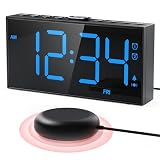
- 【116dB Loud Alarm and Bed Shaker】Choose buzzer, shaker, or both. Three vibration levels and five volume settings provide a personalized wake-up for heavy sleepers, deaf and hearing-impaired users without relying on sound alone.
- 【Dual Alarms with Flexible Schedules】Set two independent alarms for different routines, then select Monday-Friday, Saturday-Sunday, or every day. Ideal for couples, roommates, shift workers, and changing weekday or weekend schedules.
- 【7.5-Inch Display with 5-Level Dimmer】Large, clear numbers are easy to read across the bedroom. Adjust the brightness for daytime visibility or a softer nighttime setting that helps reduce unwanted light while you sleep.
- 【USB Charging and Outage Memory】Charge a compatible phone or device from the built-in USB port. The clock runs on AC power; two AAA batteries, not included, preserve the time and alarm settings during a power outage.
- 【Easy Setup with Snooze, 12/24H, and DST】Clearly labeled controls make daily use simple for adults, seniors, teens, and kids. The large snooze button adds 9 minutes, while 12/24-hour display and DST settings fit different routines.
See which devices are allowed to wake Windows
Use these two queries to distinguish capability from current configuration:
| Command | What it shows |
|---|---|
powercfg /devicequery wake_programmable |
Devices whose drivers report that wake behavior can be configured. |
powercfg /devicequery wake_armed |
Devices currently armed to wake the computer. |
The second command is the best first check for an unwanted mouse, keyboard, USB controller or network adapter wake. A listed device is configured as a possible source; the list alone does not prove it caused the last wake. The command syntax is documented by Microsoft at powercfg command-line options.
Enable or disable wake in Device Manager
- Press Windows key + X and select Device Manager.
- Expand the relevant category, such as Keyboards, Mice and other pointing devices, Human Interface Devices, Network adapters, Bluetooth or Universal Serial Bus controllers.
- Right-click the device and choose Properties.
- Open Power Management.
- Clear Allow this device to wake the computer to disable wake, or select it to enable wake.
- Select OK, put the PC to sleep and test the result.
Wireless hardware can appear as several entries, such as a receiver plus separate keyboard and mouse HID devices. Inspect all relevant entries rather than assuming one visible name represents the entire setup.
The Power Management tab or checkbox may be absent or unavailable. Microsoft explains that the device driver must expose the relevant power-management interface; hardware capability, manufacturer choices and Modern Standby can also limit the control. The interface is described at WMI and the Power Management tab.
Do these 3 things before closing this tab:
1Scan for outdated or missing drivers - takes under a minute2Clear out junk files and repair common Windows errors3Fix the driver behind crashes, sound loss and screen glitchesUse Powercfg to disable or enable a device
Disable wake
- Open Windows Terminal (Admin).
- List configurable devices:
powercfg /devicequery wake_programmable- Copy the exact device name shown by Windows, including punctuation.
- Run:
powercfg /devicedisablewake "Exact Device Name"- Confirm that the device is no longer armed:
powercfg /devicequery wake_armedKeep quotation marks around names containing spaces. For example:
Rank #2
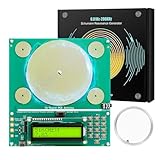
- 【Earth's Frequency for Instant Sleep】Harnessing Earth’s original 7.83Hz frequency, this device supports faster sleep onset, reduces tension, and promotes deep, restorative rest. Packaged in a uniquely designed, patent-pending gift box, it’s perfect for both personal use and gifting.
- 【Customizable Frequencies from 0.01Hz to 200KHz】Easily tune to your preferred range for personal wellness goals.This frequency generator for healing covers an extensive range from 0.01Hz to 200kHz, suitable for varied frequency applications. Its intuitive controls allow both beginners and experienced users to fine-tune settings for personalized, effective results that support overall well-being.
- 【Wellness Benefits of 7.83Hz】This frequency healing devices can emit the 7.83 Hz Schumann Resonance. The Schumann resonance at 7.83Hz is known for calming the mind, improving mood, and enhancing mindfulness practices like yoga and meditation. It encourages a deep state of relaxation, clearer thinking, and a greater sense of mental balance.
- 【Customizable Frequencies from 0.01Hz to 200KHz】Easily tune to your preferred range for personal wellness goals.This frequency generator for healing covers an extensive range from 0.01Hz to 200kHz, suitable for varied frequency applications. Its intuitive controls allow both beginners and experienced users to fine-tune settings for personalized, effective results that support overall well-being.
- 【Purchase with Peace of Mind】Enjoy access to 24/7 customer assistance and explore more possibilities with the included Effective Sine Frequencies List. Important: Always seek professional advice before starting any frequency, sound to ensure it aligns with your individual health needs.
powercfg /devicedisablewake "Intel(R) Ethernet Controller"Re-enable wake
Use the exact name returned by wake_programmable:
powercfg /deviceenableawake "Exact Device Name"The enable command is spelled /deviceenableawake; the disable form is /devicedisablewake. If Powercfg reports invalid parameters or cannot find the device, rerun the query, copy the complete displayed name, use an elevated console and preserve the forward slashes and quotation marks.
Find what woke the computer
Last reported wake source
powercfg /lastwakeThis reports the most recent wake information available to Windows. It can be incomplete when firmware, Modern Standby, an unreported hardware event or a driver supplied insufficient details.
Scheduled wake timers
powercfg /waketimersA wake timer is a scheduled software event, not a physical device. Therefore, changing a keyboard or mouse permission will not stop a timer.
Power requests and supported states
powercfg /requestsThis reports applications and drivers actively preventing sleep; it does not identify the last wake source. Use powercfg /a to verify whether the machine uses S3 sleep or Modern Standby. All command behavior is covered in Microsoft’s Powercfg reference.
Stop scheduled wake timers
- Press Windows key + R, type
control, and press Enter. - Open Hardware and Sound → Power Options.
- Select Change plan settings for the active plan.
- Select Change advanced power settings.
- Expand Sleep → Allow wake timers.
- Set the required battery and plugged-in states to Disable, then select Apply → OK.
Windows 11 also places many power controls under Settings → System → Power & battery, but the classic Power Options dialog may still be needed for wake-timer settings. This changes scheduled software wakes only; it does not disable keyboard, USB, Bluetooth or network-device wake. See Microsoft’s Windows 11 power-settings guide.
Rank #3

- Charging line only compatible with Mirari OK to Wake Alarm Clock & Night-Light
- USB to DC barrel cable
- 4ft / 1.2 meters long white cable
- Alternative for your lost or broken cord
- Diameter: 24AWG
Configure Wake-on-LAN without unwanted network wakes
On conventional S3 sleep or S4 hibernate systems, open the network adapter’s Properties in Device Manager. Depending on the adapter and driver, you may find:
- Allow this device to wake the computer
- Only allow a magic packet to wake the computer
- Wake on Magic Packet
- Wake on pattern match
- Wake on link change
For remote administration, enable device wake and prefer Only allow a magic packet when available. Broad pattern-match or link-change options can cause wakes from ordinary network traffic. Check the adapter’s Advanced tab and BIOS/UEFI for settings such as Wake on LAN, Resume by LAN or PCIe device wake. The adapter must remain powered in the relevant sleep state.
What’s actually slowing this PC down?
Pick the symptom - the matching free tool is one click away.
Microsoft documents Wake-on-LAN support from S3 sleep or S4 hibernate, but not officially from S5 soft-off shutdown. Motherboard firmware may add its own behavior, so consult the manufacturer’s documentation. Relevant references are Windows system power states and firmware Wake-on-LAN settings.
If the PC wakes immediately after sleeping
- Run
powercfg /lastwake. - Run
powercfg /devicequery wake_armedand disable the likely device rather than every device. - Run
powercfg /waketimersand disable or change the responsible schedule. - Disconnect nonessential USB devices and test again; a noisy receiver or faulty peripheral can generate input.
- If network wake is suspected, test with Ethernet disconnected or Wi-Fi disabled, then review adapter and BIOS/UEFI settings.
- Check
powercfg /afor Modern Standby and review platform wake-source behavior. - Update chipset, network, Bluetooth and input-device drivers from the PC or motherboard manufacturer.
If the computer never enters sleep at all, this is a different problem. Use powercfg /requests to find an active application or driver power request; wake permissions do not remove a request that prevents sleep.
Modern Standby and Windows 11 24H2 limits
Modern Standby (S0 low-power idle) keeps parts of the platform available for defined hardware, network, maintenance and notification activity. The traditional Device Manager checkbox generally controls low-power Sx-state wake behavior, not every Modern Standby source. Do not treat a missing checkbox as proof that the hardware cannot participate in Modern Standby wake.
Rank #4

- 5-IN-1 CLOCK RADIO FOR BEDROOM – Combines a digital alarm clock, FM radio, Bluetooth 5.0 speaker, warm night light, and USB-A/USB-C charging in one compact bedside design. The large fabric-style LED display and top-mounted controls make it easy to check the time and operate from bed.
- FM ALARM CLOCK WITH 20 PRESETS – Tune FM stations from 87.5 to 108 MHz using automatic or manual search and save up to 20 favorites for quick access. Wake to your last-played radio station or the buzzer, with 16 adjustable volume levels for a gentler or stronger alarm.
- BLUETOOTH 5.0 SPEAKER FOR BEDSIDE LISTENING – Pair a compatible phone or tablet within up to 33 ft to enjoy music, podcasts, audiobooks, or relaxing sleep sounds. The built-in speaker delivers clear audio, making this alarm clock radio useful throughout your morning and bedtime routine.
- 5 SLEEP TIMERS, DIMMER & WARM NIGHT LIGHT – Fall asleep to FM radio or Bluetooth audio with 15, 30, 60, 90, or 120-minute auto-off options. Adjust the LED display through 5 brightness levels, use the warm night light for gentle bedside illumination, and press the large snooze button for 9 extra minutes.
- USB-A/USB-C CHARGING & MEMORY BACKUP – Built-in USB-A and USB-C ports provide convenient bedside charging for compatible phones and small devices. The included CR2032 battery preserves the time and alarm settings during an outage; the display and alarm require AC power and will not operate during power loss.
Windows 11 version 24H2 can restrict most Modern Standby wake sources when excessive battery drain is detected. Platform-defined actions such as pressing the power button or opening the lid may remain available. These behaviors are described in Microsoft’s Modern Standby wake-source documentation.
Free tools Windows power users keep installed
One-click scans. No signup required.
Understand the trade-offs before disabling wake
- Disabling keyboard or mouse wake means you may need the power button or another armed device to resume the PC.
- Disabling network wake stops Wake-on-LAN and can affect remote administration, media servers, scheduled maintenance and enterprise management.
- A compromise for network adapters is to keep device wake enabled but allow only magic packets.
- Lid opening and power-button actions are separate hardware or policy events; disabling mouse or network wake does not necessarily disable them.
- Sleep, hibernate, Fast Startup and full shutdown use different power states. Windows’ ordinary device-wake mechanism generally does not apply to S5 shutdown.
Frequently asked questions
Can a keyboard wake a Windows 11 PC?
Yes, if the keyboard or its receiver and driver expose wake support and the device is armed. Check wake_armed or the keyboard’s Power Management tab.
Why does my mouse still wake the computer after I disabled it?
Another HID entry, wireless receiver, USB controller, wake timer, firmware setting or Modern Standby source may be responsible. Check all related entries, then run powercfg /lastwake and /waketimers.
Can I disable wake from shutdown?
Usually not through the normal Windows device checkbox. Full-shutdown wake depends on firmware and hardware features such as Wake-on-LAN, USB power and RTC wake.
Why does wake_armed return nothing?
No device is currently armed through that interface, or the driver and sleep model do not expose a configurable device wake source. Timers, firmware and Modern Standby can still produce activity.
Does disabling wake stop a device from preventing sleep?
No. Waking and preventing sleep are separate behaviors. Use powercfg /requests for an active power request that keeps the PC awake.
Quick Recap
Product prices and availability are accurate as of the date/time indicated and are subject to change. Any price and availability information displayed on Amazon at the time of purchase will apply.



