Outdated Drivers Are Slowing You Down
One free scan finds every outdated or missing driver and matches the right update for your exact hardware.Free scan · exact hardware matchWindows Errors? Fix Them Before They Spread
Repair common Windows errors and clear accumulated junk for a smoother, more stable PC - no reinstall needed.Free scan · no reinstallYou can add a currency converter to a regular WordPress page with a plugin block, shortcode, or widget. For a WooCommerce store, the built-in Currency Converter Widget changes the prices customers see, but it does not change the currency they pay. If you need customers to check out in another currency, use a multi-currency extension instead.
Choose the right kind of currency converter
Start with what you want the converter to do. A display converter helps visitors compare amounts; a multi-currency store feature changes the currency used for checkout. The difference matters because displaying a converted total does not necessarily mean the customer will be charged that amount in that currency.
| Need | Suitable approach | What to know |
|---|---|---|
| Show exchange rates on a regular WordPress page, post, sidebar, or footer | A WordPress currency-converter or exchange-rates plugin | Depending on the plugin, add it with a Gutenberg block, shortcode, or classic widget. [Currency Converter Widget] |
| Let WooCommerce visitors view product prices in another currency | WooCommerce Currency Converter Widget | Prices can be converted for display, but customers still pay in the store’s base currency. [WooCommerce documentation] |
| Accept payment in the currency the shopper selects | A WooCommerce multi-currency extension | Choose an extension that supports your payment and checkout requirements; the display-only widget is not a substitute. [WooCommerce Multi-currency documentation] |
Add a converter to a regular WordPress page or post
Use the Currency Converter Widget plugin
- In your WordPress dashboard, open Plugins > Add New and search for Currency Converter Widget, or install it from its WordPress.org listing.
- Install and activate the plugin.
- Open the page or post in the block editor and insert the plugin’s Currency Converter block where you want it to appear.
- Set the converter options available in the block, then preview and publish the page.
The plugin listing also documents a shortcode and says multiple widgets can be placed on one page. For exact shortcode syntax and current settings, use the instructions on the plugin’s listing or in its installed settings; plugin features can change.
Use the Exchange Rates Widget plugin
- Go to Plugins > Add New and search for Exchange Rates Widget, or install it from the WordPress.org listing.
- Install and activate the plugin.
- Place it in your content using the shortcode described by the plugin, or, for a classic widget area, open Appearance > Widgets and add it there.
The plugin listing says its embedded CurrencyRate.Today service provides exchange-rate data and does not require an API key. Check the listing for the current supported currencies and service terms before relying on it.
#1 Best Overall

- LARGE EIGHT-DIGIT DISPLAY – Clear and easy-to-read 8-digit display, perfect for everyday calculations and ensuring accurate results in home or office settings.
- TAX & CURRENCY EXCHANGE FUNCTIONS – Effortlessly handle tax calculations and convert home currency to other currencies for easy financial management.
- GENERAL PURPOSE CALCULATOR – Ideal for a wide range of applications, from basic math to business and personal use, with memory keys for quick storage and recall.
- USER-FRIENDLY KEYBOARD – Easy-to-use layout, featuring square root, percent calculation, and simple functions that make it perfect for everyday tasks.
- COMPACT & PORTABLE DESIGN – Space-saving design that fits easily on any desk or in a briefcase, making it ideal for both home and office use.
Add a display-only converter to WooCommerce
WooCommerce’s Currency Converter Widget can convert displayed product prices, sale prices, cart and checkout totals, and shipping. It offers button or select-box presentation, currency symbols, a reset link, and optional location detection. Its documentation is explicit: “Customers will still pay in your base currency. Prices are for display and informational purposes only.” [WooCommerce Currency Converter Widget documentation]
Install and place the widget
- Install and activate WooCommerce’s Currency Converter Widget using the installation method described in its documentation.
- In the dashboard, go to Appearance > Widgets.
- Add the Currency Converter widget to the desired widget area.
- Configure the currency codes, symbols, display mode, reset link, and location detection options as needed, then save and check the storefront.
You can also place it in content with [woocommerce_currency_converter]. In a theme template, WooCommerce documents this PHP snippet: <?php echo do_shortcode( '[woocommerce_currency_converter] ' ); ?>. If you want it to convert cart and checkout displays, the documentation says the shortcode must be present on both the cart and checkout pages.
Rank #2

- Metric conversions.
- Sized and powered for calculations anywhere.
- Protective wallet case for carry-with convenience.
- Metric converter
- 10-Digits with punctuation
Understand exchange-rate settings
The widget uses WooCommerce’s built-in Kestrel exchange-rate service by default. The documentation also describes an optional Open Exchange Rates provider, configured under WooCommerce > Settings > Integrations > Open Exchange Rates. The documented default refresh interval is 12 hours and can be set from 1 to 24 hours. Check the current documentation for any provider, API-key, or account requirements before enabling the optional integration. [WooCommerce Currency Converter Widget documentation]
Independent reader supportYour contribution helps us test, update, and keep practical guides available for everyone.When you need customers to pay in the selected currency
Choose a WooCommerce multi-currency extension rather than relying on the Currency Converter Widget. WooCommerce documents a currency switcher that can be placed in a widget area, navigation menu, or with a shortcode, and also describes live-rate-board placement. [WooCommerce Currency Switcher documentation] Its Multi-currency documentation describes a switcher for pages or navigation menus and says rates are handled relative to the US dollar for API compatibility. [WooCommerce Multi-currency documentation]
Recommended Free Tools
Rank #3
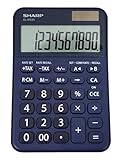
- 10 digit large angled LCD display
- Durable plastic keys
- Functions include: currency conversion functions, automatic tax keys, percent key, backspace key, 3 key independent memory, extra-large plus key, sign change, and automatic power down
- Sleek dark blue design
- Opertes on twin power (solar/battery backup)
Before choosing an extension, confirm that its current documentation covers your payment gateways, currencies, rate source, and checkout behavior. A switcher’s presence on a page alone does not establish that the store will charge in the selected currency.
Quick Recap
Best Value

- Check your calculations thanks to the calculator's inbuilt serial impact roller printer that enables you to monitor your inputs and retains ongoing records. This two-color printer with a four-key memory prints red and black ink at up to 2.3 lines per second onto the included roll of paper.
- Printing calculator offers 12-digit LCD display for convenient viewing. 4-key memory keeps often-used figures accessible for faster calculations. Clock and calendar functions help maintain schedules.
- Easy-to-use solution for all of your basic math needs. Streamline financial calculations with currency conversion, tax calculation, and item counter functions. 1-year manufacturer limited warranty.
- Dimensions: 2.2"H x 6.4"W x 9.1"D. Package content: AC adapter, paper roll, user manual.
- Powered by any standard AC outlet, eliminating the need for expensive batteries. Decimal switch, rounding switch, percent, sign change, backspace, double zero, and grand total functions help you solve a variety of mathematical problems.
Rank #4

- Mr. Pen calculator boasts a 10-digit LCD display that provides crisp and clear number visibility, ensuring accuracy for all your everyday calculations.
- Built with high-quality, durable materials, this calculator is designed for long-lasting use, making it a reliable companion for students, professionals, or home office tasks.
- Featuring large, ergonomic round buttons, it offers a comfortable and responsive touch, allowing for effortless data entry and smooth calculations.
- Its sleek and compact design makes it highly portable, easily fitting into bags, purses, or desk drawers for on-the-go convenience.
- Battery not included
Check the setup before publishing
- Confirm the commercial behavior: make sure visitors can tell whether an amount is indicative or the actual checkout currency.
- Check placement: preview the converter on the intended page, widget area, or navigation menu, and on mobile.
- Verify checkout handling: if using the WooCommerce display widget for cart or checkout conversion, follow its requirement to include the shortcode on both pages.
- Review rates and currency support: check the plugin or service’s current supported currency codes, rate source, update schedule, and terms.
- Test the visitor experience: switch currencies, reset the display, and review product, cart, shipping, and checkout amounts without assuming that a displayed conversion changes what the payment gateway charges.
Product prices and availability are accurate as of the date/time indicated and are subject to change. Any price and availability information displayed on Amazon at the time of purchase will apply.




