Recommended Free Tools
To resize an image for a website banner, first find the banner area’s actual pixel dimensions and shape in your site theme, CMS, or design specification. Then resize the image proportionally; if its shape does not match the banner, crop it deliberately rather than stretching it. There is no single banner size that fits every website. For a responsive page, you may need a second size or a different crop for mobile.
1. Find the banner’s real dimensions before editing
Check the theme or page-builder settings, the CMS instructions, or the developer’s layout specification. Find the target width and height in pixels, whether the image is cropped to fill its container, and whether there is a file-size limit. If the banner changes shape on a phone, check whether the design expects a separate mobile crop.
If you cannot find a stated size, inspect the banner container at the screen size where it will appear. The rendered dimensions can help you understand the layout, but do not assume the image must have exactly the same pixel dimensions: the site may scale or crop it. Ask whoever maintains the theme or design if the required behavior is unclear.
Calculate the target aspect ratio by dividing width by height. For example, a hypothetical 1600 × 500 banner has a ratio of 3.2:1. Compare that ratio with the image’s ratio before choosing between proportional resizing and cropping. The example is a calculation, not a recommended universal banner size.
Free tools Windows power users keep installed
One-click scans. No signup required.
2. Decide whether to resize, crop, or prepare another version
Resize proportionally when the shapes already match
If the source image and banner have the same aspect ratio, scale the image while keeping its proportions locked. This changes its pixel dimensions without changing the composition. Entering a new width and height independently can distort faces, objects, logos, and text.
Crop when the shapes do not match
If the banner is wider or shallower than the source, cropping removes content from one or more edges so the remaining image fits the banner shape. Choose the crop yourself and keep the subject, text, and focal point inside the visible area. Do not stretch the image to fill a mismatched box.
A very wide banner often needs content removed from the top and bottom of a taller source; a tall or narrow slot may require trimming the sides. Check the crop at the actual banner size, because an important detail near an edge can disappear when the site applies its own cover crop.
Use separate crops when one composition cannot serve every screen
A desktop banner and a mobile banner may allocate space differently. A single image can be scaled to several resolutions when the composition stays the same. If the subject needs to move, or the composition needs to change substantially for a narrow layout, prepare a distinct crop for that layout. MDN describes these as different responsive-image needs: resolution switching and art direction.
3. Resize an image in Photoshop
- Make a copy of the original image so you can return to the uncropped source or change the export later.
- Open the copy in Photoshop and choose Image > Image Size.
- Keep the constrain-aspect-ratio control enabled when scaling proportionally. Adobe’s Photoshop documentation says to select the Constrain aspect ratio icon to maintain proportions.
- Enter the target pixel width or height. With proportions constrained, the other dimension follows. If the target box has a different ratio, do not force both target dimensions into this dialog as though that were a proportional resize; crop to the target shape instead.
- Use Resample when you need to change the actual pixel dimensions of the file. Review the result at the intended display size, especially when enlarging a small source.
- Crop to the banner ratio if necessary, repositioning the crop around the subject and any important text.
- Export in a format accepted by your site, then check the saved file in the page layout at desktop and narrow viewport widths.
Adobe’s article, last updated February 23, 2026, says screen and web images typically use 72–96 PPI. That figure is not a banner dimension: for a website, the relevant targets are pixel width and height plus how the site displays and crops the image. Increasing the pixel dimensions of a small raster image cannot recover detail that was not present in the original; inspect enlarged output for softness or artifacts rather than relying on a promised enlargement factor.
4. Resize with Canva’s online flow
- Upload the image to Canva’s online image-resizing flow.
- Enter the required dimensions or choose a preset, depending on the options available in your account.
- Check the crop and subject placement if the chosen dimensions have a different aspect ratio from the source.
- Download as JPG or PNG if that format is accepted by the destination site.
Canva documents an upload, dimension-or-preset, and download workflow. Custom dimensions and access to resize features depend on Canva’s current features and plan details, which can change; verify what your account interface offers before depending on a particular option. The documented JPG and PNG choices are not a universal rule for every CMS—use a format the site accepts.
Photoshop’s Image Size dialog and Canva’s browser-based flow are two different ways to do the editing. Choose based on whether you want to work in a desktop editor or an online upload-and-export flow, and whether the required dimensions and export options are available to you. No comparative speed or quality result is established here.


5. Make the banner responsive in the page
Preparing the right file is only part of the job. The page needs to select an appropriate image or crop for its layout and reserve the image’s space so content does not jump when it loads. MDN documents srcset and sizes for offering the same composition at different resolutions, and <picture> for choosing a different composition at a breakpoint.
Do these 3 things before closing this tab:
1Repair Windows errors before they cause bigger problems2Fix the driver behind crashes, sound loss and screen glitches3Clear out junk files and repair common Windows errorsOffer multiple resolutions of the same composition
Use srcset to list available image widths, and sizes to describe the rendered slot width at relevant viewport sizes. The browser can then select among the files you provide. The following is a template: replace the example file names and sizes with files you actually export, and set sizes to match your layout.
#1 Best Overall
<img
  src="banner-1600.jpg"
  srcset="banner-800.jpg 800w, banner-1600.jpg 1600w"
  sizes="100vw"
  width="1600"
  height="500"
  alt="Description of the banner image">
The width and height attributes describe the image’s intrinsic dimensions; use values matching the referenced default image, not the hypothetical values in this example if your file differs. MDN explains that these attributes let the browser calculate the aspect ratio before loading, helping it reserve space and reduce layout shift. An appropriate CSS layout can still scale the image to the available width.
Choose a separate crop for a different layout
If mobile needs a different crop rather than merely fewer pixels, provide an alternative source with <picture>. Replace the example media condition and files with the breakpoint and assets used by your design.
Rank #2

- 【Complete Book Club Banner Set】You will receive 1 book banner with letters spelling 'BOOK CLUB', 1 plastic needle and a 5m rope. The book club decor creates a peaceful and beautiful atmosphere for reading and studying.
- 【Reliable Material】The book club decorations is made of premium cardboard, which is lightweight and sturdy, ensuring that it retains its luxurious look and shape throughout the party.
- 【Easy to Install】Designed with user convenience in mind, the book themed party decorations require minimal setup time. The included plastic needle easily threads through pre-punched holes on each card, while the 5m rope accommodates various hanging spaces.
- 【Vintage Design】The distressed typography and classic book stack graphics evoke a cozy, old-library feel. The eye catching graphics add a fun and festive touch to your reading events, making your event stand out from ordinary party decor.
- 【Wide Application】Book club banner can be widely used to decorate book themed party, book lover party, newspaper birthday party, library themed party, girls night party, book reading theme party and so on.
<picture>
  <source media="(max-width: 600px)" srcset="banner-mobile.jpg">
  <img src="banner-desktop.jpg" width="1600" height="500" alt="Description of the banner image">
</picture>
Set the fallback image’s width and height to its actual intrinsic dimensions. The mobile crop should be composed and checked separately; swapping file names without creating the crop does not reposition the subject.
Quick wins for a faster PC:
Scan for outdated or missing drivers - takes under a minuteDriver Scan →Repair Windows errors before they cause bigger problemsFix Now →6. Export and check the actual page
- Sharpness: Inspect the banner at its intended display size. Look closely if the source was enlarged.
- Crop: Verify that the main subject, any embedded text, and the visual focal point remain visible on desktop and mobile.
- Layout: Confirm the CMS or CSS is not applying an unexpected second crop. Set image dimensions or an aspect ratio in the page so the browser can reserve the correct space.
- Format and file weight: Use a format your site accepts and check the exported file size against the site’s actual limit, if one is specified. There is no universal byte limit established for all websites.
- Content flexibility: If the banner contains text that must remain readable, check its contrast and position at each crop. Text embedded in an image can be cut off or become too small when the layout changes.
7. Troubleshooting common banner problems
The image looks stretched or squashed
Cause: Width and height were changed independently, or the page is forcing an image with a mismatched ratio into the banner box.
Fix: Restore the original or a fresh working copy, constrain proportions in the editor, and crop to the target ratio if needed. Check the site’s fit or cover behavior so it is not distorting the file again.
The subject is cut off on mobile
Cause: The mobile container has a different shape or focal position, but the same desktop crop is being used.
Fix: Preview the narrow layout and either adjust the focal crop or create a dedicated mobile composition. Use responsive art direction with <picture> when the composition itself must change.
Rank #3
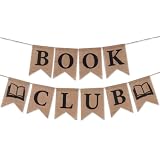
- Book Party Decorations: Package include 1 x vintage book club banner. The book club banner comes pre-assembled for quick and easy hanging, effortlessly decorating your reading-themed event or party.
- Durable Material: Book themed party decorations bunting is made of high quality burlap material, which is thick, not easy to tear, and durable.
- Widely Use: Book club banner is suitable for hanging on desks, walls, windows, and other indoor or outdoor surfaces, adding a decorative highlight to your book themed party.
- Book Themed Party Decorations: Perfect for decorating book themed party, book lover party, book themed birthday party, library themed party, book reading theme party, school reading event and so on.
- If there are any questions about our book themed banner, please contact us and we will get back to you within 24 hours.
The resized image looks blurry
Cause: The source may have fewer pixels than the rendered banner needs, or the site may be enlarging a smaller file.
Fix: Start from a higher-resolution source or export a larger version of the same crop, then check it at the rendered size. Resampling changes pixel dimensions but does not guarantee recovery of captured detail.
The page jumps when the banner loads
Cause: The browser may not know the image’s dimensions or ratio before the file arrives.
Fix: Supply correct width and height attributes or reserve space with the container’s aspect ratio. Ensure those values reflect the selected image’s shape.
The file is rejected or loads slowly
Cause: The site may reject the export format or enforce a file-size limit; a large pixel file can also take longer to transfer than a suitably optimized one.
Fix: Check the CMS or theme requirements, export an accepted format, and reduce unnecessary dimensions or file weight while retaining adequate quality. Do not assume a size limit or format is universal.
The requested dimensions do not fit the source without losing content
Cause: The source and banner have materially different aspect ratios, and the important content spans the area that a crop would remove.
Fix: Do not stretch the image. Recompose or reposition the content for the banner, ask for a layout that suits the source, or prepare a separate crop for that placement.
8. Or skip the browser setup
If by “banner image” you mean a screenshot of a live webpage rather than resizing an existing image file, ScreenshotNeo can return a webpage screenshot from one GET request. It is not an image editor and does not resize an uploaded banner image; use the editing steps above for that task.
The API can return PNG, JPEG, WebP, or PDF. This cURL example captures a webpage as WebP; replace the example URL with the page you need. See the ScreenshotNeo API documentation for request options.
Quick Recap
Best Value
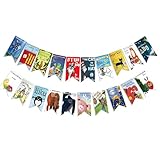
- Colorful and Engaging Design: This classic children's book banner features bright illustrations and storybook themes that add fun and charm to any space
- Perfect for Any Occasion: Great for classrooms, birthday parties, reading corners, and fiesta party decorations—creates a cheerful and inviting atmosphere
- Inspires a Love of Reading: Ideal for teachers and parents who want to encourage imagination and promote reading through creative and fun classroom decor
- Easy to Hang and Display: This lightweight banner decoration is simple to hang on walls, bulletin boards, or doorways—perfect as part of your school supplies setup
- Versatile Use for All Spaces: Use it for reading events, learning themes, libraries, or at home—this banner brings joy and literary flair to any setting
curl -G "https://api.screenshotneo.com/v1/shot" -d access_key=YOUR_API_KEY --data-urlencode url=https://stripe.com -o shot.webpFor webpage captures, ScreenshotNeo accepts cookie or consent banners and removes more than 60 known consent platforms, newsletter popups, and chat widgets before capture; each of those steps can be turned off. Bot checks or CAPTCHAs, blank pages, timeouts, failed loads, and cache hits cost nothing, and the response identifies the page verdict and billing status in headers. Its MCP server provides take_screenshot, get_page_info, and capture_pdf tools for Claude, Cursor, and other MCP clients. The Free plan includes 1,000 screenshots per month with no card; paid plans start at $5 for 3,000 screenshots. Sign up for ScreenshotNeo’s free plan.
Product prices and availability are accurate as of the date/time indicated and are subject to change. Any price and availability information displayed on Amazon at the time of purchase will apply.




