Yes, but only in a specific, documented case. Philips Hue and Apple Home are officially compatible; there is no evidence of a universal outage. Philips Hue documented a Bridge Pro problem in which its Matter connection could be lost, and released a firmware fix on April 9, 2026. Other “No Response,” pairing, or “Bridge not found” failures are more often caused by the connection method (HAP or Matter), firmware, a home hub, local-network discovery, or unsupported hardware.
Hue’s official Apple Home setup uses a Hue Bridge: Philips Hue setup instructions.
What the documented problem actually is
Philips Hue’s April 9, 2026 Bridge Pro release note identifies a bug where the Bridge Pro could lose its Matter connection. Firmware 2071294010/2071294020 contains the listed fix. Philips Hue says affected users should update and set up the Matter integration again. The same release page lists version 2071353020 dated June 4, 2026 as a later release with behind-the-scenes improvements, not a newly announced Apple Home outage.
This evidence supports a narrow conclusion: Bridge Pro users whose Apple Home connection runs through Matter may have encountered a known issue. It does not show that every Hue Bridge, every light, or every Apple Home installation is currently broken. Philips Hue also records older HomeKit pairing fixes for the standard Bridge, but historical fixes do not prove that every current “No Response” report has one global cause.
Quick wins for a faster PC:
Repair Windows errors before they cause bigger problemsFix Now →Fix the driver behind crashes, sound loss and screen glitchesFind Drivers →Clear out junk files and repair common Windows errorsFree Scan →#1 Best Overall

- SWITCH TO SMART LIGHTING: Simply screw in your new smart bulb, download the award-winning Hue app, then start controlling and customizing your smart light remotely
- CREATE AMBIANCE WITH COLOR: Find the right light with the LED lights for any mood with millions of colors and a packed library of preset light scenes designed by Hue’s lighting experts
- SMOOTH DIMMING: Easily dim your smart light bulbs from full brightness all the way down to 2% using the Hue app to achieve the right level of lighting for whatever you’re doing
- CONTROL USING YOUR VOICE: Connect to your home assistant, and you’ll be able to control your LED light bulbs remotely using voice commands—compatible with Alexa, Google Assistant, and Apple Home.
- EXPAND YOUR SETUP: Add a Hue Bridge and other Hue products to unlock more features, including home security and content syncing with music, movies, and video games
Bridge v1 is a separate case. Philips Hue’s end-of-support policy says online-service support ended in 2020, so an original v1 Bridge may be unsupported rather than suffering a new Apple Home bug.
Use the symptom to locate the failing layer
| What you observe | Most likely area to investigate |
|---|---|
| Lights work in the Hue app but Apple Home says “No Response” | HAP or Matter pairing, an Apple home hub, or local-network discovery |
| Hue and Apple Home both fail | Bridge power or network connection, Hue firmware, account state, or the wider network |
| Hue cannot find the Bridge | Bridge power, Ethernet/Wi-Fi, router discovery, VPN, or security filtering |
| Only one light or room fails | Stale or duplicated Apple Home data, a rename/move, a scene, sensor, or automation |
| Several brands fail in Apple Home | Apple home hub, router/Wi-Fi, VPN, security software, or Apple software |
| Bridge Pro fails over Matter while HAP works | Matter-specific Bridge Pro integration state |
Apple’s troubleshooting guidance for unresponsive accessories recommends this same distinction between one manufacturer and several manufacturers: Apple support.
Rank #2

- SWITCH TO SMART LIGHTING: Enjoy smart lighting instantly: screw in your bulb, download the Hue app, and control your light remotely.
- CREATE AMBIANCE WITH COLOR: Find the right light for any mood with millions of colors and a packed library of preset light scenes designed by Hue’s lighting experts.
- SMOOTH DIMMING: Easily dim your lights from full brightness all the way down to 2% using the Hue app to achieve the right level of lighting for whatever you’re doing.
- CONTROL USING YOUR VOICE: Connect to your home assistant and you’ll be able to control your lights remotely using voice commands—compatible with Alexa, Google Assistant, and Apple Home.
- EXPAND YOUR SETUP: Add a Hue Bridge and other Hue products to unlock more features, including home security and content syncing with music, movies, and video games.
HAP and Matter are different connection routes
HomeKit Accessory Protocol (HAP)
HAP is Hue’s traditional Apple Home integration. Philips Hue maintains separate support material for HAP pairing and for reverting to HAP, so a HAP failure should not automatically be treated as a Matter failure.
Matter
Matter is the newer interoperability route. Hue says both the Bridge and Bridge Pro support Matter after software updates. It adds another pairing and synchronization layer; the Bridge Pro Matter connection-loss issue described above is an example. Hue’s support index covers connecting through Matter, synchronization differences, and switching back to HAP: Hue Apple Home support.
Free tools Windows power users keep installed
One-click scans. No signup required.
Rank #3

- WARM WHITE LIGHT: Light up your home and create a warm, welcoming feel with soft white light (2700K) ideal for bedrooms, living rooms, and spaces to relax
- LOW DIMMING: Dim your LED light bulb smoothly from full brightness down to 5% to achieve the right lighting for whatever you’re doing, whether watching a movie or unwinding before bed
- SMART CONTROLS: Control your LED light remotely using the award-winning Hue app or add a Bridge to control using your preferred home assistant—compatible with Alexa, Google Assistant, and Apple Home
- EASY TO USE: Simply screw in your new smart LED bulb, download the award-winning Hue app, and start enjoying all the benefits of smart lighting—it's as easy as that
- BUILT TO LAST: These Hue LED bulbs are designed to last, with an average lifespan of 25,000 hours
Products connected only by Bluetooth cannot be exposed through Matter via the Hue Bridge route. Direct Matter setups may also require a compatible Thread Border Router; do not assume that any Bluetooth Hue bulb can be added directly to Apple Home as a Matter device. See Hue’s Matter compatibility information.
Safe troubleshooting sequence
Follow these checks in order. They preserve your rooms, scenes, and automations until simpler causes are eliminated.
Rank #4
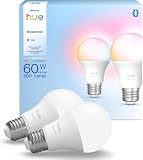
- SWITCH TO SMART LIGHTING: Enjoy smart lighting instantly: screw in your bulb, download the Hue app, and control your light remotely.
- CREATE AMBIANCE WITH COLOR: Find the right light for any mood with millions of colors and a packed library of preset light scenes designed by Hue’s lighting experts.
- SMOOTH DIMMING: Easily dim your lights from full brightness all the way down to 2% using the Hue app to achieve the right level of lighting for whatever you’re doing.
- CONTROL USING YOUR VOICE: Connect to your home assistant and you’ll be able to control your lights remotely using voice commands—compatible with Alexa, Google Assistant, and Apple Home.
- EXPAND YOUR SETUP: Add a Hue Bridge and other Hue products to unlock more features, including home security and content syncing with music, movies, and video games.
- Test the Hue app. Confirm whether the Bridge and affected lights respond there. If they do not, fix the Hue system or network before changing Apple Home.
- Update software. Install the current Hue app and Bridge firmware. Philips Hue says Bridge compatibility with its current app requires the latest Bridge software. Update the iPhone, iPad, or Mac used for setup and all Apple home hubs.
- Restart the hardware. Restart the Hue Bridge, HomePod or HomePod mini, Apple TV home hub, router, and controlling Apple device. Wait for each to reconnect before testing.
- Check the local network. During setup, put the Apple device and Hue Bridge on the same home network. Turn on Bluetooth, and temporarily test with VPNs or third-party security software disabled if they filter local discovery.
- Identify HAP or Matter. Check which route your Hue integration uses before deleting anything. Switching protocols can create duplicate accessories or require automation repairs, so do not switch casually.
- For Bridge Pro Matter failures, update and pair again. Install the firmware listed in Hue’s Bridge Pro release notes, then remove and set up the Matter integration again if Apple Home still cannot control the lights.
- Remove and re-add only the integration. Record accessory names, rooms, scenes, and automations first. Re-pair the Hue connection rather than deleting individual bulbs indiscriminately.
- Factory-reset only as a last resort. A full Bridge reset erases configuration and creates substantial re-setup work; Apple’s sequence places firmware, restarts, network checks, and re-adding ahead of it.
How to set up Hue with Apple Home
Philips Hue’s current app path is:
- Open the Philips Hue app.
- Go to Settings > Smart home & voice.
- Tap Get started, choose Siri & Apple Home, and tap Set up.
- Sign in to your Hue account if requested.
- Select an existing Apple Home or create one.
- Complete the on-screen pairing process.
Labels can vary by app version. Hue’s setup page also covers the “Hue Bridge cannot be found in HomeKit” scenario: official setup guide.
Independent reader supportYour contribution helps us test, update, and keep practical guides available for everyone.When the fault is probably Apple Home or the network
If devices from multiple manufacturers fail simultaneously, focus on the Apple home hub, router, Wi-Fi discovery, VPN/security filtering, or Apple software. A home hub—HomePod, HomePod mini, or Apple TV—is required for remote control and reliable home-wide operation; being on the same Wi-Fi is mainly a setup and local-control requirement.
Best Value

- NATURAL DAYLIGHT AT HOME - This smart bulb has a wider than average CCT range covering the spectrum of daylight: from relaxing tones below 2700K through blue-sky light at 12000K to high-energy light
- ULTRA-LOW DIMMING - Dim your LED light bulb from full brightness all the way to 0.2% to achieve the right lighting for whatever you’re doing, whether you’re watching a movie or unwinding before bed
- CONSISTENT COLOR - Chromasync technology ensures consistent & vibrant colors, with precision color matching so that all your smart LED bulbs produce the exact same color when you sync them together
- SMART CONTROLS - Control your LED light remotely using the award-winning Hue app or add a Bridge to control using your preferred home assistant—compatible with Alexa, Google Assistant, and Apple Home
- BUILT TO LAST - These Hue LED bulbs are designed to last, with an average lifespan of 25,000 hours
If Hue works normally in its own app, that proves the bulbs and Bridge can communicate but does not prove that HAP, Matter, Apple Home, or the home hub is healthy. Conversely, if the Hue app cannot find the Bridge, troubleshoot power, cabling, firmware, and network discovery first.
Should you switch from HAP to Matter?
Consider Matter when you need broader interoperability or are repairing a corrupted integration, and when your Bridge firmware and Apple devices meet the requirements. Keep a stable HAP setup if it already works. Before changing protocols, document room assignments, names, scenes, and automations; a switch can produce duplicates or require those automations to be rebuilt. Matter is not a guaranteed cure for a general Apple Home failure.
Quick Recap
When replacement makes sense
- Do not buy a new Bridge just because Apple Home says “No Response.” Update, restart, and re-pair first.
- Replace Bridge v1 because it is outside current online-service support.
- Consider Bridge Pro for its stated capacity of up to 150 lights and 50 accessories, Wi-Fi placement flexibility, or features such as MotionAware—not as a blanket fix. Philips Hue’s U.S. product page lists $139.99 and Apple Home/Matter compatibility, but prices and availability can change: Bridge Pro product page.
- Replacing bulbs is rarely the first answer when existing Hue lights work in the Hue app; Bluetooth-only products also have the Matter limitations described above.
Who should provide support?
- Contact Philips Hue if the Bridge cannot be found in the Hue app, firmware updates fail, or lights fail in both Hue and Apple Home.
- Contact Apple if several manufacturers remain unavailable in Apple Home after restarting hubs, the router, and devices and checking VPN/security software.
Product prices and availability are accurate as of the date/time indicated and are subject to change. Any price and availability information displayed on Amazon at the time of purchase will apply.




