Freedom251 › Monitor Control Software

Twinkle Tray
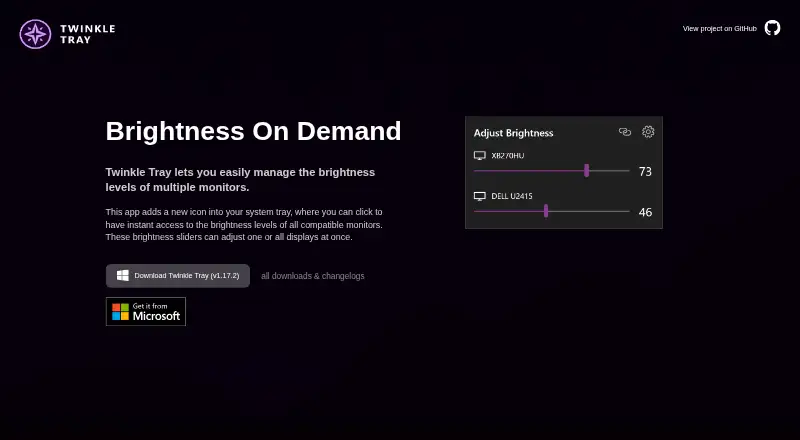
What Twinkle Tray is
Twinkle Tray is a free Windows utility for controlling brightness across multiple monitors from a system-tray icon. Sliders can change one display or all displays together, and the app can adjust DDC/CI features such as contrast, volume, and power state. It works with most laptops and DDC/CI-enabled monitors, using WMI for internal laptop displays and DDC/CI for external displays. Brightness changes can be scheduled by time of day or computer inactivity, and hotkeys can target individual displays or all of them. Command-line arguments allow custom scripting, and the application is localized in over 20 languages. It is available through the Microsoft Store or as a GitHub installer. Some VGA or DVI connections, along with certain USB, Thunderbolt, or Surface docks using HDMI or DisplayPort, may not be compatible. Its privacy policy describes collection of settings, operating system, CPU name, app version, user interactions, and estimated location through Google Analytics. Users can opt out in Settings; the policy says collected details are stored in Google Analytics and not shared with other third parties.
Who it suits
It suits Windows users who want tray-based brightness controls for a laptop or multiple compatible monitors. Scheduling, hotkeys, and command-line options may help users who want to automate adjustments.
What it does well
- Adjust one display or all displays together.
- Controls DDC/CI contrast, volume, and power state.
- Supports scheduled adjustments and hotkeys.
- Command-line arguments support custom scripting.
- Available through Microsoft Store or GitHub installer.
What to know first
- Some VGA and DVI connections may be incompatible.
- Certain docks may not be compatible.
- Privacy policy describes Google Analytics data collection.
Limits
The free plan is for Windows 10 and Windows 11 and supports most laptops and DDC/CI-enabled monitors. VGA or DVI connections and some USB, Thunderbolt, or Surface docks using HDMI or DisplayPort may be incompatible.
Plans
| Plan | Billed and limits | Price |
|---|---|---|
| Free | 100% free · Windows 10 & Windows 11 · most laptops and DDC/CI-enabled monitors | Free |
As twinkletray.com lists them, read 1 Oct 2026. The maker's own page has the final word.
Getting started
- Choose the Microsoft Store version or the GitHub installer from the official site.
- Install Twinkle Tray on a Windows computer.
- Open the app from the system tray and adjust a display or all displays with its sliders.
- Set schedules or hotkeys if you want those controls.
Verdict
Twinkle Tray brings brightness and several monitor controls into a Windows system-tray utility, with scheduling, hotkeys, and scripting options. Check display and dock compatibility, and review the privacy policy’s collection details and Settings opt-out.
Questions
How much does Twinkle Tray cost?
Its Free plan costs nothing and is billed 100% free.
Which platforms does it support?
Twinkle Tray supports Windows, with the Free plan listing Windows 10 and Windows 11.
What displays does it work with?
It works with most laptops and DDC/CI-enabled monitors. Some VGA or DVI connections and certain docks may be incompatible.
Is Twinkle Tray open source?
Its source code is provided under the MIT License, and the official site links to GitHub source code.
How can I install it?
It is available through the Microsoft Store or as a GitHub installer.
What information does its privacy policy say it collects?
The policy describes collecting user settings, operating system, CPU name, app version, user interactions, and estimated location through Google Analytics. It says Settings has an opt-out and collected details are not shared with other third parties.
Facts from Twinkle Tray's own pages
- Automation
- It supports brightness adjustments by time of day or when the computer is idle. · twinkletray.com, 1 Oct 2026
- Brightness control
- Brightness sliders can adjust one display or all displays at once. · twinkletray.com, 1 Oct 2026
- Compatibility limits
- VGA/DVI connections and some USB, Thunderbolt, or Surface docks with HDMI or DisplayPort may not be compatible. · github.com, 1 Oct 2026
- Data sharing
- The privacy policy says collected details are stored in Google Analytics and are not shared with other third parties. · twinkletray.com, 1 Oct 2026
- Display support
- It works with most laptops and DDC/CI-enabled monitors. · twinkletray.com, 1 Oct 2026
- Distribution
- Twinkle Tray is available through the Microsoft Store or as a GitHub installer. · twinkletray.com, 1 Oct 2026
- Hotkeys
- Users can bind hotkeys to adjust specific displays or all displays. · twinkletray.com, 1 Oct 2026
- License
- The source code is provided under the MIT License. · github.com, 1 Oct 2026
- Localization
- The application is localized for over 20 languages. · twinkletray.com, 1 Oct 2026
- Monitor controls
- It can control DDC/CI features including contrast, volume, and power state. · twinkletray.com, 1 Oct 2026
- Privacy
- The privacy policy says it collects user settings, operating system, CPU name, app version, user interactions, and estimated location through Google Analytics, with an opt-out in Settings. · twinkletray.com, 1 Oct 2026
- Protocols
- Twinkle Tray uses DDC/CI for external displays and WMI for internal laptop displays. · github.com, 1 Oct 2026
- Purpose
- Twinkle Tray manages brightness levels for multiple monitors from a Windows system-tray icon. · twinkletray.com, 1 Oct 2026
- Scripting
- It supports command-line arguments for custom scripting. · twinkletray.com, 1 Oct 2026
- Support
- The official site links to GitHub source code, opened issues, and troubleshooting documentation. · twinkletray.com, 1 Oct 2026
Where Twinkle Tray stands on Freedom251
- Monitor Control Software#19 of 24