For a Wix Editor strip background, use an image at least 1920 × 1080 pixels. That is Wix’s recommendation, not a mandatory banner shape. Wix does not publish one universal pixel size for every header image, so a header graphic should match the proportions of the header in your template and be checked at the screen sizes your visitors use.
The right choice depends on whether you mean a strip, header, page background or another media element. Wix can crop an image when its shape does not match the element, so resolution alone cannot guarantee that the same subject framing appears on every device.
Wix banner dimensions at a glance
| Wix element | What to use | Important qualification |
|---|---|---|
| Strip background | At least 1920 × 1080 px | Official Wix recommendation; the strip may crop the source when proportions differ. |
| Site header image | No single universal pixel size | Use an image compatible with the header’s actual proportions and stretch it to cover the header. |
| Page background | At least as large as the visitor’s monitor; Wix gives 1920 × 1080 as an example for a 1920 × 1080 monitor | This is page-background guidance, not a universal header requirement. |
| General background media upload | At least 3000 × 3000 px according to Wix’s media guidance | This separate requirement should not be treated as the recommended strip aspect ratio. |
Wix’s strip article states: “We recommend uploading images with a resolution of no less than 1920px by 1080px.” The strip itself automatically spans the site width. Its documented maximum height is 15,000 px, which describes the element’s layout limit, not the dimensions your source image must have.


Why the correct size still gets cropped
A 1920 × 1080 image has a 16:9 landscape ratio. Your strip or header may be much shorter, wider, or otherwise shaped differently. To fill that area, Wix may remove the top, bottom or sides. A high-resolution image can therefore look sharp while still losing a logo, person or product at the edge.
Recommended Free Tools
In the strip settings, Wix provides three relevant behaviors:
#1 Best Overall
- Original Size: displays the source at its native size where the layout permits.
- Scale to Fill: enlarges or reduces the image until the strip is covered; this can crop portions outside the strip.
- Tile: repeats a smaller image across the available area, which is useful for patterns rather than photographic banners.
You can also change the image position. Treat that position as a focal-point control: move the subject toward the visible area rather than assuming the center will always be correct.
How to choose a source image
Start with enough pixels
For a strip, export 1920 × 1080 px or larger. A larger source gives Wix more room to crop while retaining detail, but it does not prevent cropping. Do not enlarge a small image and expect it to become sharper; begin with a source that has genuine detail.
Rank #2

- 【Complete Book Club Banner Set】You will receive 1 book banner with letters spelling 'BOOK CLUB', 1 plastic needle and a 5m rope. The book club decor creates a peaceful and beautiful atmosphere for reading and studying.
- 【Reliable Material】The book club decorations is made of premium cardboard, which is lightweight and sturdy, ensuring that it retains its luxurious look and shape throughout the party.
- 【Easy to Install】Designed with user convenience in mind, the book themed party decorations require minimal setup time. The included plastic needle easily threads through pre-punched holes on each card, while the 5m rope accommodates various hanging spaces.
- 【Vintage Design】The distressed typography and classic book stack graphics evoke a cozy, old-library feel. The eye catching graphics add a fun and festive touch to your reading events, making your event stand out from ordinary party decor.
- 【Wide Application】Book club banner can be widely used to decorate book themed party, book lover party, newspaper birthday party, library themed party, girls night party, book reading theme party and so on.
Protect the focal area
Keep faces, logos, headings and product edges away from the extreme borders. A design with generous side and top/bottom space survives more crop variations than one that places important content at the edge.
Match the shape when possible
If your strip is visibly panoramic, a panoramic source will require less enlargement and less crop. If the header is shallow, a wide composition generally works better than a portrait photograph. The editor preview, not the file name or nominal dimensions, is the final test.
Rank #3

- Book Party Decorations: Package include 1 x vintage book club banner. The book club banner comes pre-assembled for quick and easy hanging, effortlessly decorating your reading-themed event or party.
- Durable Material: Book themed party decorations bunting is made of high quality burlap material, which is thick, not easy to tear, and durable.
- Widely Use: Book club banner is suitable for hanging on desks, walls, windows, and other indoor or outdoor surfaces, adding a decorative highlight to your book themed party.
- Book Themed Party Decorations: Perfect for decorating book themed party, book lover party, book themed birthday party, library themed party, book reading theme party, school reading event and so on.
- If there are any questions about our book themed banner, please contact us and we will get back to you within 24 hours.
Do not confuse resolution rules
Wix’s general media page says background images must be at least 3000 × 3000 px and that images are automatically converted to AVIF on the live site. That statement belongs to the general media-upload guidance. It does not replace the strip-specific 1920 × 1080 recommendation or establish a 3000 × 3000 banner ratio.
Set a strip background in the Wix Editor
- Open your site in the Wix Editor and select the strip that will contain the banner.
- Open the strip’s background controls and choose an image from Wix Media or upload your own file.
- Set the display behavior to Scale to Fill when the image must cover the entire strip, or choose Original Size when preserving the source framing matters more than edge-to-edge coverage.
- Use the position controls to place the focal subject in the part of the strip that remains visible. Check both horizontal and vertical placement.
- Adjust the strip height to fit the design. Remember that the 15,000 px maximum is a strip limit, not a recommended banner height.
- Preview the page at desktop and narrow viewport widths, then publish only after checking the crop at each important breakpoint.
If text or buttons sit over the image, test them against the darkest and lightest parts of the photograph. A crop that looks acceptable by itself can reduce contrast behind overlaid content.
Handle a Wix header image differently
Wix’s header instructions recommend an image with a resolution and size compatible with the header and tell you to stretch it to cover the header. They do not specify one pixel dimension that applies to every template. Header height, navigation placement and template proportions all change the visible crop.
- Select the header in the Wix Editor and open its image or background settings.
- Choose an image large enough for the header’s displayed area, then stretch it to cover as Wix directs.
- Inspect the logo, navigation and focal subject at the widest and narrowest layouts you support.
- Reposition the image or redesign the source composition if the header hides an essential detail.
For a header, “compatible” is more useful than chasing a supposedly universal banner number. Measure the visible header in your design, preserve extra room around the subject, and validate the actual published layout.
Page backgrounds are a separate case
Wix advises that a page background should be at least as large as the monitor displaying it. Its example is an image of at least 1920 × 1080 px for a 1920 × 1080 monitor. That advice concerns the page canvas behind the content, not a strip or header. Applying the page-background example as a universal header rule can leave you with the wrong crop or an unnecessarily heavy file.
Preview and responsive checks
- Check the full-width desktop view and at least one narrow mobile view.
- Look specifically at the focal subject, logo and any text placed over the image.
- Confirm that Scale to Fill has not removed a face, product edge or call-to-action background.
- Test a tablet-sized viewport as well; a crop that works at the two extremes may fail in the middle.
- Review the live site after publishing, because the browser’s available width and Wix’s responsive layout can differ from the editor canvas.
No single source dimension guarantees identical framing on every device. The practical workflow is to start at the recommended resolution, set the focal position, and inspect the rendered result.
Best Value
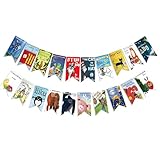
- Colorful and Engaging Design: This classic children's book banner features bright illustrations and storybook themes that add fun and charm to any space
- Perfect for Any Occasion: Great for classrooms, birthday parties, reading corners, and fiesta party decorations—creates a cheerful and inviting atmosphere
- Inspires a Love of Reading: Ideal for teachers and parents who want to encourage imagination and promote reading through creative and fun classroom decor
- Easy to Hang and Display: This lightweight banner decoration is simple to hang on walls, bulletin boards, or doorways—perfect as part of your school supplies setup
- Versatile Use for All Spaces: Use it for reading events, learning themes, libraries, or at home—this banner brings joy and literary flair to any setting
Common Wix banner problems and fixes
| Symptom | Likely cause | Fix |
|---|---|---|
| The banner looks zoomed in | Scale to Fill is enlarging the image to cover a differently shaped strip. | Reposition the focal point, use a source with a more suitable aspect ratio, or try Original Size if uncovered space is acceptable. |
| The subject disappears on mobile | The narrow layout crops the sides or changes the visible area. | Move the subject toward the safe central area, simplify the composition, and verify the mobile preview. |
| The image is sharp but the logo is cut off | The important detail was placed too close to an edge. | Upload a version with more surrounding space and set the image position manually. |
| The strip is covered by a repeated pattern | Tile is selected. | Switch to Scale to Fill or Original Size for a photographic banner. |
| The file meets 1920 × 1080 but still appears soft | The original file may have been enlarged, compressed heavily or displayed at a larger effective size. | Start with a higher-detail source and avoid repeated export cycles; then inspect the live page rather than only the editor thumbnail. |
| The image does not fill the intended area | Original Size preserves dimensions instead of covering the strip. | Use Scale to Fill when full coverage is required, accepting that some cropping may occur. |
Or skip the browser setup
If you need a rendered screenshot of your Wix site for review, documentation or a visual check, ScreenshotNeo can capture the published URL without configuring a browser automation stack. Cookie and consent banners are accepted before capture, and more than 60 known consent platforms, newsletter popups and chat widgets are removed. Bot checks or CAPTCHAs, blank pages, timeouts, failed loads and cache hits cost nothing; the response identifies the result with X-Page-Verdict and X-Billed headers.
Windows Errors? Fix Them Before They Spread
Repair common Windows errors and clear accumulated junk for a smoother, more stable PC - no reinstall needed.Free scan · no reinstallOutdated Drivers Are Slowing You Down
One free scan finds every outdated or missing driver and matches the right update for your exact hardware.Free scan · exact hardware matchUse the API documented at https://screenshotneo.com/docs/:
cURL
curl -G "https://api.screenshotneo.com/v1/shot" -d access_key=YOUR_API_KEY --data-urlencode url=https://www.wix.com -o shot.webpPython
import requests
r = requests.get("https://api.screenshotneo.com/v1/shot", params={"access_key": "YOUR_API_KEY", "url": "https://www.wix.com"}, timeout=90)
open("shot.webp", "wb").write(r.content)
Node.js
const q = new URLSearchParams({ access_key: 'YOUR_API_KEY', url: 'https://www.wix.com' });
const res = await fetch(`https://api.screenshotneo.com/v1/shot?${q}`);
Replace the example URL with your published Wix address. ScreenshotNeo also provides an MCP server for AI clients such as Claude and Cursor, with take_screenshot, get_page_info and capture_pdf tools. One thousand screenshots per month are free with no card; paid plans start at $5 for 3,000 shots. Every plan includes the available features, including full-page capture, device presets, custom CSS and JavaScript, waits, request blocking, signed links, asynchronous jobs and bulk capture.
Create a free ScreenshotNeo account to use the 1,000-shot monthly allowance without a card.
Frequently Asked Questions
Can I use one banner file for both a strip and a header?
You can, but each element may use a different crop. Keep the focal subject away from the edges and set the position separately in each element, then preview both layouts.
Does a taller strip require a taller source image?
Not automatically. Strip height is a layout setting; the source must have enough resolution for the displayed area, while the chosen scaling mode determines whether Wix crops or leaves unused space.
Quick Recap
Product prices and availability are accurate as of the date/time indicated and are subject to change. Any price and availability information displayed on Amazon at the time of purchase will apply.




