For most WordPress sites, the simplest way to add a photo gallery is with the built-in Gallery block: open a page or post in the block editor, insert Gallery, choose or upload images, arrange and caption them, then preview the result before publishing. You do not need a gallery plugin for a basic image grid or an enlarge-on-click view.
Add a gallery with the WordPress block editor
- Open the page or post. In the WordPress editor, place the cursor where the gallery should appear.
- Insert the Gallery block. Click the + Block Inserter and choose Gallery, or type
/galleryand press Enter. - Choose images. Select Upload to add files from your device or Media Library to use images already on the site. You can also drag images into the block.
- Arrange and configure the grid. Use the Gallery settings to choose columns, image resolution, aspect ratio, cropping, spacing, and whether to randomize the order. Reorder images with the move controls or List View.
- Add captions and accessibility text. Give the gallery a caption if visitors need context, and add individual captions where they identify a subject or explain an image. For informative images, provide meaningful alternative text in each image’s settings; mark an image decorative when it conveys no information.
- Choose what happens when someone clicks an image. Select the link behavior that fits the page: attachment page, media file, Enlarge on click, or none. Enlarge on click lets visitors view a larger image in a lightbox-style display without leaving the page.
- Preview and publish. Check the gallery at the width visitors will see, test it on a phone and with a keyboard, then publish or update the page.
The Gallery block is part of WordPress, so it is the most direct option for a straightforward grid. Its available settings can vary with the editor and site setup; check the actual page preview rather than assuming every theme will display the block identically.



Choose the right gallery behavior
Use a regular gallery for a curated set of images
A regular Gallery block contains the images you select. It is a good fit for a project portfolio, event recap, or a small collection where you want to control exactly which images appear and in what order. If the collection changes, edit the block to add, remove, or reorder images.
Use attached images for a gallery that should update dynamically
The Gallery block’s Use attached images option creates a dynamic gallery from images attached to the post. Adding an image can then update the gallery automatically. This reduces manual maintenance when the gallery is meant to follow the post’s attached images, but it is less suitable when you need a fixed, hand-picked set. The block can later be detached into a regular gallery.
What’s actually slowing this PC down?
Pick the symptom - the matching free tool is one click away.
#1 Best Overall

- Comprehensive Guide for Nikon, Canon, and Sony DSLRs:This 30-page photography guide is specifically designed for DSLR camera owners, offering essential tips and 16 double-sided, color-coded cheat sheets. Perfect for any camera model, it simplifies complex concepts and helps you master manual mode, whether shooting portraits, landscapes, or action
- Easy-to-Use Reference for Every Shooting Situation:Covering exposure, shooting modes, composition, and lighting, this quick reference guide makes photography accessible for all skill levels. Whether you're photographing fireworks, sunrises, or family portraits, you'll have all the information you need at your fingertips
- Compact and Portable Design – Ideal for On-the-Go Use:Measuring just 4×3 inches, this durable cheat sheet fits easily in your pocket or clips to your camera bag. Its compact size and sturdy design ensure it’s always ready when you need it, making it a perfect photography accessories gift for photographers of all levels
- Perfect for Beginners and Advanced Photographers Alike:From mastering basic settings to capturing stunning shots in challenging conditions, this cheat sheet helps you navigate any shooting situation with confidence. Whether you're new to manual mode or looking to refine your skills, this cards is your ultimate photography companion
- Perfect Photography Companion for Every Mom:These photography cheat sheets are designed to be both durable and practical, featuring a sturdy metal carabiner and a handy ring for easy portability. Packed with helpful descriptions, charts, and color-coded borders for quick reference, they empower moms to confidently master manual mode on their cameras,Perfect Photography Gifts for Women
Choose between no click, a file link, and a lightbox
- None: Images are not linked. Choose this when clicking an image should not take visitors elsewhere.
- Media file: The click opens the image file. This may be useful when visitors need the original image, but it is different from a gallery lightbox.
- Enlarge on click: The image expands into a lightbox-style view and visitors can move through the images without leaving the page.
- Attachment page: The click opens the image’s attachment page rather than enlarging it in place.
WordPress’s Image and Gallery blocks cover ordinary grids and enlarge-on-click viewing. A separate lightbox plugin is worth considering only when its presentation or controls meet a need the native block does not.
Make the gallery clear and usable
- Keep captions useful. A caption should identify or explain an image, not repeat information already obvious from the page.
- Write alt text for meaning, not decoration. Describe the information an informative image adds. If an image is purely decorative, mark it decorative rather than supplying a redundant description.
- Check crop choices. A consistent aspect ratio can make a grid orderly, but cropping may cut off important details. Preview images individually when the subject touches the edge of the frame.
- Check order and spacing. Use the move controls or List View to put images in the intended sequence. Review spacing and columns at the published page width.
- Test interaction and mobile layout. Confirm that the chosen click behavior works as intended and that the gallery remains usable on a narrow screen and with a keyboard.
When to use a gallery plugin instead
Start with the core block if you need a basic grid and an enlarge-on-click view. A plugin adds installation and configuration, so use one when you have a specific presentation or control requirement that the built-in blocks do not meet.
For example, the WordPress.org plugin Lightbox for Gallery & Image Block documents a setup in which you activate the plugin, add a Gallery or Image block, set the link to Media File, and test the result on the front end. Plugin behavior can depend on the WordPress version, theme, and other parts of a site’s stack; verify compatibility and test the actual published page rather than assuming all combinations work.
Rank #2
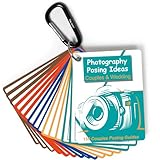
- 150 Creative Posing Ideas: No more awkward pauses during shoots! This set includes 150 carefully curated couple and wedding poses across 8 categories: Facing Camera, Facing Each Other, Hugging & Kissing, Movement, Back View, Sitting & Lying, Ring Shots, and Maternity. A true gem among photography accessories, it helps spark creativity and keeps your sessions flowing
- Pocket-Sized Photography Essentials: This PVC waterproof cheat sheet is designed for photographers on the go. With a compact 4x3 inch size and 16 double-sided pages, it easily slips into your pocket or clips onto your camera bag. A must-have addition to your camera accessories for photography, it’s great for both beginners and professionals
- Boost Confidence and Professionalism: Whether you’re new to couples and wedding photography or a seasoned pro, this resource takes the guesswork out of posing. Forget fumbling with your phone or flipping through photography books—these digital camera accessories are ready to guide you anytime. They’re the photographer essentials that elevate your skills and build client trust
- Time-Saving Photography Equipment: Skip the hours of preparation and avoid creative roadblocks during sessions. This cheat sheet helps streamline your workflow, making it one of the smartest camera accessories and photography equipment choices you can carry. Designed to inspire, it ensures you’re always ready with fresh ideas on set
- Great Photographer Gifts: Looking for thoughtful gifts for photographers? This posing guide makes a practical and inspiring option. More than just camera essentials, it’s a unique tool that doubles as a lifelong reference. Great for wedding shooters, portrait specialists, or anyone building their collection of digital camera accessories and photography accessories
If you use the Classic Editor
The Classic Editor has a Gallery feature and shortcode workflow for posts and pages, but its controls differ from the block editor. Use the editor that is active on your site: block-editor steps such as inserting a Gallery block and configuring its block settings do not describe the Classic Editor workflow.
Recommended Free Tools
Preview the published page without manual browser setup
A screenshot can help you inspect how a gallery looks at a particular page URL. It does not create or configure the WordPress gallery; make those changes in WordPress, publish or update the page, then capture the result to review it.
Or skip the browser setup
ScreenshotNeo is a website screenshot API and MCP server for developers. One GET request can return a screenshot or PDF. Its capture flow accepts cookie or consent banners like a visitor and removes more than 60 known consent platforms, newsletter popups, and chat widgets before capture; each step can be turned off. Bot checks and CAPTCHAs, blank pages, timeouts, failed loads, and cache hits are not billed, and response headers indicate the page verdict and billing status. Its MCP server offers take_screenshot, get_page_info, and capture_pdf tools for Claude, Cursor, and other MCP clients. One thousand shots a month are free without a card; paid plans start at $5 for 3,000 shots.
For example, capture a published gallery page as WebP with cURL:
curl -G "https://api.screenshotneo.com/v1/shot" -d access_key=YOUR_API_KEY --data-urlencode url=https://example.com/gallery/ -o gallery.webpReplace https://example.com/gallery/ with your published page URL and YOUR_API_KEY with your API key. See the ScreenshotNeo API documentation for the request options. Learn more at ScreenshotNeo, or sign up for 1,000 free screenshots a month with no card.
Do these 3 things before closing this tab:
1Clear out junk files and repair common Windows errors2Scan for outdated or missing drivers - takes under a minute3Repair Windows errors before they cause bigger problemsTroubleshooting a WordPress gallery
The gallery block does not appear
Confirm that you are editing in the block editor, then use the + inserter or type /gallery. If you are in the Classic Editor, its gallery workflow is different; do not expect block-editor controls there.
The images are in the wrong order
Reorder them with the Gallery block’s move controls or List View, then preview the page. If the gallery uses attached images, remember that it is dynamic rather than a fixed hand-picked set; use a regular gallery when you need explicit selection and order.
Images are cropped unexpectedly
Review the aspect-ratio and crop settings in the Gallery block. A uniform crop can trim important parts of a photo, so change the ratio or crop behavior and inspect the result at the page’s displayed width.
A click opens the wrong view
Check the block’s link setting. Choose Enlarge on click for the native lightbox-style behavior, Media file to open the file, Attachment page to open the attachment page, or None to remove the link. If a lightbox plugin is in use, follow its setup and test on the front end.
Free tools Windows power users keep installed
One-click scans. No signup required.
The gallery differs between the editor and published page
Use the front-end preview to check the actual presentation, including on mobile. If a plugin is involved, verify it against the site’s WordPress version, theme, and other installed components; the available information does not establish compatibility for every combination.
Best Value
Cost and maintenance considerations
The native Gallery block avoids adding a separate plugin for ordinary grids and enlarge-on-click viewing. A dynamic attached-images gallery can save edits when the intended collection follows the post’s attachments; a regular gallery gives you more explicit control over a curated set. A plugin may provide additional lightbox presentation or controls, but also brings configuration and compatibility checks. No published numerical performance or adoption figures are established for these options, so choose based on the behavior your page needs and verify it on your own site.
Frequently Asked Questions
Can I add more images after publishing a gallery?
Yes. Edit the page or post and update the Gallery block. A regular gallery requires you to edit its selected images; a gallery using attached images can update when images are attached to the post.
Does Enlarge on click require a separate lightbox plugin?
No. The native Image and Gallery blocks include an Enlarge on click option for a lightbox-style view.
The Tool Desk
Outbyte PC Repair FREERepair Windows errors before they cause bigger problemsFix Now →Outbyte Driver Updater FREEFix the driver behind crashes, sound loss and screen glitchesFind Drivers →Quick Recap
Product prices and availability are accurate as of the date/time indicated and are subject to change. Any price and availability information displayed on Amazon at the time of purchase will apply.




