Crashes, No Sound, or Screen Glitches?
Random freezes, missing sound and display glitches usually trace back to one bad driver. Find and replace yours safely.Free scan · under a minuteWindows Errors? Fix Them Before They Spread
Repair common Windows errors and clear accumulated junk for a smoother, more stable PC - no reinstall needed.Free scan · no reinstallThe quickest method on most HP EliteBooks is Windows + Shift + S. The Snipping Tool overlay lets you capture a rectangle, freeform shape, window, or the entire screen, then edit, save, or share the result. For a full-screen image copied to the clipboard, press PrtSc. To save the whole screen automatically as a PNG, press Windows + PrtSc.
Choose the shortcut that matches what you need
| What you want | Keys | Result |
|---|---|---|
| A selected area, window, or full screen with editing controls | Windows + Shift + S | Snipping Tool overlay; capture is opened for annotation, saving, or sharing. Microsoft documents this for Windows 10 and Windows 11. |
| Entire screen copied for pasting | PrtSc | The full screen is copied to the clipboard. Paste it into Paint, Word, an email, or another image-capable app. Microsoft’s shortcut reference describes this behavior. |
| Entire screen saved as a file | Windows + PrtSc | A PNG is saved in Pictures > Screenshots, according to HP’s Windows shortcut reference. |
| Only the active window copied | Shift + PrtSc | The current window is copied to the clipboard in HP’s general Windows guidance. Keyboard behavior can differ by EliteBook generation. |
There is no single EliteBook-wide keyboard layout. Check the labels on your keyboard, especially if PrtSc is printed in small text on another key. If your machine has no clearly labeled Print Screen key, use Snipping Tool or try the Windows hardware-dependent alternative Fn + Windows + Spacebar, which Microsoft lists for some devices.
Capture part of the screen with Snipping Tool
- Open the content you want to capture and arrange the EliteBook display as needed.
- Press Windows + Shift + S. The screen dims and the Snipping Tool toolbar appears.
- Choose a mode: Rectangular snip for a box, Freeform snip for an irregular outline, Window snip for one application window, or Fullscreen snip for everything visible.
- For a rectangle or freeform capture, hold the mouse button or trackpad button and drag around the area. For Window snip, select the window; for Fullscreen snip, the capture is made immediately.
- Select the notification that appears after the capture to open it in Snipping Tool. Use its pen, highlighter, crop, or copy controls, then choose the save button to select PNG, JPEG, or another available format.
The overlay is usually the best choice when you need only a section of a spreadsheet, an error message, or a menu. It also avoids capturing unrelated windows and gives you a chance to mark sensitive information before sharing.
Capture a menu or tooltip
Open the menu or tooltip first, then press Windows + Shift + S. Choose Window snip if the item belongs to a separate window, or Rectangular snip and drag tightly around it. If the shortcut closes the menu, use a short delay in the Snipping Tool app: open Start, type Snipping Tool, launch it, choose a delay, and then select New.
#1 Best Overall

- 【Excellent Performance】The HP EliteBook is designed to fulfill your computing demand with powerful features and excellent performance that are conducive to increasing your productivity. In addition, this lightweight laptop is easy to carry and versatile enough to meet your diverse needs.
- 【Processor】8th Gen Quad-Core i5-8365 processor (up to 4.1GHz, 6MB Cache, Intel HD Graphics 620), which provides efficient processing power for everyday tasks, such as web browsing, document editing, and multimedia consumption.
- 【Storage & Memory】16GB DDR4 RAM provides ample memory for seamless multitasking, smooth performance, and running multiple applications at the same time; 256GB Solid State Drive offers fast boot times, quick data access, and sufficient storage space for files, documents, and essential applications.
- 【Ports】Thunderbolt 3, 2 x USB 3.0, HDMI, RJ-45, Audio jack, which is convenient for you to connect and transfer data with external devices.
- 【Operating System】Bring balance to your computer with easy-to-use tools and Windows 11 features that help you optimize your display space and maximize productivity.
Copy the whole screen with PrtSc
- Press PrtSc. On some EliteBooks this may require Fn plus the key carrying the Print Screen label.
- Open the destination application, such as Paint, Word, an email composer, or an image editor.
- Press Ctrl + V to paste the clipboard image.
- Save or export the image from that application.
PrtSc does not necessarily create a file by itself; it copies pixels to the clipboard. If you need a file without opening another application, use Windows + PrtSc instead.
Save a full-screen PNG automatically
- Press Windows + PrtSc (or Windows + Fn + the key labeled PrtSc, if your layout requires Fn).
- Open File Explorer.
- Select Pictures, then Screenshots. Look for a newly numbered PNG file.
If your Pictures library is redirected to OneDrive, the Screenshots folder may be under the OneDrive Pictures location. Search File Explorer for Screenshot if you cannot find it.
Capture only the active window
HP lists Shift + PrtSc as the shortcut for copying the current window. Click the window first so it is active, press the shortcut, then paste with Ctrl + V. Because this is general HP Windows guidance rather than an EliteBook-generation-specific manual, the combination may not work identically on every keyboard. Windows + Shift + S, followed by Window snip, is the consistent fallback.
Rank #2
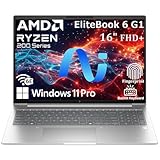
- NEXT-GEN AI PERFORMANCE FOR BUSINESS – Powered by AMD Ryzen 5 220 processor with integrated AI capabilities, this HP EliteBook delivers intelligent performance that adapts to your workflow. Handle demanding applications, complex multitasking, and data-intensive tasks with ease. Perfect for professionals who need reliable power on the go.
- PROFESSIONAL-GRADE SPECS – 16GB DDR5 RAM ensures seamless multitasking across multiple applications, browser tabs, and virtual meetings. 512GB PCIe NVMe SSD provides lightning-fast boot times (under 10 seconds), instant file access, and ample storage for all your business documents, presentations, and media files.
- STUNNING 16" ANTI-GLARE DISPLAY – WUXGA (1920x1200) resolution delivers crisp, detailed visuals with 16:10 aspect ratio for 11% more vertical screen space than standard displays. Anti-glare coating reduces eye strain during long work sessions and improves visibility in bright office environments or near windows.
- ENTERPRISE-LEVEL SECURITY – Integrated fingerprint reader provides fast, secure biometric login in under 1 second. Windows 11 Pro includes BitLocker encryption, Windows Hello, and advanced security features to protect sensitive business data. Meets enterprise IT security requirements and compliance standards.
- PREMIUM CONNECTIVITY & DESIGN – Thunderbolt 4 port enables 40Gbps data transfer, dual 4K display support, and fast charging. Backlit keyboard for comfortable typing in any lighting. Durable, professional design weighs just 3.86 lbs for easy portability. Built for business travelers and remote professionals.
What to do when PrtSc behaves differently
Windows can assign the Print Screen key to open screen snipping instead of copying the entire display. To check the setting, open Settings and search for Print Screen. In the keyboard accessibility options, review the switch that says to use the Print Screen key to open screen snipping. Turn it off if you want the traditional clipboard behavior; leave it on if you prefer the Snipping Tool overlay. The exact wording and location can vary between Windows 10, Windows 11, and feature updates.
Quick wins for a faster PC:
Clear out junk files and repair common Windows errorsFree Scan →Scan for outdated or missing drivers - takes under a minuteDriver Scan →Repair Windows errors before they cause bigger problemsFix Now →If a key is printed in a secondary color, hold Fn while pressing it. Some EliteBook keyboards also have an Fn Lock function, which changes whether the top-row key performs its media action or its labeled function. Look for an Fn-lock indicator or consult the label on your particular keyboard.
Fixes for common screenshot problems
Nothing appears after pressing PrtSc
- Press Ctrl + V in Paint or another image-capable app; PrtSc normally places the image in the clipboard rather than opening a window.
- Try Fn + PrtSc if the key has a secondary label.
- Use Windows + Shift + S to bypass keyboard-layout uncertainty.
The shortcut opens Snipping Tool instead of copying the screen
This is usually the Windows Print Screen setting described above. Either use the overlay deliberately, or change the setting so PrtSc returns to clipboard capture.
Rank #3
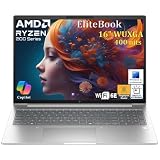
- NEXT-GEN COPILOT AI PERFORMANCE - Powered by AMD Ryzen 5 200 Series processor with integrated Copilot AI technology for intelligent productivity assistance. Automate workflows with AI-powered features built directly into Windows 11 Pro.
- ENTERPRISE-CLASS MEMORY & STORAGE - 32GB DDR5 RAM handles simultaneous virtual machines, and dozens of browser tabs without slowdowns. 1TB PCIe NVMe SSD delivers instant boot times, rapid file access, and ample space for business documents.
- FAST CHARGING FOR MOBILE PROFESSIONALS - Advanced fast charging technology gets you back to work quickly, minimizing downtime between meetings and travel. Designed for executives who need reliable all-day performance. Stay productive whether you’re in the office, or working remotely.
- ENTERPRISE-GRADE SECURITY & MANAGEMENT - Windows 11 Pro includes BitLocker drive encryption, and Group Policy management for IT departments. Integrated fingerprint reader provides biometric authentication for secure, password-free login. TPM 2.0 chip ensures hardware-level security.
- PROFESSIONAL DISPLAY & CONNECTIVITY - 16-inch FHD+ (1920x1200) display provides expansive screen real estate. WiFi 6E delivers ultra-fast wireless speeds. Backlit keyboard for productivity. HDMI, USB-C ensure compatibility with projectors.
The image is black or incomplete
Some protected video, remote-desktop, security, or hardware-accelerated surfaces intentionally block screen capture. Test another ordinary window. If only one application fails, use that application’s own export or snapshot feature and follow its policies.
The Screenshots folder is empty
Windows + PrtSc may not have registered. Hold the Windows key while pressing the Print Screen key, try the Fn combination, and check both local Pictures and any OneDrive Pictures folder. You can also capture with Snipping Tool and use its save command.
Free tools Windows power users keep installed
One-click scans. No signup required.
Snipping Tool is missing or will not launch
Search Start for Snipping Tool. If it is not installed or is damaged, open the Microsoft Store and look for Snipping Tool, then install or update it. Windows policy on a managed work EliteBook may prevent Store changes; contact your administrator if the app is restricted.
Rank #4

- 256 GB SSD of storage.
- Multitasking is easy with 16GB of RAM
- Equipped with a blazing fast Core i5 1.70 GHz processor.
Make screenshots readable and safe to share
- Use Window snip rather than a full-screen capture when the surrounding desktop contains email, customer data, or unrelated tabs.
- Crop and annotate in Snipping Tool before attaching an image to a ticket.
- Check the image at its native size. A high-resolution external monitor can make text appear tiny when pasted into a document; crop to the relevant area.
- Remember that a screenshot is a bitmap. For text that must remain searchable or accessible, copy the text separately or provide the original document as well.
- Inspect the capture for passwords, notifications, browser addresses, personal names, and meeting codes before sharing.
Or skip the browser setup
If what you actually need is a clean image of a web page rather than the physical EliteBook desktop, ScreenshotNeo can return a PNG, JPEG, WebP, or PDF from one request. It accepts consent banners before capture and removes more than 60 known consent platforms, newsletter popups, and chat widgets; each cleanup step can be disabled. Bot checks, blank pages, timeouts, failed loads, and cache hits are not billed, and the response reports the page verdict and billing status in X-Page-Verdict and X-Billed headers. Its MCP server provides take_screenshot, get_page_info, and capture_pdf tools for Claude, Cursor, and other MCP clients.
See the parameter details in the ScreenshotNeo documentation. This cURL request captures a page as WebP:
curl -G "https://api.screenshotneo.com/v1/shot" -d access_key=YOUR_API_KEY --data-urlencode url=https://stripe.com -o shot.webpPython equivalent:
import requests
r = requests.get("https://api.screenshotneo.com/v1/shot", params={"access_key": "YOUR_API_KEY", "url": "https://stripe.com"}, timeout=90)
open("shot.webp", "wb").write(r.content)
Node.js equivalent:
const q = new URLSearchParams({ access_key: 'YOUR_API_KEY', url: 'https://stripe.com' });
const res = await fetch(`https://api.screenshotneo.com/v1/shot?${q}`);
The Free plan includes 1,000 screenshots per month with no card; paid plans start at $5 for 3,000. Create a free ScreenshotNeo account to try it.
Which method should you use?
| Scenario | Best method | Why |
|---|---|---|
| One paragraph, control, or error message | Windows + Shift + S | Precise selection and immediate editing. |
| A complete desktop image to paste elsewhere | PrtSc | Fast clipboard capture. |
| A complete desktop image saved immediately | Windows + PrtSc | Creates a PNG in Pictures > Screenshots. |
| One application window | Window snip, or HP’s Shift + PrtSc | Keeps other windows out of the image. |
| A repeatable screenshot of a public web page | ScreenshotNeo API | Automates capture and removes common consent and overlay clutter. |
Frequently Asked Questions
Do HP EliteBooks have a dedicated screenshot button?
Many do, but key placement and whether Fn is required vary by generation and keyboard layout. Use the printed key labels or Windows + Shift + S.
Best Value

- The renewed HP EliteBook 830 G7 laptop is powered by an Intel Core i7-10610U processor (4 cores, 8 threads, up to 4.9GHz) and a massive 16GB DDR4 RAM, delivering blazing-fast performance for demanding tasks like data analysis, virtualization, and multitasking with dozens of browser tabs—perfect for developers, engineers, and business power users.
- Experience rapid boot-ups, near-instant file access, and smooth application performance with the renewed HP 830 G7 EliteBook laptop's high-speed 512GB SSD, ensuring you stay productive without delays—whether you're editing large documents, running complex spreadsheets, or managing cloud applications.
- Work with precision on the renewed HP EliteBook 830 G7 touchscreen notebook's 13.3-inch Full HD (1920x1080) anti-glare display, offering sharp visuals for presentations, video conferences, and detailed spreadsheet work—all while minimizing eye strain during long work sessions.
- Stay fully connected with the refurbished HP EliteBook 830 G7 laptop's modern dual USB-C ports, dual USB-A ports, HDMI, and a 3.5mm audio jack, allowing seamless connections to monitors, docking stations, external drives, and peripherals—ideal for hybrid work setups and office productivity.
- The renewed HP EliteBook 830 G7 laptop comes pre-loaded with Windows 11 Pro (English/Spanish/French), featuring advanced security protections like BitLocker encryption, TPM 2.0, and HP's own security suite—making it a trusted choice for corporate IT departments, government users, and security-conscious professionals.
Can I screenshot a second monitor?
Yes. PrtSc and Windows + PrtSc include the Windows desktop arrangement, while Snipping Tool lets you drag over the monitor or choose a window.
Where are screenshots stored in Windows 11?
Windows + PrtSc saves a PNG in Pictures > Screenshots. If Pictures is redirected, check the corresponding OneDrive folder.
Will screenshots include the mouse pointer?
The standard Windows shortcuts generally capture the screen image without the pointer. Use a recording or specialized capture utility when the pointer itself must be shown.
Quick Recap
Product prices and availability are accurate as of the date/time indicated and are subject to change. Any price and availability information displayed on Amazon at the time of purchase will apply.




