Free tools Windows power users keep installed
One-click scans. No signup required.
The best way to add a fundraising thermometer depends on where your numbers come from. Use a shortcode or block when staff will update the raised amount, a donation plugin’s campaign goal when donations and progress should share one system, or a hosted widget when the provider supplies the display. A visual bar does not automatically synchronize with payments, so confirm the update method before publishing.
Choose the right WordPress approach
WordPress sites generally use one of four methods. The important distinction is whether the current total is entered manually or supplied by the donation system.
| Method | Display | How the values are supplied | Best fit |
|---|---|---|---|
| Donation Thermometer plugin | Classic thermometer, including vertical layouts | Settings page or shortcode attributes | A self-contained visual that an editor maintains |
| Goal Progress Tracker block | Horizontal thermometer or progress bar | Values entered in the block inspector | A simple, editor-managed display in block content |
| Donation plugin goal output | Campaign progress bar and goal text | Donation form or campaign configuration | A site that also needs donation forms and campaign management |
| Hosted thermometer embed | Provider-designed fundraising widget | Hosted fundraising account | A team that wants the provider to host the display and widget code |
If you need the number to change as donations arrive, start with the donation platform’s own goal feature. Do not assume that a separate thermometer or progress block reads payment data; the listings for the manual options describe editable values, not automatic synchronization.
Option 1: Add a thermometer with the Donation Thermometer shortcode plugin
Donation Thermometer is a classic-style WordPress plugin that places a thermometer with a shortcode. Its documented basic form is [thermometer raised=?? target=??]. You can also configure defaults in the plugin settings and insert a plain [thermometer] shortcode in your content.
#1 Best Overall
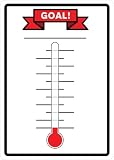
- material:tin/metal.
- size:30cmx40cm(12inch*16inch).
- suitable for indoor and outdoor use.
- unique design:our sign is very eye-catching!
- easy to install: pre-drilled 4 holes for easy hanging.
Install and configure it
- In the WordPress dashboard, open Plugins > Add New.
- Search for Donation Thermometer, install it, and select Activate. The listing also documents uploading the plugin manually if you are not installing from the directory.
- Open Settings > Thermometer and set the target, current amount, currency, dimensions, orientation, colors, and other available styling options.
- Edit the page or post where the display belongs and add
[thermometer]at the desired position. - Publish or update the page, then check the rendered result on desktop and mobile.
Override the settings for one page
Shortcode attributes override values saved on the settings page. For example, a campaign-specific display can use:
[thermometer raised="12500" target="20000"]Use the actual amounts and any other attributes supported by the plugin’s current documentation. This approach is useful when several pages need different goals or when one campaign should not inherit the site-wide defaults.
Check the total before launch
- Confirm that the raised amount and target use the intended currency and number format.
- Make sure the shortcode appears inside a content area that your theme displays.
- Review the SVG display at narrow widths; the listing describes responsive width percentages, but your theme, caching, or CSS can still affect appearance.
- Assign someone to update the amount whenever your donation records change. The shortcode itself is not evidence of payment synchronization.
Option 2: Use the Goal Progress Tracker block
Goal Progress Tracker adds a block to the WordPress block editor. Its directory description lists a horizontal thermometer, custom label, minimum and maximum values, current value, numeric or percentage output, gradient colors, and a live editor preview.
Rank #2

- STURDY RIBBON: Our ribbon is kept together using high quality glue and nylon. You won’t have to deal with the embarrassment of a broken goal tracker during your fundraiser.
- EASY TO CLEAN: Write ANYWHERE on the thermometer board and wipe away easily. Simply use a wet cloth or paper towel with cleaner to completely erase the marker and start fresh!
- EASY TO STORE OR HANG: Hang on the wall with a screw (provided) or nail in less than 1 minute. The classroom thermometer poster for goals folds flat to a size of 15” x 12” to keep it stored when not in use.
- MOTIVATE YOUR EMPLOYEES: Visually tracking your goals has been proven to improve performance. This goal setting dry erase thermometer goal tracker is a fun way to keep your team engaged!
- CUSTOMIZABLE: It doesn’t matter what you’re tracking, it can be done with the ORCA Thermometer Tracker. Whether it’s monthly sales, annual fundraiser donations, or anything else – This dry erase thermometer goal chart makes it fun!
Add and edit the block
- Install and activate Goal Progress Tracker from Plugins > Add New.
- Open the page in the block editor and select + to add a block.
- Search for Goal Progress or Goal Progress Tracker, then insert the block.
- In the block inspector panel, enter the minimum, maximum, and current values, and set the label and display mode.
- Choose the colors and whether visitors should see a number, a percentage, or both.
- Use the editor preview, save the page, and verify the front-end version on phone and desktop.
This is a manual display. The plugin description documents flexible value input, but it does not establish a connection to a payment processor or an automatic real-time update. Treat the current value as editorial data and maintain it from your confirmed donation records.
The Tool Desk
Outbyte Driver Updater FREEFix the driver behind crashes, sound loss and screen glitchesFind Drivers →Outbyte PC Repair FREERepair Windows errors before they cause bigger problemsFix Now →Option 3: Display progress through a donation plugin
If your site already uses GiveWP for donation forms and campaigns, keeping the goal with the form avoids maintaining a separate visual total. GiveWP’s WordPress listing describes donation forms, campaigns, dedicated campaign pages, and progress bars.
Use GiveWP’s goal shortcode
GiveWP documents the [give_goal] shortcode for displaying a form’s fundraising goal information. The form must have a goal configured. The documented attributes let you choose the form with id, show goal text with show_text, show the progress bar with show_bar, or display both.
Rank #3

- Included Products: This package features 2 Fundraising Thermometer Goal Charts as its main products, suitable for monitoring fundraising progress, sales targets, or personal achievements. Plus, enjoy extra complimentary accessories: 1 plastic scraper (made of PP plastic) used as a tool for sticker-related tasks
- Easy to Clean: The smooth surface makes fresh writing marks easy to erase. It is also waterproof. For text that has remained on the goal sticker for a relatively long time, it can still be easily wiped off with just a damp cloth. It leaves barely any stains or ghosting. The goal-reaching charts, made of PET writing film, vinyl PVC sticker, and laminated backing paper (with a smooth surface, stainproof, and gently wipeable with a damp cloth)
- Easy to Install:We recommend applying the sticker on smooth surfaces like walls, metal, glass, plastic, finished wood, and smooth stone. When starting to apply it, gradually peel off the sticker backing piece by piece while using the included plastic scraper to avoid air bubbles.
- Visual Goal Tracking: Suitable for various fundraising initiatives like fundraising events, non-profit campaigns, charity drives, and community events. Track goals effortlessly with intuitive progress visualization, engaging participants across different projects
- Large Size Dimensions: Each thermometer goal chart measures 48 inches by 12 inches, providing ample space for clear visibility and detailed progress tracking in any setting including offices, schools, and community centers
[give_goal id="123" show_text="true" show_bar="true"]- Configure a fundraising goal on the relevant GiveWP donation form.
- Copy the form’s ID from your GiveWP form settings.
- Edit the WordPress page and place the
[give_goal]shortcode where the goal should appear. - Set the attributes you need, then preview the page and submit a test or review an existing donation record according to your site’s normal procedures.
Exact screens and available attributes can vary with the GiveWP version and form configuration. Check the current GiveWP documentation for the version installed on your site before relying on a particular setting.
Option 4: Embed a hosted thermometer from Givebutter
Givebutter says its fundraising thermometer widget can be customized and embedded on websites, including WordPress. In Givebutter, choose and customize the widget, copy the supplied embed code, and paste it into the location where the widget should appear.
Place the embed in WordPress
- Create or select the Givebutter campaign and configure its thermometer widget.
- Copy the widget code provided by Givebutter.
- In the WordPress editor, add a Custom HTML block (or the HTML area supported by your page builder) and paste the code.
- Save or publish the page and check the widget while logged out, on mobile, and with any caching or security features enabled.
This keeps the widget and its campaign data on the hosted service, but it introduces a provider dependency. WordPress roles, content-security rules, page builders, or hosting policies may block arbitrary embed code, so Givebutter’s compatibility statement should not be treated as a guarantee for every site configuration.
Rank #4
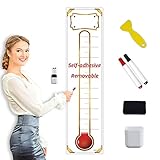
- DRY ERASABLE - We use NANO premium erase film to do the lamination which prevents any stains or ghosts. it is super easy to wipe off writings even after leaving the writings on the goal tracker for months long. Just start using markers to make your plan and track target as you want on this goal tracker sticker because erasing is no longer a headache! Also the NANO film is waterproof so you may use a wet cloth to clean it easily.
- KEEP TRACK OF YOUR GOALS - No matter what you are planning or tracking, you can do it with our removable self-adhesive goal tracker sticker. It can be used in your school, home, office and wherever you want for displaying the plan and progress of your goals. Use this to keep motivating yourself and team to achieve what you aim for.
- BONUS ITEMS INCLUDED - We make sure all of your planning needs are covered. The goal tracker sticker comes with 1 plastic scraper, 2 colored dry erase markers, 1 dry eraser and 1 self-adhesive pen holder which make you easier to keep all these stuffs
- SHIPS ROLLED, EASY MOUNTING - Our Dry Erase Removable goal tracker sticker are rolled by machine and shipped rolled in a sturdy tube with the accessories and supplies; ensures you never receive creased lines or wrinkles on your goal tracker sticker. Peel off the release film bit by bit when you start to apply it to the surface and at the same time use the included plastic scraper to avoid air bubbles. However never worry about not mounting well as it is a removable sticker!
- WATERPROOF - With nano premium erase film, it will be a breeze to wipe off the writings even after several months; it’s not going to leave any stains; it’s waterproof, so you can clean it with a wet cloth if you want.
How to make the number trustworthy
Decide who owns the source of truth
- Manual display: A named editor updates the raised amount after reconciling donations.
- Donation-platform display: The campaign or form stores the goal and supplies its own progress output.
- Hosted display: The provider’s campaign account controls the widget data and code.
Separate the goal from the amount raised
Set a clear target, current amount, and currency. If your organization counts offline checks, pledges, fees, or refunded gifts differently from the payment platform, document that rule next to the internal update process so the public number is reproducible.
Test the complete visitor experience
- View the page in an incognito window so editor-only previews do not mask a problem.
- Check desktop and narrow mobile layouts for clipped labels, unreadable numbers, or excessive empty space.
- Confirm that a cached page is not showing an old manual total.
- Ensure the progress display has an accessible label and does not rely on color alone to communicate progress.
- After each update, compare the visible amount with the approved donation report.
Which method should you use?
Choose Donation Thermometer when
You want a classic thermometer, shortcode placement, multiple independent displays, or detailed visual settings, and your team can maintain the amount.
Choose Goal Progress Tracker when
You prefer a native block-editor workflow with a horizontal bar, editor preview, and straightforward manual values.
Best Value
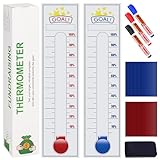
- Visualize Progress: Large 48"x12" size with clear markings allows you to easily visualize and monitor your fundraising progress at a glance.
- Interactive Design: Includes removable stickers and 3 color dry erase markers for interactive tracking and customization of your fundraising goals.
- Easy to Use: Self-adhesive backing ensures hassle-free installation on walls or boards, making it ideal for both indoor and outdoor use.
- Versatile Applications: Suitable for various fundraising events such as school fundraisers, non-profit initiatives, charity drives, and community projects.
- Engage Supporters: Inspire donor participation and boost team morale by displaying real-time progress and celebrating fundraising milestones.
Choose GiveWP when
The website needs donation intake, campaign goals, and progress output in the same system. Configure the form goal first, then use the goal shortcode or the campaign page output.
Choose Givebutter’s embed when
Your campaign already runs on Givebutter and you want its hosted widget on a WordPress page. Confirm that your editor, security policy, and hosting environment permit the embed.
Quick Recap
Troubleshooting checklist
- The shortcode appears as text: Check that it is in a shortcode-capable content area and that the plugin is active.
- The bar shows the wrong amount: Review shortcode attributes, block values, or the configured donation-form goal; page caches may also need clearing.
- The GiveWP goal is empty: Verify that the selected form has a goal and that the shortcode’s
ididentifies that form. - The hosted widget is missing: Confirm that the code is in a Custom HTML-capable area and inspect security, consent, or content-security settings that may block external scripts.
- The display is hard to read on phones: Reduce fixed dimensions, use the responsive options supplied by the plugin or widget, and retest at narrow widths.
Product prices and availability are accurate as of the date/time indicated and are subject to change. Any price and availability information displayed on Amazon at the time of purchase will apply.




