Recommended Free Tools
Samsung Cloud did reach the Galaxy S7 and S7 edge, but it was not a feature announced with the phones at launch. Samsung introduced the service with the Galaxy Note7 in August 2016, then brought it to the S7 series through software updates. It offered Samsung-account backup, restore and selected synchronization—not a complete, permanent cloud archive for every photo, file and app.
When did Samsung Cloud arrive on the Galaxy S7?
| Date | Event |
|---|---|
| February 21, 2016 | Samsung announced the Galaxy S7 and S7 edge. Its launch announcement did not present Samsung Cloud as an S7 launch feature. Samsung’s U.S. announcement |
| March 11, 2016 | The phones began their commercial global rollout, with availability varying by market. Samsung’s global launch announcement |
| August 23, 2016 | Samsung announced Samsung Cloud as a new service launching with the Galaxy Note7. The announcement described 15 GB of cloud storage for Note7 users; that figure should not be assumed to have applied to every S7 owner, region or account. Samsung’s Samsung Cloud announcement |
| August–September 2016 | Samsung Cloud began appearing on S7-series phones through software updates. Contemporary coverage reported the rollout, while carrier-specific availability continued afterward. Timing and features could vary by model, carrier, region and software. Contemporary rollout report |
So the precise answer is that Samsung released the service for S7 and S7 edge owners after the phones were already on sale—not as a universal day-one feature.
What Samsung Cloud did
Samsung described Cloud as a way to back up, restore and synchronize selected information using a Samsung Account. The available categories depended on the phone, software version and region, so no single S7 feature list applies to every variant.
Backup and restore
Depending on the device and software, backup categories could include contacts, calendar entries, messages, Samsung apps, selected third-party app data, device settings and home-screen configuration. A backup was intended to help restore supported information to a compatible Galaxy phone signed into the same Samsung Account. It was not a full copy of the phone or a guarantee that every app would return in its former state.
#1 Best Overall

- 5.5-inch QHD sAMOLED Capacitive Touchscreen, 2560 x 1440 pixel resolution (534 ppi pixel density) + Corning Gorilla Glass 4 (Back Panel) w/ Always-on Display, TouchWiz UI, Curved Edge Screen
- Android OS, v6.0 (Marshmallow), Chipset: Exynos 8890 Octa, Processor: Octa-Core (Quad-Core 2.3 GHz Mongoose & Quad-Core 1.6 GHz Cortex-A53), GPU: Mali-T880 MP12
- 12 Megapixel Camera with Dual Pixel Autofocus, OIS, F/1.7, 26mm, phase detection autofocus, LED Flash, 1/2.5" sensor size, 1.4 m pixel size, geo-tagging, simultaneous 4K video and 9MP image recording, touch focus, face/smile detection, Auto HDR, panorama + 5 Megapixel Front Camera with F/1.7, Selfie Flash, 22mm Lens, Dual Video Call, Auto HDR
- Internal Memory: 32GB, 4GB RAM - microSD Up to 256GB
- WLAN: Wi-Fi 802.11 a/b/g/n/ac, dual-band, Wi-Fi Direct, hotspot; Bluetooth: v4.2, A2DP, LE, apt-X; GPS: with A-GPS, GLONASS, BDS NFC; USB: microUSB v2.0, USB Host
Synchronization
Sync and backup serve different purposes. A backup is a stored set of supported data for later restoration; synchronization keeps selected information aligned across connected devices. Samsung Cloud could synchronize data from supported Samsung applications, but that did not mean every file or app was included.
Photos and videos
At launch, Samsung promoted photo and video synchronization. Users could choose albums to sync and access synced content through Gallery on connected devices. That feature later changed: Samsung moved photo and file-storage functions away from Samsung Cloud and toward Microsoft OneDrive. Gallery synchronization should not be confused with the remaining Samsung device-backup functions.
How to check Samsung Cloud on an S7
- Open Settings.
- Tap Cloud and accounts, then Samsung Cloud.
- Sign in with the Samsung Account used for the backup, or create one if the phone prompts you.
- Review the available backup and synchronization categories, and check the last successful backup time before relying on it.
- Enable only the categories you need, then use the on-screen backup or restore controls.
These are the launch-era labels. Later Samsung software often places related controls under Accounts and backup; exact wording and availability vary with Android version, Samsung software, carrier firmware and region. The S7 originally shipped with Android 6.0 Marshmallow and later received Android 7.0 Nougat, but updates differed across models and carriers. A contemporary Samsung support page lists the S7 and S7 edge among devices supported for Cloud backup and restore; that listing does not guarantee that every historical category or service remains available on every phone. Samsung support information for Cloud backup and restore
Rank #2
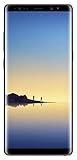
- Fully Unlocked: Fully unlocked and compatible with any carrier of choice (e.g. AT&T, T-Mobile, Sprint, Verizon, US-Cellular, Cricket, Metro, etc.), both domestically and internationally.
- The device does not come with headphones or a SIM card. It does include a charger and charging cable that may be generic.
- Inspected and guaranteed to have minimal cosmetic damage, which is not noticeable when the device is held at arm's length.
- Successfully passed a full diagnostic test which ensures like-new functionality and removal of any prior-user personal information.
- Tested for battery health and guaranteed to have a minimum battery capacity of 80%.
What you needed—and what it did not guarantee
- Samsung Account: The source and destination device needed to use the account associated with the backup.
- Internet connection and available capacity: Wi-Fi is practical for a large backup or photo transfer. The Note7 launch announcement’s 15 GB allocation was specifically described for Note7 users, not as a universal S7 entitlement.
- Compatible software and device: Restoration depended on supported categories and compatible Samsung software. Samsung said availability and scope could vary by region, device and market conditions.
- App permissions and support: Selected third-party app data could be included, but not every app exposed data for backup. App logins, banking credentials, two-factor tokens and other protected state might not return.
- A recent completed backup: Data created after the last successful backup, or deleted before it, might not be recoverable from that backup.
- A separate copy of important files: Samsung Cloud was not necessarily a complete phone image, nor a general-purpose file drive accessible like a normal folder from every platform.
For valuable photos, documents and recordings, keep an independent copy. Content may reside in local storage, a microSD card, OneDrive, Google Photos or another service rather than in Samsung Cloud’s device-backup categories.
What changed after the S7-era rollout
Samsung later reduced the scope of Samsung Cloud. Its photo and file-storage features moved toward Microsoft OneDrive, while selected device backup and Samsung-data synchronization functions continued on supported devices. That means “Samsung Cloud” can refer to different things depending on the feature and the software era: a device backup, Gallery sync, or cloud file storage are not interchangeable.
As of August 18, 2026, owners should treat Samsung Cloud on an S7-era phone as a limited or legacy backup option, not as a dependable all-purpose photo and file archive. Microsoft says that new users will no longer be able to link Samsung Gallery directly with OneDrive after September 30, 2026. This change concerns the Gallery–OneDrive integration; it does not establish that OneDrive itself is ending or that every Samsung Cloud device-backup function is disappearing. Check the notice shown on the phone and the status of each account separately. Microsoft’s Samsung Gallery and OneDrive change notice
Rank #3

- Brand New Samsung Galaxy S7 G930F
- 32GB SIM Factory Unlocked GSM Phone
- GSM Version phone it will NOT work on CDMA Network such as Verizon, Sprint or US Cellular.
What S7 owners should do before a reset or replacement
- Confirm the Samsung Account email on the S7 and check the last completed backup and its enabled categories.
- Export or otherwise verify important contacts, messages and documents using the relevant apps or services.
- Copy photos and videos from the phone’s DCIM folder and microSD card, if present, to a computer or external drive.
- Check OneDrive and Google Photos separately; do not assume Gallery content is also in Samsung Cloud or vice versa.
- Open the copied files or confirm access from another device before erasing or trading in the S7.
- If the phone reports a Gallery–OneDrive change, follow the current account-specific notice and verify OneDrive’s standalone camera-backup status.
If a backup seems enabled but content is missing, first check the Samsung Account and last backup time, then determine where that type of content was stored. A failed or incomplete backup, unsupported app data, insufficient capacity, or content managed by a different service can all explain the gap. If restoration falls short, it may rebuild only the supported categories; it will not necessarily restore app sessions, protected media, every widget or all files. Avoid a factory reset until important data has been verified elsewhere.
Which backup option fits now?
| Option | Best suited to | Important limitation |
|---|---|---|
| Samsung Cloud | Restoring selected Samsung-device data and settings on a compatible Galaxy phone. | Category support and availability vary; do not rely on it as a complete photo or file archive. |
| Microsoft OneDrive | Microsoft and Windows users who want cloud file storage or standalone photo backup. | Direct Samsung Gallery linking for new users is due to become unavailable after September 30, 2026; that is not the end of OneDrive. Microsoft’s notice |
| Google Photos / Google One | Android users seeking a separate, cross-device photo library and Google-account storage. | Photo backup is not a complete Samsung phone backup; settings, messages and Samsung-specific data need separate coverage. Google Photos · Google One |
| Samsung Smart Switch | Moving data directly when replacing an S7 or changing Galaxy phones. | It is primarily a migration tool, not automatically a permanent off-site backup, and it does not guarantee transfer of every app or account. Samsung Smart Switch |
| Computer or external drive | Keeping control of important photos, documents and recordings independent of a cloud account. | A local copy alone does not protect against theft, fire or drive failure; keep a second copy elsewhere. |
For a phone that will remain in daily use in 2026, an S7’s age and software-support status matter beyond backup compatibility. A currently supported replacement Galaxy is a safer long-term choice than buying another S7 solely to access Samsung Cloud.
Windows Errors? Fix Them Before They Spread
Repair common Windows errors and clear accumulated junk for a smoother, more stable PC - no reinstall needed.Free scan · no reinstallCrashes, No Sound, or Screen Glitches?
Random freezes, missing sound and display glitches usually trace back to one bad driver. Find and replace yours safely.Free scan · under a minuteQuick Recap
Product prices and availability are accurate as of the date/time indicated and are subject to change. Any price and availability information displayed on Amazon at the time of purchase will apply.




