Recommended Free Tools
Adding an international keyboard to your iPad is usually a 60-second settings change—then you can type accented characters, non-Latin scripts, and locale-specific symbols in any app.
This guide covers the full workflow: enabling the right language(s), switching keyboards while typing, and fixing the annoying cases where your keyboard appears but the keys don’t behave.
What an international keyboard means on iPad
On iPad, an “international keyboard” is a keyboard layout tied to a specific language and region. It can be Latin-script layouts (like AZERTY for French) or non-Latin layouts (like Russian, Arabic, Hindi, and Greek), depending on what iPadOS supports for your selected languages.
When you enable multiple keyboards, iPadOS lets you switch them instantly while you type, including in apps like iMessage, Mail, Notes, and WordPress.
#1 Best Overall

- HIGHLY COMPATIBLE WITH iPad and iPhone Series, For iPad A16 11th /10th Generation, iPad 10.2 (9th/8th/7th Generation), iPad Pro 13/12.9/11 inch, iPad Air 13/11 inch,iPad Air 10.9inch( 5th/4th Gen),iPad mini 6 / 5, iPhone 17/16/15/14/13 etc. (NOTICE: The function keys not fully compatible with other system)
- STABLE & DURABLE: Features stable wireless Bluetooth connectivity and a 78-key QWERTY layout; made of high-quality ABS material, with sensitive keys to meet daily typing and work needs
- ULTRA-SLIM & COMFORTABLE: 0.2-inch ultra-thin design; compact and portable size(11.2"L x 4.7"W) specifically designed for iPads and iPhones, suitable for travel, office work and study
- LONG BATTERY LIFE: Auto-sleep & energy-saving; up to 400hours battery life with 2 AAA batteries (NOT INCLUDED) (e.g., 4 hours of continuous use per day, batteries need to be replaced in 100 days), 10 mins inactive auto sleep
- OPTIMIZED iOS SHORTCUTS: 12 dedicated multimedia hotkeys for volume, brightness, music & more; one-key control for iPadOS/iOS efficiency
Prerequisites and what to check first
Before you change anything, confirm your iPad is ready to support the languages you want.
- iPadOS version: Open Settings → General → About. Features and language availability can vary across iPadOS releases (for example, iPadOS 17 vs iPadOS 16).
- Keyboard language support: Not every language pack is available on every iPadOS version or region.
- Spotty behavior can be settings-related: If you recently changed region/language, keyboards may appear “missing” until you add them again.
If you’re unsure, keep your iPad on Wi‑Fi and consider updating later if troubleshooting requires it.
Add an international keyboard in iPad Settings
Use the iPad’s system settings to enable the keyboard layout(s) you want. These keyboards become available across supported apps.
- Open Settings.
- Tap General.
- Tap Keyboard → Keyboards.
- Select Add New Keyboard….
- Scroll or search for the language you want (example: French, Spanish, Russian, Arabic).
- Tap the keyboard option to add it.
- Repeat for any additional languages you want to switch between.
Choose the language(s) you want
Pick based on how you actually type. For example, French usually needs French (often AZERTY behavior), while many Spanish users prefer Spanish to get quick access to ñ and accented vowels.
The Tool Desk
Outbyte PC Repair FREEClear out junk files and repair common Windows errorsFree Scan →Outbyte Driver Updater FREEFix the driver behind crashes, sound loss and screen glitchesFind Drivers →If you need a mix (say, English + Arabic), add both languages. iPadOS will keep them as separate keyboard choices.
Verify the keyboard is enabled
After adding, return to Settings → General → Keyboard → Keyboards. You should see your new language listed.
If it’s there but you can’t switch to it while typing, jump to the switching section and the troubleshooting steps.
Confirm layout behavior (QWERTY vs AZERTY, etc.)
Some languages map differently than US QWERTY. For example, AZERTY places A and Q in different spots and changes how letter keys produce output.
Free tools Windows power users keep installed
One-click scans. No signup required.
Rank #2

- Compatibility: Specifically designed for the iPad Pro 12.9" (M4), ensuring a perfect fit, full functionality, and seamless connectivity with Apple’s latest iPad Pro model.
- Wireless Keyboard with Touchpad: Features an integrated Bluetooth keyboard with a responsive touchpad, providing smooth, precise navigation and a comfortable, laptop-like typing experience.
- 4-Foot Drop Protection: Built with a durable folio case construction that helps protect your device from everyday bumps, scratches, and accidental drops.
- Secure Magnetic Strap Closure: Equipped with a strong magnetic strap that keeps your iPad Pro securely closed and protected while traveling or carrying it on the go.
- Stylus Storage: Includes a dedicated Apple Pencil holder to keep your stylus safely stored, organized, and easily accessible whenever you need it.
That’s expected. iPadOS is using the selected layout rules, not “guessing” based on your last keyboard.
Switch keyboards while typing
Once enabled, you can switch keyboards without leaving your current app.
Use the Globe key
Most on-screen keyboards include a Globe (🌐) icon on the bottom row. Tapping it cycles through your enabled keyboards.
- Open any keyboard field (for example, Notes).
- Look for the Globe key.
- Tap 🌐 to cycle until you reach the keyboard you want.
- Start typing—your keys and symbols should update immediately.
Use the keyboard menu
Some iPad keyboard configurations also offer a menu view to pick a specific keyboard instantly.
- Tap and hold (or long-press) the Globe key if your keyboard shows a menu.
- Select the language/keyboard you want from the list.
When you see a keyboard but characters don’t match
If the keyboard name looks correct but your output is wrong, double-check which layout is active. This commonly happens if you have multiple similar languages enabled (like French (Canada) vs French, or multiple scripts for the same language).
Switch again using the Globe menu so you can confirm the exact keyboard label.
Keyboard-specific extras you may care about
International keyboards aren’t only about switching letters. They’re also about accents, diacritics, and locale-specific symbols.
Accents and diacritics
Most iPad keyboards support accents using either dedicated keys or long-press options on letter keys.
Rank #3

- WHY MAGIC KEYBOARD FOR IPAD — The incredibly thin and portable Magic Keyboard for iPad Air delivers an amazing typing experience, with a full 14-key function row, built-in trackpad, USB-C pass-through charging, and a floating cantilever design. No pairing or charging required.
- DESIGNED FOR COMFORT — Magic Keyboard for iPad Air attaches magnetically and features a two-cantilever hinge design for smooth, adjustable viewing angles; physical keycaps with a scissor mechanism; and a 14-key function row for comfort and versatility.
- COMPATIBILITY — Magic Keyboard works with iPad Air 11-inch (M2, M3, and M4) and iPad Air (4th and 5th generation).
- PROTECTIVE KEYBOARD AND CASE — Folds to provide front and back protection wherever you go and features a USB-C connector for pass-through charging. Available in white.
- Long-press: Press and hold a key (like e or a) to show variants with accents.
- Dead keys (layout-dependent): Some layouts use a “compose” behavior where the accent key affects the next letter.
Because layouts vary by language package, the exact method depends on the keyboard you selected.
Dead keys vs long-press options
If you’re expecting an accent to appear immediately but it behaves like it’s “waiting,” you’re likely dealing with dead-key behavior.
Try typing the accent, then the letter. If that fails, switch to a different keyboard variant for the same language if available in Add New Keyboard….
Numbers, currency, and symbols
International keyboards often change the symbols available on the keyboard (and may move currency characters to different places).
For quick symbols, use the iPad keyboard’s symbol/emoji area when your selected keyboard provides one. If you don’t see expected symbols, confirm you added the correct language package, not only the base language.
Handwriting and Scribble interactions
If you use handwriting features (Scribble), the keyboard language can still matter because it influences how the device interprets characters you write.
- Enable the target language keyboard in Settings so it’s available while you type.
- If Scribble is misreading your handwriting, try switching to the matching keyboard language before writing.
Pairing an international keyboard with a physical keyboard
If you use a Bluetooth keyboard (for example, a travel keyboard or a full-size model), you’ll still want iPadOS to know how to map your keys to the right layout.
Connect via Bluetooth
- Put your physical keyboard into pairing mode.
- On your iPad, open Settings → Bluetooth.
- Tap the device name under Other Devices.
- Confirm any pairing prompt if it appears.
Set input language for the hardware keyboard
The iPad’s on-screen keyboard language settings don’t always perfectly control every physical-key mapping, but enabling the language in Settings → General → Keyboard → Keyboards is still the baseline.
Do these 3 things before closing this tab:
1Fix the driver behind crashes, sound loss and screen glitches2Repair Windows errors before they cause bigger problems3Scan for outdated or missing drivers - takes under a minuteRank #4

- Excellent Compatibility: Supports iOS, Android, and Windows systems, perfect Bluetooth keyboards for Apple iPhone, iPad, iPad Mini, iPad Pro, iPad Air, IOS, Android, Windows tablets, and smartphones
- Lightweight and Portable: Lighter and smaller than traditional wireless keyboards, easy to carry without taking up much space. Keyboard dimensions: 25 x 15 x 0.6 cm, weight: only 180g
- Long-lasting Use: Built-in rechargeable lithium battery, this keyboard for ipad can be used continuously for over 20 days after fully charged (2 hours per day). Automatically enters sleep mode after 10 minutes of inactivity, press any key to wake it up
- Comfortable Typing: Scissor-structure keys and chocolate keycaps, ergonomic design. Provides a quiet and comfortable typing experience on tablets, iPads, iPhones, and smartphones
- Stable Bluetooth Connection: Adopts Bluetooth 3.0 technology, working distance up to 10 meters. US QWERTY layout, with hotkeys for volume control, play/pause, next/previous track. Brushed front design, ultra-thin smooth aluminum alloy back design
After pairing, switch keyboard language while typing using the keyboard menu (or Globe key if your iPad shows it) and verify the physical key output.
Common mapping issues with US vs international layouts
A frequent problem is using a hardware keyboard with an AZERTY/UK layout while iPadOS still outputs US QWERTY characters (or vice versa).
When that happens, you’ll see the wrong letters for keys like A, Q, Z, or M. Fix it by switching to the correct language layout in iPadOS and testing again in a plain text field.
Independent reader supportYour contribution helps us test, update, and keep practical guides available for everyone.Troubleshooting: your international keyboard won’t show or won’t type
When things go wrong, the cause is usually one of three things: the keyboard wasn’t actually enabled, you’re switching to the wrong variant, or iPadOS needs an update.
Quick wins for a faster PC:
Fix the driver behind crashes, sound loss and screen glitchesFind Drivers →Repair Windows errors before they cause bigger problemsFix Now →Scan for outdated or missing drivers - takes under a minuteDriver Scan →Keyboard not listed in Settings
- Check your iPadOS version: Go to Settings → General → About. Older iPadOS versions can have different language availability.
- Try search: When you tap Add New Keyboard…, use the search bar to find the language by name.
- Re-add the keyboard: If you enabled it before and it disappeared, remove it (if possible) and add it again.
Keyboard listed but Globe/shortcut doesn’t change
- Open Settings → General → Keyboard → Keyboards.
- Confirm multiple keyboards are enabled.
- In a text app, tap the globe icon to cycle and watch the keyboard label change.
If you only have one keyboard enabled, iPadOS won’t have anything to cycle through—so the Globe key won’t appear as expected.
Wrong characters after switching
This is usually a layout mismatch. If you added French but you meant Canadian French, or you enabled a transliteration/script variant, you might get unexpected output.
- In Add New Keyboard…, check whether multiple variants exist for your language.
- Try typing a known character: for Spanish, test ñ and á; for French, test é and ç.
Then keep only the keyboard variant that produces the correct results.
Keyboard switches back after an app change
Some apps handle input fields differently (especially those with custom keyboards or specialized text input). If your keyboard resets when you change apps:
Best Value
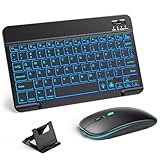
- 【Wide Compatibility】This Bluetooth keyboard and mouse combo offers wide compatibility with iPad (A16 chip, 11th/10th generation), with iPad Pro, Air, and Mini series, as well as iPhone 17/16/15 and other smartphones and tablets. In addition, the wireless keyboard and mouse are compatible with iOS, Windows, and Android—any Bluetooth-enabled device should work seamlessly. (Note: Please ensure your system is running iPadOS/iOS 13 or above.)
- 【7-Color Rainbow Backlight】The vibrant 7-color backlit for iPad keyboard makes typing or working at night more enjoyable. You can switch between the seven colors or activate the automatic color-cycling mode. Additionally, once the mouse is connected, its lights will also cycle through colors automatically. Please note: The mouse lighting cannot be turned off.
- 【Rechargeable Mouse and Keyboard】The built-in rechargeable battery (420mAh) provides up to 90 days of standby time and 45 hours of continuous use with backlight off. The wireless keyboard and mouse combo only requires 3–4 hours to be fully charged. Recommendation: A 6-hour initial charge is recommended for optimal battery performance.
- 【Ultra-Slim & Lightweight】Designed for portability, this for iPad keyboard and mouse are travel-friendly and lightweight, adding minimal weight and taking up little space in your bag. You can easily take it anywhere. The ultra-slim keyboard for iPad pairs seamlessly with your tablet for a sleek, harmonious look.
- 【Adjustable DPI】The Bluetooth mouse features three adjustable DPI levels—800, 1200, and 1600—to suit different users' cursor speed preferences. Its silent button design allows you to work in quiet environments or late at night without disturbing others. This Bluetooth mouse and keyboard set is ideal for use in quiet settings such as offices, libraries, and bedrooms.
- Test in a plain app like Notes.
- If it works in Notes but not in a specific app, the app may be overriding keyboard behavior.
- Try switching the keyboard again once you’re inside that app’s text box.
Software update required
If your target language still won’t appear, your best move is usually an iPadOS update. Updates can add or fix keyboard language packs.
- Open Settings → General → Software Update.
- Install the latest available update (ensure you’re on Wi‑Fi and have battery level for a smooth install).
Common mistakes to avoid
- Enabling the keyboard but forgetting to switch: iPadOS won’t automatically change keyboards mid-typing. Use the globe key or keyboard menu.
- Adding the wrong variant: For some languages, multiple variants exist. Pick the one that matches your needs (script, region, or layout).
- Testing only one app: Always verify in at least one plain text field (Notes) before concluding it’s a system issue.
- Assuming physical keyboard keys will match: Hardware layout differences can override your expectations. Test and adjust.
FAQ: International keyboards on iPad
Can I add multiple international keyboards to the same iPad?
Yes. Enable as many keyboards as you want in Settings → General → Keyboard → Keyboards. Then switch using the Globe key or the keyboard menu while typing.
Why can I see the keyboard but can’t type the characters I expect?
Most often, you selected the wrong keyboard variant or layout. Remove or add keyboard variants until typing a few known test characters (like ñ, é, ç, or Arabic letters) matches what you need.
Will an international keyboard work in every app?
In general, yes—most apps use the iPad system keyboard input. However, some apps with custom text input fields may behave differently. Use Notes as your baseline test.
What’s actually slowing this PC down?
Pick the symptom - the matching free tool is one click away.
Do I need to change my iPad language settings too?
No. For typing, you typically just need to add the keyboard(s). Changing the device’s overall language is separate and can affect UI language, formats, and other system behavior.
How do I remove an international keyboard?
Go to Settings → General → Keyboard → Keyboards, then remove the keyboard you no longer need (options vary slightly by iPadOS version).
The Verdict
Adding an international keyboard to your iPad is straightforward: enable it under Settings → General → Keyboard → Keyboards, then switch with the Globe key when typing.
If it doesn’t work, confirm you added the right language variant, test in Notes, and update iPadOS if the language pack isn’t behaving correctly.
Windows Errors? Fix Them Before They Spread
Repair common Windows errors and clear accumulated junk for a smoother, more stable PC - no reinstall needed.Free scan · no reinstallOutdated Drivers Are Slowing You Down
One free scan finds every outdated or missing driver and matches the right update for your exact hardware.Free scan · exact hardware matchQuick Recap
Product prices and availability are accurate as of the date/time indicated and are subject to change. Any price and availability information displayed on Amazon at the time of purchase will apply.




