Freedom251 › Video Upscaling Software

GoEnhance AI Video Upscaler
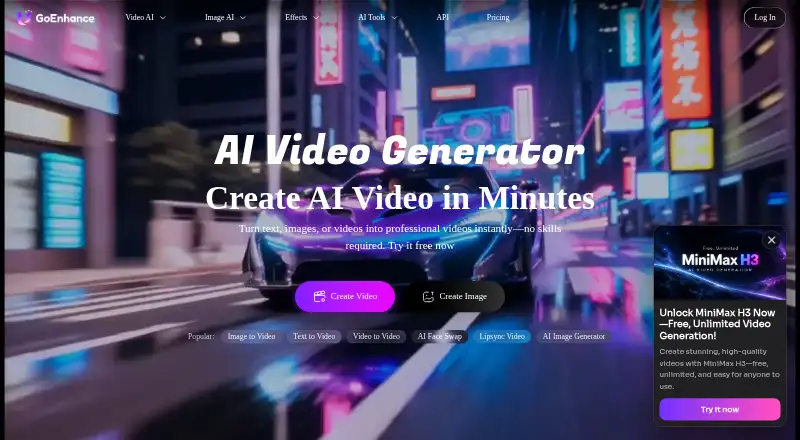
What GoEnhance AI Video Upscaler is
GoEnhance AI Video Upscaler is a browser-based tool for increasing video resolution and cleaning up footage. It describes upscaling SD or 720p videos to 1080p and 4K, with export choices of 720p, 1080p, 2K and 4K (2160p). Enhancement options include motion-aware deblurring, noise and grain reduction, and an optional Frame Boost that doubles the frame rate. Users can preview and adjust a result before downloading a full watermark-free video; existing watermarks or logos in source footage remain. Processing takes place in the cloud. The upscaler works in Chrome or Safari without installation and is also available through the GoEnhance mobile PWA. Sign-up includes 20 free credits, with no card required to test clips. Upload guidance varies across the page: the widget accepts MP4, MOV or WebM files up to 100MB, while the workflow description gives MP4 or MOV files up to 2GB and supports cloud imports. The page describes uses for creators and vloggers, marketing and business professionals, and personal archival projects. API documentation also describes video and image processing endpoints for developers.
Who it suits
The upscaler suits creators, vloggers, business and marketing professionals, and people improving personal or archival footage. It is a fit for users who want cloud-based enhancement from a browser or mobile PWA, with exports up to 4K.
What it does well
- Upscales footage to exports up to 4K (2160p).
- Reduces noise and grain and offers motion-aware deblurring.
- Optional Frame Boost doubles the frame rate.
- Runs in Chrome or Safari without installation.
- Sign-up includes 20 free credits without requiring a card.
What to know first
- The free plan is limited to personal use.
- The tool does not remove watermarks or logos already in source footage.
- Batch processing is not available.
- Upload limits differ between the widget and workflow descriptions.
Limits
Sign-up includes 20 free credits. Free and Basic users are limited to personal use; commercial use is permitted for Standard, Pro, and Mega subscribers. Higher output resolutions use more tokens.
Getting started
- Open the GoEnhance AI Video Upscaler page.
- Sign up to receive 20 free credits; a card is not required to test clips.
- Open the tool in Chrome or Safari, or use the GoEnhance mobile PWA.
- Upload a supported video or use a cloud import.
- Preview and adjust the result, then download the export.
Verdict
Choose GoEnhance AI Video Upscaler for browser-based cloud processing, AI cleanup options, and resolution exports up to 4K. Its free credits provide a way to try clips, but commercial use requires a Standard, Pro, or Mega subscription. Look elsewhere if batch processing or removal of existing source watermarks is essential.
Questions
Does GoEnhance AI Video Upscaler have a free plan?
Yes. Sign-up includes 20 free credits, and no card is required to test clips.
What platforms can I use it on?
It runs in Chrome or Safari and is available through the GoEnhance mobile PWA. Processing takes place in the cloud.
What video formats and upload sizes does it accept?
The upload widget lists MP4, MOV, or WebM files up to 100MB. The workflow description separately lists MP4 or MOV files up to 2GB and cloud imports.
What export resolutions are available?
The listed choices are 720p, 1080p, 2K, and 4K (2160p). Higher output resolutions use more tokens.
Can I use exports commercially?
The FAQ permits commercial use for Standard, Pro, and Mega subscribers. Free and Basic users are limited to personal use.
Does the tool remove watermarks from a video?
Exports are described as watermark-free, but existing watermarks or logos in the source video are not removed.
Facts from GoEnhance AI Video Upscaler's own pages
- Audience
- The upscaler page describes use cases for content creators and vloggers, marketing and business professionals, and personal or archival projects. · goenhance.ai, 8 Oct 2026
- Browser and mobile
- The upscaler runs in Chrome or Safari without installation and is available through the GoEnhance mobile PWA. · goenhance.ai, 7 Oct 2026
- Cloud imports
- The workflow section says cloud imports are supported. · goenhance.ai, 8 Oct 2026
- Commercial use
- The FAQ says commercial use is permitted for Standard, Pro, and Mega subscribers; free and Basic users are limited to personal use. · goenhance.ai, 7 Oct 2026
- Company
- The About page identifies the operator as MEWX LLC and lists its address as 30 N Gould St Ste R, Sheridan, Wyoming 82801. · goenhance.ai, 8 Oct 2026
- Desktop availability
- Processing runs in the cloud, and a lightweight Mac/Windows desktop uploader is described as coming soon. · goenhance.ai, 7 Oct 2026
- Enhancement
- Features include motion-aware deblurring, noise and grain reduction, and an optional 2× frame-rate boost. · goenhance.ai, 7 Oct 2026
- Export
- The workflow says users can preview, adjust, and download a full watermark-free video. · goenhance.ai, 7 Oct 2026
- Exports
- The page lists 720p, 1080p, 2K, and 4K (2160p) export resolutions and says higher output resolutions use more tokens. · goenhance.ai, 8 Oct 2026
- Frame boost
- Frame rate remains the same unless Frame Boost is enabled, which doubles FPS. · goenhance.ai, 8 Oct 2026
- Free credits
- The page says sign-up includes 20 free credits and does not require a card to test clips. · goenhance.ai, 8 Oct 2026
- Headquarters
- Sheridan, Wyoming, United States · goenhance.ai, 28 Sept 2026
- Integrations
- The page recommends using the AI video extender and AI video enhancer alongside denoising; API documentation also describes video and image processing endpoints for developers. · goenhance.ai, 8 Oct 2026
- Integrations and API
- GoEnhance provides API documentation and describes an API for integrating its video and image generation models; the upscaler page does not identify third-party integrations specific to video upscaling. · docs.goenhance.ai, 7 Oct 2026
- Payments and refund policy
- The FAQ says payments are processed through Stripe and that refunds are unavailable because of AI processing costs. · goenhance.ai, 7 Oct 2026
- Platforms
- Processing runs in the cloud; the page says the service works in Chrome and Safari and is available as a GoEnhance mobile PWA, while Mac and Windows desktop uploaders are described as coming soon. · goenhance.ai, 8 Oct 2026
- Privacy and AI processing
- GoEnhance says submitted prompts, files, and settings may be sent to the third-party AI provider used by a selected feature, and says submitted content is not sold. · goenhance.ai, 8 Oct 2026
- Privacy and processing
- The privacy policy says submitted media and settings may be transmitted to a third-party AI provider selected for the feature, and that submitted content is not sold. · goenhance.ai, 7 Oct 2026
- Purpose
- The browser-based upscaler raises video resolution to 1080p, 2K, or 4K and can reduce blur, noise, and compression artifacts. · goenhance.ai, 8 Oct 2026
- Security
- The privacy policy says GoEnhance uses encryption and reasonable industry-standard technical and organizational measures to protect personal information. · goenhance.ai, 8 Oct 2026
- Support
- The support page directs users with account, billing, or generation issues to contact the support team by email. · goenhance.ai, 8 Oct 2026
- Upload formats
- The upload interface lists MP4, MOV, and WebM files up to 100 MB; the workflow section separately says MP4 or MOV up to 2 GB. · goenhance.ai, 8 Oct 2026
- Upload limits
- The upload widget accepts MP4, MOV, or WebM up to 100MB, while the workflow description separately says MP4 or MOV up to 2GB and supports cloud imports. · goenhance.ai, 7 Oct 2026
- Upscaling
- The page describes upscaling SD or 720p footage to 1080p and 4K, with exports listed at 720p, 1080p, 2K, and 4K (2160p). · goenhance.ai, 7 Oct 2026
Where GoEnhance AI Video Upscaler stands on Freedom251
- Video Upscaling Software#12 of 40
- AI Video Upscalers#10 of 32