What’s actually slowing this PC down?
Pick the symptom - the matching free tool is one click away.
Some links on this page are affiliate links: if you buy through them we may earn a commission, at no extra cost to you.
Samsung Wallet’s Tap to Transfer lets eligible US Galaxy users send money from a debit card by tapping their phone against a recipient’s phone or contactless debit card. The recipient does not always need Samsung Wallet: for an in-person transfer, an eligible card in Apple Wallet or Google Wallet—or a physical contactless debit card—may work too.
It is best for small, nearby repayments. Samsung currently lists a sender fee of 1.75% (at least $0.25), a $100 maximum per transfer, and a rule that a transfer cannot be canceled after you authenticate it. Remote transfers use a separate feature, Online Transfer, and require both people to use Samsung Wallet. Samsung’s US feature page has the current terms.
Check whether you and the recipient qualify
Tap to Transfer is for domestic US transfers using eligible debit cards. Before you try it, check these requirements:
- Sender: You need a US Samsung Wallet account, a supported Galaxy phone with Samsung Wallet set up, and an eligible US debit card from a participating issuer.
- Card: Samsung’s current feature information emphasizes eligible Mastercard debit cards. Samsung’s launch announcement also mentioned participating Visa cards, so do not assume that a card qualifies based only on its network logo. Issuer and card-product rules apply.
- Phone settings: NFC must be on, and Samsung Wallet must be the default contactless payment service. Samsung’s support guidance also says the phone must not be rooted.
- Recipient: For an in-person transfer, the recipient needs an eligible debit card tied to a US bank account. It can be in Samsung Wallet, Apple Wallet, or Google Wallet, or be a physical contactless debit card. A recipient may also be able to use a compatible smartwatch holding an eligible card.
Samsung’s published Android guidance is inconsistent: its Tap to Transfer page and FAQ say Android 12 or higher, while a separate support page says Android Q or newer. Use Android 12 or newer as the cautious baseline, but treat the in-app option as the practical test. Samsung says an eligible card should show Tap to transfer beneath it in Quick Access or on the card details page. Samsung’s support page lists device and setup details.
#1 Best Overall

- Accept all major credit and debit cards and pay one low rate
- No hidden fees and no long-term contracts
- Mobile card reader that accepts payments anywhere & anytime
- Use the free SumUp App on your smartphone or tablet to start accepting transactions
- Simply pay 2.6% +10 per in-person transaction
Not every card that looks like a debit card qualifies. Samsung identifies products such as Samsung Pay Cash, Samsung Rewards, and Apple Cash as examples that may not be eligible to receive a transfer. Credit cards cannot be used as the funding card.
Tap to Transfer is not tap to pay
| Feature | What it does |
|---|---|
| Samsung Wallet tap to pay | Pays a merchant at a contactless checkout terminal. |
| Tap to Transfer | Sends money to the account associated with a recipient’s eligible debit card. |
| Online Transfer | Sends money remotely to another eligible Samsung Wallet user. |
| Samsung Pay Cash | A separate Samsung Wallet product; it is not the destination account for Tap to Transfer. |
Tap to Transfer uses contactless technology to connect the sender’s phone with the recipient’s card or digital wallet. It is not a general-purpose replacement for every peer-to-peer payment service: it is US-only, has low limits, charges the sender a fee, and does not let you reverse a completed payment. Samsung introduced the feature in May 2025; the current eligibility and fee details are on its US product page.
How to send money in person
- Open Samsung Wallet and swipe to the eligible debit card you want to use.
- Tap Tap to transfer beneath the card. If prompted, review the requirements and tap Next.
- Enter the amount, then tap Next or Done, depending on your app version.
- Ask the recipient to select the debit card that should receive the money. Confirm the card with them before proceeding.
- Bring the recipient’s phone, contactless card, or supported watch close to the NFC area on the back of your phone. The NFC antenna location varies by phone; the middle of the back is a reasonable starting point, not a universal spot.
- Let the recipient authenticate if prompted. Review the amount, recipient card, and fee. Once you confirm with your fingerprint or PIN, the transfer cannot be canceled.
- Wait for the confirmation screen or checkmark.
Samsung’s interface labels can vary by device and software version. If the phones do not respond, keep them close and move them slightly to locate the antenna. You can find your model’s NFC area under Settings → Connections → NFC and contactless payments. Make sure NFC is enabled on both phones, Samsung Wallet is the sender’s default contactless service, and the recipient has selected the intended card. Temporarily removing a thick case or magnetic accessory may help.
The Tool Desk
Outbyte Driver Updater FREEScan for outdated or missing drivers - takes under a minuteDriver Scan →Outbyte PC Repair FREERepair Windows errors before they cause bigger problemsFix Now →Before authenticating, double-check the recipient, receiving card, amount, and fee. The recipient can refuse to tap before confirming an in-person transfer, but once the sender authenticates the payment, it is irreversible.
Rank #2

- An intuitive interface to easily accept payments and manage your sales.
- Strong, reliable Wi-Fi connection. Free SIM card and mobile data so you can process payments anywhere.
- Great battery capability with an additional charging station.
- A truly portable device. Stay in control of your business, wherever you go.
- Support when you need it. Get in touch with our US-based support through phone, email and chat.
Can you send to Apple Wallet, Google Wallet, or a physical card?
Yes, an in-person recipient does not necessarily need a Galaxy phone or Samsung Wallet. They can present an eligible debit card in Apple Wallet or Google Wallet, or a contactless physical debit card. They need to select or present the card that should receive the funds and may need to authenticate. The card issuer can still restrict the transfer, so a wallet containing a debit card does not guarantee that the card is eligible.
A compatible smartwatch with an eligible debit card may work as the recipient target, but Tap to Transfer cannot be initiated from a Galaxy Watch. The sender needs the eligible Galaxy phone.
How to send money remotely with Online Transfer
For a transfer when the recipient is not physically present, use Online Transfer, not the phone-tapping flow. Samsung requires both sender and recipient to use Samsung Wallet. The recipient must be in the sender’s saved contacts, have a current phone number associated with Samsung Wallet, register an eligible debit card, and complete phone verification with a one-time passcode. This is not a remote way to send money to someone who only uses Apple Wallet or Google Wallet.
- Open Samsung Wallet and select your eligible debit card.
- Tap Online transfer.
- Select the recipient from your saved contacts and enter the amount.
- Tap Next, review the transfer details and fee, then tap Send.
If your phone number has changed, Samsung documents this path to update it: All → Send Money → three-dot menu → Edit personal info. Enter the current number and verify it with the one-time passcode. Button names may vary with the app version. See Samsung’s Wallet FAQ for its Online Transfer requirements.
Rank #3
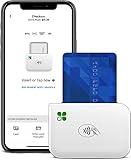
- PORTABLE PAYMENT SOLUTION: The Clover Go Bluetooth Reader, 3rd Gen, lets you accept payments anywhere with ease.
- BLUETOOTH CONNECTIVITY: Pairs wirelessly with your smartphone or tablet for fast, reliable transaction processing on the go.
- NO MERCHANT ACCOUNT REQUIRED: Get started quickly by connecting to any active Clover account with Clover Go
- 3RD GENERATION DESIGN: The latest generation Clover Go Reader offers improved performance and a compact, lightweight build.
- VERSATILE USE: Ideal for small businesses, pop-up shops, and mobile vendors needing a dependable portable card reader.
Fees and limits
Samsung’s current published fee is 1.75% per transfer, with a $0.25 minimum. The sender pays it. Your bank or mobile carrier may impose other fees, and the app should show the final amount before you authenticate. The table illustrates the percentage calculation; the minimum applies to very small transfers, and the displayed fee may be rounded to cents.
| Transfer amount | Fee at 1.75%, subject to minimum |
|---|---|
| $1 | $0.25 minimum |
| $10 | $0.25 minimum |
| $20 | $0.35 |
| $50 | About $0.88 |
| $100 | $1.75 |
| Limit | Published maximum |
|---|---|
| Minimum per transfer | $1 |
| Maximum per transfer | $100 |
| Dollar maximum per day | $100 |
| Dollar maximum per week | $200 |
| Dollar maximum per month | $500 |
| Transfers per day | 3 |
| Transfers per week | 7 |
| Transfers per month | 7 |
Samsung says limits apply at both the Samsung Account and debit-card level and may change without notice. Do not assume that adding another card or account will raise or bypass them. Check the amount and fee displayed in Wallet before confirming.
When does the money arrive, and can you cancel?
Samsung and Visa describe supported transfers as arriving within minutes, but the receiving financial institution determines when funds are available in the bank account. A completion message in Samsung Wallet does not necessarily mean the recipient’s bank has posted the funds. If a transfer remains pending, Samsung advises allowing 24–48 hours. Failed pending transfers should be refunded automatically to the sender; that is different from reversing a successfully authenticated payment.
You can back out with the Android Back button before authenticating. After your fingerprint or PIN confirms the transfer, it cannot be canceled. Samsung says an in-person recipient can refuse to tap before confirming, but an Online Transfer cannot be rejected by the recipient. Verify all details before sending.
Rank #4

- A Processing Account is Required with SwyftPAY prior to shipping. Call or text 612-424-0785 with questions.
- Accept and Track Cash & Credit Card Sales
- Free Point-Of-Sale App Included! Android & iOS
- Wholesale Pricing at 2.69% per transaction
- Activate Cash Discount and Process at 0% per Transaction!
Troubleshooting by symptom
“Tap to transfer” is missing
- Confirm the selected card is a debit card, not a credit card, and is linked to a US bank account.
- Check whether the issuer and specific card product are supported; prepaid, rewards, cash, and wallet-specific products may be excluded.
- Confirm you are signed in to the right Samsung Account and using Samsung Wallet on an eligible US Galaxy device.
- Update Android and Samsung Wallet, enable NFC, and set Samsung Wallet as the default contactless payment service.
If the option still does not appear, Samsung does not expose a more specific reason in every case. The card, issuer, device, region, or account may not qualify. Samsung says eligible cards show the transfer option beneath the card in Wallet.
The phones do not detect each other
Turn on NFC on both phones, make sure the recipient has selected the correct receiving card, and place the phones close together. Try moving the recipient device across the back of the sender phone to find the NFC antenna. Remove a thick case or magnetic attachment temporarily. Confirm Samsung Wallet is the sender’s default contactless service.
The transfer is declined
Samsung says inaccurate personal information in the Samsung Account can cause a decline. Check that your legal first and last name, current address, and ZIP code are correct. If the recipient’s card issuer declines the transfer, the recipient should contact that issuer.
Do these 3 things before closing this tab:
1Clear out junk files and repair common Windows errors2Scan for outdated or missing drivers - takes under a minute3Repair Windows errors before they cause bigger problemsThe transfer is pending or the recipient cannot see the money
Do not immediately send a second payment. Check the status in Samsung Wallet and the recipient’s bank account, then allow 24–48 hours for a pending transfer to resolve. If it remains unresolved, contact Samsung Wallet support; if the bank shows suspicious activity, contact the bank. Samsung says a failed pending transfer is automatically refunded to the sender.
Best Value

- HIGH-SPEED OMNIDIRECTIONAL SCANNING- Equipped with a high-performance 640x480 CMOS sensor and 4 white LED lights, this scanner features a wide scan angle.It can rapid capturing of barcodes from any direction, eliminating the frustration of repeated scanning attempts common with budget competitors.
- EXCEPTIONAL MOBILE SCREEN READABILITY- Specially optimized for digital screens, the NS-2016 excels at reading 2D QRcodes and Data Matrix from smartphones even with low brightness or glare. With a depth of field up to 350mm for mobile payment codes, it is the perfect solution for high-traffic retail checkout and contactless payments.
- AUTO-SENSING & HANDS-FREE DESIGN- Featuring advanced infrared auto-induction technology, the scanner activates automatically when a barcode is detected and enters standby mode when idle. This hands-free operation improves efficiency at POS terminals while extending the device's lifespan.
- PLUG AND PLAY SIMPLICITY- No driver installation required. Supporting USB HID-KBW and Virtual Serial Port interfaces, it integrates seamlessly with Windows, Mac, and Linux systems. The 1.5m durable cable provides ample reach for diverse workspace setups, from boutique counters to warehouse desks
- ROBUST INDUSTRIAL BUILD QUALITY- Constructed from high-quality ABS material, the NS-2016 is built to withstand the rigors of daily use. It is tested to survive 1.2m drops to concrete and features robust electrostatic protection, ensuring reliable performance in busy commercial environments.
You changed phones or deleted the debit card
Sign in to your Samsung Account on the new device, set up Samsung Wallet, and reactivate eligible cards. Transfer history does not move to a new device for security reasons. Deleting a debit card also deletes that card’s in-app Tap to Transfer history and prevents further sending or receiving through that card; check your bank records for transaction history.
You suspect an unauthorized or suspicious transfer
Contact your bank to file a dispute and contact Samsung customer support for investigation. Samsung’s FAQ lists Wallet support at 1-844-726-7297. Keep in mind that a completed transfer cannot be canceled from the Wallet flow.
When Tap to Transfer makes sense
Use it when the amount is small, the sender’s card shows the transfer option, the recipient is nearby or is another Samsung Wallet user for an Online Transfer, and the convenience is worth the fee. It is particularly handy when the recipient can receive the funds on a supported contactless debit card without installing Samsung Wallet.
Choose another payment method if you need to send more than the limits allow, pay internationally, set up recurring transfers, reach a remote recipient who does not use Samsung Wallet, or retain a way to cancel after confirmation. Its fee and low caps make Tap to Transfer a convenience feature for occasional small repayments—not a universal replacement for bank-based or other peer-to-peer payments.
Quick Recap
Product prices and availability are accurate as of the date/time indicated and are subject to change. Any price and availability information displayed on Amazon at the time of purchase will apply.

