What’s actually slowing this PC down?
Pick the symptom - the matching free tool is one click away.
Some links on this page are affiliate links: if you buy through them we may earn a commission, at no extra cost to you.
Use SANDISK Dashboard for Windows to check the firmware on a WD_BLACK SN850X. Update only when Dashboard offers an update for that exact drive, or when an official release addresses a problem affecting your system. Back up important data first—especially before updating a boot drive or an SSD in a RAID 0 array.
The short answer
The SN850X does not need a firmware update simply because a newer version may exist. SanDisk says firmware is installed during manufacture and a working drive normally does not need upgrading. However, firmware updates can address compatibility, stability, or reliability problems.
Check the installed version with the official SANDISK Dashboard. Do not rely on a forum-reported version as proof that every 2TB SN850X uses the same or latest firmware.
Free tools Windows power users keep installed
One-click scans. No signup required.
What the Hardware Hangout discussion reported
A May 27, 2025 Hardware Hangout discussion concerned three SN850X drives: one boot drive and two drives combined into a 4TB RAID 0 gaming volume. A participant later reported firmware version 620361WD.
#1 Best Overall

- This product has been replaced by our latest generation. Please search for the SANDISK Optimus GX PRO 850X NVMe SSD
- TRANFORM YOUR PC: Insane speeds up to 7,300MB/s (1TB - 4TB models) deliver top-tier performance with ridiculously short load times for your gaming PC or workstation — for the elite experience you’ve been waiting for.
- MORE ROOM FOR MORE GAMES: Capacities up to 8TB built with SANDISK TLC 3D NAND, means you get to keep more games at the ready — and get into the action even faster.
That is a user report, not an official universal version table. SanDisk notes that otherwise similar drives can have different firmware, so Dashboard should determine whether an update applies to your particular SSD.
How to check SN850X firmware
- Back up important files before making any firmware change.
- Download and install SANDISK Dashboard for Windows.
- Launch Dashboard and select the SN850X from the device list.
- Review the displayed firmware version, model, capacity, health, and SMART information.
- Look for UPDATE AVAILABLE, or open Tools and check the firmware-update option.
Dashboard supports Windows 10 and Windows 11 for this workflow. It is not required for ordinary SSD operation, and macOS is not supported for this Windows firmware-update process.
Windows can also help identify the drive. Open Device Manager, expand Disk drives, right-click the SSD, choose Properties, open Details, and select Hardware Ids. This is useful for identification, but Dashboard is the more convenient way to check firmware and install an update. SanDisk’s identification instructions provide the documented path.
Crashes, No Sound, or Screen Glitches?
Random freezes, missing sound and display glitches usually trace back to one bad driver. Find and replace yours safely.Free scan · under a minuteWindows Errors? Fix Them Before They Spread
Repair common Windows errors and clear accumulated junk for a smoother, more stable PC - no reinstall needed.Free scan · no reinstallRank #2
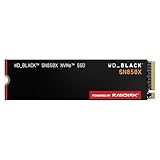
- This product has been replaced by our latest generation. Please search for the SANDISK Optimus GX PRO 850X NVMe SSD
- TRANFORM YOUR PC: Insane speeds up to 7,300MB/s (1TB - 4TB models) deliver top-tier performance with ridiculously short load times for your gaming PC or workstation — for the elite experience you’ve been waiting for.
- MORE ROOM FOR MORE GAMES: Capacities up to 8TB built with SANDISK TLC 3D NAND, means you get to keep more games at the ready — and get into the action even faster.
How to install an available update
If Dashboard reports an applicable update:
- Confirm that the selected device is the intended SN850X.
- Verify a backup, including files on the boot drive and any saved games or configurations on a RAID volume.
- Click UPDATE AVAILABLE, or open the update screen through Tools.
- Click UPDATE FIRMWARE, then click PROCEED.
- Click SHUTDOWN NOW.
- Power the computer back on and allow the firmware process to complete.
Close games, file transfers, backup jobs, and other disk-intensive applications. Do not interrupt power, force a reboot, or shut down the PC through another method while the update is being applied. SanDisk’s Dashboard documentation recommends backing up data before updating.
Is 620361WD the latest SN850X firmware?
It cannot be confirmed as the universal latest firmware for every 2TB SN850X from the available official documentation. 620361WD was reported by a forum participant in May 2025, but firmware can vary by exact model and manufacturing batch.
Use the version shown for your drive in SANDISK Dashboard. If Dashboard says the drive is current, there is no reason to flash a file merely because another owner reports a different version. Never use a firmware image downloaded from an unofficial forum or file host.
Rank #3

- Officially licensed M.2 SSD for PlayStation 5 consoles[4] so you can easily install and play with no concern of compatibility. [4]For PlayStation 5 system software compatibility, please visit the official WD_BLACK site.
- With capacities ranging from 1TB to 4TB[1], your PS5 console has the additional space to store up to 200 games[3] (8TB model) [1]1GB = 1 billion bytes and 1TB = one trillion bytes. Actual user capacity may be less depending on operating environment. [3] Number of games based on a 36GB average per game. The number of games will vary based on file size, formatting, other programs, and factors.
- Experience uninterrupted gameplay with a brand-new, optimized heatsink designed especially for the PS5 console for an easy, worry-free installation into the M.2 slot.
- Play directly from the drive and eliminate the need to transfer or delete games from your console with tested and approved storage for your PS5 console[4].
- Push the envelope of PCIe Gen 4 technology with read speeds up to 7,300MB/s[2], giving you seamless gameplay and incredibly short load times. [2]1 MB/s = 1 million bytes per second. Based on internal testing; performance may vary depending upon host device, usage conditions, drive capacity, and other factors.
Why Dashboard may not find the SSD
Windows seeing a disk does not guarantee that Dashboard can access the physical NVMe device. Common causes include:
- The SSD is not visible in BIOS/UEFI.
- The drive is connected through a USB enclosure, dock, or adapter.
- The M.2 slot is managed by motherboard RAID, Intel VMD, AMD RAID, or another storage controller.
- The SSD is behind a RAID controller or is part of a RAID volume.
- An incompatible or outdated storage/NVMe driver is installed.
- Antivirus, backup, RGB, or other third-party software interferes with access.
- The drive, slot, or connection has a hardware fault.
SanDisk specifically warns that a drive installed in a RAID slot may not be detected, even when it is not configured as a RAID member.
Detection troubleshooting order
- Check BIOS/UEFI. Confirm that the physical SN850X appears there.
- Check Windows. Look in Device Manager and Disk Management.
- Use a direct motherboard M.2 connection. Do not troubleshoot firmware through an enclosure or dock.
- Check storage mode. Record whether the system uses RAID, VMD, or another controller abstraction.
- Temporarily consider security and backup software. Do not leave protection disabled longer than necessary.
- Check the storage-controller driver.
- Consider Microsoft’s standard NVMe driver only when appropriate.
SanDisk documents selecting the Microsoft driver as follows: right-click Start → Device Manager → View → Devices by connection; locate the NVMe controller; choose Update driver → Browse my computer → Let me pick from a list; select Standard NVM Express Controller; then restart. See the official driver guidance.
Rank #4

- This product has been replaced by our latest generation. Please search for the SANDISK Optimus GX PRO 850X NVMe SSD
- TRANFORM YOUR PC: Insane speeds up to 7,300MB/s (1TB - 4TB models) deliver top-tier performance with ridiculously short load times for your gaming PC or workstation — for the elite experience you’ve been waiting for.
Important: changing storage drivers is not a universal or risk-free fix. It can affect bootability, RAID, Intel VMD, BitLocker, and other storage dependencies. Record the existing configuration and avoid changing drivers casually on a working boot system or RAID array.
RAID 0 considerations
Do not assume that because Windows sees a RAID 0 volume, Dashboard can identify and update each physical SN850X. The controller may expose only the logical array to Windows.
RAID 0 has no redundancy: failure of either member can make the entire volume inaccessible. Do not break or recreate the array simply to attempt a firmware update unless you have a tested backup and a clear rebuild plan. If Dashboard sees the boot drive but not the RAID members, contact SanDisk support before changing controller modes or dismantling the array.
Best Value
- This product has been replaced by our latest generation. Please search for the SANDISK Optimus GX PRO 850X NVMe SSD
- TRANFORM YOUR PC: Insane speeds up to 7,300MB/s (1TB - 4TB models) deliver top-tier performance with ridiculously short load times for your gaming PC or workstation — for the elite experience you’ve been waiting for.
Even if the games can be reinstalled, saved games, settings, downloads, and rebuild time may still matter.
Independent reader supportYour contribution helps us test, update, and keep practical guides available for everyone.What if the firmware download will not install?
SanDisk documents a manual recovery route for a firmware download that times out:
- Open Dashboard and select Help.
- Choose GENERATE REPORT FILE.
- Open the resulting
Dashboard_Report.zip, then opendashboard.log. - Find the timed-out firmware-download entry ending in
.fluf. - Copy the quoted URL and download that firmware file.
- Reopen Dashboard, open Tools, and click SELECT FILE.
- Select the downloaded
.fluffile and click PROCEED.
Use only the file URL recorded by the official Dashboard log, and confirm that it is for the intended drive. SanDisk notes that Safe Mode without networking may be required in some cases. Follow the official failed-download procedure.
If Dashboard will not start
- Confirm that Windows 10 or Windows 11 is supported on the system.
- Install the current Dashboard package from SanDisk’s official download page.
- Try the offline installer if the online installer fails.
- Confirm that the SSD appears in BIOS and Windows.
- Review storage-controller and NVMe drivers.
- Try Safe Mode only where SanDisk’s troubleshooting instructions call for it.
- Save Dashboard logs and screenshots.
- Contact SanDisk support with the exact model, firmware version, motherboard, controller mode, and logs.
SanDisk lists online and offline Dashboard installers; their download sizes can change as the page is updated.
Do not confuse the SN850X with the Windows 11 24H2 advisory
SanDisk’s official Windows 11 24H2 critical-firmware advisory names certain SN770, SN770M, SN580, SN5000, and SanDisk Extreme M.2 models. The affected-product list reviewed here does not name the WD_BLACK SN850X.
That does not prove that every SN850X configuration is immune to every compatibility problem. It does mean that the advisory should not be generalized to the SN850X without model-specific evidence. Check the official advisory at SanDisk support and rely on Dashboard for the update applicable to your drive.
Quick Recap
When should you update?
| Situation | Recommended action |
|---|---|
| Dashboard reports an update for the exact SN850X | Update after a verified backup and with stable power. |
| The drive has a documented problem addressed by the release | Update if the official instructions apply to your model and configuration. |
| The drive is stable and Dashboard says it is current | Leave it alone. |
| You only saw a different version in a forum post | Do not flash based on that report alone. |
| The SSD is in RAID and Dashboard cannot see it | Do not dismantle the array or change controller modes casually; contact support. |
| You have no verified backup | Back up first, or postpone the update. |
Final checklist
- Use SANDISK Dashboard, not third-party firmware-flashing software.
- Confirm the exact model and physical drive before selecting an update.
- Record the current firmware version.
- Back up and verify important data.
- Check BIOS/UEFI and Windows visibility if Dashboard cannot find the drive.
- Expect RAID, VMD, controller, enclosure, and driver limitations.
- Do not interrupt the required shutdown and restart.
- Do not use unofficial firmware files.
- Keep logs and screenshots if support is required.
Product prices and availability are accurate as of the date/time indicated and are subject to change. Any price and availability information displayed on Amazon at the time of purchase will apply.
Do these 3 things before closing this tab:
1Clear out junk files and repair common Windows errors2Fix the driver behind crashes, sound loss and screen glitches3Repair Windows errors before they cause bigger problems
