Quick wins for a faster PC:
Clear out junk files and repair common Windows errorsFree Scan →Scan for outdated or missing drivers - takes under a minuteDriver Scan →Repair Windows errors before they cause bigger problemsFix Now →Some links on this page are affiliate links: if you buy through them we may earn a commission, at no extra cost to you.
The most secure Android unlock method is a long, unique alphanumeric password. For most people, a long random PIN is the better security-and-usability compromise. Fingerprint and face unlock should be treated as convenience layers whose strength depends on the phone’s hardware and Android biometric class—not as automatically stronger locks.
Google identifies a strong password as the most secure screen-lock option. Android’s security model gives primary knowledge credentials—passwords, PINs and patterns—the highest security level, while biometrics trade some security for speed and convenience. See Google’s screen-lock guidance and the Android biometric documentation.
Quick ranking of Android unlock methods
This is a general ranking. A particular phone’s sensor, software version and manufacturer settings can change the result.
Recommended Free Tools
| Method | Security position | Best use |
|---|---|---|
| Long, unique password | Strongest general-purpose option | Maximum protection and high-risk situations |
| Long random PIN | Strong practical compromise | Most users who need reliable daily access |
| Class 3 fingerprint with a strong backup credential | Strong biometric convenience option | Fast everyday unlocking |
| Class 3 face authentication | Potentially strong, but device-specific | Convenience when the implementation is verified |
| Basic 2D camera face unlock | Often weaker than a password or fingerprint | Convenience only |
| Pattern | Usually weaker in practice | Speed when security is not the priority |
| Trusted places, trusted devices or Extend Unlock | Lowest protection while enabled | Situations where convenience outweighs lock-screen security |
Why a password is usually strongest
A password can use letters, numbers and symbols, creating far more possible combinations than a short numeric code. Its actual strength still depends on length, randomness, secrecy and whether it contains names, dates, quotations or other predictable information. A reused or obvious password can be weaker than a genuinely random PIN.
#1 Best Overall
![ineo USB Fingerprint Reader for Windows Hello, Compact Plug and Play Security Key, Silver [Not for Mac]](https://m.media-amazon.com/images/I/41kpVE976ZL._SL160_.jpg)
- Instant Windows Hello Integration: Quickly unlock your Windows 10/11 PC with your fingerprint. No need to type passwords—just one touch for fast and secure access. Works directly with Windows Hello, no extra software needed.
- Plug & Play Simplicity: No drivers needed for genuine Windows systems—just plug it in and it works. Automatically recognized in most cases (95%+ compatibility). Tip: Manual driver update may be required for non-genuine systems.
- USB Fingerprint Reader: A compact metal fingerprint scanner for PCs and laptops that makes logging in quick and easy—just plug it into any USB port and start using it. Its ultra-portable design fits perfectly in your laptop bag.
- Microsoft-Certified Security: Fully supports Windows Hello and the Windows Biometric Framework for safe and reliable login. Features high accuracy (0.001% false acceptance / 0.1% false rejection) to keep your data secure. Also supports password and file encryption for most websites.
- Multi-User Flexibility: Store up to 10 fingerprints—perfect for shared devices at home or work. Enjoy fast and smooth access with lightning-speed authentication in under 0.5 seconds.
Android protects passwords, PINs and patterns with hardware-backed or trusted-environment rate-limiting that slows repeated guesses. AOSP’s rate-limiting documentation describes these protections; they reduce online guessing but do not make a predictable credential safe.
A six-digit PIN has one million possible numeric combinations in an idealized search. A longer random PIN increases that space, while a random alphanumeric password can increase it much further. Android 16 QPR2 and later, and especially Android 17, add stronger default rate-limiting, but availability depends on the device and update.
Password versus PIN: what should you choose?
Choose a password for maximum resistance
- Use a long, unique passphrase or randomly generated alphanumeric string.
- Do not use a name, birthday, address, quotation, keyboard pattern or password used elsewhere.
- Prefer password-only unlocking when coercion, border searches, targeted theft or sensitive work is a serious concern.
Choose a random PIN for the best everyday balance
- Use at least six digits if the phone permits it; eight or more random digits is a stronger practical target.
- Avoid repeated digits, sequences, dates and numbers used for banking or account recovery.
- Enter it discreetly and avoid letting cameras or observers see the keypad.
Google recommends six-digit PINs for added security, but does not establish one universal minimum for every Android device. Manufacturers and Android versions can impose different rules. NIST’s SP 800-63B-4 discusses local activation secrets and throttling; its website-password requirements should not be treated as Android lock-screen requirements.
Do these 3 things before closing this tab:
1Clear out junk files and repair common Windows errors2Scan for outdated or missing drivers - takes under a minute3Repair Windows errors before they cause bigger problemsRank #2
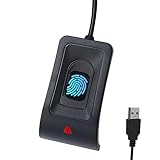
- Instant Windows Hello Integration: Seamlessly access your Windows 10/11 PC with Microsoft-certified biometric authentication. Replace cumbersome passwords with one-touch fingerprint login through the native Windows Hello framework—no third-party software required.
- Microsoft-Certified Security: Officially supports Windows Biometric Framework and Windows Hello. 0.001% False Acceptance Rate and 0.1% False Rejection Rate—bank-grade security for your desktop.
- Plug & Play – No Drivers Needed: Zero driver installation for genuine Windows systems—automatic recognition upon connection (95%+ compatibility). For custom Windows builds, a free driver update is available via the included quick-start guide.
- 10 Fingerprints – Fast for Everyone: Store up to 10 unique fingerprints for family members or shared workstations. Lightning-fast authentication in under 0.5 seconds—no waiting, no frustration.
- Professional-Grade Design – Built to Last: Includes a 5FT braided USB extension cable for flexible, durable placement. Aluminum-alloy sensor housing resists wear and drops—built for daily use in offices, homes, and shared workstations.
Biometrics: convenient, not automatically stronger
Android classifies biometric implementations as Class 3 (formerly Strong), Class 2 (formerly Weak) and Class 1 (formerly Convenience). A phone can have a Class 3 fingerprint reader but a weaker face system, so the word “biometric” alone says little. Class 3 is the higher-security category and supports more sensitive uses, but Android still treats the primary knowledge credential as the security foundation.
Fingerprint
A Class 3 fingerprint reader is generally the best biometric convenience choice when the device supports it. It is fast and can authenticate to apps, but a fingerprint is not secret or replaceable. Someone may be able to present a finger without the owner voluntarily revealing a password. Wet fingers, gloves, injuries, aging skin and screen protectors can also reduce reliability.
Face unlock
Face unlock ranges from basic 2D camera matching to depth- or infrared-assisted systems. Basic implementations may be vulnerable to photographs, similar-looking faces or poor lighting and can be weaker than fingerprint. Advanced Class 3 face authentication is a different category, but it remains model-specific. Check the phone’s security warning and whether banking or other sensitive apps accept that biometric class. Android requires devices to disclose when a biometric may be less secure than a strong credential; see the Android 15 Compatibility Definition.
Rank #3
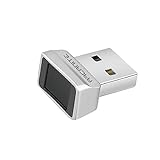
- Log in faster and more securely - Designed specifically for Windows 11, 10 with Hello features. *Not compatible with Windows 7, 8, MAC, Linux or any other OS.
- 360 Degrees Detection - Fingerprints can be read from any angle in 360 Degrees.
- Advanced Protection - Safely protect your logins and data with state-of-the-art fingerprint security.
- Lightning fast authentication in just 0.05 seconds with smart learning algorithm. Store up to 10 fingerprints in parallel.
- Plug and play detection setup through Windows 10, 11 Hello operating system. Setup Language available in multiple languages. (Based on system language detection)
Why biometrics may be unsuitable under coercion
A password or PIN is something you know; a fingerprint or face is something you physically possess. If someone can force physical access, knowledge authentication may provide a stronger technical barrier. Laws about compelled unlocking differ by jurisdiction, so this is security guidance rather than legal advice.
Best unlock method for each threat
| Threat or priority | Recommended setup |
|---|---|
| Maximum technical security | Long unique password; disable biometrics and convenience unlocking |
| Normal everyday use | Long random PIN, optionally paired with a trusted Class 3 fingerprint |
| Shoulder surfing | Long password or discreet random PIN; avoid patterns |
| Forced biometric unlocking | Password or PIN only |
| High-risk travel or work | Long password only; disable fingerprint, face and Extend Unlock before travel |
| Lost or stolen phone | Strong credential plus Find Hub, remote locking and supported anti-theft features |
| Older or budget phone | Prefer a password or long PIN; do not assume camera face unlock is strong |
Set a secure Android lock screen
Generic Android steps
- Open Settings.
- Open Security or Security & privacy.
- Select Screen lock, Device unlock or a similarly named option.
- Enter the existing credential if requested.
- Choose Password or PIN, then enter it twice.
- Add fingerprint or face unlock only if its convenience benefits justify the additional exposure.
- Review lock-screen notification visibility and automatic-lock timing.
Labels vary by manufacturer. Google directs users to the manufacturer when the Security menu is absent; its screen-lock instructions cover the broad process.
Samsung Galaxy example
On compatible Galaxy devices, settings generally include Lock screen, Screen lock type and Biometrics. One UI wording varies by model and version. Samsung’s current instructions are at Set up a screen lock on your Galaxy phone or tablet.
Rank #4

- USB Fingerprint Key Reader suitable for Windows10/11 Hello features.
- 360 Degrees Detection:Fingerprints can be read from any in 360Degrees, set up to 10 Fingerprint .
- 0.05 seconds:Fingerprints authenticated within 0.05seconds. Logins faster and more secure.
- With intelligent learning algorithm, detection and authentication is faster and more secure.
- Advanced Protections:Safely protect your logins and data with Fingerprint Security Device.
Harden the lock screen beyond the credential
- Set the shortest practical screen-off lock delay and enable immediate locking with the power button when available.
- Hide sensitive notification contents, including message text and one-time codes, on the lock screen.
- Disable Smart Lock, Extend Unlock, trusted places and trusted devices when maximum security matters.
- Enable Find Hub, remote locking and theft-detection or offline-device protections supported by your model.
- Keep Android, the manufacturer interface and security patches current.
- Protect the Google account used for recovery with a unique password and multi-factor authentication.
- Test recovery while you still have access; do not assume a password manager can recover the phone’s primary credential.
Google describes newer anti-theft and Identity Check capabilities in its 2025 security update and 2026 security update. Feature availability varies by model, Android release, region and account configuration.
Independent reader supportYour contribution helps us test, update, and keep practical guides available for everyone.What happens after a restart or failed biometric attempts?
Android commonly requires the primary PIN, pattern or password after a restart, a security timeout, certain administrative actions or repeated biometric failures. Exact timing differs by device and Android version.
The Tool Desk
Outbyte Driver Updater FREEFix the driver behind crashes, sound loss and screen glitchesFind Drivers →Outbyte PC Repair FREERepair Windows errors before they cause bigger problemsFix Now →Android 17 compatibility requirements specify a primary-authentication challenge after no more than 20 false biometric trials, with at least a 90-second biometric backoff. Earlier devices can behave differently. See the Android 17 Compatibility Definition and Android’s credential requirements.
Best Value

- FAST FOR Wins HELLO INTEGRATION: Get fast access to your for Wins 10 11 computer with this USB fingerprint reader. Enjoy one touch fingerprint login through the for Wins Hello framework, eliminating the need for cumbersome passwords or third party software.
- ENHANCED SECURITY: This fingerprint reader is officially supported by the for Wins biometric framework and for Wins Hello. With a mere 0.001% false acceptance rate and 0.1% false rejection rate. It supports password and file encryption on most websites, ensuring your data is safe.
- 360° TOUCH RECOGNITION: With fingerprint and touch recognition technology, this USB fingerprint scanner provides quick response in 0.5 seconds. Its 360° full angle recognition is more accurate and sensitive than traditional optical technology, making it the fastest and most secure way to unlock your device.
- MULTI USER FLEXIBILITY: Designed for shared devices, this fingerprint scanner can store up to 10 unique fingerprints, making it ideal for home or workplace use. Fast identity verification with a response time of less than 0.5 seconds ensures quick and secure access for all users.
- PORTABLE DESIGN: This compact fingerprint scanner for laptops, desktops changes your daily login habits. Simply plug it into any USB port and use the 1.5m cable for easy connectivity. Its portable design allows for effortless storage in your laptop bag.
Three configurations that make sense
Maximum security
Use a long unique password only. Disable fingerprint, face unlock, trusted locations, trusted devices and other modes that keep the phone unlocked.
Best balance for most people
Use a long random PIN and add a Class 3 fingerprint if you need speed. Keep the PIN as the fallback credential and ensure notifications are private.
High-risk situation
Before travel or a period of elevated personal risk, switch to a long password and disable all biometrics and convenience unlocking. Re-enable them only when the threat has passed.
Quick Recap
Product prices and availability are accurate as of the date/time indicated and are subject to change. Any price and availability information displayed on Amazon at the time of purchase will apply.

