Some links on this page are affiliate links: if you buy through them we may earn a commission, at no extra cost to you.
There was no single winner among these mid-2000s 500GB desktop hard drives: the Hitachi Deskstar T7K500 was a strong all-round performer in some contemporary tests, the WD5000AAKS excelled in a file-copy comparison, and Samsung’s SpinPoint T166 made a compelling value-and-power case. The Seagate Barracuda 7200.10 offered a longer launch-era warranty, while “Maxtor DM11/Pro” is too ambiguous to rank without an exact model number. This is a historical comparison for retro-PC builders and hardware researchers—not a recommendation to trust an untested, nearly two-decade-old drive with important data.
Identify the exact drive before comparing it
Family names hide meaningful differences: interface, cache, capacity, firmware, and warranty could vary. The most relevant SATA models in the cited contemporary comparison are the Western Digital Caviar SE16 WD5000AAKS, Hitachi Deskstar T7K500 HDT725050VLA360, Samsung SpinPoint T166 HD501LJ, and Seagate Barracuda 7200.10 ST3500630AS. They were 3.5-inch, 7,200RPM, 500GB SATA drives; the cited Hitachi, Samsung, and Seagate configurations had 16MB caches. AnandTech’s specification comparison also notes that the T166 family included PATA and SATA models and different cache configurations, so “T166” alone does not identify a specific drive.
For Maxtor, a likely DiamondMax 11 500GB candidate is 6H500F0, identified as a SATA drive in an MSI compatibility document. But DiamondMax 11 and MaXLine Pro are separate product-family names; “DM11/Pro” does not identify one model or establish that two drives share the same mechanism. Check the full label, interface, cache, firmware, and product family before comparing it. Without that information, a Maxtor ranking would be guesswork.
At-a-glance comparison
| Drive | What the evidence supports | Best historical fit |
|---|---|---|
| WD Caviar SE16 WD5000AAKS | Especially strong file-copy results in one seven-drive comparison; revisions may vary. | File-copy-oriented workloads, subject to the exact test and drive revision. |
| Hitachi Deskstar T7K500 HDT725050VLA360 | Strong overall performance in AnandTech’s comparison and the best listed read-seek specification of the three models tabulated there. | Broad performance in the cited test set. |
| Samsung SpinPoint T166 HD501LJ | Three-platter design, competitive historical price, and comparatively low idle power in AnandTech’s figures. | Value-conscious builds and buyers interested in the design’s power characteristics. |
| Seagate Barracuda 7200.10 ST3500630AS | Five-year warranty in the cited comparison, but higher listed idle power and mixed benchmark results. | Launch-era warranty value; not a present-day warranty advantage. |
| Maxtor DiamondMax 11 / MaXLine Pro | Cannot be ranked fairly from a family shorthand; confirm the precise model first. | Only after model-level identification and comparable testing. |
This is a workload-based summary, not a composite benchmark. The cited publications used different tests and conditions, so their results should not be combined into a single numeric score.
#1 Best Overall
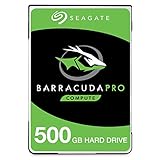
- Store more, compute faster, and do it confidently with the proven reliability of BarraCuda Pro internal hard drives
- Tackle large projects or build a gaming computer with 500GB of capacity
- Jump into PC gaming or edit music, video, and photos effortlessly with 7200 RPM speeds and optimized read/write caching technology
- Confidently rely on internal hard drive technology backed by 20 years of innovation
- Enjoy long-term peace of mind with the included five-year limited warranty and two-year Rescue Data Recovery Services
What “500GB” means
Manufacturers label these drives as 500GB using decimal units. A computer that reports capacity in binary units will show roughly 465.8GiB before partitioning and filesystem overhead. AnandTech reported approximately 465.8 for the operating-system display in its comparison. That difference is a units convention, not missing capacity or evidence of a defective disk.
Why equal RPM and interface ratings did not mean equal performance
At 7,200RPM, one full rotation takes about 8.33 milliseconds; average rotational latency is roughly half that. But latency is only part of disk response time. Head movement, firmware, platter density, track position, queueing, and the shape of a workload also matter. Higher areal density can improve sequential transfer rates, particularly on outer tracks, without making random seeks proportionally faster.
The T166 500GB used three platters of approximately 167GB each, a design detail that helps explain its name and its contemporary positioning. AnandTech’s cited table also lists three platters and six heads for the particular Hitachi and Seagate models it compared. Do not assume those configurations apply to every capacity or revision in a family. Nor should platter or recording technology be inferred from a family label when the exact model and revision have not been verified.
Rank #2

- Capacity: 500GB
- Rotational Speed: 7200 RPM Class
- Get Storage Capacity Up to 6 TB
- Mainstream 2 TB to 4 TB
- Pair a larger capacity drive with an SSD to give your desktop a performance and storage boost.
All else equal, a SATA 3Gb/s link had a theoretical signaling rate well above the sustained transfer rate of these mechanical disks. The interface label did not mean a drive could read or write at 300MB/s. In practice, platter throughput, seeks, firmware, and the workload set the pace. The cited models supported NCQ, but command queuing does not guarantee an improvement for every desktop workload or controller.
How the benchmark results differ
Sequential transfers and file copies
A single large sequential read is not the same task as copying many small files. Results also change depending on whether the source and destination are on one disk or separate disks, whether the transfer mixes reads and writes, and whether caching affects the run. A seven-drive SATA comparison found the WD5000AAKS particularly strong in its file-copy testing, with Samsung also above average. That makes the WD a credible choice for that workload, not a proven winner in every sequential, boot, or application test. PCTuning’s file-copy results are evidence for that test, not a universal ranking.
Seek behavior and applications
In AnandTech’s specification table, the Hitachi T7K500 had an 8.5ms read-seek specification, compared with 8.9ms for the Samsung and 11ms for the Seagate. Those are manufacturer-style seek figures, not independently measured total access times, which also include rotational latency and test-method effects. AnandTech concluded that the T7K500 was the better-performing drive overall against the 7200.10 in its review, but results depended on the test: Seagate could come close to or slightly beat Hitachi in some complete game-loading runs. One cited application result put Seagate about 3.2% behind Hitachi. A small benchmark gap does not necessarily translate into a noticeable difference in ordinary use. AnandTech’s results and conclusion illustrate why an isolated synthetic score should not decide the comparison.
Rank #3

- Upgrade your laptop or desktop computer and feel the difference with super-fast OS boot times and application loads
- Exceptional performance offering up to 535MB/s seq. Read and 500MB/s seq. Write speeds
- Superior performance as compared to traditional hard drives (HDD)
- Ultra-low power consumption
- Backwards compatible with SATA II 3GB/sec
Noise, power, and acoustic management
Noise is not one number unless the drives were measured with the same equipment, enclosure, mounting, and settings. Idle motor noise, random-seek sound, and case-transmitted vibration are different things. A contemporary Hardware.fr comparison described the Seagate 7200.10 and Hitachi E7K500 as noisy when acoustic management was not enabled. That is a review observation, not a universal decibel ranking of every sample. Automatic Acoustic Management can reduce seek noise, but may do so by slowing seeks; a quiet-mode result is not directly comparable with performance measured at different settings.
Recommended Free Tools
AnandTech’s table listed idle/load power of 6.9W/12.5W for the Hitachi, 7.1W/11.3W for the Samsung, and 8.6W/12.6W for the Seagate. These figures are useful for comparing the specific configurations under that publication’s conditions, not as standardized measurements across every review. “Load” depends on the workload, and temperature depends heavily on airflow, mounting, and the case. Lower power alone does not prove a drive will be quieter or cooler in a particular PC.
Period prices and warranties
In the cited 2007 context, AnandTech reported approximate street prices of $109 for Samsung, $119 for Seagate, and $139 for Hitachi. A separate contemporary forum snapshot listed prices that differed, including around $115 for the WD and promotional pricing for Samsung. These are historical snapshots, not current valuations; the exact price varied by retailer, region, and date. AnandTech’s review discusses the period market, while its specification comparison lists the relevant warranty terms.
Rank #4
- Upgrade your laptop or desktop computer and feel the difference with super-fast OS boot times and application loads
- Exceptional performance offering up to 550MB/s seq. Read and 500MB/s seq. Write speeds
- Superior performance as compared to traditional hard drives (HDD)
- Ultra-low power consumption
- Backwards compatible with SATA II 3GB/sec
In that comparison, Seagate had a five-year warranty, versus three years for Samsung and Hitachi. Retail, OEM, regional, and rebadged units could have different terms. The longer original warranty does not establish greater reliability, and it should not be treated as a benefit still available on a drive this old.
Which one was best?
- Broad performance in AnandTech’s test set: Hitachi T7K500. AnandTech judged it stronger overall than the 7200.10, though other workloads—notably the cited file-copy test—favored the WD.
- File-copy results: WD5000AAKS in the cited seven-drive comparison. That result does not prove it is fastest for random I/O or application launches.
- Value and design balance in the original market: Samsung T166. Its three-platter construction and the cited power figures made it an attractive option at its historical price; this is not a current-price recommendation.
- Launch-era warranty: Seagate 7200.10, based on the cited five-year term. Its performance, power, and noise trade-offs still matter.
- Maxtor: no defensible verdict until the full model number and family are known.
- Period-correct restoration: choose the drive that matches the build’s date, interface, and intended configuration—not simply the highest result in a later or unrelated benchmark.
For a current everyday PC, a new SATA SSD is a much more suitable boot and application drive than any of these vintage disks. A current hard drive may make sense for bulk storage, but it still needs a separate backup. The old 500GB models make sense mainly for historically appropriate builds, experimentation, or noncritical use when their condition is known.
What’s actually slowing this PC down?
Pick the symptom - the matching free tool is one click away.
Before installing a used drive
Old mechanical drives can contain pending or unrecoverable sectors, excessive power-on hours, worn bearings, or other faults. A drive can pass a basic SMART health check and still fail during a sustained read or later use. Treat SMART as a warning and diagnostic source—not a guarantee.
Best Value

- The industry's highest-reliability 7200-RPM drive, designed for 24×7 operation with MTBF of 1.4M hours and AFR of 0.62%
- SATA 6Gb/s for fast, economical Tier 2/nearline performance
- Enterprise-class firmware features and best-in-class rotational vibration tolerance maximize system availability and performance.
- Lowest operating power (under 6.4W) and enhanced PowerChoice options for additional power savings during slow or idle periods; Workload Management technology helps systems keep drives cool.
- Best Fit Apps include: storage-hungry business apps, storage area networks (SAN) & network attached storage (NAS), maximum-capacity servers & blade servers, rich media content storage, enterprise backup & restore - D2D, virtual tape, cloud computing
- Record the identity: photograph the label and note the complete model number, serial number, and firmware.
- Read SMART data: use an operating-system-appropriate tool and check reallocated, pending, and uncorrectable sector counts, as well as power-on hours and start/stop counts. A USB adapter that lacks reliable SMART passthrough may hide this information.
- Run a non-destructive full-surface read: back up anything important before testing. A long read can reveal errors that a quick status check misses, but cannot certify future reliability.
- Watch for changes and symptoms: increasing bad-sector indicators, repeated retries, interface errors, or unusual clicking or scraping sounds are reasons to stop relying on the disk. Do not store the only copy of important files on it.
- Check temperatures and vibration: monitor the drive during a long scan, ensure reasonable airflow, and listen for case resonance. Mounting choices that reduce vibration should not compromise cooling.
On Linux, for example, smartmontools commonly provides smartctl -a /dev/sdX to display SMART data and smartctl -t long /dev/sdX to start a long self-test. Replace /dev/sdX only after identifying the correct device, and consult the installed version’s documentation for interpreting results. Avoid destructive write tests unless the data has been backed up and the correct disk is selected.
Compatibility with a retro PC
The 3.5-inch SATA drives in the comparison may negotiate down to an older SATA controller’s supported link speed, but that does not guarantee the whole system can use the drive. Verify whether the motherboard or add-in controller supports 48-bit LBA and capacities above 137GB, and whether its BIOS can boot from the drive at full capacity. Operating-system and driver support matter too, especially on older Windows installations. A SATA connector by itself is no promise of large-drive boot support.
Check whether the exact drive is SATA or PATA; family branding does not make those interfaces interchangeable. Some older power supplies lack SATA power connectors, so an adapter may be needed. Use a well-fitting, reliable adapter rather than a loose or poorly made one that risks intermittent power. A controller card may help with storage support, but does not necessarily overcome a motherboard BIOS boot limit. For strict period accuracy, match the drive interface and approximate date to the rest of the build.
Quick Recap
Product prices and availability are accurate as of the date/time indicated and are subject to change. Any price and availability information displayed on Amazon at the time of purchase will apply.

