Do these 3 things before closing this tab:
1Scan for outdated or missing drivers - takes under a minute2Clear out junk files and repair common Windows errors3Fix the driver behind crashes, sound loss and screen glitchesSome links on this page are affiliate links: if you buy through them we may earn a commission, at no extra cost to you.
Short answer: some Sound BlasterX AE-5 owners may experience detection, audio, effects, or profile problems after a Windows 11 update, but there is no Microsoft-confirmed universal AE-5 failure in the available release-health information. Creative still lists the AE-5 (model SB1740) as compatible with Windows 11, while warning that newer Windows builds can expose problems not found during initial testing. See Creative’s compatibility list and the official AE-5 support page.
The safest approach is to determine whether Windows still detects the card before removing drivers or rolling back an update. An application failure, a missing Windows audio endpoint, and a card missing from PCIe enumeration require different fixes.
First, identify what actually failed
“Command Center” is commonly used by owners, but Creative’s current AE-5 download is called Sound Blaster Command. Older reports may mention Sound Blaster Connect or Sound Blaster Connect 2; do not assume those packages are interchangeable.
- Sound Blaster Command will not launch.
- Command opens but freezes while detecting hardware.
- The AE-5 is visible in Windows but absent from Command.
- Audio works, but equalizer, effects, Scout Mode, profiles, Direct Mode, or lighting controls are missing.
- The card disappears after a restart.
- Headset/speaker switching or 5.1 output no longer works.
- Audio is silent, distorted, crackling, or intermittent.
- The Creative driver fails to install or Windows replaces it with a generic audio driver.
These symptoms can involve different layers: Windows device enumeration, the Creative driver, Creative services, Sound Blaster Command, Windows playback routing, third-party audio enhancements, or the physical PCIe installation.
#1 Best Overall

- SUPPORTS DOLBY DIGITAL AND DTS – Now with support for Dolby Digital Live and DTS Encoding for even more delivery options to your external audio devices! The AE-5 Plus Pure Edition also supports 5.1 discrete and 7.1 virtual surround, as well as Sound Blaster’s Surround Virtualization technology
- RGB YOUR GAMING RIG – The AE-5 Plus Pure Edition stands out with its beautiful white finish, and has customizable RGB LEDs on its body; it also comes with four RGB LED strips for you to go full on decorating your r/battlestations worthy rig. Enjoy a symphony of lights and sound with 16.8 million colors in different patterns to choose from, all via the Sound Blaster Command software for PC
- POWERFUL DISCRETE HEADPHONE AMP – Sound BlasterX AE-5 Plus Pure Edition features Xamp, our custom-designed discrete headphone amp that utilizes bi-amplification technology to power each earcup individually with 1Ω output impedance and drives studio-grade headphones of up to 600Ω, including high-end planar-magnetic headphones
- PRISTINE AUDIO QUALITY – Featuring the SABRE32 ultra-class PCI-e DAC to deliver up to 32-bit / 384 kHz playback with a 122 dB DNR, ultra-low distortion and jitter, the AE-5 Plus Pure Edition is more than capable of hi-res audio for games, music, and movies; put simply, for discerning audio lovers of any kind, the AE-5 Plus Pure Edition is set to blow past your expectations with pristine audio and powerful performance
- INDUSTRY-LEADING AUDIO PROCESSING – The Sound BlasterX AE-5 Plus Pure Edition rides on Sound Blaster’s long legacy of audio processing and enhancements, available through the Sound Blaster Command software and featuring fully customizable audio processing technologies to deliver clearer vocals, accurate cues, and bass boost
Do not assume “the latest update” is the cause
Record the exact update before troubleshooting. Press Win + R, enter winver, and note the Windows version and build. Then open:
Settings > Windows Update > Update history > Quality updates
Also note the Windows edition, KB number, installation date, Sound Blaster Command version, and when the failure began. Microsoft’s release information identifies Windows 11 25H2 as the latest Windows 11 version in the cited material and lists KB5101650 as the July 14, 2026 security update for Windows 11 24H2 and 25H2. Microsoft also lists KB5121767, released July 18, 2026, for a separate Intel driver and USB-C Connection Manager issue. The available Microsoft pages do not establish an AE-5-specific defect.
Free tools Windows power users keep installed
One-click scans. No signup required.
Check Microsoft’s Windows 11 release information and Windows 11 25H2 known-issues page rather than relying on the phrase “latest update.” Community reports can indicate a pattern, but reports involving different Sound Blaster models or Windows builds do not prove that a particular update caused the AE-5 problem.
Step 1: Check whether Windows detects the AE-5
Press Win + X and open Device Manager. Expand Sound, video and game controllers. Look for the Creative/Sound Blaster AE-5 device, then select View > Show hidden devices.
- AE-5 appears normally: the card is being enumerated, so investigate Command, Creative services, driver binding, and Windows audio routing first.
- A yellow warning icon appears: open Properties and record the device error code and driver details.
- The AE-5 is missing: investigate PCIe seating, the slot, BIOS settings, chipset issues, driver enumeration, and possible hardware failure before repeatedly reinstalling Command.
- Only “High Definition Audio Device” appears: Windows may be using a generic driver or the Creative driver may not be installed correctly.
A card missing from Windows Sound settings is not automatically a dead card. Device Manager and PCIe enumeration are more useful first checks.
Rank #2

- REFERENCE-GRADE HI-RES AUDIO – Powered by the ESS ES9039Q2M DAC with up to 130 dB SNR, supporting 32-bit / 384 kHz playback for exceptional clarity and detail, far beyond typical onboard audio
- POWER FOR DEMANDING HEADPHONES – Built-in high-performance headphone amplifier delivers up to 350mW @ 32Ω. Easily drives studio-grade headphones
- LOW-LATENCY PERFORMANCE – Supports DSD256 and ASIO 2.3 for high-resolution playback and low-latency audio, ideal for music, gaming, and PC audio workflows.
- PRECISION SOUND PERSONALISATION – 10-band parametric EQ + AutoEq in Creative Nexus add meaningful personalization and offers advanced audio tuning and control
- FLEXIBLE CONNECTIVITY – Coaxial output and optical input for seamless integration with desktop audio setups.
Step 2: Check Windows’ playback route
If Device Manager sees the card, open Settings > System > Sound and confirm that the intended AE-5 playback device is selected. Then choose More sound settings, or press Win + R, enter mmsys.cpl, and inspect the Playback tab.
Enable the AE-5 output and set it as the default device when appropriate. Also inspect:
Settings > System > Sound > Volume mixer
Windows updates can change the default endpoint or per-application output assignment. If basic audio works but Command features do not, the problem is more likely in the Creative software or driver layer than in the speakers or headset.
Step 3: Restart before changing services
Close Sound Blaster Command and restart Windows. If the card is visible in Device Manager, reopen Command after signing in.
You can inspect services with Win + R > services.msc, but do not start or stop a service merely because its name appears related to Creative. Names and behavior can differ between package versions. First record any Creative-related service names and statuses, then use the official reinstall procedure if the application still cannot detect the card.
Step 4: Reinstall the official Creative package
Use the Creative AE-5 support page, not a third-party driver archive. The indexed Windows package is named AECMDMasterInstaller_3.4.92.00.exe. That filename should not be treated as proof that it is the newest driver for every system.
Rank #3
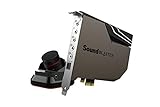
- PRISTINE AUDIO OUTPUT | Supreme audio fidelity with 127 dB DNR hi-res 32-bit / 384 kHz playback via ESS SABRE-class 9018 DAC and DSD64 playback support that satisfies even the most demanding needs of audiophiles for incredibly clean audio
- MASSIVELY POWERFUL HEADPHONE AUDIO | Custom Xamp discrete headphone bi-amp powers each earcup separately with 1Ω output impedance and drives studio-grade headphones of up to 600Ω, including high-end planar-magnetic headphones. And with the Audio Control Module, gain quick access to the Volume Control Knob, as well as the ¼” and ⅛” mic and headphones I/O connectors – all within your fingertips
- THEATRICAL-GRADE DISCREET AND VIRTUAL SURROUND | Supports discrete 5.1 on speakers with Dolby Digital Live / DTS Connect Encoding, and up to 7.1 virtual surround on headphones and speakers. To top it off, we have also integrated Sound Blaster’s Surround Virtualization technology onto AE-7 so that you can conveniently enjoy surround sound on most form of media
- TRUE HARDWARE ACCELERATED AUDIO | Dedicated quad-core processor designed to deliver incredibly pristine and enhanced sound on your PC without overstressing your CPU. Sound Blaster manages audio processing on the card itself, freeing your CPU to handle other tasks
- NEW AND IMPROVED SOFTWARE CUSTOMIZATION SUITE | Sound Blaster Command software interface provides hardware processed sound enhancements and complete control of audio output via the Sound Blaster Acoustic Engine for a full, customized audio experience that delivers clearer vocals, accurate cues, and bass boost
- Create a restore point.
- Record or export important profiles if Command still opens.
- Uninstall Sound Blaster Command from Settings > Apps > Installed apps.
- Restart Windows.
- Inspect the AE-5 in Device Manager.
- If you uninstall the device, use the option to remove its driver only when you understand that Windows may lose the Creative driver until the official package is reinstalled.
- Restart again.
- Install the official Creative package, preferably by right-clicking the installer and choosing Run as administrator.
- Restart once more, then check Device Manager, Sound settings, and Sound Blaster Command.
Do not repeatedly install over a corrupted package, delete random driver files, or use an installer intended for a different Sound Blaster model. The AE-5 and AE-5 Plus are related but distinct products.
Step 5: Temporarily remove competing audio layers
For diagnosis, temporarily disable or uninstall audio utilities that can add effects, virtual devices, or their own control layers:
- Nahimic
- ASUS Sonic Studio and related motherboard utilities
- DTS or Dolby control applications
- Motherboard vendor audio suites
- Virtual audio cables and mixers
- Game-overlay audio tools
This does not prove that any particular vendor is responsible. It simply removes common variables. Do not permanently disable antivirus or endpoint protection; if an installer is blocked, check its event log or security prompt and restore normal protection after testing.
Step 6: Test the PCIe installation if the card is missing
If the AE-5 does not appear in Device Manager:
- Shut down completely.
- Turn off the power supply and disconnect AC power.
- Reseat the AE-5 in its PCIe slot.
- Try another compatible PCIe slot if the motherboard supports one.
- Check that any auxiliary power connection required by the particular installation is secure.
- Temporarily disable onboard audio in BIOS only as a diagnostic test.
- Check motherboard BIOS and chipset-driver information separately.
A different slot can help with resource allocation or a slot-specific problem, but it is not a guaranteed software fix. If the card remains absent across compatible slots or another computer, hardware support becomes more relevant.
Independent reader supportYour contribution helps us test, update, and keep practical guides available for everyone.Step 7: Roll back Windows only as a controlled test
If the failure began immediately after a clearly identified update and the preceding steps did not help, open:
Settings > Windows Update > Update history > Uninstall updates
Rank #4

- HIGH-RESOLUTION AUDIO - Delivers ultra-clear playback with 32-bit / 384 kHz and up to 120 dB SNR
- SURROUND SOUND - Supports discrete 7.1-channel analog output for immersive multi-channel audio on your PC
- VERSATILE CONNECTIVITY - Connects effortlessly to multi-channel PC speaker systems, SPDIF output and headset outputs, mic-in, as well as line-in sources
- ALL-NEW CREATIVE NEXUS APP - AutoEq customization that allows users to simulate the frequency response of various headphones for a tailored listening experience
- COMPACT LOW-PROFILE DESIGN - The card is 10.5 cm in length and comes with a half-height bracket to ensure compatibility with smaller cases and different build needs
Availability depends on the update type, system state, and time since installation. Removing a security update reduces protection, and Windows may reinstall it. If rollback restores the AE-5, that establishes a strong timing correlation—not definitive proof that Microsoft caused the problem.
What’s actually slowing this PC down?
Pick the symptom - the matching free tool is one click away.
Use rollback as a temporary diagnostic or emergency workaround, then reinstall the update after Creative or Microsoft provides a compatible fix. System Restore may be a more targeted test if the driver and Command worked immediately before the update. Back up important data and avoid a destructive reset unless the problem affects the wider system.
Symptom-to-action guide
| Symptom | Priority investigation |
|---|---|
| Card visible in Device Manager but missing from Command | Correct Creative package, broken installation, Creative service, or competing audio software |
| Card missing from Device Manager | PCIe seating, another slot, BIOS, chipset, driver enumeration, or hardware |
| Audio works but effects are gone | Command or driver layer; basic Windows playback is still functioning |
| Sound disappears after every reboot | Service startup, power management, device enumeration, or driver conflict |
| 5.1 output disappears | Playback endpoint, speaker configuration, driver, or Windows channel settings |
| Command freezes while scanning | Software/driver mismatch, damaged installation, or third-party audio hook |
| Generic Windows audio device replaces Creative | Driver binding or failed Creative installation |
| Several audio devices fail | Broader Windows, chipset, motherboard audio, or update problem |
| Rollback restores operation | Strong correlation with the update; continue monitoring and seek a supported fix |
What not to do
- Do not install a cross-model Sound Blaster package because its interface looks similar.
- Do not trust unofficial driver archives or forum-uploaded installers without Creative confirmation.
- Do not assume a generic Microsoft driver restores equalizer, Direct Mode, Scout Mode, profiles, CrystalVoice, lighting, or headset/speaker switching.
- Do not replace the card before checking Device Manager, driver binding, and the PCIe installation.
- Do not permanently disable security software to force an installer through.
- Do not treat an old Reddit workaround as proof that it applies to the current Windows build.
When to contact Creative or Microsoft
Contact Creative when the issue is specific to Sound Blaster Command, the AE-5 driver, device detection, effects, profiles, or lighting. Creative’s software troubleshooting guidance recommends confirming hardware detection, reinstalling current software, trying another PCIe slot where appropriate, and providing diagnostic information.
Contact Microsoft when Windows Update itself fails, rollback is unavailable or broken, multiple unrelated audio devices fail, or the problem affects the broader Windows audio stack.
Prepare this information:
- AE-5 or AE-5 Plus model
- Windows edition, version, and OS build
- Update KB number and installation date
- Sound Blaster Command and driver versions
- Device Manager error code
- Whether Windows detects the card
- Whether onboard audio works
- Exact error text and reproduction steps
- Relevant Event Viewer entries and screenshots
Bottom line
The evidence supports describing this as a reported post-update compatibility or installation failure affecting some AE-5 systems, not a Microsoft-confirmed universal Windows 11 bug. Verify the KB and build, use Device Manager as the main decision point, reinstall only from Creative’s official AE-5 page, and investigate PCIe hardware if Windows cannot enumerate the card. Repair and verification should come before buying a replacement sound card.
The Tool Desk
Outbyte Driver Updater FREEScan for outdated or missing drivers - takes under a minuteDriver Scan →Outbyte PC Repair FREEClear out junk files and repair common Windows errorsFree Scan →Quick Recap
Product prices and availability are accurate as of the date/time indicated and are subject to change. Any price and availability information displayed on Amazon at the time of purchase will apply.

