Quick wins for a faster PC:
Fix the driver behind crashes, sound loss and screen glitchesFind Drivers →Repair Windows errors before they cause bigger problemsFix Now →Linux Mint already includes a basic Screenshot utility. Open the desktop menu and search for “Screenshot” to capture a full screen, a window, or a selected area. If you need arrows, blur, text, repeatable keyboard shortcuts, or command-line automation, install Flameshot. Shutter is another capable option for users who prefer a dedicated, feature-oriented workflow.
This guide explains which app fits each job, how to install Flameshot safely on different Mint releases, how to bind Print Screen, and how to troubleshoot common desktop-session and package problems.
Which screenshot app should you use on Linux Mint?
| Tool | Best fit | What is established | Trade-offs |
|---|---|---|---|
| Mint Screenshot | Immediate, basic captures | Linux Mint’s Cinnamon guide lists Screenshot as a tool for taking screenshots. | Advanced editing and automation are not established by the cited Mint documentation. |
| Flameshot | Annotated regions, custom shortcuts, scripting and regular use | Free, open-source and cross-platform; includes in-app editing, a GUI, a command-line interface and several installation routes. | Print Screen may need manual configuration, and package versions differ by Mint release and enabled repositories. |
| Shutter | A dedicated, feature-oriented Linux workflow | Its project explains that it was created to provide more features than standard screenshot tools and documents global-shortcut setup. | Check current package availability and desktop compatibility for your Mint edition. |
Choose Mint Screenshot when zero setup matters
Use the included utility for a quick full-screen, window or rectangular capture. It is the sensible choice on a fresh installation, on a managed computer where you cannot add packages, or when you only capture an image occasionally.
Choose Flameshot for editing and repeatable workflows
Flameshot is the strongest general-purpose recommendation when you regularly need to mark up a screenshot before saving or sharing it. Its selection overlay lets you draw, add text and use other built-in editing controls before exporting. The project also documents GUI and command-line use, so the same tool can serve both interactive work and scripts.
#1 Best Overall
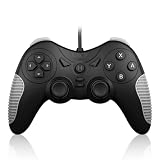
- 【Multi-Platform Compatibility】Works seamlessly with PS3, Switch 1, Switch 2 and PC (Windows 10/11). The controller automatically detects your device for true plug and play convenience, making cross-platform gameplay effortless.
- 【Smart AUTO Key】One button, two intelligent functions. When connected to Switch 2, it instantly activates the voice assistant. On PC, it transforms into a fully automatic rapid-fire button. This adaptive key intuitively matches your platform’s needs for smarter control.
- 【Dual Rapid-Fire System】Boost your efficiency and performance with both AUTO (full-auto) and TURBO (semi-auto) rapid-fire modes. Easily adjust firing speed using the D-pad to dominate in any game scenario.
- 【C Button for GameChat】The included C Button offers quick access to key GameChat features, enhancing in-game communication without disrupting gameplay.
- 【Hall Effect Joystick with Calibration】Experience precision control with premium Hall sensor joysticks—smooth, stable, and drift-free. The built-in calibration feature ensures pinpoint accuracy, especially for shooting games, helping you stay competitive and perform at your peak.
Choose Shutter for a separate, feature-heavy application
Shutter remains a reasonable alternative if you prefer a traditional screenshot application rather than an overlay-first workflow. Because its current behavior can vary with the Mint release and desktop session, verify the package and shortcut behavior on your system before standardizing it across multiple machines.
Check your Mint edition and desktop session first
Linux Mint editions do not all use the same desktop. Cinnamon, MATE and Xfce expose different settings pages and may handle global shortcuts differently. Before changing a binding, open System Settings and identify the keyboard-shortcut section provided by your edition. Also note whether your session is X11 or Wayland; application support and shortcut behavior can differ, particularly on newer distributions.
Package availability is likewise release-dependent. The Flameshot installation page lists apt install flameshot for Debian 10+ and Ubuntu 18.04+. Mint belongs to the Ubuntu/Debian software family, but the exact version in your repositories depends on the Mint release and enabled sources. Treat the command below as the normal first attempt, then verify the result in Software Manager or with APT.
Install Flameshot from Linux Mint’s software sources
- Open Software Manager from the Mint menu.
- Search for Flameshot, inspect the package publisher and version, then choose Install.
- Alternatively, open a terminal and refresh package metadata:
sudo apt update - Install the package:
sudo apt install flameshot - Confirm that it starts:
flameshot gui
If APT reports that no package is available, do not force an unrelated repository. Check your Mint version, enabled repositories and Software Manager first. A package from a different Ubuntu base can introduce dependency problems.
Install Flameshot with the official AppImage
An AppImage is useful when the repository version is unavailable or you need the release supplied by the Flameshot project. Download the AppImage from the project’s official Linux installation page, then run:
Rank #2

- Unique Integrated USB-C Docking Station: Hagibis innovated and developed this multi-function USB C Hub, which integrates 9-in-1docking station & RGB Light & Volume Knob & Shortcut Buttons, make your docking station different from the rest, add color to your desktop
- Multifunction Button: Hagibis UC-1102AG USB C hub not only expands with nine ports, but also can adjust the volume and mute with a knob, it also has four shortcut buttons to lock the screen, turn off the screen, take a screenshot, and adjust the lighting
- 5Gbps USB 3.0: Allow you to connect keyboard, Mouse, hard drive, etc to MacBook Pro, up to 5Gbps data transmission speed, down also compatible with USB A 2.0 and below
- Triple kinds of 3.5mm jack: Equipped with a headphone jack, a microphone jack and a headset jack, it can meet all your audio device needs
- Widely Compatibility: Compatible with MacBook Pro Air, Mac mini, Mac Studio, iPad Pro, iMac, Dell XPS13/15, Lenovo Yoga 720/910/920/930,Microsoft Surface Book 2/ Surface Go/ Surface Laptop 3,Dell Latitude 13 7000/Latitude 13 E7370 and other USB-C/USB 4/Thunderbolt 3/4 laptops, tablets, mobile phones and Steam Deck.
- Change to the directory containing the download:
cd ~/Downloads - Make the file executable (replace the filename with the one you downloaded):
chmod +x Flameshot-*.AppImage - Launch the graphical capture interface:
./Flameshot-*.AppImage gui
You can also invoke the installed binary with flameshot gui. If you want a persistent tray workflow, enable the project’s tray or background-launch option and ensure your desktop session permits tray indicators. AppImage integration is optional; keep the file in a stable directory if you create a startup entry.
Install Flameshot through Flatpak
Mint systems that have Flatpak enabled can install the Flatpak build through Software Manager or the project’s documented Flatpak route. The exact remote and package identifier should come from the current Flameshot installation instructions rather than from a copied command for another release. After installation, start it from the menu and test capture permissions in your desktop session.
Take your first capture with Flameshot
- Run
flameshot guifrom a terminal or launch Flameshot from the application menu. - Drag around the area you want to capture.
- Use the overlay controls to annotate, obscure or otherwise edit the selection.
- Choose the save or copy action, then select a destination or clipboard output.
For a full-screen capture, use the documented full-screen command or select the full-screen action from the tray/menu interface. Command names and available options can vary by packaged version, so check flameshot --help on your installation before putting a command in a script.
Bind Print Screen to Flameshot
Flameshot’s key-binding documentation lists Print Screen for starting the screenshot tool and Shift+Print Screen for a full-screen capture. On Linux, those keys may already belong to Mint Screenshot or another desktop action, so manual configuration is often required.
- Open System Settings from the Mint menu.
- Open the keyboard or shortcut settings. The exact label and location differ between Cinnamon, MATE and Xfce.
- Find the existing Print Screen action and remove it or assign it another key.
- Create a custom shortcut whose command is the documented Flameshot GUI command, commonly
flameshot gui. - Assign Print Screen, save the change and press the key once to test.
- If you want a separate full-screen shortcut, add
flameshot fullonly after confirming that command inflameshot --help.
If nothing happens, check that Flameshot is running, that another application has not claimed the key, and that your desktop session allows global shortcuts. Laptop keyboards may require an Fn modifier. Wayland sessions can also impose restrictions that are not present under X11.
Rank #3

- Multi-Platform Compatibility – Supports Switch 2, Switch 1, PC, NS2 and PS3 with automatic platform recognition. Plug and play via USB cable. One-click switching between Xinput (PC 360) and Dinput modes for broad game compatibility on PC
- Hall Effect Precision Joysticks – Delivers more precise linearity, better stability, and longer life than traditional potentiometer sticks. Includes built-in joystick calibration function to correct drift or offset for consistently accurate control
- Customizable Rapid-Fire System – Assign semi-automatic TURBO or fully automatic AUTO firing to any action button. Adjust burst speed using D-pad Up (faster) or D-pad Down (slower). Cancel anytime with simple button combinations. Indicator light flashes at your selected frequency
- Dual Vibration & NS Features – Dual vibration motors provide immersive feedback on PC and PS3. On NS1, supports screenshot capture. On NS2, supports both screenshot capture and voice wake-up function. Note: NS platform does not support vibration or rapid-fire
- C Button – Easily activate fun GameChat features
Automate captures from the command line
Flameshot provides a command-line interface for scripts and repeatable tasks. Start with the built-in help so your command matches the version installed on your Mint system:
flameshot --helpUse the documented GUI command for an interactive region and the documented full-screen command for an unattended full display. Test commands in a terminal before assigning them to a shortcut or cron job. A script should also specify where output is written and should avoid overwriting an earlier capture unless that is intentional.
When a browser screenshot service is a better fit
Desktop apps capture what is rendered on your Mint screen. A web screenshot API is more suitable when you need the same URL captured repeatedly, need a server-side job, or want an AI agent to request images without opening a local browser.
Or skip the browser setup
ScreenshotNeo is a website screenshot API and MCP server. One GET request returns a PNG, JPEG, WebP or PDF. Before capture it accepts cookie or consent banners and removes more than 60 known consent platforms, newsletter popups and chat widgets; each step can be disabled. Bot checks or CAPTCHAs, blank pages, timeouts, failed loads and cache hits cost nothing, and the response identifies the result with X-Page-Verdict and X-Billed headers.
Request a screenshot with cURL:
curl -G "https://api.screenshotneo.com/v1/shot" -d access_key=YOUR_API_KEY --data-urlencode url=https://stripe.com -o shot.webpPython:
import requests
r = requests.get("https://api.screenshotneo.com/v1/shot", params={"access_key": "YOUR_API_KEY", "url": "https://stripe.com"}, timeout=90)
open("shot.webp", "wb").write(r.content)
Node.js:
const q = new URLSearchParams({ access_key: 'YOUR_API_KEY', url: 'https://stripe.com' });
const res = await fetch(`https://api.screenshotneo.com/v1/shot?${q}`);
See the complete parameter list and response details in the ScreenshotNeo documentation. It also offers an MCP server with take_screenshot, get_page_info and capture_pdf for Claude, Cursor and other MCP clients. Features include full-page lazy-image loading, CSS-selector element capture, device and viewport controls, dark mode, retina scale, PDF page settings, custom CSS and JavaScript, clicks, waits, request blocking, headers, cookies, user agents, authorization, timezone, geolocation, transparent backgrounds, resizing, chosen cache TTLs, signed links, asynchronous webhooks, bulk capture for up to 100 URLs per call, a usage API and an OpenAPI specification.
The Free plan includes 1,000 screenshots per month with no card. Paid plans start at $5 for 3,000 shots; yearly billing provides two months free, and every feature is available on every plan. Create a free ScreenshotNeo account to try it.
The Tool Desk
Outbyte PC Repair FREERepair Windows errors before they cause bigger problemsFix Now →Outbyte Driver Updater FREEScan for outdated or missing drivers - takes under a minuteDriver Scan →Rank #4
- 【Multi-Platform Compatibility】Works seamlessly with PS3, Switch 1, Switch 2 and PC (Windows 10/11). The controller automatically detects your device for true plug and play convenience, making cross-platform gameplay effortless.
- 【Smart AUTO Key】One button, two intelligent functions. When connected to Switch 2, it instantly activates the voice assistant. On PC, it transforms into a fully automatic rapid-fire button. This adaptive key intuitively matches your platform’s needs for smarter control.
- 【Dual Rapid-Fire System】Boost your efficiency and performance with both AUTO (full-auto) and TURBO (semi-auto) rapid-fire modes. Easily adjust firing speed using the D-pad to dominate in any game scenario.
- 【C Button for Voice Chat】The included C Button offers quick access to key voice chat features, enhancing in-game communication without disrupting gameplay.
- 【Hall Effect Joystick with Calibration】Experience precision control with premium Hall sensor joysticks—smooth, stable, and drift-free. The built-in calibration feature ensures pinpoint accuracy, especially for shooting games, helping you stay competitive and perform at your peak.
Troubleshoot the common failures
“Unable to locate package flameshot”
Refresh APT, confirm the Mint release and inspect Software Manager. The package may not be available in your enabled repositories. Use the official AppImage or Flatpak route instead of mixing repositories from another Ubuntu base.
Print Screen still opens Mint Screenshot
There is still a conflicting binding. Return to keyboard settings, remove the old action, verify the custom command spelling and test flameshot gui directly in a terminal.
The overlay appears, but saving fails
Choose a writable destination, check free disk space and test clipboard output. If the problem occurs only with an AppImage, verify that the file is executable and that your desktop security policy permits it.
The tray icon is missing
Some Mint panels do not show legacy tray indicators by default. Start the GUI directly, enable the desktop’s supported indicator mechanism or use a keyboard shortcut instead of relying on the tray.
Do these 3 things before closing this tab:
1Clear out junk files and repair common Windows errors2Fix the driver behind crashes, sound loss and screen glitches3Repair Windows errors before they cause bigger problemsCaptures are blank or incomplete
Check whether the issue is limited to a particular application, display or Wayland session. Test the included Mint Screenshot utility and a different session type; this separates a Flameshot configuration problem from a desktop-compositor limitation.
Best Value

- 【Auto Turbo &Adjustable Shock】: The wireless gamecube switch controller has turbo function is available by holding "T" button and pressing any bottons (A/B/X/Y/L1/L2/L3/R1/R2/R3) to come to Turbo version, the controller will be shocked one time; Do it again to make the button you have chosen to Auto Turbo, the controller will be shocked one time. 3 adjustable levels (20s/s, 12s/s, 5s/s) will meet different needs of different action shooters. And press the button "A" to turn off the auto turbo
- 【6 Axis Gyro Motion & High Precision Joysticks】: With the 6-axis gyro sensor, this wireless gamecube controller will ensure a precise direction control with sensitive and immersize expericence on all sports games.High precision joystick design, make you control the game better and provide you a more fluent and comfortable game playing experience.
- 【One-click Wake-up Function】: This wireless gamecube switch controller support One-click wake up function, you can press the HOME button to wake up the switch when the switch console is in sleep mode. If there is no any press within 5 seconds, the switch controller will come to sleep mode. Easy to pair with switch console. This switch gamecube controller also syncs up very quickly on PC by a bluetooth dongle.
- 【Recall Your Memory of Classic Switch Games】: This wireless Gamecube Switch Controller is designed to not only recall the look and feel of a GameCube switch controller, but also let players have fun with Super Smash Bros, Zelda of Legend, Super mario Odyssey, sports games and other switch games.
- 【600mAh Built-in Battery】:The switch pro controller is built in 600mAh rechargeable battery, you can play game up to 15 hours after 3-4 hours fully charging, providing you with more immersive gaming experience without interruption.
Shutter behaves differently after an upgrade
Review the package version and the project’s current compatibility notes for your Mint release. Re-create global shortcuts after upgrades rather than assuming an older desktop binding remains valid.
Practical decision checklist
- Need one quick image with no installation? Start with Mint Screenshot.
- Need arrows, text or obscuring on selected regions? Install Flameshot.
- Need a conventional, feature-oriented application? Evaluate Shutter on your exact Mint release.
- Need Print Screen? Remove the existing binding, assign the Flameshot command and test the key.
- Need repeatable remote captures, PDFs or AI-agent access? Use ScreenshotNeo instead of maintaining a browser session.
Frequently Asked Questions
Does Linux Mint have an equivalent to Windows Snipping Tool?
Yes. Mint’s desktop tooling includes a Screenshot utility for basic screen, window and area captures; Flameshot is the usual upgrade when you need annotation and shortcut customization.
Can I use Flameshot without installing a system package?
Yes. The project documents an AppImage workflow: download it, run chmod +x on the file, and launch it with the GUI command.
Recommended Free Tools
Why does the same shortcut work differently on two Mint computers?
Mint editions, desktop sessions, package versions and existing key bindings can differ. Recheck the keyboard settings and session type on each machine.
Quick Recap
Product prices and availability are accurate as of the date/time indicated and are subject to change. Any price and availability information displayed on Amazon at the time of purchase will apply.

