Free tools Windows power users keep installed
One-click scans. No signup required.
Some links on this page are affiliate links: if you buy through them we may earn a commission, at no extra cost to you.
Short answer: Ubuntu may detect the Ricoh Aficio SP C240DN without being able to print to it. Ricoh’s current download page lists Windows and macOS packages, including a DDST driver, but no Linux/Ubuntu driver for this model. If the printer works with Ricoh’s official driver on another computer, the likely obstacle is the missing compatible renderer—not basic USB or network discovery. Confirm your exact model/type and connection before deciding whether to keep troubleshooting or use a print host.
First, identify which kind of failure you have
“Not working” can mean several different things. A printer that does not appear in Ubuntu is a transport or discovery problem. A queue that is paused or stuck may be a CUPS configuration problem. A job that reaches the printer but produces nothing—or prints symbols—often points to an incompatible driver or data stream. If the printer cannot print its own configuration page or fails from a computer using Ricoh’s official driver, investigate the printer itself first.
Before changing anything, check the label for the complete model name, regional version, and any “Type” number. If possible, print the printer’s internal configuration page and note its firmware and network settings. Do not assume that an SP C220, SP C231, SP C250, or another Ricoh model uses the same driver or print language.
Do these 3 things before closing this tab:
1Repair Windows errors before they cause bigger problems2Scan for outdated or missing drivers - takes under a minute3Clear out junk files and repair common Windows errorsA 10-minute check: CUPS and the connection
Open Terminal and run:
lsb_release -a
uname -a
dpkg -l | grep -E 'cups|foomatic|gutenprint|printer-driver'
systemctl status cups --no-pager
lpstat -t
CUPS should be active. lpstat -t reports the scheduler, configured queues, device URIs, and queue states. If CUPS is missing or stopped, the basic print service may need attention. On Ubuntu 18.04.3, you can try:
#1 Best Overall
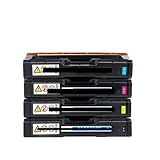
- Compatible with Ricoh Aficio SP C220S, C222DN, C220N, C221SF, SP C240DN, SP C240SF, SPC220, SPC240DN, C240 models
- Black/Color toner cartridge with chip
- Used for printer printing
- Package includes: 1 x Toner Cartridge
sudo apt update
sudo apt install cups cups-client system-config-printer
sudo systemctl enable --now cups
Ubuntu 18.04.3 is an old release, and repository or signing-key behavior may differ from what it was in 2019. If package installation fails, do not paste in unverified archive or repository commands; check your configured Ubuntu sources and consider an upgrade path.
You can inspect queues and add a test queue in CUPS at http://localhost:631. Go to Administration, choose Add Printer, and select the detected USB device or enter the network URI. Use a clear name such as ricoh-c240dn-test. If there is no exact SP C240DN driver, do not quietly substitute a nearby model. Try only a small test document, then inspect the job and logs.
USB connection
lsusb
dmesg | tail -n 50
lpinfo -v
lsusb can confirm that the computer sees a USB device, while lpinfo -v may show a USB printer URI. Those results establish that Ubuntu can see the connection; they do not establish that it can render a document in a language the printer understands.
Rank #2

- 【Package Contents】: 4-Pack SP C250 Toner Cartridge Replacement for Ricoh 407539 407540 407541 407542 (Black Cyan Magenta Yellow)
- 【Compatible Printers】: Compatible for Ricoh C250 Toner Cartridges to use with RICOH Aficio SP C250DN C250SF C261SFNw C261DNw Printer
- 【High Page Yield】: Up to 2,300 Pages per SP C250 toner cartridge (Letter/A4, at 5% coverage), ideal for users with high-volume printing needs and reducing frequent replacement
- 【Ultra-Fine Toner Powder】: Thanks to the refined toner particles, our SP C250dn Toner Cartridge delivers smooth, sharp and professional-quality prints every time. No streaks, no fading, no leaking, no smudging. High quality guaranteed.
- 【Sturdy Packaging】: Rigorously tested, the SP C250 toner cartridge packaging is sturdy and durable, offering shock and pressure resistance to ensure safe transportation, reduce the risk of damage, and extend the product's lifespan.
Network connection
Find the printer’s IP address on its configuration page or network menu, then test reachability:
ping -c 4 PRINTER_IP
nc -vz PRINTER_IP 9100
ip route
Replace PRINTER_IP with the actual address. If the printer supports AppSocket on port 9100, a CUPS device URI may look like socket://PRINTER_IP:9100. A successful connection to port 9100 proves only that a service accepted the connection; it does not prove that the printer can interpret the selected driver’s output. CUPS also supports IPP and LPD, but use the protocol and, for LPD, queue name supported by the printer rather than switching protocols at random. See CUPS network printer documentation.
Why detection is not the same as printing
CUPS manages queues and device connections, and uses a printer description and processing path to turn application documents into printer-ready data. In plain English, discovery answers, “Can Ubuntu see a device that looks like a printer?” A working driver answers, “Can Ubuntu convert this PDF or other document into the exact data stream this printer accepts?” The first does not guarantee the second. CUPS describes queue and driver components in its administration documentation.
Rank #3

- 1.✿【 Compatible with printer models 】Compatible with RICOH Aficio SP C250DN C250SF C260DNW C260SFNW C261SFN C261SFNw C261DNw Printers.
- 2.✿【 ISO quality Factory 】Our toner cartridges are manufactured with new components and are manufactured in ISO-9001, ISO-14001 quality certified factory. We specialize in the production of compatible toner cartridges with 20 years of technical experiences.
- 3. ✿【Serious inspection】 We have the most testing machines, every toner cartridge is seriously tested.
- 4. ✿【quality material】 We use high quality toner from Japan, the toner is pure, fresh and naturally odorless. We've developed Smart Chips to deliver the exact amount of toner on each page, reduce waste, and maximize print volume production.
- 5. ✿【The best printing effect】 I offer the best printing effect for the users like the original toner cartridges. The image resolution is clear, and have strong layers. The copies look nice. The color uniform, clear and comfortable.
Ricoh’s SP C240DN download page currently offers Windows and macOS driver packages, including a DDST driver, but does not list an Ubuntu or Linux package. That is evidence that Ricoh does not currently provide a Linux driver on this model page; it does not prove that no third-party workaround has ever existed.
The exact print language and capabilities should be checked against your particular model/type. A community technical report about the SP C240DN says its tested printer did not accept ordinary PCL, PostScript, or HPGL data and instead needed a DDST-style host-rendered format. That is useful evidence, not an official specification for every regional variant. Ricoh’s page identifies a DDST driver, but the sources here do not establish a complete official technical description of the format or a Linux implementation.
OpenPrinting’s Ricoh PostScript driver information does not list the SP C240DN among its supported Ricoh PostScript models. A generic PostScript queue is useful only if the printer accepts PostScript; a PPD cannot add that capability. OpenPrinting’s driver guidance also explains why a raw queue is not a general workaround: ordinary applications send documents, not necessarily printer-ready data.
Rank #4

- Product Name: CLYWENSS Compatible SP C250A C250DN C260SFNW Toner Cartridge Set Replacement for Ricoh 407539 407540 407541 407542
- Printer Compatibility: Ricoh Aficio SP C250DN C260DNW C250SF C260SFNW C261SFN C261SFNw C261DNw C250 C260 C261 Series Laser Printer
- High Page Yield: Up to 2,300 pages for ricoh sp c250a c261sfnw black toner and per c250dn color toner cartridges (Based 5% coverage at A4 letter)
- Package Content: 4-Pack of ricoh sp c250dn c261sfnw c250 c260 c261 sfnw toner cartridges
- Premium Printout: These sp c250a 4 color toner cartridges bundle delivers reliable compatibility, sharp text, vibrant images and crisp prints
Check CUPS logs before changing drivers
For a short diagnostic session, back up CUPS configuration and enable debug logging:
sudo cp /etc/cups/cupsd.conf /etc/cups/cupsd.conf.backupEdit /etc/cups/cupsd.conf and temporarily set:
LogLevel debugRestart CUPS, reproduce the problem, and inspect the log and pending jobs:
Quick wins for a faster PC:
Repair Windows errors before they cause bigger problemsFix Now →Fix the driver behind crashes, sound loss and screen glitchesFind Drivers →Clear out junk files and repair common Windows errorsFree Scan →sudo systemctl restart cups
sudo tail -n 100 /var/log/cups/error_log
lpstat -W not-completedLook for messages such as Unable to execute print filter, Filter failed, backend failed, Unable to open device, Connection refused, or No such file or directory. Filter errors point toward a missing or failing rendering component; device-open and connection errors suggest transport, permissions, or endpoint issues. When finished, change the setting back to a less verbose level such as LogLevel warn and restart CUPS again. OpenPrinting’s Ricoh FAQ also identifies the CUPS error log as a useful troubleshooting source.
Best Value

- Product Name: ToBeter Aficio SP C220A Toner Cartridge Replacement For Ricoh C220 C221 C222 C240 Series Printer Toner Cartridge (4 Pack,High Yield 2,000 Pages)
- Compatible SP C220A Toner for Ricoh Savin Lanier Aficio SP C220 C220A C220Dn C220N C220S C221 C221N C221Sf C222 C222Dn C222Sf C240 C240Dn C240Sf Printer Toner
- Page Yield: Up To 2,000 Pages per SP C220A Black Toner; 2,000 Pages per SP C220A Cyan Magenta Yellow Toner Cartridge (At 5% Coverage/A4)
- Package Contents: 4 Pack SP C220A Toner: 406046 (406159) Black, 406047 (406096) Cyan, 406048 (406099) Magenta, 406044 (406105) Yellow
- Premium Print Quality: Higher Printing Capacity, More Continuous Enjoyment With ToBeter Aficio SP C220 Toner Cartridge Set
Are generic drivers worth trying?
Only as controlled experiments after confirming the printer’s exact type and checking for an exact Linux driver. A generic PCL 5c/6 queue is unlikely to help if that variant does not accept PCL. Generic PostScript is unlikely to help without PostScript support. A text-only driver might print plain text but is not a full color-printer solution. A PPD for a nearby Ricoh model may expose options while still generating a data stream the SP C240DN cannot use.
If a test produces malformed symbols, stop sending documents through that queue and remove or correct it. That symptom is consistent with a language mismatch; it is not by itself proof of hardware damage. Do not download “universal Ricoh drivers” or binary filters from untrusted sites, and do not run unknown installers as root. A raw queue is appropriate only when the sending application already creates printer-ready data—not for routine PDF or LibreOffice printing.
Practical options if Ubuntu can reach the printer but no page prints
- Use a Windows or macOS print host. If the printer works there with Ricoh’s official DDST package, connect it to that computer and share it on the local network. Ubuntu then sends jobs through the host rather than having to generate the printer’s proprietary format itself. The host must remain on, and sharing, firewall, and client queue configuration may need setup. Ricoh’s current download page is the place to verify available official packages.
- Use a dedicated host or virtual machine. A Windows machine or suitable macOS host can run Ricoh’s driver and share the printer. A Linux-only print server or USB print server may change connectivity but cannot supply a missing proprietary renderer by itself.
- Check for a verified third-party solution, then stop if none fits. OpenPrinting documents legacy drivers and Printer Applications, but the sources available here do not establish a working SP C240DN application. Verify the exact model, Ubuntu compatibility, source, and feature limitations before installing anything.
- Replace the printer if direct Ubuntu printing is required. Look for the exact model in OpenPrinting, or choose a printer with driverless IPP Everywhere/AirPrint/Mopria support or native PCL/PostScript. Check the exact model—not only the brand—and confirm that the features you need, such as duplex and color, are supported.
Decision checklist
| Result | What it suggests | Next step |
|---|---|---|
| Internal test page fails or other systems also cannot print | Printer, supplies, or network/hardware issue | Resolve the printer-side fault first |
| CUPS is inactive or queue is paused | Ubuntu print-service or queue configuration issue | Start CUPS and inspect lpstat -t |
| USB device or network endpoint is not visible/reachable | Transport or discovery issue | Check cable, IP, route, protocol, and firewall |
| Ubuntu reaches the printer, but jobs fail filters or print garbage | Likely driver/rendering mismatch | Verify exact model and driver; avoid random PPD substitutions |
| Official-driver host prints successfully, Ubuntu has no exact driver | Strong indication of missing native rendering support | Share from the host or use a Linux-friendly replacement |
A successful ping, USB listing, or open port is useful—it rules out some connection problems—but none can substitute for a compatible driver. Once CUPS is working, the printer is reachable, the official-driver host can print, and no exact Linux renderer is available, repeated protocol changes and neighboring Ricoh PPDs are unlikely to be productive.
The Tool Desk
Outbyte PC Repair FREEClear out junk files and repair common Windows errorsFree Scan →Outbyte Driver Updater FREEScan for outdated or missing drivers - takes under a minuteDriver Scan →Quick Recap
Product prices and availability are accurate as of the date/time indicated and are subject to change. Any price and availability information displayed on Amazon at the time of purchase will apply.

