Do these 3 things before closing this tab:
1Repair Windows errors before they cause bigger problems2Fix the driver behind crashes, sound loss and screen glitches3Clear out junk files and repair common Windows errorsSome links on this page are affiliate links: if you buy through them we may earn a commission, at no extra cost to you.
If people can hear you on speakerphone but not during a regular call, your phone may be using a different microphone or audio route in each mode. Remove the case, turn off Bluetooth, restart the phone, and test the recording paths separately before considering a reset or repair.
Here, “works on speaker” means the phone’s built-in speakerphone mode—not necessarily a call routed to Bluetooth earbuds or an external speaker. The fix depends on whether the problem affects cellular calls, one calling app, or a particular microphone path.
First, identify what is failing
Test the phone held to your ear, with speakerphone enabled, and with Bluetooth and wired accessories disconnected. Also note what the other person hears: silence, a faint or muffled voice, intermittent audio, or a voice that changes when you move the phone. Then try a call to another person and, if relevant, a call in a separate app.
- Handset call: The phone is held to your ear and the display may turn off near your face.
- Speakerphone call: The phone’s built-in speaker is on and the phone is held away from your face.
- Bluetooth or wired call: An earbud, car system, headset, adapter, or other accessory may supply the microphone. The sound you hear does not always reveal which microphone is selected.
- Internet call: WhatsApp, FaceTime, Meet, Zoom, and similar apps can have their own permissions and audio-routing behavior.
- Recording: A voice memo or video can show whether a microphone path works, but a successful recording does not prove every call mode works.
Phones may use different microphones, microphone combinations, and audio processing for handset, speakerphone, accessory, and app calls. The exact layout and routing depend on the model and software, so do not assume every phone uses the same “bottom mic for calls, top mic for speaker” arrangement.
#1 Best Overall

- 【Wireless Digital Output, Plug and Play 】COMICA Revo S Handheld Microphone features advanced wireless digital output for seamless audio transmission to smartphones, eliminating the need for cables. The digital audio output ensures high-fidelity sound quality, preserving the integrity of the audio signal during transmission for crystal-clear recordings.
- 【14mm Condenser Mic Capsule, Cardioid Polar Pattern 】COMICA Revo-S Report Microphone features a high-quality 14mm condenser capsule and a cardioid polar pattern, ensuring precise capture of every detail for clear, natural sound. Perfectly suited for professional interviews, podcasting, and video production.
- 【48kHz/24bit Recording, One-key Denoise】COMICA Revo-S Interview Microphone offers 48kHz/24bit recording for superior audio quality with exceptional clarity and detail. Equipped with One-key CalMix Denoise, it automatically filters out background noise, ensuring clear, professional sound in any environment, making it ideal for podcasts, vlogs, and interviews.
- 【Built-in Lithium Battery, Up to 15 Hours of Use 】Built-in 350mAh lithium battery supporting up to 15 hours. It helps users complete long and complicated recordings easily without worrying about battery power.
- 【Support 3-Level Gain Adjustment 】The interview microphone offers three adjustable gain levels, allowing users to easily customize sound sensitivity with a short press. Higher gain settings enhance dynamic range and amplify audio details for more precise recordings.
Try these three quick fixes
1. Remove the case and check the openings
Take off the case, screen protector, film, and any accessory that touches the phone. Look for small microphone openings around the bottom edge, top edge, rear-camera area, or elsewhere on the frame. A case can leave one opening clear while partly covering another.
If you see loose surface debris, gently wipe the exterior or use a soft, dry, clean brush. Do not insert a pin, needle, SIM tool, or other sharp object into an opening. Do not spray liquid or use compressed air, especially if the phone may have been wet. Apple recommends removing cases and films and clearing debris from microphone openings; Samsung advises against compressed air when dealing with a wet device. Apple microphone troubleshooting · Samsung microphone troubleshooting
2. Turn off Bluetooth and disconnect accessories
Temporarily switch Bluetooth off, unplug wired headphones and USB-C or Lightning audio devices, and disconnect from a car system, dock, or adapter. On an iPhone, check the audio-output selector during the call as well as the Bluetooth setting; an AirPods, hearing-device, headset, or vehicle connection may be involved. Make another handset call with accessories out of the picture.
If the microphone works now, reconnect or re-pair accessories one at a time and test after each one. That can identify a faulty accessory or a routing conflict. Samsung and Google both include Bluetooth and accessory checks in their troubleshooting guidance. Samsung guidance · Google Pixel guidance
3. Restart and retest
Restart the phone to clear a temporary audio-routing or calling-process problem. For a Galaxy device, Samsung’s troubleshooting flow says to power it down, wait about 30 seconds, and restart. A restart is a low-risk test, not proof that the underlying cause has been fixed.
Rank #2

- PRO-LEVEL CLEAN FOR HARD-TO-REACH AREAS – Dust and lint hide deep inside charging ports, speaker grills, and earbuds. This cleaning putty and phone cleaning kit removes debris and earwax from devices safely.
- HELPS MAINTAIN DEVICE PERFORMANCE – Clogged ports and dirty earbuds reduce sound and charging. This earbud cleaning kit and charging port cleaner supports consistent performance and long-term device maintenance.
- ALL-IN-ONE PHONE & PORT CLEANING KIT – Includes cleaning putty and precision tools for charging ports, speakers, and electronics care. Compatible with iPhone, AirPods, keyboard, and laptop for detailed maintenance and repair tasks.
- SAFE FOR ELECTRONICS & USERS – Cleaning putty leaves no sticky residue and is non-toxic. Precision tools are designed for lightning ports, USB ports and for controlled and targeted cleaning.
- LONG-LASTING VALUE – Up to 96 uses. Works as a keyboard cleaner, phone cleaner, dust remover, and electronics maintenance and repair kit for everyday use.
Test microphone paths separately
Make short recordings in a quiet room with the case and accessories removed. Play them back through the phone speaker or another known-working output, and listen for muffling, crackling, dropouts, or unusually low volume.
On iPhone
- Open Voice Memos and record while speaking toward the bottom of the phone. Play the memo back.
- Open Camera and record a short video while speaking toward the top of the iPhone.
- Switch cameras and record another short video, then play back both clips.
Apple uses these distinct Voice Memos and Camera checks to investigate ordinary-call and speakerphone microphone complaints. They are useful clues, not a universal map of microphone hardware for every phone. Apple’s test instructions
On Android
Use the phone’s Recorder or Voice Recorder app, then make short videos with the Camera app. Menu and app names differ by manufacturer. Also place a test handset call and, if the issue is in an internet calling app, test a second app.
Samsung recommends recording with Voice Recorder or Camera after removing accessories, turning Bluetooth off, and restarting. Clear recordings suggest at least the tested recording path works; they do not certify the microphone path used by every call. Samsung’s test and interpretation steps
Use the results to choose the next step
- Handset calls fail, but speakerphone and recordings are clear: Investigate call routing, Bluetooth, the Phone app or telephony software, and carrier conditions. A clear recording does not rule out a call-specific fault.
- Handset calls and Voice Memos are unclear, but videos are clear: The microphone path used in the Voice Memos test may be obstructed or damaged. Check the relevant openings and seek service if the result persists.
- Voice Memos work, but video tests or speakerphone sound are unclear: A different microphone path or speakerphone-specific processing may be involved. Repeat the test without the case and arrange service if the same result occurs consistently.
- Only one video test fails: The two camera tests may exercise different paths. Retest without accessories and note which one fails.
- All recordings are unclear: Broad obstruction, moisture, or hardware damage becomes more likely. Do not probe or spray the openings.
- Recordings are clear, but one third-party calling app fails: Check that app’s microphone permission, update it, and test another calling app.
Check microphone access and app settings
Permissions are worth checking when a third-party app cannot hear you. They are not usually the explanation for every failure in the built-in cellular Phone app.
Rank #3
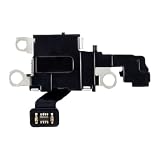
- Compatibility Information: This microphone flex cable replacement is intended ONLY for iPhone 16e models A3212, A3408, A3409, A3410. It will not fit other models. Please check your device model carefully before ordering.
- Use Case: Suitable for devices affected by poor audio quality, low voice detection, or microphone malfunction. It helps restore clear sound input and supports stable voice calls and recording functions in regular use.
- Reinforced Design: This component is built iPhone 16E with a strengthened structure and carefully engineered internal elements to support long-term performance. It is designed to match the original part in structure and function, helping maintain clear voice input and stable audio transmission.
- User-Friendly Setup: The product is designed for ease of use, supporting a smooth and controlled installation process. The flexible cable and precise connector help ensure proper alignment, allowing the part to fit correctly.
- Premium Packaging: All of our products feature high-quality packaging to ensure that your goods remain free from damage and arrive safely in your hands, thereby saving you valuable time and budget.
iPhone
For a third-party app, go to Settings → Privacy & Security → Microphone and turn on access for the affected app. If the app has permission but still cannot use the microphone—or does not appear in the list—Apple advises contacting the app developer. Apple support
What’s actually slowing this PC down?
Pick the symptom - the matching free tool is one click away.
Android
Check both the system-wide microphone control and the affected app’s permission. Depending on the phone and Android edition, look under Settings → Privacy → Microphone access and/or Settings → Apps → [app] → Permissions → Microphone. Labels and paths vary; Samsung One UI, Pixel, and other manufacturers do not use identical menus. Samsung also provides guidance on microphone permissions and Bluetooth routing. Samsung permission and routing guidance
Update the phone and calling apps
Install pending operating-system updates and update the Phone, Camera, Recorder, and affected calling apps. On Samsung phones, the update option is generally under Settings → Software update or System updates, with a label such as Download and install or Check for software updates; wording varies by model. Retest before taking more disruptive steps.
If the problem began immediately after an update, note the phone model, operating-system version, carrier, and when it started. Do not assume a particular update fixes the issue unless release information for your exact model confirms it. Pixel owners can also check Google’s troubleshooting steps for Bluetooth, case fit, updates, and app microphone access. Google Pixel guidance
Independent reader supportYour contribution helps us test, update, and keep practical guides available for everyone.Android: use Safe Mode to check for an app conflict
Safe Mode is useful when a downloaded app may be interfering. The entry method varies by manufacturer; the following steps are for Samsung Galaxy devices:
Rank #4

- Compatible: The charging port Dock Connector replacement only compatible with all models for iPhone X (Models: A1865, A1901, A1902).
- Easy Install: Easy installation, It’s a straightforward process to replace the earpiece parts on your own and save money.
- Fix issues: The replacement Dock Connector flex cable can solve various charging port problems: the charging port cannot be charged; the headset jack cannot play music; it is difficult to charge; unstable charging; unable to use USB to connect to the computer.
- Improved: The Charging port replacement can provide more stable and safer connectors, thereby charging faster and more effectively.
- Product: Our commitment to providing high -quality products and services aims to save your time and money. All of our products undergo rigorous testing to ensure that they are in good condition when they arrive.
- Open the power menu.
- Touch and hold Power off, then tap Safe mode.
- Place a normal handset call and retest the microphone.
- Restart normally to leave Safe Mode.
Safe Mode disables downloaded apps. If the issue disappears there, remove recent or recently updated apps one at a time and retest. Call recorders, equalizers, voice changers, privacy tools, automation utilities, third-party dialers, and Bluetooth-management apps are examples worth checking—not confirmed causes. If the problem remains in Safe Mode, a downloaded app is less likely to be responsible. Samsung Safe Mode instructions
Check the call, the recipient, and the carrier
If recordings are clear and the built-in cellular Phone app is the only place the problem occurs, test call conditions before blaming the microphone:
- Call a different person, and test both outgoing and incoming calls.
- Try handset and speakerphone modes on those calls.
- Move to a location with stronger cellular service.
- If your carrier supports Wi-Fi Calling, test with it off and then on.
- Try an internet calling app. If practical, test another SIM or eSIM only after checking with your carrier.
- Ask the original recipient whether they can hear other callers normally.
If several recording paths work but cellular calls do not, call routing, carrier service, SIM/eSIM configuration, or telephony software are possible explanations. These are diagnostic possibilities, not a carrier diagnosis based on this symptom alone. Contact the carrier if the issue is limited to cellular calls, or the phone maker if it persists across call types.
When to arrange service
Contact the manufacturer or an authorized service provider if a relevant recording test remains unclear across apps, one microphone path consistently fails, or the phone was dropped or exposed to liquid. Also seek service if the microphone only works when the phone is pressed, twisted, or held in a particular position, or the issue repeatedly returns after temporary fixes.
The Tool Desk
Outbyte PC Repair FREEClear out junk files and repair common Windows errorsFree Scan →Outbyte Driver Updater FREEScan for outdated or missing drivers - takes under a minuteDriver Scan →Moisture can muffle a microphone even when the phone otherwise seems to work. If the phone is wet, dry its exterior with a clean, soft cloth and let it air-dry; do not use compressed air or push anything into an opening. A liquid-detection warning or signs of charging-port damage are further reasons to consult the manufacturer. Apple says persistent unclear sound during calls, recordings, or apps may require service; Samsung provides service and repair options after troubleshooting. Apple service guidance · Samsung troubleshooting and repair guidance
Should you factory-reset the phone?
Do not make a factory reset the first response. It erases data and settings, so try the accessory, recording, permission, update, and—on Android—Safe Mode checks first. If you consider a reset because the fault appears software-related, back up the phone and confirm that you can restore your important data. A reset cannot repair a blocked, wet, or damaged microphone, and Samsung notes that it may not permanently resolve a problem caused by an app awaiting an update. Samsung reset and backup guidance
Quick Recap
Quick troubleshooting guide
| Test result | Likely direction | Next step |
|---|---|---|
| Handset calls fail; speakerphone and recordings work | Call routing, obstruction, or telephony software | Remove the case, disable Bluetooth, restart, and test another number or calling app. |
| Handset calls and Voice Memos fail; videos work | One microphone path may be obstructed or damaged | Inspect the openings safely; seek service if unchanged. |
| Voice Memos work; video tests or speakerphone fail | A different path or speakerphone processing may be involved | Repeat without the case and accessories; seek service if consistent. |
| All recordings fail | Obstruction, moisture, or hardware fault | Avoid tools and compressed air; arrange service if it persists. |
| Only one third-party app fails | Permission, app issue, or app-level routing | Check microphone access, update the app, and test another app. |
| Calls work with Bluetooth off | Accessory input routing or accessory fault | Reconnect accessories one at a time and test each. |
| Problem disappears in Android Safe Mode | Downloaded-app conflict is more likely | Remove recent apps one at a time. |
| Only one recipient cannot hear you | The recipient’s device or network may be involved | Call another number and ask the recipient to test with someone else. |
| Problem began after an update | Possible software regression, not a confirmed cause | Record the version and date, check for later updates, and contact support. |
Product prices and availability are accurate as of the date/time indicated and are subject to change. Any price and availability information displayed on Amazon at the time of purchase will apply.

