Some links on this page are affiliate links: if you buy through them we may earn a commission, at no extra cost to you.
Choose the NZXT Kraken Z63 if you want a desk-visible showcase PC, a customizable LCD, and the better historical performance-to-noise balance. Choose the Kraken X73 if your case supports a 360 mm radiator and you prioritize sustained cooling for a high-power CPU over display features. The two coolers share the same broad Asetek-based cooling architecture, so the Z63’s premium mainly buys its 2.36-inch screen—not dramatically lower temperatures. Because these are 2020-era Kraken X3/Z3 products, treat their original review results as historical and verify mounting hardware, warranty, availability, and software support before buying one in 2026.
Z63 vs. X73: the short answer
| Priority | Better choice | Why |
|---|---|---|
| Custom display and showcase appearance | Kraken Z63 | Its 2.36-inch LCD can show temperatures, loads, coolant information where supported, images, and animated GIFs. |
| Maximum sustained cooling | Kraken X73 | The 360 mm radiator offers more surface area and three 120 mm fans. |
| Noise-conscious build | Usually Z63 | Historical testing found the X73’s extra cooling capacity came with higher noise in the tested conditions. |
| High-power workstation CPU | X73 | It provides more thermal headroom when the case can accommodate it. |
| Best value | Neither by default | The Z63’s premium is primarily for its display, while both are legacy-generation products whose current prices vary. |
The original AnandTech comparison found strong cooling from both models. The X73 generally had greater absolute thermal capacity, but the Z63 was the more balanced option for many users because it delivered competitive cooling with less noise in that test. KitGuru’s coverage likewise makes clear that the Z63’s defining advantage is presentation and monitoring, not a fundamentally different cooling system.
There is no universal winner. The right choice depends on your CPU’s sustained power, case layout, tolerance for fan noise, and whether you can actually see the pump display.
The Tool Desk
Outbyte PC Repair FREEClear out junk files and repair common Windows errorsFree Scan →Outbyte Driver Updater FREEScan for outdated or missing drivers - takes under a minuteDriver Scan →What differs between the Kraken Z63 and X73?
| Model | Radiator and fans | Pump-top feature | Best suited to |
|---|---|---|---|
| Kraken Z63 | 280 mm radiator; 2 × 140 mm fans | 2.36-inch LCD | Showcase builds, display customization, balanced thermals |
| Kraken X73 | 360 mm radiator; 3 × 120 mm fans | RGB infinity-mirror styling | Large cases and sustained high heat loads |
Both belong to NZXT’s 2020 Kraken X3/Z3 generation and use the same broad Asetek Gen7-style pump-and-cold-plate approach. The differences are the radiator format, fan arrangement, pump-top electronics, cabling, and software feature set.
#1 Best Overall

- HIGH-PERFORMANCE COOLING — The NZXT Turbine pump is engineered for high flow and head pressure, delivering efficient, low-noise cooling to keep your CPU performing at its best under heavy workloads.
- CUSTOM LCD SCREEN — Display real-time system temps, animated GIFs, custom images, or web integrations like Spotify and YouTube on a bright 1.54" square LCD — fully customizable through NZXT CAM software.
- BRILLIANTLY SIMPLE — RGB Core single-frame fan delivers vibrant lighting and strong airflow in one sleek unit — with only four screws and one cable for a cleaner install and simplified cable management.
- EASY INSTALLATION — Pre-applied thermal paste and a single breakout cable from the pump cap speed up installation and reduce cable clutter.
- WIDE COMPATIBILITY — Includes tool-free mounting brackets that support the latest AMD and Intel CPU sockets, including AM5 and LGA 1851.
NZXT lists the Z63 radiator at 143 × 315 × 30 mm, before accounting for the fans. Its pump range is listed as 800–2,800 ±300 RPM, and its tubing is rubber with a nylon sleeve. The Z63 also arrives with pre-applied thermal compound. See NZXT’s official Z3 specifications for the detailed figures.
The Z63 display has a 60 mm active area, 320 × 320 resolution, 24-bit color, and stated brightness of 650 cd/m². That makes it more than a decorative logo, but it does not turn the Z63 into a fundamentally different cooler.
Cooling performance and noise
A 360 mm radiator gives the X73 more radiator area than the Z63’s 280 mm unit. In a sustained all-core workload, especially on a high-power processor, that can translate into lower temperatures, more thermal headroom, or the ability to maintain a target temperature at a lower fan speed.
Recommended Free Tools
That advantage should not be interpreted as “the X73 is always better.” The result depends on:
- CPU model, power limits, and motherboard behavior;
- ambient temperature and case airflow;
- radiator position and whether it receives intake or exhaust air;
- pump and fan curves;
- thermal paste and mounting pressure; and
- whether the comparison is made at equal fan speed, equal noise, or maximum performance.
The original AnandTech testing found that the X73 offered very good absolute thermal performance but was noisier than the Z63 in the tested conditions. That makes the Z63 potentially better when the meaningful target is temperature at an acceptable noise level, rather than the lowest possible temperature at maximum fan speed.
For gaming, the difference may be less important than the radiator-size numbers suggest. Games often produce changing or GPU-limited CPU workloads rather than the sustained all-core load that most strongly rewards a larger radiator. For long renders, code compilation, simulation, or other continuous CPU workloads, the X73’s additional capacity is easier to justify.
Rank #2
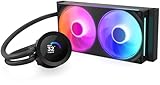
- HIGH-PERFORMANCE COOLING — The NZXT Turbine pump is engineered for high flow and head pressure, delivering efficient, low-noise cooling to keep your CPU performing at its best under heavy workloads.
- CUSTOM LCD SCREEN — Display real-time system temps, animated GIFs, custom images, or web integrations like Spotify and YouTube on a bright 1.54" square LCD — fully customizable through NZXT CAM software.
- BRILLIANTLY SIMPLE — RGB Core single-frame fan delivers vibrant lighting and strong airflow in one sleek unit — with only four screws and one cable for a cleaner install and simplified cable management.
- EASY INSTALLATION — Pre-applied thermal paste and a single breakout cable from the pump cap speed up installation and reduce cable clutter.
- WIDE COMPATIBILITY — Includes tool-free mounting brackets that support the latest AMD and Intel CPU sockets, including AM5 and LGA 1851.
Do not compare a CPU package temperature from one review with a coolant temperature from another. A serious comparison should state the processor, power limits, BIOS, case, radiator position, fan curve, pump mode, ambient temperature, test duration, and measurement method. The AnandTech and KitGuru results are useful historical evidence, not a guarantee of the temperature or noise you will see in a 2026 system.
Is the Z63 LCD worth paying for?
The LCD is worth it when the computer is visible and the screen is part of the build’s design. It can display CPU or GPU temperature, CPU or GPU load, coolant temperature where supported, static images, and animated GIFs. NZXT’s software also supports screen orientation changes and custom display modes.
Its practical value falls sharply when the case is under a desk, the pump is obscured by a graphics card or radiator tubing, or you do not want NZXT CAM running in the background. The screen reports information and adds customization; it does not provide a separate cooling breakthrough.
That is why the Z63 should not be selected because it is expected to run substantially cooler than the X73. The display is the main premium feature. If both models cost similar amounts, it is a compelling extra. If the Z63 costs substantially more than a newer or better-supported 280 mm cooler, it is a luxury purchase rather than a value upgrade.
Radiator, fans, and physical design
The Z63 uses a 280 mm radiator and two 140 mm Aer P fans. NZXT lists those fans at 500–1,800 ±300 RPM, 27.27–98.17 CFM, 0.21–2.71 mm-H₂O, and 21–38 dBA. Larger fans can move substantial air at lower rotational speeds, which helps explain why a 280 mm design can compete well acoustically.
The X73 uses three 120 mm Aer P fans. The X73 manual identifies the three-fan configuration, but the detailed Z63 fan figures should not automatically be applied to every X73 revision or RGB replacement fan.
Rank #3

- SUPERIOR COOLING: The custom-designed NZXT Turbine pump efficiently cools even the most heat-prone CPUs with its high flow rate and head pressure, resulting in a 10%* performance boost with less noise.
- BIGGER, BOLDER DISPLAY: Enjoy stunning visuals on the large 2.72-inch IPS LCD featuring crisp 640 x 640 resolution, smooth 60 Hz refresh rate, ultra-bright 690 cd/m² backlight, vibrant 24-bit color, and wide viewing angles.
- MORE PERSONAL THAN EVER: Display your favorite GIF or image, monitor real-time system performance, and integrate with Google Photos, Spotify, and YouTube. Sync the RGB LED ring with on-screen content and other RGB devices for a cohesive look.
- SIMPLE INSTALLATION: Get set up quickly with pre-applied thermal paste, a single breakout cable, and tool-free mounting brackets for the latest AMD (AM5, AM4) and Intel (LGA 1851/1700, 1200/115X) CPU sockets.
- VIBRANTLY COOL: The RGB Core single-frame fan on the radiator provides optimal airflow and vibrant lighting, along with a sleek, integrated design for easy connectivity and control.
Three 120 mm fans provide broad radiator coverage and suit cases designed around 360 mm mounts. Fan count alone does not determine noise or performance: blade design, bearing quality, control curve, radiator restriction, and case airflow all matter. Replacing the supplied fans can change both the acoustic character and cooling results.
Both radiators are aluminum, and both use sleeved rubber tubing with fixed radiator-side fittings. AnandTech measured the examined 280 mm radiator at approximately 30 mm thick and the examined 360 mm radiator at approximately 26 mm thick. Those measurements describe the reviewed samples and should not be generalized to every later, regional, or replacement SKU without checking it.
Case compatibility: 280 mm is not simply a smaller 360 mm
Check the case manufacturer’s actual radiator-clearance diagram rather than relying only on a listing that says “supports 280 mm” or “supports 360 mm.” The radiator, fans, brackets, motherboard, memory, graphics card, and tubing all compete for space.
Free tools Windows power users keep installed
One-click scans. No signup required.
Before installing the Z63
- Confirm that the case supports a 280 mm radiator, not merely two 140 mm fans.
- Measure radiator thickness plus fan thickness.
- Check the 140 mm fan width against top-panel and front-panel clearance.
- Look for interference with VRM heatsinks, memory, and motherboard edges when top-mounted.
- Check whether a front radiator reduces graphics-card length clearance.
- Plan tube routing without sharp bends or excessive tension.
Before installing the X73
- Confirm the complete 360 mm radiator length and mounting-hole spacing.
- Check top clearance around motherboard heatsinks and memory.
- Check front clearance for radiator, fans, and graphics-card length.
- Verify screw depth; an incorrect screw can damage the radiator.
- Confirm that the case bracket leaves room for the pump tubes and motherboard power connectors.
- Do not assume push/pull fan configurations will fit simply because a single 360 mm radiator fits.
Front mounting often supplies the radiator with cooler outside air and can help CPU temperature, but it may raise GPU temperature or reduce graphics-card clearance. Top mounting generally works naturally as exhaust and can preserve front-to-back GPU airflow, but it may conflict with motherboard heatsinks or memory. These are layout-dependent trade-offs, not guaranteed temperature rules.
Installation and cabling
Plan the installation before attaching the pump:
- Test-fit the radiator and fans in the intended location.
- Choose the correct Intel or AMD retention hardware.
- Install the required backplate or standoffs.
- Mount the radiator with the correct screws and avoid over-tightening.
- Seat the pump evenly on the CPU without twisting it excessively.
- Keep the tubes free of sharp bends and avoid placing the pump as the highest point of the loop where the case layout allows.
- Protect the pre-applied thermal compound from dust and fingerprints.
The electrical connections are just as important as the physical mount. The Z3 breakout cable provides SATA power, a three-pin pump-sense connection, three four-pin PWM fan headers, and an NZXT four-pin RGB connection, according to NZXT’s specifications. You should expect to connect:
- SATA power from the power supply;
- the pump tach/sense lead to the motherboard header specified by NZXT;
- the radiator fans to the cooler’s PWM connections or appropriate motherboard headers;
- the internal USB 2.0 cable for CAM communication; and
- the NZXT RGB connection where applicable.
Use the motherboard and NZXT instructions for the exact CPU_FAN, AIO_PUMP, or CPU_OPT header arrangement. A missing USB cable can disable CAM and the display without necessarily proving that the pump has failed. A missing SATA connection is more serious because the cooler may not receive its required power.
Rank #4

- COOL AND QUIET — A powerful 3,100 RPM pump keeps your CPU cool during heavy gaming and multitasking, while minimizing noise.
- SIMPLE CONNECTIVITY — Connects directly to your motherboard for easier cable management and a faster build—no extra controllers required.
- OPTIMIZED FAN BLADES — High static pressure RGB Core (EV-B Version)* fans efficiently push air through radiator fins for stronger cooling with less noise.
- ADJUSTABLE FAN CONTROL — PWM-enabled fans allow precise adjustments for efficient performance you can customize to your setup.
- SINGLE-FRAME DESIGN — Multiple fans in one solid frame reduce screws and cables, making installation easier and your build cleaner.
The X73 and Z63 manuals cover Intel 115x/1366, Intel 2011/2066, and AMD AM4-era hardware. They also note that the Threadripper TR4 retention bracket is supplied with the retail Threadripper CPU rather than necessarily being included with the cooler. The Z-series manual and X-series manual should be checked against the exact package.
Quick wins for a faster PC:
Repair Windows errors before they cause bigger problemsFix Now →Fix the driver behind crashes, sound loss and screen glitchesFind Drivers →Clear out junk files and repair common Windows errorsFree Scan →Socket compatibility in 2026
Do not copy the original 2020 socket list into a current buying decision. NZXT’s current Z3 documentation lists AMD AM4 and AM5, TR4 and sTRX4, Intel LGA 115x and 1200, Intel LGA 2011 and 2066, and Intel LGA 1700 and 1851. It also warns that newer platforms may require additional mounting hardware not included with older units or every inventory package.
For a used, open-box, or old-stock Z63 or X73, ask for photographs of the mounting hardware and cables. “AM5 compatible” or “LGA 1700 compatible” in a marketplace listing does not prove that the required bracket is physically in the box.
NZXT’s documentation also says that older breakout cables are not compatible with newer Kraken generations, even though some mounting hardware may be shared between certain Asetek-based families. Do not substitute a cable from another Kraken generation unless NZXT explicitly identifies it as compatible. See NZXT’s cable and mounting-hardware guidance.
Independent reader supportYour contribution helps us test, update, and keep practical guides available for everyone.NZXT CAM: useful, but not invisible
CAM provides monitoring, lighting control, profiles, cooling curves, firmware functions, and the Z63’s custom display modes. However, “CAM controls everything” is too broad. NZXT’s current support information distinguishes the Z Series from the X3 Series: CAM fan control and RGB control are supported for the Z Series, while the X3 documentation distinguishes RGB support from models with native CAM fan control. Verify the exact X73 SKU and current software behavior rather than relying on the family name.
Do these 3 things before closing this tab:
1Clear out junk files and repair common Windows errors2Fix the driver behind crashes, sound loss and screen glitches3Repair Windows errors before they cause bigger problemsNZXT’s current guidance says the coolers can operate without CAM, but custom cooling curves, profiles, RGB effects, and custom display modes require CAM running in the background. This creates a straightforward trade-off:
Best Value

- COOL AND QUIET — A powerful 3,100 RPM pump keeps your CPU cool during heavy gaming and multitasking, while minimizing noise.
- SIMPLE CONNECTIVITY — Connects directly to your motherboard for easier cable management and a faster build—no extra controllers required.
- OPTIMIZED FAN BLADES — High static pressure RGB Core (EV-B Version)* fans efficiently push air through radiator fins for stronger cooling with less noise.
- ADJUSTABLE FAN CONTROL — PWM-enabled fans allow precise adjustments for efficient performance you can customize to your setup.
- SINGLE-FRAME DESIGN — Multiple fans in one solid frame reduce screws and cables, making installation easier and your build cleaner.
- CAM is useful if you want live monitoring, a custom LCD, or software profiles.
- CAM is less appealing if you prefer a minimal background-software footprint.
- A cooler can physically pump and cool the CPU even when the display or software is not working.
- Firmware, USB, or device-recognition problems can affect features independently of the cooling loop.
The Z63’s screen therefore should be evaluated as a software-dependent feature, not merely as hardware printed on the pump.
Troubleshooting common problems
Pump not recognized or not running
If CPU temperature rises abnormally, shut the system down rather than continuing to troubleshoot under load. Then:
- Check that SATA power is connected directly and securely.
- Re-seat the keyed main connector; do not force it in the wrong orientation.
- Verify the internal USB 2.0 cable.
- Check whether CAM detects the cooler.
- Confirm the pump tach lead is connected as required by the motherboard.
- Test again only after confirming the pump is operating and temperatures are normal.
- Contact NZXT support if the device remains unrecognized or overheats.
These checks follow NZXT’s X-series pump troubleshooting guidance. A nonfunctional LCD does not automatically mean a nonfunctional pump, but it should not be used as evidence that the cooler is healthy.
What’s actually slowing this PC down?
Pick the symptom - the matching free tool is one click away.
LCD blank or malfunctioning
Check USB 2.0 connectivity, SATA power, CAM recognition, firmware status, and whether the correct cable is installed. A blank display can coexist with a working pump; conversely, a working display should not be treated as proof that coolant is circulating correctly.
No spare internal USB 2.0 header
The Z63 and X73 require an internal USB connection for CAM features. If the motherboard’s headers are already occupied by front-panel accessories, RGB equipment, or other NZXT devices, check the complete system plan before buying. An internal USB hub may be required, but its power, connector type, and compatibility should be verified rather than assumed.
2026 buying advice
The Z63 and X73 were reviewed and launched in 2020. Their original prices—approximately $250 for the Z63 and $180 for the X73 in the historical comparison—are not current prices and should not be used as a 2026 value benchmark.
NZXT still maintains support documentation for the older Z3 and X3 families, alongside newer Kraken 2023, Kraken Elite, Kraken Plus, and Kraken Core families. That establishes ongoing documentation, not a universal worldwide availability or discontinuation date. Check the exact seller, region, serial number, warranty terms, package contents, and return policy.
NZXT lists a six-year warranty for the Z3 specifications, but used-market purchases and regional warranty rules can involve proof-of-purchase and seller restrictions. Do not assume the full warranty transfers to a used unit.
Quick Recap
Used or open-box inspection checklist
- Confirm the exact model: Z63 or X73, and whether it is a standard or revised SKU.
- Verify the pump, breakout cable, SATA lead, USB cable, fan cables, and mounting hardware are present.
- Confirm the bracket for AM5, LGA 1700, or LGA 1851 if relevant.
- Inspect tubing, radiator fins, pump housing, and fittings for damage or leakage.
- Ask whether the cooler was removed and whether replacement thermal compound is required.
- Check warranty eligibility with the seller and NZXT before paying a premium.
- Compare the total price with newer 280 mm or 360 mm coolers that include current mounting hardware and warranty support.
Which one should you buy?
Buy the Kraken Z63 if:
- your case has confirmed 280 mm radiator clearance;
- the PC sits on a desk or in a visible showcase position;
- you specifically want temperatures, GIFs, images, or other content on the pump;
- you prefer the historical balance of cooling and noise; or
- you value the LCD enough to accept CAM and a possible premium.
Buy the Kraken X73 if:
- your case has confirmed 360 mm radiator clearance;
- your CPU runs sustained, high-power workloads;
- you want additional thermal headroom more than a display;
- you can tolerate higher fan noise under heavy load; and
- its price is competitive with current 360 mm alternatives.
Consider neither if:
- the cooler will be hidden and the Z63’s display has no value;
- your case only marginally supports the radiator format;
- you want to avoid CAM entirely;
- the unit lacks modern mounting hardware; or
- a newer cooler offers better support and warranty for similar money.
Product prices and availability are accurate as of the date/time indicated and are subject to change. Any price and availability information displayed on Amazon at the time of purchase will apply.

