The Tool Desk
Outbyte Driver Updater FREEFix the driver behind crashes, sound loss and screen glitchesFind Drivers →Outbyte PC Repair FREERepair Windows errors before they cause bigger problemsFix Now →Some links on this page are affiliate links: if you buy through them we may earn a commission, at no extra cost to you.
There is no single latest firmware file for every Samsung Galaxy Tab 3 Neo. First check the model number—usually SM-T110 (Wi-Fi), SM-T111 (3G) or the related SM-T116—then match the firmware to that exact model and its region or carrier code (CSC). The documented builds for these old tablets remain on Android 4.2.2 or 4.4.4; an archived file or a fresh upload to a firmware site does not mean Samsung released a current update.
Identify the exact tablet before downloading firmware
“Galaxy Tab 3 Neo” and “Galaxy Tab 3 Lite” are names used inconsistently in listings and firmware archives. Samsung’s update page identifies SM-T116 as GALAXY Tab3 Lite. A marketing name is not enough to select a firmware file: match the complete model number.

| Model | Common description | Connectivity | How to treat it |
|---|---|---|---|
| SM-T110 | Galaxy Tab 3 Lite/Neo | Wi-Fi | Use firmware specifically listed for SM-T110. |
| SM-T111 | Galaxy Tab 3 Lite/Neo | 3G and Wi-Fi | Use firmware specifically listed for SM-T111 and check its CSC. |
| SM-T116 | Related Galaxy Tab 3 Lite regional variant | Region-dependent cellular model | Keep separate from T110 and T111; do not cross-flash. |
Find the model under Settings → About device or Settings → About tablet. If the tablet will not boot, check its rear label or original packaging. Download Mode can also display device identifiers, but use it only if needed and follow instructions for the exact model.
Do not confuse the model number with the firmware build or CSC. For example, in the documented SM-T111 record, SM-T111 is the model, T111XXUANH4 is the PDA/AP build, T111COAANI4 is the CSC build, and COA is the product code/CSC. These fields describe different things; matching only the marketing name or one similar-looking code is unsafe. See the SM-T111 COA firmware record.
#1 Best Overall
What the documented firmware records show
“Latest” should be evaluated per model and region, using the firmware build and release information—not the date a third-party site added or re-listed a file. The records below establish specific examples, not a universal final build for every variant.
| Model | Documented build | Android | Region/CSC | Build date | What can be concluded |
|---|---|---|---|---|---|
| SM-T110 | Not established here | — | Must be checked for the device | — | Do not substitute a T111 or T116 package. Verify a model-specific record before downloading. |
| SM-T111 | T111XXUANH4; CSC T111COAANI4 |
4.2.2 | COA | August 26, 2014 | A verified historical COA record, not proof of the universal latest T111 release. |
| SM-T116 | T116XXU0AQA2; CSC T116OXX0AQA2 |
4.4.4 KitKat | XEO (Poland) | February 8, 2017 | A documented T116 regional package; not compatible evidence for T110 or T111. |
The SM-T116 archive lists a firmware size of 684.55 MB and an MD5 value of d14aa1e0f487babcaac8a1713eb9fc99. If you use that package, confirm the model and compare the checksum if the download source provides a way to verify it. A site’s 2026 add date for an archived file is not a Samsung 2026 release date. View the T116 XEO record.
Check for an official update first
- Charge the tablet to at least 50% and connect to reliable Wi-Fi.
- Open Settings, then About device or About tablet.
- Choose Software update or System update, then tap Check for updates. Labels vary by Android version and region.
If the tablet is recognized by Samsung’s PC software, that is another official route to check before manual flashing. Samsung’s SM-T116 support page links to software-upgrade help and Smart Switch resources. Because these tablets are old, do not assume a current Smart Switch installation—or Kies in a particular region—will recognize every model or still provide its historical update. Try the official route, but treat detection and update availability as uncertain.
Free tools Windows power users keep installed
One-click scans. No signup required.
A “no update available” message is not conclusive proof that no later archived package exists. It may mean Samsung no longer serves the update through OTA, that the tablet’s CSC or carrier has no offered package, or that the device already has the final release available to it. A mirrored Samsung package is not the same as an update currently distributed by Samsung.
Rank #2

- Minimal bezel. Maximum view. Watch, stream and browse on a 10.1" Full HD corner-to-corner Display. The lightweight premium metal design goes anywhere you go.
- Big sound for big entertainment. The perfect complement to a wide, immersive picture, Dolby Atoms Surround sound fills the room with cinematic clarity.
- Binge-worthy Battery. Browse, watch Or shop for up to ten hours on a full charge.
- Room for everything. Never delete songs, photos or videos, thanks to ample built-in memory. Plus expand your storage up to 512GB anytime With a Micro SD card.
Before downloading a stock firmware package
- Match the full model number. A T110, T111 or T116 label on a download page must agree with the tablet. Similar names do not establish compatibility.
- Match region or carrier where possible. The CSC/product code identifies a regional or carrier configuration. Packages for the same model can differ.
- Read the build details. Check the PDA/AP build, CSC, Android version and build date. Do not mistake a mirror’s upload date for a firmware release date.
- Check the file integrity. Prefer a reputable source and verify a published checksum when possible. A checksum confirms that a file matches the listed value; it does not prove that the package is right for your tablet.
- Keep expectations realistic. A successful stock flash will not give this tablet modern Android or current security patches.
Do not use firmware for another model, force a package with a PIT file, or enable repartitioning to get around a compatibility error. Stop and recheck the device and package instead.
Odin: a cautious stock-restoration fallback
Odin flashing is best treated as restoration work, not a routine way to chase a newer Android version. Consider it only if the OTA or Samsung PC route is unavailable and you need to restore stock software—for example, after a boot loop. A wrong model or region package, interrupted flash, or data incompatibility can leave the tablet unusable or erase data.
Prepare
- Confirm the exact model and select a matching stock package, checking CSC where possible.
- Back up photos, documents, contacts and app data if the tablet still boots. Do not assume flashing will preserve data.
- Use a Windows PC with a compatible Samsung USB driver, a reliable USB cable and a charged tablet.
- Download the archive from a reputable source, check its checksum if supplied, and extract both the firmware and Odin.
- Use an Odin release appropriate for this generation of device. Keep Re-Partition unchecked.
General process
- Enter Download Mode using the verified key combination for your specific model. Key combinations can vary; do not assume instructions for T116 apply to T110 or T111.
- Connect the tablet directly to the PC. Confirm Odin detects it before loading or starting a flash.
- For a one-file package, load it into AP (called PDA in some Odin versions). For a multi-file package, put each file in its corresponding BL, AP, CP or CSC slot. Do not guess at file placement.
- Leave Re-Partition unchecked. Start the flash only after confirming the package is for the exact tablet.
- Do not disconnect, shut down the PC, or interrupt the process. Wait for Odin to report success before disconnecting, then allow extra time for the first boot.
This is a general outline, not a guarantee that every archived package uses the same layout or that a particular Odin release supports every variant. The T116 archive page describes the one-file and multi-file slot approach and warns users to confirm the model. Follow package-specific, model-appropriate directions and stop if they conflict with what is shown on the device.
Outdated Drivers Are Slowing You Down
One free scan finds every outdated or missing driver and matches the right update for your exact hardware.Free scan · exact hardware matchWindows Errors? Fix Them Before They Spread
Repair common Windows errors and clear accumulated junk for a smoother, more stable PC - no reinstall needed.Free scan · no reinstallTroubleshooting and when to stop
Odin says the firmware is incompatible or fails to flash
Common causes include a T110/T111/T116 mismatch, an incorrect CSC or carrier package, a binary revision mismatch, or a damaged download. Stop; recheck the model in Download Mode and compare it with the firmware’s model prefix. Do not try to force the flash with repartitioning or a modified PIT file.
Rank #3
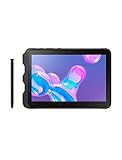
- Tablet is just 0.4" thin and weighs just 1.44 lbs., so you can take it wherever you go, 10.1" display and 1920 x 1200 resolution
- Tablet features 2GHz 2GHz 8-core octa-core processor for fast performance, Android offers an intuitive user interface with smooth multitasking
- 64GB of internal storage, expandable up to 512GB, Up to 15 hours of battery life, Camera: 8MP (front), 13MP (rear), video recording solution: 4K at 30fps
- Features IEEE 802.11/a/b/g/n/ac for Internet web browsing, Built-in microphone and surround sound stereo speakers for expansive, rich audio
- Headphone jack lets you connect your PC tablet to a sound system mini jack (3.5mm), tablet has USB-C, Pogo pin interfaces for external device connection, Dimensions: 0.4"H x 6.7"W x 9.6"D, Android 9.0 Pie
Odin does not connect or hangs at setup
Check that the tablet is actually in Download Mode, reinstall the Samsung USB driver, try a known-good cable and a direct PC USB port, and avoid USB hubs. Restart the PC and tablet; if needed, try another compatible Odin release. Do not start repeated flashes while the connection is unstable.
The flash reports success but the tablet boot-loops
Allow several minutes for the first boot. If it remains stuck, consider whether the package or CSC was wrong. If you can enter recovery, wipe cache if that option is available. A factory reset may help when user data is incompatible, but it erases data; use it only after backup or when you accept that loss. If necessary, reflash the correct full stock package. A custom ROM is not a safe automatic recovery shortcut.
Neither Download Mode nor recovery works
If both are inaccessible, software recovery may not be possible. Repeated flashing attempts can make matters worse; seek qualified repair advice. Given the age of the tablet, compare repair cost with the device’s value before proceeding.
Recommended Free Tools
Is an update still worthwhile?
A stock update may be useful to restore a damaged installation, preserve an old Android environment, or improve basic stability if a correct package is available. It is not a path to current Android security or guaranteed support for modern apps. A custom ROM may offer a newer interface, but support for these variants is fragmented and hardware features such as Wi-Fi, cameras, cellular service, sensors or sleep may not work reliably. A custom ROM is not an official Samsung update, and no particular current ROM should be assumed compatible without exact model-specific evidence.
Choose the least risky route that meets your goal: try OTA first, then Samsung support software if the tablet is recognized; use Odin with verified stock firmware only when necessary and only for the exact model. If your goal is secure, current app use, installing an old final stock build will not solve that problem.
Quick Recap
Product prices and availability are accurate as of the date/time indicated and are subject to change. Any price and availability information displayed on Amazon at the time of purchase will apply.

