Do these 3 things before closing this tab:
1Fix the driver behind crashes, sound loss and screen glitches2Clear out junk files and repair common Windows errors3Scan for outdated or missing drivers - takes under a minuteSome links on this page are affiliate links: if you buy through them we may earn a commission, at no extra cost to you.
Kinect4NES is a 2014 hardware-and-software experiment that lets body gestures control an original Nintendo Entertainment System. It does not emulate the NES: a Kinect v2 tracks the player, C# code translates movements into button states, and an Arduino- or Intel Galileo-class board reproduces the electrical signals of a conventional NES controller.
The project is a fascinating proof of concept for retro-gaming hackers, accessibility researchers and makers—but it is not a supported product or a modern plug-and-play kit. Recreating it in 2026 means finding legacy Kinect hardware and software, building or adapting a controller interface, and accepting latency, electrical and preservation risks.
| # | Preview | Product | Price | |
|---|---|---|---|---|
| 1 |
](https://m.media-amazon.com/images/I/21EmpEz+OeL._SL160_.jpg)
|
Microsoft Xbox One Kinect Sensor Bar [Xbox One](Renewed) | $39.00 | Buy on Amazon |
| 2 |

|
Xbox One Kinect Sensor | $25.16 | Buy on Amazon |
| 3 |
|
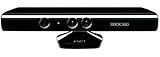
Microsoft XBOX 360 Kinect Sensor (Renewed) | $25.62 | Buy on Amazon |
| 4 |

|
Kinect Sensor with Kinect Adventures! (Renewed) | $24.98 | Buy on Amazon |
| 5 |
|
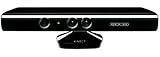
Microsoft XBOX 360 Kinect Sensor | $18.60 | Buy on Amazon |
What Kinect4NES actually does
Paul DeCarlo documented Kinect4NES in a WinCoder article published on October 20, 2014. The stated target was the original gray NES console, not an emulator. The author reports using gestures to play through the first level of Super Mario Bros. 3. The source code is available in the Kinect4NES GitHub repository.
What’s actually slowing this PC down?
Pick the symptom - the matching free tool is one click away.
Player movement
      ↓
Kinect v2 body tracking
      ↓
C# Kinect application
      ↓
Gesture-to-button mapping
      ↓
Serial Firmata connection
      ↓
Arduino or Intel Galileo GPIO
      ↓
NES controller-interface circuitry
      ↓
Physical NES controller port
      ↓
NES game
The Kinect is only the input device. The difficult part is making the NES believe that a normal controller is pressing and releasing buttons.
#1 Best Overall
- Requires power adapter for Xbox One S and X models (sold separately)
- Put down the controller and play Xbox One games using just your body, voice, and gestures. Command your TV and even make Skype calls in HD.
- Play games where you are the controller, Be recognized and signed-in automatically
- Be recognized and signed-in automatically you can also call friends and family with Skype in HD
- Broadcast gameplay live with picture-in-picture
The NES controller interface
An NES controller exposes eight logical inputs: Up, Down, Left, Right, Select, Start, A and B. Internally, a CD4021B-style 8-bit parallel-in/serial-out shift register captures those states. The console latches the states and then clocks them out serially while polling the controller.
Kinect4NES connects to that established protocol rather than teaching the console anything about motion tracking. In the described interface, a button assertion is represented by a low signal. That is an electrical assumption to verify against the exact controller circuit and NES revision—not a reason to connect arbitrary Arduino outputs directly to a console port.
The original article describes opening a controller, removing its five-wire cable and shift register, and tracing the board with a multimeter. A safer approach is to use a sacrificial controller, extension cable or breakout board. Preserve a valuable original controller and keep the NES disconnected whenever wiring is being changed.
Parts in the 2014 build
The original article lists the following materials:
- A working NES, game and controller or equivalent interface
- A CD4021BE 8-bit shift register for a discrete replacement interface
- Twelve strands of wire (Kynar wire was recommended)
- Eight 1 kΩ resistors; the author notes that values from 1 kΩ to 50 kΩ may also work
- Two 3.6 kΩ resistors, with higher values mentioned as possible alternatives
- An Arduino Uno, Intel Galileo or comparable board capable of running Firmata
- A Kinect v2 for Windows, or an Xbox One Kinect sensor with the appropriate adapter
- A Windows computer capable of running the Kinect v2 SDK
This is a historical component list, not a complete modern bill of materials. It does not establish a current schematic, safe values for every NES revision, or compatibility with present-day operating systems and boards. Use the exact shift-register datasheet and verify voltage levels, grounds, pinouts and timing before connecting anything.
Rank #2
- Command your Xbox and TV with your voice (examples include "Xbox On", "Xbox Watch TV", "Xbox Go to Amazon Instant Video", and more).
- Broadcast gameplay live with picture-in-picture using the Twitch Xbox One app.
- Make Skype calls in HD on your TV using the Kinect.
- Play games where you are the controller and work out smarter with Xbox Fitness.
- Compatible with Xbox One S with Adapter: Kinect for Xbox One is compatible with Xbox One S via the Xbox Kinect Adapter for USB.
How the software stack worked
The original workflow used the Kinect v2 SDK, Kinect SDK Browser 2.0, a Body Basics XAML sample and a C# application in Visual Studio. The Kinect runtime delivered frames through Reader_FrameArrived. A tracked body was passed to a method identified in the project as CalcController(Body body).
Rather than relying on a finished machine-learning model, the reported implementation compared relative joint positions. The developer observed tracked joints, defined geometric conditions for poses, and tuned thresholds by trial and error. The Kinect SDK’s Gesture Builder was mentioned as a possible more structured route, but the demonstrated logic was primarily hand-built.
When a condition matched, the application sent a command over a serial connection using Firmata. StandardFirmata was uploaded to the Arduino-compatible board, and the C# side used Arduino4Net to control digital pins. The Arduino4Net repository linked by the original article is no longer available at that address, so a current rebuild must locate a compatible Firmata library or write a replacement integration. Do not assume the old API or package still installs.
A realistic reconstruction plan
1. Validate the console first
Boot the NES and play with an ordinary controller. Confirm video, power and cartridge operation before adding any interface hardware. Test with a non-valuable controller or extension cable whenever possible.
2. Map the controller wiring
Identify power, ground, latch, clock and serial-data connections, then map all eight button inputs. Confirm the CD4021 orientation and pinout from the exact component documentation. The original author used a multimeter; photographs alone are not reliable enough.
Rank #3
- Does not come with the power cable needed for the original Xbox 360
3. Build and isolate the electrical interface
Wire the controller or substitute shift-register circuit to the microcontroller with the required resistors and a verified common ground. Check voltage compatibility and avoid floating lines. Test the interface away from the NES, then connect one known input at a time.
Windows Errors? Fix Them Before They Spread
Repair common Windows errors and clear accumulated junk for a smoother, more stable PC - no reinstall needed.Free scan · no reinstallCrashes, No Sound, or Screen Glitches?
Random freezes, missing sound and display glitches usually trace back to one bad driver. Find and replace yours safely.Free scan · under a minuteThe article describes an interface test that sent a low signal to Start at intervals. Reproduce that idea only after checking the circuit. A logic analyzer or oscilloscope is valuable for comparing your signals with those from a functioning controller.
4. Prove Firmata communication
Upload StandardFirmata, open the serial link and toggle a single output. Verify that the intended NES input changes before adding body tracking. Test Start, Select, A, B and each direction independently.
5. Prove Kinect tracking
Run a known Kinect SDK body-tracking sample first. Confirm that the sensor, adapter, USB controller and runtime all work and that joint coordinates update reliably. Do not debug gesture code and NES wiring simultaneously.
6. Add one gesture at a time
Define explicit press and release states. Add hysteresis, cooldown timing and a neutral pose so one sustained posture does not generate dozens of presses. Select one player deliberately; Kinect can track multiple bodies, so use a rule such as nearest body, centered body or a calibration pose.
The Tool Desk
Outbyte PC Repair FREEClear out junk files and repair common Windows errorsFree Scan →Outbyte Driver Updater FREEScan for outdated or missing drivers - takes under a minuteDriver Scan →Rank #4
- Easily hook up with friends with Video Kinect, no headset required.
- Sign into your profile by just stepping in front of the sensor
- Kinect games give you the freedom to jump, duck, and spin your way through a unique adventure.
- Kinect uses cutting-edge technology to provide a whole new way to play
- Kinect Adventures game
7. Tune for one game
Gesture profiles are game-specific. The repository includes gesture material associated with Punch-Out!!, while the published demonstration used Super Mario Bros. 3. A pose set that works for one title may fail in a game requiring rapid taps, simultaneous A/B and directional input, or precise frame timing.
Why gameplay can feel difficult
- Latency: body tracking, frame processing and serial communication add delay compared with a physical button.
- Ambiguity: broad pose thresholds create false positives; narrow thresholds reject legitimate movement.
- Input limits: full-body gestures are poor substitutes for rapid repeated taps and simultaneous combinations.
- Player fatigue: holding arms or exaggerated poses is more demanding than using a controller.
- Game dependence: slow or simple games are more forgiving than timing-sensitive action titles.
For accessibility, gesture control may help some players, but it is not universally superior. A switch interface or adaptive controller can offer more predictable, lower-latency input.
Independent reader supportYour contribution helps us test, update, and keep practical guides available for everyone.Current viability in 2026
The public repository currently presents a C# project with directories including Gestures, Kinect4NES and Kinect4NESInterfaceTest. It has no published releases; the repository page showed seven stars and three forks when checked. Those facts make it useful reference material, not evidence of a maintained distribution.
The original dependencies—Kinect v2 hardware, Kinect v2 SDK, Kinect SDK Browser 2.0, period Windows tooling, Firmata and Arduino4Net—are legacy components. The available documentation does not verify Windows 11 support, current Kinect drivers, a specific Visual Studio or .NET version, or a working modern Arduino4Net package. Expect to use a dedicated older Windows machine or redesign the software stack.
Hardware compatibility is equally uncertain. The sources do not establish safe operation with every Arduino board, NES revision, Famicom variant, clone or controller port. Treat every pinout and resistor value as something to validate, not a universal recipe.
Best Value
- Does not come with the power cable needed for the original Xbox 360
Common failures and recovery
Kinect is not detected
Check the sensor’s adapter, power supply, USB controller and legacy runtime with a standard Kinect sample. Separate sensor troubleshooting from NES-interface work. If necessary, use a known-compatible older Windows computer.
The board connects but buttons do nothing
Recheck the controller pinout, shift-register orientation, latch and clock wiring, common ground and active-low assumption. Test one input at a time and compare it with a normal controller. Disconnect the NES before changing wiring.
A button appears stuck
Look for a gesture condition that never clears, missing debounce logic, floating lines or a press command without a release state. Add fixed pull resistors, hysteresis, cooldowns and an explicit neutral requirement.
Quick wins for a faster PC:
Clear out junk files and repair common Windows errorsFree Scan →Fix the driver behind crashes, sound loss and screen glitchesFind Drivers →Gameplay is too slow or inaccurate
Use smaller, discrete gestures, reduce the number of mapped controls and create a title-specific profile. Keep a conventional controller available for timing-critical sections.
Modern alternatives
- Emulator input: webcam, keyboard, gamepad or custom HID input is easier and safer, but it is not a real NES.
- USB or Bluetooth adapter: preserves the console and avoids opening a controller.
- Modern HID microcontroller: simplifies computer-side input, while a safe NES electrical interface is still required for real-console control.
- Webcam pose estimation: avoids discontinued Kinect hardware, but creates a new implementation rather than reproducing Kinect4NES.
- Adaptive-input hardware: often provides more reliable accessibility control than gesture-only input.
Kinect4NES remains valuable as a case study in gesture recognition, GPIO, serial protocols and vintage-console interfacing. It is not a commercial product, a wireless system, or a turnkey 2026 installation.
Frequently Asked Questions
Does Kinect4NES control an emulator?
No. The documented project sends controller-equivalent electrical signals to a physical original NES. An emulator would be a different, simpler implementation.
Can I connect Kinect directly to an NES?
No. Kinect data is processed by a computer, sent through Firmata to a microcontroller, and then translated by a properly designed controller-interface circuit.
Is Kinect4NES suitable for every NES game?
No. The reported demonstration was limited to a specific gesture profile and the first level of Super Mario Bros. 3. Fast, precision-heavy or simultaneous-input games may be impractical.
Quick Recap
Product prices and availability are accurate as of the date/time indicated and are subject to change. Any price and availability information displayed on Amazon at the time of purchase will apply.

