The Tool Desk
Outbyte Driver Updater FREEScan for outdated or missing drivers - takes under a minuteDriver Scan →Outbyte PC Repair FREERepair Windows errors before they cause bigger problemsFix Now →Some links on this page are affiliate links: if you buy through them we may earn a commission, at no extra cost to you.
Short answer: Lumin PDF appears to be a legitimate PDF editor, not an obviously malicious app, and Lumin says it uses standard security controls such as TLS encryption, AES-256 encryption at rest, and access controls. But Lumin is a cloud service: documents may be processed by a third party, and its Android app’s Google Play disclosure says it may collect personal information and app activity and share device or other IDs. It is a reasonable option for ordinary documents if you review permissions and sharing settings. For highly confidential or regulated files, use it only after your organization approves it—or choose an approved offline tool.
What is Lumin PDF?
Lumin PDF is a web and mobile service for viewing, editing, annotating, filling, sharing, converting, and signing PDFs. It can work with cloud storage services such as Google Drive and Dropbox. That integration is useful for editing across devices, but it also means Lumin should not be treated as a purely local PDF viewer: depending on your workflow, files and related account data are handled by a third-party service. Lumin PDF is distinct from Lumin Sign, its e-signature offering, and from unrelated products named Lumin.ai. See Lumin’s terms and help center for service details.

Is Lumin PDF safe? A practical verdict
| Document or use | Practical assessment |
|---|---|
| Schoolwork, ordinary forms, non-sensitive PDFs | Generally reasonable if you use the official service and review account and sharing settings. |
| Routine freelance or small-business documents | Reasonable with care: check storage permissions, access, retention, and who can open shared files. |
| Contracts or moderately sensitive business files | Review the applicable terms and retention controls; consider getting approval from your organization. |
| Medical, legal, financial, trade-secret, or regulated information | Do not assume it is suitable. Get organizational approval and verify contractual, residency, retention, and compliance requirements first. |
| Files that must stay on your device | Use an offline or organization-managed PDF tool instead. |
“Legitimate,” “secure,” and “private” are different judgments. Lumin has public product, privacy, security, and support materials, official app-store listings, business offerings, and a process for reporting vulnerabilities. Those are positive legitimacy signals, not proof that no incident can happen or that every user’s data handling needs are met. Lumin’s security statements are largely first-party claims; they should not be mistaken for a guarantee of zero risk.
What’s actually slowing this PC down?
Pick the symptom - the matching free tool is one click away.
What security protections does Lumin say it uses?
On its security page, Lumin says it uses TLS 1.2 or higher for data in transit and AES-256 encryption for data at rest, and hosts data on Amazon Web Services. Its security-due-diligence material says its storage centers are solely in the United States. Lumin also reports SOC 2 Type 2 attestation, GDPR and CCPA-related compliance statements, PCI-DSS compliance, and Google OAuth API verification. Lumin says it passed Google’s OAuth API Verification Assessment in September 2020.
#1 Best Overall

- Instant E-Signatures, One Click Away – Seamlessly send your handwritten signature to your computer with just one tap. Fully compatible with PDF, Word, Excel, JPG, PNG, and TIFF formats.
- Your Paperless Office Hero – Sign quotes, contracts, insurance forms, and internal approvals without ever printing a page. Complete documents quickly and securely—100% digitally.
- Built-in Timestamp & Printed Name – Every signature includes a timestamp and your printed name for enhanced credibility and traceability—ideal for business and legal use.
- Smart Sticky Notes, Digitally Delivered – Jot down memos and upload them instantly to your Outlook Calendar or desktop. Your personal assistant for smart, organized scheduling.
- Effortless Visual Collaboration – Sketch workflows, wireframes, or brainstorm ideas in real time. Perfect for teams that move fast and think visually.
The company also describes identity and access controls, Google Workspace single sign-on, role-based access controls, and multifactor authentication for restricted production access. It says it conducts regular security testing, including weekly penetration testing, monitors vulnerabilities, and uses peer review and testing in its software-development process. Its vulnerability-reporting program lists rewards from $50 for low-severity findings to $600–$1,200 for the most critical issues.
These are meaningful controls if implemented as described, but encryption claims do not establish end-to-end encryption. They do not show that Lumin can never access document contents, that subprocessors cannot process data, or that a deleted file instantly disappears from backups. The security-due-diligence page is a useful starting point; organizations should request and review current supporting documentation rather than relying on summary claims alone. Lumin Sign has its own security page; its audit trails and timestamps do not, by themselves, establish legal validity for every transaction or jurisdiction.
Rank #2
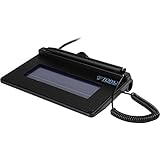
- USB interface, (Non-Backlit)
- Cost Efficient
- High-Quality Capture Techniques
- This model series shows the signature on the computer screen.
- Compatibility: T-S460-HSB-R, T-S460-BSB-R, T-S460-B-R
Privacy: what happens to your PDFs and account data?
Lumin’s terms of use say users provide files, documents, and other content to the service, and grant permission to use that content for the limited purpose of providing the service. The terms also refer to affiliates, partners, and trusted third parties with whom Lumin works. The free-account terms state that uploaded content is available for 90 days from upload, subject to the applicable terms. Do not assume that removing a local copy, disconnecting Drive, or deleting a document has the same effect on every stored copy or backup; check the current privacy policy and account controls.
Free tools Windows power users keep installed
One-click scans. No signup required.
Review the privacy policy for the categories relevant to your use, including account information, usage and device data, integrations, payment information, and deletion rights. The available materials do not support saying that Lumin “sells your PDFs”; avoid that claim unless the current policy explicitly establishes it. Conversely, do not infer that files are inaccessible to the service simply because they are encrypted in transit or at rest.
Rank #3

- 【Signature tool 1】: SMAJAYU electronic signature pad works with “SMAJAYU document(s) Signer” a Sign Tool for pdf,word,excel documents digital signature. Pdf,Excel,word documents will be save as pdf after signature on sign tool.
- 【Signature tool 2】: Second sign tool named “demo tool” which is for getting signature picture to past on excel,word.edited files.
- 【Signature tool 3】: 430S SDK is available to integrate with programmable flatform, like website, app. Contact SMAJAYU support team for support.
- 【Apply Windows OS】SMAJAYU Signature pad and Signer tool only compatible with Windows OS, Windows 7,8,10,11, don’t support apple PC.
- 【How to sign documents】Install “ SMAJAYU document(s) Signer” on computer, run this app and create certification for first installation which for signature encryption and safety. Then insert Signature pad by USB and open files to start sign.
Google Drive and OAuth permissions
When you connect Google Drive, Lumin needs permission to interact with relevant Google data to support opening, editing, and saving files. The exact Google permission screen presented during connection is the best guide to what you are authorizing: read each requested scope before selecting Allow. Lumin reports Google OAuth verification, which is a useful signal about its integration review, not a guarantee that the service is risk-free or an endorsement to grant every permission.
If this is a work or school account, check with the Google Workspace administrator before connecting it. Administrators can approve or restrict third-party OAuth apps. If you stop using the integration, revoke its access through your Google Account’s connected-app controls; Google’s guidance is at Manage third-party access to your account. Menu names and locations can change, so follow Google’s current instructions rather than relying on an old screenshot.
Rank #4
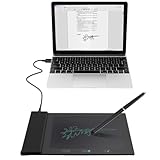
- Support English: The software download for this pad is not only in Chinese, you can change it into English by setting.
- Provide SDK for enterprise to integrate into OA system
- Pay Attention: If you need to use it on Mac OS, please contact us in advance
- Sign directly on PDF, Word, Excel, and PowerPoint files with precision—no printing, scanning, or hassle required. You can also choose that each signature is automatically stamped with the date and your printed name for added professionalism and record-keeping
- Instant E-Signatures, One Click Away – Seamlessly send your handwritten signature to your computer with just one tap.Fully compatible with PDF, Word, Excel, PowerPoint
What the Android app discloses
The Android listing’s Google Play Data Safety section says the app may share device or other IDs with third parties and may collect personal information, app activity, and two additional data categories. It also says data is encrypted in transit and that users can request deletion. This disclosure is supplied by the developer, is not an independent audit, and may vary by use, region, or age. It applies to the Android app listing; it should not automatically be generalized to Lumin’s browser, desktop, or iOS workflows. Check the current Google Play listing for the latest disclosure.
The 2019 exposure report: relevant, but not proof of a current breach
In September 2019, reporting said data relating to about 24.3 million Lumin PDF users had been shared on a hacking forum; coverage discussed user records and Google Drive-related access tokens. This is a relevant historical trust signal, but it does not show that all current users are exposed, that old tokens remain valid, or that today’s systems have the same architecture. The available reporting does not provide a sufficiently detailed, current first-party explanation of the event’s full scope and remediation. Read the 2019 report in that context rather than treating it as evidence of a present-day compromise.
Best Value
How to use Lumin PDF more safely
- Use the official service or app. Navigate to luminpdf.com or the official app-store listing; avoid repackaged installers and lookalike downloads.
- Choose the right account. Do not connect a work or school Google account unless your administrator permits it.
- Read the permission prompt. Check OAuth scopes before authorizing access. If the requested access does not fit your task, do not proceed.
- Protect your account. Use a unique password and enable MFA on the account used to sign in. Lumin’s help materials discuss two-step verification for accounts created through Google.
- Upload only what is needed. Remove or redact unnecessary personal information before sending a file to a cloud service.
- Check sharing settings. A secure service cannot prevent exposure caused by a broadly accessible link or the wrong recipient. Share with the smallest audience needed.
- Export or delete when finished. Do not assume that deleting your local file deletes cloud copies or backups; consult the current terms and privacy policy.
- Revoke unused connections. Remove Lumin from connected-account application settings when you no longer need the integration.
- Keep an independent copy. A cloud account is not a substitute for a backup you control.
- Check plan and billing limits. Lumin’s plans impose monthly document limits; the company says unused allowances do not roll over and exceeding usage can trigger an additional document stack through auto-renew unless an administrator disables it. Review the current plans and billing guidance before relying on a plan or trial.
Is Lumin suitable for confidential or regulated documents?
That depends on the data, your contracts, and your organization’s obligations—not just the encryption algorithm. Lumin says its storage centers are in the United States, so check whether that location works for your residency requirements and whether other processing activities or subprocessors affect the analysis. Ask your security or legal team to verify whether the service provides the controls and commitments you need, including:
- A current SOC 2 Type 2 report and the scope it covers.
- A signed data-processing agreement, applicable subprocessors, and incident-notification terms.
- Retention, deletion, backup, legal-hold, and audit-log controls that meet your requirements.
- Administrative access, identity, and sharing controls suitable for your organization.
- Required regional storage or specific authorization, such as HIPAA, FERPA, FedRAMP, or ITAR-related requirements.
A general GDPR or SOC 2 statement does not establish suitability for every regulated dataset. Lumin’s public materials list some standards or authorizations as in progress, so do not infer that it has every certification or authorization. For legal signatures, confirm that the particular workflow and evidence meet the rules that apply to your transaction; a product’s general compliance language is not universal legal advice.
When another PDF tool may be a better choice
- Adobe Acrobat: Consider it if you need a broad professional feature set, advanced forms, redaction, certificate-based signatures, or enterprise administration. Check the specific edition and configuration; it is not automatically the right fit for every privacy or budget requirement. See Adobe Acrobat.
- Offline tools: Preview on macOS, basic PDF features in Microsoft Edge, or organization-managed desktop software can be better when documents must remain local. You give up some cloud collaboration and cross-device syncing.
- PDFgear: It may suit users seeking a desktop or mobile alternative, but review its privacy practices too. Its policy says data used for certain AI features may be transmitted to Microsoft Azure OpenAI Service. See PDFgear and its privacy policy.
- Your organization’s approved platform: For regulated or sensitive work, the best option may already be the Microsoft 365, Google Workspace, Box, Dropbox, or PDF platform your organization administers. Its configuration and contract matter more than the product name alone.
Bottom line
Lumin PDF appears to be a legitimate service and reports several mainstream security controls. It is a defensible choice for ordinary PDFs when you use the official app or site, limit permissions, protect your account, and manage sharing carefully. It is not risk-free, and the cloud model means encryption claims do not make your files private from the service by definition. Treat it as a third-party processor: for highly sensitive files, strict residency rules, or regulated work, get explicit organizational approval or use an offline, organization-controlled alternative.
Quick Recap
Product prices and availability are accurate as of the date/time indicated and are subject to change. Any price and availability information displayed on Amazon at the time of purchase will apply.

