Some links on this page are affiliate links: if you buy through them we may earn a commission, at no extra cost to you.
Intel’s Core Ultra 200S update is not a single stability patch. It is a staged combination of motherboard BIOS changes, CPU microcode, Intel CSME firmware, Windows updates, and corrected firmware settings. The program addressed game-launch crashes, inconsistent performance, scheduling and power-management behavior, and other launch-era problems. Intel associated the final planned performance BIOS release with microcode 0x114, but the complete BIOS package and required Windows and CSME versions matter just as much.
For most Core Ultra 200S owners, the practical step is to install the newest stable BIOS for the exact motherboard or OEM system, update Windows 11, load conservative defaults, and verify stability before re-enabling XMP or performance tuning.
What Intel’s Core Ultra 200S update changed
Intel published its main Core Ultra 200S field-performance update on December 18, 2024. It described five launch-era performance or functionality issues and reported that four had been resolved at that point. Additional motherboard BIOS releases were planned for January 2025.
Do these 3 things before closing this tab:
1Repair Windows errors before they cause bigger problems2Scan for outdated or missing drivers - takes under a minute3Clear out junk files and repair common Windows errorsIntel identified the final planned performance recipe by three important requirements:
#1 Best Overall

- Get ultra-efficient with Intel Core Ultra desktop processors that improve both performance and efficiency so your PC can run cooler, quieter, and quicker.
- Core and Threads 24 cores (8 P-cores plus 16 E-cores) and 24 threads. Integrated Intel Graphics included
- Performance Hybrid Architecture Integrates two core microarchitectures, prioritizing and distributing workloads to optimize performance
- Performance Unlocked Up to 5.7 GHz unlocked. 40MB Cache
- Compatibility Compatible with Intel 800 series chipset-based motherboards
- CPU microcode 0x114
- Intel CSME Firmware Kit 19.0.0.1854v2.2 or newer
- Windows 11 build 26100.2314 or newer
These details come from Intel’s official Core Ultra 200S performance-status update and its field-update technical overview.
That does not mean every motherboard has an identical BIOS, or that 0x114 alone fixes every issue. Motherboard manufacturers integrate Intel’s components into their own firmware packages, with different release dates, settings, validation, and menu labels.
The five launch-era problems Intel reported
Intel’s documentation separates the problems into functionality and performance categories. They could overlap in practice: a scheduling or power-management error could appear as poor benchmark performance, while a game-compatibility problem could appear as a stability failure.
The Tool Desk
Outbyte PC Repair FREERepair Windows errors before they cause bigger problemsFix Now →Outbyte Driver Updater FREEScan for outdated or missing drivers - takes under a minuteDriver Scan →| Issue | What it could affect |
|---|---|
| Missing Performance and Power Management package | Power behavior, scheduling, responsiveness, and performance consistency. |
| Intel Application Performance Optimizer not taking effect | Expected application and game performance improvements failing to apply. |
| Blue screens when launching some Easy Anti-Cheat games | Game-launch reliability and apparent platform stability. |
| Incorrect performance settings in some early or reviewer BIOSes | CPU behavior, benchmark results, and comparisons between systems. |
| Additional BIOS-level performance optimizations | Performance consistency and selected gaming workloads. |
Intel reported that the combined impact varied by system and workload. In some configurations, it estimated performance costs ranging from approximately 6% to 30%. That is not a universal loss for every Core Ultra 200S processor; it depended on which issues were present, the original BIOS, Windows build, power plan, and workload.
Intel also documented symptoms such as unusual CPU scheduling, reduced single-threaded performance, memory-latency spikes, inconsistent benchmark runs, and differences between Windows 11 23H2 and 24H2. The company emphasized that the issues were not universal or consistently reproducible on every system.
Rank #2

- 10 cores (6 P-cores + 4 E-cores) and 14 threads. Integrated Intel Graphics included
- Performance hybrid architecture integrates two core microarchitectures, prioritizing and distributing workloads to optimize performance
- Up to 4.9 GHz. 22 MB Cache
- Compatible with Intel 800 series chipset-based motherboards
- PCIe 5.0 & 4.0 support. Intel Optane Memory support. No thermal solution included.
What microcode 0x114 means
Microcode is low-level processor control logic. It helps the CPU interpret and apply certain internal operating rules, corrections, and behavior changes. On desktop systems, updated microcode is commonly delivered inside a motherboard’s BIOS or UEFI firmware package. Some processor-related changes can also involve operating-system updates.
That creates three separate but related update layers:
- BIOS/UEFI: The complete firmware package downloaded from ASUS, ASRock, Gigabyte, MSI, or another motherboard manufacturer. It may contain CPU microcode, memory-training changes, configuration fixes, and other vendor-specific adjustments.
- CPU microcode: The processor-level component inside the firmware package. The revision may be displayed as a hexadecimal value such as 0x114.
- Intel CSME firmware: Platform-management firmware that may be bundled with the BIOS and has its own version number.
- Windows: The operating system and its updates can provide required scheduling, compatibility, or power-management components.
Intel associated microcode 0x114 with the final planned BIOS performance update and projected a further single-digit average improvement across roughly 35 games. That was an Intel projection, not a guarantee for every title or system. Intel’s documentation makes clear that the result depends on the baseline and the complete software and firmware configuration.
A BIOS version and a microcode version are not the same thing. A motherboard BIOS that contains 0x114 can still have different memory behavior, power limits, defaults, and validation from a BIOS released for another board.
Does the update improve stability?
It can improve stability-related behavior, but it is not a guarantee of universal stability.
Rank #3

- 20 cores (8 P-cores + 12 E-cores) and 20 threads. Integrated Intel Graphics included
- Performance hybrid architecture integrates two core microarchitectures, prioritizing and distributing workloads to optimize performance
- Up to 5.3 GHz. 36 MB Cache
- Compatible with Intel 800 series chipset-based motherboards
- Turbo Boost Max Technology 3.0, and PCIe 5.0 & 4.0 support. Intel Optane Memory support. No thermal solution included
The Easy Anti-Cheat blue-screen issue was a documented compatibility problem, so an affected user may see fewer game-launch failures after applying the relevant BIOS and Windows updates. Corrected power-management, scheduling, and firmware settings can also make a system behave more consistently.
However, an updated BIOS does not guarantee stability with:
- XMP or other high-speed DDR5 profiles
- Intel 200S Boost
- Manual overclocking or undervolting
- Aggressive motherboard power or voltage defaults
- Unsupported memory configurations
A system can be completely stable at Intel-default settings and still crash after XMP or another performance profile is enabled. Persistent crashes can also result from memory-training problems, cooling limitations, graphics or chipset drivers, faulty RAM, a defective motherboard, or a vendor-specific BIOS bug.
Intel’s official field-update overview warns that not every system experienced every issue and that some behavior varied between runs. Therefore, “stability enhancement” should be understood as improved platform correctness for relevant configurations—not as a promise that every crash disappears.
Who should install the update?
Update promptly if you:
- Use a launch-day or early BIOS version.
- Experience blue screens when launching games that use Easy Anti-Cheat.
- See unusually inconsistent gaming or benchmark performance.
- Notice unexpected scheduling, power-management, or memory-latency behavior.
- See a stable BIOS release whose notes mention Core Ultra 200S, microcode, CSME, compatibility, memory support, or stability.
Consider waiting for a final release if:
- Your system is mission-critical and the available firmware is marked beta.
- Your current system is stable and the release notes are vague.
- You depend on a carefully tuned memory or overclocking profile and cannot easily recover or retest it.
Ordinary users should generally choose the latest stable BIOS, not beta firmware. Reviewers and benchmarkers should update when comparing launch measurements with current results, while recording the exact BIOS, microcode, Windows build, power plan, memory settings, and CPU profile.
PC Slower Than It Used to Be?
A free scan shows the junk files, broken settings and background clutter dragging Windows down - then fixes them in one click.Free scan · Windows 10 & 11Outdated Drivers Are Slowing You Down
One free scan finds every outdated or missing driver and matches the right update for your exact hardware.Free scan · exact hardware matchRank #4
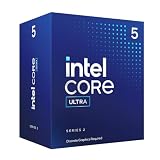
- 10 cores (6 P-cores + 4 E-cores) and 14 threads.
- Performance hybrid architecture integrates two core microarchitectures, prioritizing and distributing workloads to optimize performance
- Up to 4.9 GHz. 22 MB Cache
- Compatible with Intel 800 series chipset-based motherboards
- PCIe 5.0 & 4.0 support. Intel Optane Memory support. No thermal solution included. Discrete graphics required
How to update a Core Ultra 200S system safely
- Identify the exact platform. Record the motherboard model and hardware revision. On a Dell, HP, Lenovo, or other prebuilt system, identify the exact OEM model instead.
- Use the official support page. Download firmware only from the motherboard or system manufacturer. Do not flash a retail ASUS, MSI, Gigabyte, or ASRock BIOS onto an OEM computer.
- Compare versions. Check the installed BIOS against the newest stable release. Read the release notes for references to Core Ultra 200S, CPU microcode, CSME or Intel ME firmware, Windows 11 compatibility, memory support, or stability.
- Record current settings. Save or photograph XMP, CPU power limits, undervolting, fan curves, boot mode, storage settings, and any custom tuning.
- Return to conservative settings. Before flashing, disable overclocking, undervolting, XMP, Intel 200S Boost, and other non-default tuning where possible.
- Prepare the update media. Follow the manufacturer’s instructions for its built-in flash utility or FlashBack feature. The required file name, USB format, and port vary by model.
- Keep power connected. Do not shut down, reset, or disconnect power during the flash. Avoid updating during an unreliable power situation.
- Load optimized defaults afterward. Once the system restarts, enter UEFI, load the board’s optimized or default settings, save, and reboot.
- Update Windows 11. Intel specified build 26100.2314 or newer for its final performance recipe. Check the installed build rather than relying only on the label “Windows 11.”
- Verify the result. Check the BIOS information page and release notes. Windows System Information or a reputable hardware-information utility may also report the loaded microcode revision. The downloaded file name alone is not proof that the intended microcode is active.
- Test before tuning. Run the system at defaults first. Re-enable XMP, Intel 200S Boost, or manual tuning one at a time, testing after each change.
There is no universal BIOS menu path: labels such as M-Flash, Q-Flash, Instant Flash, EZ Flash, and FlashBack differ by vendor and board.
What to do if the update causes trouble
First distinguish between a failed flash and instability caused by settings restored after the flash.
If the system does not POST
- Power the system down completely.
- Clear CMOS according to the motherboard manual.
- Try the board’s BIOS FlashBack or recovery feature if available.
- Boot with one memory module if memory training is preventing startup.
- Reinstall the previous known-good BIOS if the manufacturer supports rollback.
If the system boots but crashes
- Load BIOS defaults.
- Disable XMP, Intel 200S Boost, undervolting, and manual overclocking.
- Update Windows, chipset drivers, graphics drivers, and Intel ME/CSME-related components where the system manufacturer provides them.
- Test at Intel-default settings before changing voltage, power, or memory parameters.
- Run repeatable CPU and memory tests, then contact the motherboard or OEM manufacturer if instability continues at supported default settings.
A computer that only crashes after enabling a high-speed memory profile should not automatically be treated as proof that the microcode update is defective. Memory compatibility and training are separate variables that must be tested independently.
How to judge performance after updating
Do not compare one pre-update run with one post-update run and call the difference definitive. Intel said its results depended on the original BIOS, Windows build, power plan, workload, and issue combination. It also noted that Balanced power mode could show larger deltas than High Performance in its testing.
Free tools Windows power users keep installed
One-click scans. No signup required.
For a meaningful comparison:
- Use the same Windows build.
- Keep the power plan unchanged.
- Use identical BIOS, memory, and CPU settings.
- Run the same game scenes or benchmark workloads several times.
- Record average frame rate and frame-time behavior.
- Keep stock and tuned results separate.
A modest gaming improvement in one title does not establish a platform-wide gain. Likewise, a lower score may result from changed defaults, memory training, power behavior, or a different Windows build rather than a broken update.
What the update does not fix
- Every possible game crash or driver conflict.
- Faulty RAM, cooling, storage, graphics hardware, or a defective motherboard.
- Unsupported DDR5 speeds or unstable XMP profiles.
- Instability caused by undervolting, overclocking, or Intel 200S Boost.
- Every vendor-specific BIOS bug.
Bottom line
Core Ultra 200S microcode 0x114 was part of Intel’s broader effort to correct launch-era performance and functionality problems, not a standalone cure-all. The update can improve compatibility, consistency, and performance for affected systems, including some game-launch stability problems. Its value depends on the complete motherboard BIOS, CSME firmware, Windows build, power plan, workload, and user settings.
Owners of early Core Ultra 200S systems or systems showing the documented symptoms should install the newest stable firmware for their exact board or OEM machine. Test at defaults first, then validate XMP and performance features separately.
Quick Recap
Product prices and availability are accurate as of the date/time indicated and are subject to change. Any price and availability information displayed on Amazon at the time of purchase will apply.
Recommended Free Tools

