Some links on this page are affiliate links: if you buy through them we may earn a commission, at no extra cost to you.
The Galaxy Z Fold7’s 200MP camera is a rear wide-camera mode for still photos, not a 200MP video setting. Use it when lighting is good, the subject is mostly still, and you may want to crop heavily or make a large print. For moving subjects, dim scenes, quick snapshots, and most video, the regular Photo, Night, telephoto, or Video modes are usually more practical.
Samsung’s US model combines a 200MP wide camera with a 12MP ultrawide and a 10MP telephoto camera offering 3x optical zoom. Samsung also says its ProVisual Engine helps improve color, detail, and low-light processing. See Samsung’s US camera and feature overview.
What the Fold7’s 200MP camera actually does
The 200MP specification belongs to the Fold7’s rear wide camera. It captures still images with substantially more native pixels than the phone’s normal photo modes, giving you more room to crop into a landscape, building, sign, artwork, product, or other detailed subject.
More pixels do not automatically make every photograph better. A high-resolution file cannot freeze a moving child, pet, athlete, or bird. Hand shake can still soften fine detail, and dim light can force the camera to make trade-offs between shutter speed, noise, and detail. Computational photography and Samsung’s ProVisual Engine remain important, so the mode should be treated as a specialized option rather than the best default for every shot.
#1 Best Overall
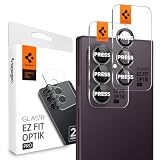
- Dedicated Camera Lens Protection: Tempered-glass rings shield each rear camera lens from scratches, drops, and daily wear — protecting the part most exposed when the phone lies flat.
- Keep Original Design: Precisely engineered to maintain the device's authentic camera look and seamless fit, with a finish that matches the phone.
- Quality Without Compromise: Optically tuned for original photo quality — no blemish, no haze, and no flash reflections that ruin low-light shots
- Capture the Moment: Maximal light transmittance preserves sharp, accurate photos and video so the protector never gets in the way of a shot
- EZ FIT Installation Tray: Auto-alignment tray seats each lens ring precisely on the first try — no guesswork lining up individual rings
The extra resolution is most useful when the final image will be inspected closely, cropped substantially, or printed large. If a photo will be reduced and compressed by a social-media or messaging service, much of the 200MP advantage may disappear.
Understand the Fold7’s cameras and zoom levels
| Camera or setting | Best use | What it means |
|---|---|---|
| 200MP wide at 1x | Bright, static scenes and later cropping | Highest native still-photo resolution |
| 2x “optical quality” | Moderate cropping or closer framing | Samsung’s high-quality crop-based zoom from the 200MP wide camera, not a separate 2x telephoto lens |
| 3x optical zoom | Distant subjects and portraits | Uses the dedicated 10MP telephoto camera |
| 30x Space Zoom | Occasional long-distance framing | A digitally assisted zoom system, not equivalent to 30x optical detail |
| 12MP ultrawide | Large groups, architecture, and expansive landscapes | Wider coverage than the main camera |
The US Fold7 also has 10MP cover-screen and 10MP main-screen front cameras. Its 8-inch unfolded display is useful for reviewing and editing photographs, but the larger screen does not change which rear camera captured the image. Camera hardware and zoom terminology can be checked on Samsung’s official product page.
How to activate 200MP photo capture
Camera controls can move or be renamed across One UI and Camera updates. The following is the practical path to look for on a current US Fold7:
- Open Camera from the Apps screen, or double-press the Side button.
- Swipe to Photo.
- Select the rear camera and return to the 1x wide-camera view.
- Tap the resolution or aspect-ratio control near the top of the viewfinder.
- Choose 200MP, if that option is offered.
- Frame the subject, stabilize the phone, and press the shutter.
- Open the result in Gallery and view its image details to confirm that it was captured at the intended resolution.
The supplied Fold7 user guide documents opening Camera, changing modes, choosing zoom levels, focusing, adjusting brightness, and using Camera settings, but does not explicitly name a fixed “200MP” menu item in its searchable text. If the option is missing, confirm that the rear wide camera and Photo mode are active, check the resolution control rather than Pro mode, and install any available phone or Camera update. Exact labels and positions may differ by software build. Consult the Fold7 user guide for the current basic Camera workflow.
Rank #2

- Please Check Model before Order- Tensea camera galaxy Z Fold 7 5G 2025 accessories by aviation aluminum and 9H tempered glass is designed for Galaxy Z Fold7 2025 Release. No bubbles, Case friendly, leave no residue after removed
- Full Protection- The aviation aluminum metal ring and 9H tempered glass single camera protector protect your Galaxy ZFold 7 camera lens from damage and scratches. The seal ring is designed to prevent dust and water. Secure protection resist shock, drop off or big impact towards your camera and keeps you peaceful
- 3D Texture- The delicate and precise spiral pattern of protector de camara samsung z folds 7 produces fascinating reflections and the unbeatable shine in any light, which protect your lens while making it a personalized decoration. Multicolor lens protector ring matches your style
- Highly Clear- The 9H tempered glass is highly transparent. No influence to Samsung Galaxy Z Fold 7 original amazing image performance. No residue, No fog, No blue light is caused when using flash. 【What you get】- 3 pieces of Tensea camera cover ring with installation tray, 1 x removal tool, 1 x cleaning tool
- 【Easy Installation】- Easy to install these camera screen protector by using the installation tray.【Easy Removal】- A removal tool is included to remove the lens protectors without damaging the phone lens, but repeated removal may cause the sticker to lose its tack
When 200MP mode is worth using
- Landscapes: Foliage, rock textures, distant buildings, and other fine detail can benefit from extra cropping latitude.
- Architecture and travel: Capture a broad scene and crop a sign, window, or façade later.
- Artwork and documents: Use bright, even lighting and keep the phone parallel to the subject when possible.
- Products and food: A stable setup and controlled light make it easier to preserve texture.
- Large prints: The additional pixels provide more source resolution for printing, although the quality of the lens, lighting, focus, and final print size still matter.
- Planned, static compositions: Use a support and take more than one frame when the image is important.
Inspect the photograph at 100 percent in Gallery or an editor before deciding that 200MP produced more usable detail. A larger file can contain more pixels but less useful detail if the camera moved, the subject shifted, or the scene was too dark.
When regular Photo or Night mode is better
Switch away from 200MP for moving children, pets, sports, wildlife, traffic, or any moment that must be captured quickly. Standard Photo mode is generally a better compromise for speed, flexibility, and smaller files.
In low light, use regular Photo or Night mode instead of assuming that maximum resolution will produce the cleanest result. A computationally processed lower-resolution image may show less noise and better motion control. Night mode can still fail with moving subjects because longer exposures make movement harder to freeze.
Use the ultrawide when the scene does not fit at 1x, and use the dedicated 3x telephoto when a distant subject or portrait needs optical telephoto framing. Cropping a 200MP wide-camera image can be useful in good light, but it is not a universal replacement for the telephoto lens. Treat 30x Space Zoom as a last-resort framing tool rather than a guarantee of optical-looking detail.
Rank #3

- Case-Compatible Fit for Samsung Galaxy Z TirFold/Fold 7: Slim metal rings avoid case edges, ensuring perfect compatibility with most protective cases without lifting or rubbing
- One-Step Installation with Zero Bubbles: Thanks to nano-static automatic adsorption technology, installation is a breeze with no bubbles and a secure. Place → press → done. The curved removal warp allows safe, easy removal without damaging the camera ring
- Anti-Reflection Glass That Preserves Original Photo Quality: 99.99% AR-coated tempered glass maintains true iPhone camera clarity—no blur, haze, color distortion, or pixel loss. Optimized optical transmission keeps every photo sharp and vibrant
- Night Mode & Flash Safe—No Glare or Halo Effects: Specifically engineered to eliminate flash reflection, ghosting, and night-mode halo. Delivers clean low-light photos, perfect for indoor shots, concerts, and night street photography
- 9H Metal-Ring Protection That Stays On Securely: Alloy rings + 9H tempered glass provide real-world impact and scratch protection. Industrial-grade adhesive ensures the protector stays firmly attached and won’t fall off over time
Technique for getting the most detail
- Clean the lens. Fingerprints and dust reduce contrast and can make fine detail look hazy.
- Use the rear wide camera at 1x. Avoid digitally zooming before capture if your goal is maximum native detail.
- Choose bright, even light. Daylight or controlled illumination gives the sensor and processing more information to work with.
- Stabilize the Fold7. Use two hands, brace your arms, place the phone on a stable surface, or use a suitable tripod mount.
- Focus deliberately. Tap the important subject on screen. Use the on-screen brightness control if the default exposure is too dark or too bright.
- Use composition aids. A grid or composition guide can help keep architecture level and make repeatable product or document shots easier.
- Keep the subject still. Ask people to hold their position and avoid 200MP mode for rapidly changing scenes.
- Take multiple frames. Small movements, blinking, or passing objects can ruin a single high-resolution capture.
- Review at full size. Check focus and texture at 100 percent instead of judging only the reduced preview.
If the image is intended as a documentary or archival record, avoid excessive sharpening or edits that invent detail. Keep the untouched original before making adjustments.
200MP photos versus high-resolution video
A 200MP still-photo selector does not mean the Fold7 records 200MP video. Video quality is controlled separately through resolution, frame rate, codec or format, bitrate, HDR, stabilization, and related Camera settings.
- Open Camera and swipe to Video.
- Choose the desired resolution and frame rate from the video controls.
- Select the lens and framing you need before recording.
- Review stabilization, HDR10+, Auto FPS, and other advanced options in Camera settings.
- Tap Record. You can pause and resume where supported, capture stills during recording, and tap Stop when finished.
Video settings that affect quality
- Resolution and frame rate: Choose the highest combination your storage, editing device, and delivery platform can handle. Higher settings consume more space and may restrict other options.
- Video stabilization: Helpful while walking or holding the phone, but electronic stabilization can crop the frame and may introduce unwanted movement artifacts on a tripod. Test it for a locked-off shot rather than assuming it should always be enabled.
- Auto FPS: Samsung’s guide says this can automatically adjust the frame rate in low light to brighten video. That may help exposure, but changing frame rate can make motion rendering less consistent. If motion consistency matters more than brightness, test with Auto FPS off in controlled lighting.
- HDR10+: Can preserve a wider range of highlights and shadows when the player, editor, display, and sharing service all support it. Unsupported workflows may show incorrect or unexpected results.
- High-bitrate video: Available with Pro video according to the guide. It can preserve more recording information, but the files are larger.
- Log video: Designed for color grading rather than immediate sharing. Log footage can look flat until it is correctly transformed or graded.
- Zoom-in mic: This Fold7 option changes microphone emphasis as you zoom. Test it in noisy environments because the apparent audio balance can change.
- 360 audio: Listed as an option when compatible Bluetooth headphones are used. Confirm compatibility before relying on it for an important recording.
- Night video: Samsung promotes Nightography and noise-reduction processing, but neither guarantees clean footage in very dark scenes. Movement, available light, and stabilization still determine the result.
Use the Fold7’s design to improve shooting
The cover screen can preview a rear-camera composition when you are taking a self-portrait or group photo with the better rear cameras. When the phone is open, Capture View can show captured images or videos in a side panel while Camera remains available, according to the user guide.
You can also partially fold the phone and place it on a stable surface for hands-free shooting. However, the guide’s documented Flex-mode selfie instructions are specifically associated with Portrait mode; do not assume that every Camera mode provides identical Flex behavior.
Rank #4
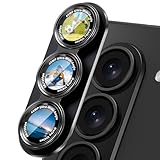
- [Newest Upgraded Protection]: CACOE Camera case for for Samsung Galaxy Z Fold 8 Ultra/Z Fold 7 - Metal Aluminum Frame + AF Coating, the 9H tempered glass covering the lens is highly transparent with 99.99% optical-grade light transmittance, HD Clarity Boosted, Scratch/Drop-Proof, All-in-One Durable Shield Design.
- [Original Image Integrity Preserved]: This precision-engineered solution for Samsung Galaxy Z Fold 8 Ultra/Z Fold 7 camera protection maintains unaltered optical performance, delivering enhanced image clarity with pinpoint focus accuracy while preserving full flash functionality without compromising rear camera output quality.
- [Durable Defense with Robust Protection]: Engineered for Samsung Galaxy Z Fold 8 Ultra/Z Fold 7 camera modules, CACOE’s protective solution combines 9H tempered glass and aerospace-grade aluminum alloy. Featuring advanced impact dispersion technology, it ensures full-coverage safeguarding against shattering while delivering enhanced scratch resistance and superior abrasion durability.
- [Key Points to Prevent Falling]: Installation Steps: ①Clean camera lens with "WET WIPES". ②Use the "microfiber cloth" to clean camera lens. ③Use the "Dust-absorber" to absorb the dust on the lens surface. ④Tear off bottom installation tray film. ⑤Align and place it onto your camera lens. ⑥Key Points to Prevent Falling: Use the "microfiber cloth" lightly to make it stick firmly.
- [Simplified Application with Comprehensive Support]: Featuring an intuitive application process, our protective solution includes a step-by-step visual tutorial for seamless installation on Samsung Galaxy Z Fold 8 Ultra/Z Fold 7 camera arrays. This defense system maintains full case compatibility with 99% of protective enclosures.
The unfolded display provides a larger workspace for reviewing and editing. Gallery tools include cropping and transforming, filters, tone adjustments, decorations, video trimming, and Samsung’s Photo Assist features. Photo Assist can reposition people or objects and generate a new background, so preserve the original whenever accuracy, evidence, or faithful representation matters.
Independent reader supportYour contribution helps us test, update, and keep practical guides available for everyone.Storage, file formats, and sharing
High-resolution photos and high-bitrate or HDR video can fill storage quickly. Samsung US lists the Fold7 in 256GB, 512GB, and 1TB configurations and recommends larger capacities for users who frequently record high-resolution video. As a practical guide, 256GB suits ordinary photography and occasional video; 512GB is more comfortable for frequent 200MP capture and regular high-resolution video; 1TB is aimed at people keeping substantial video libraries or editing projects locally. Availability and commercial terms can change, so check Samsung’s current US purchase page.
Camera settings include High efficiency pictures, which can save space but may have compatibility limitations with some sharing sites. Test your complete workflow before enabling high-efficiency formats for professional work. Keep an original copy, then create compatible JPEG or other converted copies when necessary.
Quick wins for a faster PC:
Fix the driver behind crashes, sound loss and screen glitchesFind Drivers →Clear out junk files and repair common Windows errorsFree Scan →Messaging apps, social networks, and email services may resize or recompress images. That can remove much of the practical benefit of a 200MP original. Transfer the original through a method that preserves the file when full resolution matters, and maintain at least one independent backup before deleting files from the phone.
Best Value
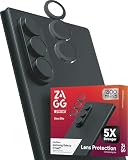
- ULTIMATE CAMERA PROTECTION: Shields your Samsung Galaxy Z Fold7 camera lenses from scratches, drops, and rough surfaces with ultra-strong aluminosilicate glass
- SHARP & VIBRANT PHOTOS: Anti-reflective technology reduces glare for clearer, more vibrant pictures in any lighting condition
- ADVANCED CLARITY TECHNOLOGY: High-definition glass preserves photo quality so every shot is crisp, clear, and colorful
- SECURE, DUST-RESISTANT FIT: Custom-designed to adhere precisely and prevent dust and debris from entering around the lenses
- SUSTAINABLE & WARRANTY BACKED: Made with up to 30% recycled glass and protected by ZAGG’s limited lifetime warranty for lasting peace of mind
Quick camera decision guide
| Goal | Recommended choice | Why |
|---|---|---|
| Maximum crop detail in daylight | 200MP wide at 1x | Highest native still resolution |
| Everyday snapshots | Standard Photo | Faster capture, smaller files, and greater flexibility |
| Very wide group or landscape | 12MP ultrawide | Captures more of the scene |
| Portrait compression or distant subject | 3x telephoto | Uses the dedicated optical telephoto camera |
| Low-light stills | Night or standard Photo | More practical exposure and processing behavior |
| Moving subject | Standard Photo | Improves the chance of getting a sharp frame |
| Handheld walking video | Stabilized Video | Reduces shake, with possible cropping |
| Color-grading workflow | Pro video with Log | Provides more post-production control |
| Highest practical video detail | Highest compatible resolution and bitrate | Depends on storage, thermals, editing, and delivery requirements |
Troubleshooting common problems
The 200MP option is missing
Confirm that Camera is in Photo mode, the rear camera is selected, and the view is 1x. Look for the resolution control rather than Pro mode. Check for software updates and reopen Camera. Because Samsung can change the interface, the control may not have the same icon or location on every One UI build.
The 200MP image is no sharper than a normal photo
Check for subject movement, hand shake, insufficient light, missed focus, or digital zoom. Also confirm that Gallery reports the expected resolution. If the image was sent through a service that resized it, compare the original file instead.
Video will not use the desired setting
Check free storage, battery and thermal conditions, the selected lens, frame rate, and combinations involving HDR10+, Log, high bitrate, or stabilization. Some settings can restrict others. If the phone becomes hot or stops recording, allow it to cool and reduce the recording demands.
What’s actually slowing this PC down?
Pick the symptom - the matching free tool is one click away.
Video looks too dark or motion looks uneven
Review Auto FPS and stabilization. Auto FPS can change frame rate in low light; try disabling it in controlled conditions when consistent motion is more important than extra brightness.
HDR video looks wrong after export
Confirm that the editor, player, display, and sharing service support HDR10+. For broad compatibility, create a standard-range copy while retaining the original HDR file.
Files cannot be opened on another device
High-efficiency formats may not be supported everywhere. Preserve the originals, then disable high-efficiency capture for future compatibility or convert copies for the destination device.
Zoom looks smeared
Return to 1x in good light, use the dedicated 3x optical camera, or crop a stable 200MP still. Do not treat 30x Space Zoom as equivalent to a 30x optical lens.
Outdated Drivers Are Slowing You Down
One free scan finds every outdated or missing driver and matches the right update for your exact hardware.Free scan · exact hardware matchWindows Errors? Fix Them Before They Spread
Repair common Windows errors and clear accumulated junk for a smoother, more stable PC - no reinstall needed.Free scan · no reinstallQuick Recap
Product prices and availability are accurate as of the date/time indicated and are subject to change. Any price and availability information displayed on Amazon at the time of purchase will apply.

