Some links on this page are affiliate links: if you buy through them we may earn a commission, at no extra cost to you.
This guide covers an in-place upgrade of the SQL Server instance that hosts a Microsoft Configuration Manager (formerly SCCM) primary-site database. SQL Server 2019 is not automatically supported by every Configuration Manager release: first confirm your exact release, SQL edition, and topology in Microsoft’s SQL Server support matrix and follow Microsoft’s SQL upgrade guidance. SQL Server 2019 is a legacy target; newer supported SQL versions may be a better choice for a new deployment or migration.
The SQL Setup wizard is only one part of the change. You also need verified backups, an inventory of applications and reporting dependencies, a topology-aware service plan, and acceptance checks for Configuration Manager, reporting, and database replication. The walkthrough below describes the general sequence, not a substitute for the support requirements for your installed release.
Scope: what this procedure does—and does not—cover
An in-place upgrade replaces the Database Engine version on the existing SQL Server instance while retaining its server and instance identity. The 2022 HTMD walkthrough describes upgrading SQL Server 2014, 2016, or 2017 to SQL Server 2019, but those source versions are not a blanket guarantee of compatibility. Confirm the exact source-to-target path, edition, and Configuration Manager release against Microsoft’s current documentation before scheduling work. SQL Server 2019 is major version 15.x.
This is not a complete procedure for an Always On availability group, failover cluster instance, database mirroring or log-shipping setup, third-party high-availability product, or a hierarchy-wide upgrade. Those arrangements need their own SQL and Configuration Manager runbooks. Also distinguish a standalone primary site from a primary site under a central administration site (CAS), secondary-site databases, remote SQL, and remote Reporting Services.
#1 Best Overall

- HP ProLiant DL360 G7 Business Server, the perfect enterprise server or small business server!
- Processors: Dual (2) Xeon X5675 6-Core 3.06 GHz 12MB CPUs Max Turbo 3.46 GHz
- Memory: 72GB (4 x 16GB) DDR3 PC3-10600R Memory; Storage: 3.6TB (4 x 900GB) 10K 12Gb/s SAS 2.5" HDDs
- Power: Redundant Power Supplies; RAID: HP Smart Array P410i-a 12Gb/s with 4×GigaBit NIC
- Hard drives and memory upgrades included separately NOT installed, installation required.
Choose in-place upgrade or side-by-side migration
| Consideration | In-place upgrade | Side-by-side migration |
|---|---|---|
| Server and instance identity | Keeps the existing SQL host and instance, which can reduce Configuration Manager and application reconfiguration. | Introduces a destination server or instance; clients and dependent services may need configuration changes. |
| Change scope | Usually narrower if the existing server is healthy and no architecture changes are planned. | Better suited to an operating-system replacement, new storage or security design, or a move away from an aging server. |
| Rollback | There is no simple SQL downgrade. Recovery depends on a tested restore plan. | The old environment can often remain available during testing, giving more options to switch back. |
| Best fit | A healthy, supported instance where preserving identity and limiting infrastructure change matter. | A shared, unstable, obsolete, or constrained server—or a project where isolation and a clean fallback matter most. |
Do not choose in-place solely because the wizard offers it. If the instance is shared by other applications, map each database and owner and validate every consumer. A successful Configuration Manager console login does not prove that reports, automation, monitoring, or other applications still work.
Pre-upgrade checklist
- Verify support. Record the Configuration Manager current-branch version, SQL Server source version and edition, intended SQL Server 2019 edition, and licensed features. Check Microsoft’s support matrix and SQL Server’s supported version and edition upgrade paths. Do not infer support from a blog walkthrough or from the fact that Setup permits an upgrade.
- Map the topology. Record whether SQL is local or remote, the actual instance name, site server and CAS/secondary relationships, SSRS location, and all other applications that connect to the instance. Identify which team owns each server and service.
- Check health. Confirm the Configuration Manager site database is online and site/component status is acceptable. Review SQL error logs, Windows Application and System logs, failed SQL Agent jobs, I/O alerts, and database recovery or consistency issues. Resolve existing problems before adding an engine upgrade.
- Prove recoverability. Take and verify a SQL backup of the site database and every other database on the instance. Confirm that the Configuration Manager site backup is current and restorable. Back up or document SQL logins, permissions, credentials, SQL Agent jobs and schedules, certificates or keys in use, and SQL configuration. If SSRS is present, separately protect its databases, encryption key, reports, data sources, subscriptions, and configuration. A VM snapshot may be supplemental protection only when permitted by your virtualization and SQL policies; it is not a substitute for SQL and Configuration Manager restore testing.
- Confirm capacity and access. Check free space on system, data, log, and temporary-drive volumes. Verify the SQL Server and SQL Agent service-account credentials and required permissions. The account running Setup needs local administrator rights and appropriate SQL permissions. Confirm that the installation media and approved servicing update are available.
- Plan dependencies and timing. Check for active transactions, backups, index maintenance, replication work, and scheduled jobs. Notify owners of reporting, ServiceNow, inventory, automation, monitoring, and backup integrations. Rehearse in a representative staging environment and reserve time for Setup, any required restart, functional tests, and recovery.
- Clear restart requirements. If Windows or SQL Setup reports a pending restart, reboot before the maintenance window or before retrying an update. Record the original startup state of services you intend to stop.
Plan SSRS separately
SQL Server Reporting Services (SSRS) has its own lifecycle and should not be treated as an automatic part of the Database Engine upgrade. The 2022 walkthrough warns about older SSRS installations, including SSRS 2014 or earlier in its scenario, and says upgrading SQL can affect Reporting Services. The precise effect depends on the installed SSRS version and arrangement, so verify it for your environment instead of assuming that the engine upgrade will preserve a working reporting server.
- If SSRS is compatible and will remain in place, document its version and configuration, then plan post-upgrade tests.
- If it is too old or must move, make SSRS removal, upgrade, or migration a separate approved workstream. Preserve the encryption key and inventory reports, subscriptions, data sources, credentials, permissions, and schedules.
- If SSRS is remote, include that host, its network path, and its owners in the change plan.
- If Configuration Manager reporting is not used, verify that no scheduled job or other application relies on SSRS before marking it out of scope.
Prepare services and the maintenance window
Do not copy a service list blindly between a site server and a remote SQL host. The services present depend on topology and installed components. The HTMD walkthrough names services such as SMS Agent Host, SMS_EXECUTIVE, SMS_NOTIFICATION_SERVER, SMS_SITE_BACKUP, SMS_SITE_COMPONENT_MANAGER, and SMS_SITE_VSS_WRITER; its list contains a spelling variation for the site-backup service. Treat these as examples to verify on the target, not a universal instruction to stop every service whose name contains “SMS.”
Use the Microsoft-supported maintenance procedure for the installed Configuration Manager release to determine which site services must be stopped and when. A remote SQL server may not host those site-server services at all. Separately identify SQL-dependent third-party agents and jobs that should be paused. Stop only the services and tasks in the approved plan, note their original startup settings, and keep a record of what was stopped so it can be restored after validation.
Rank #2

- [CPU] AMD Ryzen 7 5700G Processor (8 Cores, 16 Threads, 3.8 GHz Base Clock Speed up to 4.6 GHz Max Boost Clock Speed) for Gaming and Content Creation with 7nm Leading Edge Technology | [STORAGE] 2TB PCIe NVMe M.2 SSD - Experience Hyper-Fast Bootup and Data Transfer thats up to 30x Faster Performance than a Traditional Hard Drive.
- Graphics: Integrated AMD Radeon Graphics | [RAM] 32GB DDR4 RAM 3200 Gaming Memory for Seamless Multitasking from Multiple Web Pages to Playing Games Online Simultaneously | [OS] Windows 11 Pro x64
- 2x 3.5" Drive Bays | 4x Expansion Slots | mATX Motherboard | ATX PSU
- [BUY WITH CONFIDENCE] Empowered PCs are Assembled in the USA, Rigorously Stress-Tested Before Shipping, and Supported with Lifetime Technical and Diagnostic Support and 3-Year Limited Hardware Warranty.
For an early inventory on Windows, this PowerShell command can list likely SQL and SMS services; review the output rather than stopping everything it finds:
Get-Service | Where-Object {
    $_.Name -match 'MSSQL|SQLSERVERAGENT|SMS'
}
For a hierarchy with a CAS, plan sequencing across the hierarchy, not just the primary database. The HTMD walkthrough says to upgrade the CAS SQL before the primary-site database in its larger sequence. Apply that only where relevant to your topology and confirm the current Microsoft procedure. A standalone primary site has no CAS step.
Run SQL Server 2019 Setup
Use the supported upgrade path and SQL Server 2019 installation media. The standard wizard flow is documented in Microsoft’s SQL Server Setup upgrade guide. Exact screens can vary with media, installed features, and servicing level.
- Mount or extract the SQL Server 2019 media, then run
Setup.exewith the approved administrative account. - Open Installation and select Upgrade from a previous version of SQL Server.
- Accept the license terms and address any blocking items in the global rules. Do not ignore failed rules; investigate each result and resolve the cause.
- Select the existing SQL instance. The HTMD example uses the default instance,
MSSQLSERVER; choose the actual named or default instance in your environment. - Review the features and instance configuration carefully. Keep the intended instance identity and configuration. Do not use an engine upgrade to change the Configuration Manager database or instance collation.
- Review service accounts and service configuration. Preserve intended accounts and settings unless a documented change is part of the approved plan.
- If Setup presents a full-text upgrade choice, select according to your SQL upgrade plan and catalog requirements. The HTMD author selected Import, noting it is typically faster than rebuilding; that is an example, not a universal Configuration Manager requirement. Consider catalog presence, expected duration, and disk space, and validate full-text use afterward if applicable.
- Review feature rules and the ready-to-upgrade summary. Confirm the selected instance and features before starting the upgrade.
- Start Setup and monitor its status. Preserve the summary and detailed logs even if the upgrade succeeds.
Keep collation and database settings intentional
An in-place upgrade is not the time to change the Configuration Manager database collation. The HTMD walkthrough notes that its scenario does not offer a collation change in the wizard. Treat any collation change as a separate migration project and follow Microsoft guidance; do not attempt to “fix” collation as part of this engine upgrade. Record current values before work:
Rank #3

- Dell PowerEdge R730xd 24B SFF 2U Server
- 2x Intel Xeon E5-2690 v4 2.6Ghz 14-Core (28-cores Total)
- 128GB DDR4 RAM – 4x 1.2TB 10K SAS 2.5” 12Gb/s
- Dell H730P mini 2GB 12Gb/s RAID
- 2x 750W PSU - 2x 10Gb SFP+ 2x 1Gb (RJ45) NIC
SELECT
    SERVERPROPERTY('Collation') AS ServerCollation,
    name AS DatabaseName,
    collation_name
FROM sys.databases
WHERE name = N'<ConfigurationManagerSiteDatabaseName>';
Replace the placeholder with the actual site database name. Afterward, verify the database remains online and that its recovery model and compatibility level are as expected. An engine upgrade preserves the database, but connected applications, drivers, performance, and maintenance still need validation.
Apply SQL Server servicing updates
After the engine upgrade, install the SQL Server 2019 servicing update approved under your organization’s patch policy. Check Microsoft’s latest SQL Server updates page, release notes, known issues, restart requirements, and Configuration Manager compatibility before selecting a package. Decide in advance whether servicing is included in the same maintenance window or handled as a separate change.
The original 2022 article used SQL Server 2019 CU15 and mentioned CU5 in connection with a particular scalar-UDF issue. Those are historical references, not current patch advice. Do not use CU15 as the present target simply because it appears in that walkthrough, and do not treat CU5 as a general minimum. If an update is blocked by a pending reboot, restart as required, review the Setup logs, and retry according to the approved plan.
Free tools Windows power users keep installed
One-click scans. No signup required.
Verify SQL Server before restarting site activity
Confirm the SQL Server service is running for the intended instance, and SQL Server Agent is running if the environment depends on it. Connect to the correct instance and run:
Rank #4
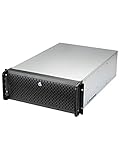
- Spacious Chassis: This huge 4U server case comes with 15 internal 3.5" HDD bays.
- Expandable & E-ATX Compatible: 7 PCI expansion slots and E-ATX compatibility gives you growth options for all of your needs.
- Exceptional Cooling: 8 pre-installed cooling fans provide excellent airflow and heat protection. 3 front 120mm PWM fans, 3 middle 120mm fans and 2 rear 80mm fans ensure your drives and chassis avoid overheating.
- Desired Features: Front panel LED indicators for power, HDD, and LAN status monitoring allow quick, easy visual assessment. Additional utility with 2 USB 3.0 port and built-in front panel lock.
SELECT
    SERVERPROPERTY('ProductVersion') AS ProductVersion,
    SERVERPROPERTY('ProductLevel') AS ProductLevel,
    SERVERPROPERTY('Edition') AS Edition,
    @@VERSION AS FullVersion;
Confirm the product version is in the SQL Server 2019 15.x family and that the edition and servicing level match the change record. Then check that the site database and other required databases are online, expected logins and service accounts work, SQL Agent jobs and schedules remain present and enabled, and backups can run. Review the SQL error log for new critical errors. Do not restart dependent services until SQL is ready.
Independent reader supportYour contribution helps us test, update, and keep practical guides available for everyone.Bring Configuration Manager back and validate it
Restore the services you stopped in the planned order and return their startup settings to the recorded values. In a multi-server topology, coordinate with the site and SQL owners; do not assume restarting a secondary site is a general fix for replication problems.
- Open the Configuration Manager console and inspect site status and component status. Confirm the relevant site-server services are running.
- For a hierarchy, check database replication in the console, commonly under Monitoring > Overview > Site Hierarchy (labels may vary by release). Confirm links are active and replication is progressing. Use Configuration Manager’s database-replication diagnostics and logs to investigate failures.
- Run a client smoke test: request policy from a test client, confirm it receives policy, trigger a hardware inventory cycle, and verify that the resulting data reaches the site.
- Test an approved, low-risk application deployment or compliance action and verify expected client and site behavior.
- Run a standard Configuration Manager report if reporting is in scope. Confirm SSRS opens, the report renders, its data source points to the intended server and instance, subscriptions run, and permissions and stored credentials work.
- Check connected applications and monitoring—not just Configuration Manager itself. Ask each owner to verify its SQL connection, logins, scheduled tasks, and expected data.
- Run the next scheduled site and SQL backups and confirm success. Continue monitoring SQL, Configuration Manager component status, and replication after the maintenance window.
Declare success only when SQL is healthy, Configuration Manager site and component status are acceptable, hierarchy replication is active where applicable, client policy and inventory work, deployments pass the smoke test, reporting and integrations function, and a post-change backup succeeds.
Do these 3 things before closing this tab:
1Repair Windows errors before they cause bigger problems2Fix the driver behind crashes, sound loss and screen glitches3Clear out junk files and repair common Windows errorsWhere to find upgrade logs
SQL Server 2019 Setup logs are normally rooted at:
C:Program FilesMicrosoft SQL Server150Setup BootstrapLogSetup creates a timestamped subfolder for a run. Collect the summary and detailed Setup logs, SystemConfigurationCheck_Report.htm when present, and the generated ConfigurationFile.ini if useful to document selections. Also collect the SQL Server error log, Windows Application and System event logs, Configuration Manager component status and relevant site/database-replication logs, and SSRS logs if reporting is affected. Folder names and files vary by run; do not rely on a sample timestamp from another installation.
Troubleshooting common failures
| Symptom | What to check next |
|---|---|
| Setup stops at a global rule | Read the failed rule and its detailed log. Check for pending restart, insufficient privileges, incompatible features, or system configuration issues. Fix the specific cause before rerunning Setup. |
| Cumulative update will not install | Check for a pending reboot or files in use, review the update logs, restart if required, and retry under the approved servicing plan. |
| SQL service will not start | Check the SQL error log, Windows events, service-account credentials, data and log volume access, and the selected instance. Confirm network and firewall settings if clients connect remotely. |
| Configuration Manager services fail to start | Verify SQL is available at the expected host and instance, service credentials are valid, and required ports and DNS resolution work. Inspect component status and event logs before cycling services repeatedly. |
| Database replication is unhealthy | Check SQL service state at both ends, network connectivity, hierarchy sequencing, replication links, and Configuration Manager replication diagnostics. A secondary-server restart resolved one issue in the HTMD author’s environment; it is not a universal remedy. |
| Reports or subscriptions fail | Investigate SSRS version and configuration, data-source server names, permissions, stored credentials, subscription schedules, and availability of the SSRS encryption key. Diagnose SSRS separately from the Database Engine. |
| Database is online but another application fails | Validate that application’s driver, server/instance reference, login and permissions, compatibility assumptions, collation needs, and feature dependencies. An online database is not proof that every consumer is healthy. |
| Rollback is required | Use the documented SQL and Configuration Manager recovery plan and verified backups. Do not assume Setup offers a downgrade or rely on a VM snapshot alone. |
When side-by-side migration is the safer path
If the operating system also needs replacing, the SQL host is shared or unstable, storage and security architecture must change, or you need a cleaner fallback, plan a side-by-side migration rather than stretching an in-place upgrade beyond its strengths. At a high level, that means validating a supported destination, restoring or migrating the site database and associated SQL configuration using Microsoft’s supported procedure, updating the necessary Configuration Manager and application connections, testing reporting and hierarchy behavior, and retaining the old host until acceptance checks pass. This is a separate migration design; do not improvise it from the in-place wizard steps.
Production sign-off checklist
- Installed Configuration Manager release, SQL edition, and target SQL version are confirmed as supported.
- SQL and Configuration Manager backups are verified; restore dependencies such as logins, credentials, certificates, and SSRS encryption key are accounted for.
- SQL service, instance identity, database state, jobs, and backup operation are verified.
- Configuration Manager site and component status are acceptable; test clients receive policy and return inventory.
- Deployments, reports, subscriptions, and other integrations pass their planned checks.
- Database replication is active where the topology requires it.
- Setup, SQL, Windows, Configuration Manager, replication, and SSRS logs are retained, and the recovery decision owner is known.
The original HTMD walkthrough was published on March 16, 2022. Its wizard sequence can help explain an in-place upgrade, but its screenshots, CU15 recommendation, terminology, and support assumptions are historical. Use Microsoft’s current support matrix and upgrade guidance as the authority for a production change. See the original HTMD walkthrough for the source procedure and examples.
Quick Recap
Product prices and availability are accurate as of the date/time indicated and are subject to change. Any price and availability information displayed on Amazon at the time of purchase will apply.
Recommended Free Tools

