What’s actually slowing this PC down?
Pick the symptom - the matching free tool is one click away.
Some links on this page are affiliate links: if you buy through them we may earn a commission, at no extra cost to you.
To update an Epson projector safely, find its exact model and current firmware version, download the matching file from Epson’s support page for your product’s region, and follow the update method Epson specifies for that model. Supported methods and menu names vary. Keep power and any USB or network connection in place until the projector finishes, then check its information screen to verify the installed version.
Before you begin
Projector firmware is the built-in software that controls hardware and functions such as image processing, inputs, networking and wireless display. An update may fix a specific bug or compatibility issue, add a feature, or address a networking or screen-mirroring problem. It does not necessarily improve picture quality; check the release notes for the exact benefit Epson lists for your model.
Confirm the model and current version
- Find the full model name on the projector’s label, original packaging or invoice, or in its information menu. Search for that exact model on the Epson support site. Similar names and regional variants may use different firmware.
- Open the projector’s information or management screen and record the installed firmware version. Depending on the model, look under labels such as Info > Information > Version, Management > Information > Version or Information > Firmware Version.
- Compare the complete version string with the version on the correct Epson product-support page. Menu labels and the location of version information are model-specific; consult the model’s guide if you cannot find them. Epson’s firmware overview explains that update procedures vary: Epson firmware update overview.
Decide whether and when to update
An update is worth considering when Epson recommends it, its release notes describe a fix or feature you need, Epson support directs you to update during troubleshooting, or you are preparing equipment for a managed deployment. If the projector is working reliably and the update offers no relevant benefit, you can wait. Do not begin during a presentation or other critical use, when power is unstable, or before you have confirmed the model, region and supported update method.
Do these 3 things before closing this tab:
1Scan for outdated or missing drivers - takes under a minute2Repair Windows errors before they cause bigger problems3Fix the driver behind crashes, sound loss and screen glitches- Arrange stable mains power. Do not plan to unplug or move the projector during the update.
- Have the specific USB drive, cable, computer or network access required by the model.
- If transferring a file from a computer, close unrelated applications and prevent the computer from sleeping during the transfer.
- For network updating, confirm the required network connection and DNS setup described in the model’s instructions.
Find and download the correct firmware
- Go to the Epson support site for the market where the projector was sold and search for its exact model. Do not substitute a similar model or a file from another region.
- Open the model’s downloads or firmware section. Read the release notes and installation instructions before downloading.
- Confirm the listed version, release date, file and supported installation method. Epson’s product pages can also state compatible operating systems and special restrictions. For example, some PowerLite models list screen-mirroring firmware as USB-only: PowerLite 2142W support page and PowerLite L610W support page.
- Download the file directly from Epson. Preserve its original name and extension. Some files use a
.binextension, but formats and names vary; do not rename, unzip or otherwise alter the file unless the model’s instructions explicitly require it.
Firmware versions are not universal. As examples of how quickly listings can differ, Epson’s U.S. pages showed PowerLite EB-L630U firmware version 1.45 dated July 7, 2026, and PowerLite L770U version 1.63 dated March 25, 2026, as of August 18, 2026. Neither number applies to other models: EB-L630U support page and L770U support page.
#1 Best Overall

- Display Stunning Images up to 300" — Widescreen picture four times larger than a 75" flat panel delivers an immersive experience for business presentations, home viewing and beyond
- Compact Design — Sleek, lightweight design easily fits in backpacks for easy portability on the go
- Ultra Bright Images — 3,000 lumens of color and white brightness (1) deliver outstanding-quality images in a variety of lighting conditions
- Best-in-Class Color Brightness (2) — Advanced 3-chip 3LCD technology displays 100% of the RGB color signal for every frame, allowing for outstanding color accuracy while maintaining excellent color brightness without any distracting “rainbowing” or “color brightness” issues seen with other projection technologies
- Compatible with Streaming — Connect your preferred streaming solution, such as an Apple TV, Roku, Amazon Fire TV or Android TV (3), to the built-in HDMI port to start streaming your favorite content—easy.
Choose the update method your model supports
| Situation | Method to consider | Key requirement or limitation |
|---|---|---|
| One projector, including an offline projector | USB storage device | Requires a compatible FAT-formatted device and a model that supports USB storage updates. |
| Projector with a supported USB-B or Service-port procedure | Computer and USB cable | Requires the specified port, cable and supported computer operating system. |
| Model with a network-update menu | Update over network | Requires model support, network access and DNS configuration. |
| Several managed projectors | Epson Projector Management | Requires a compatible wired network and supported Windows software. |
| Firmware component specifically marked USB-only | USB method stated on the support page | A network update may not install that component. |
These methods are not interchangeable. Confirm the exact procedure in the support page and user guide before connecting anything.
Method 1: Update with a USB storage device
This is a practical option for a single projector when the model supports updating from a USB storage device. Epson’s model-specific steps include direct connection, FAT formatting and root-folder placement: USB firmware update instructions and USB-A update menu instructions.
- Prepare a compatible USB storage device. Format it as FAT if the model’s guide specifies that requirement.
- Copy only the downloaded firmware file to the device’s root or top-level folder. Keep its original name; do not put it in a subfolder.
- Turn on the projector and insert the device directly into the specified USB-A port. Do not connect it through a USB hub.
- Open the model’s firmware-update menu. Depending on the projector, it may be under Initial/All Settings > Firmware Update, Info > Firmware Update or another path. Choose the USB update command if the menu offers multiple methods, then confirm.
- Leave the device and projector connected while the update runs. Wait for the completion state specified by Epson, such as standby or an on-screen reboot prompt. Remove the USB device only when the model’s instructions say the process is complete.
- After the projector restarts or enters standby, check its information screen for the installed version.
If Epson’s instructions for your model require an empty device apart from the firmware file, follow that requirement. Do not proceed if the projector does not recognize the file; use the troubleshooting steps below instead of forcing an update.
Free tools Windows power users keep installed
One-click scans. No signup required.
Method 2: Update with a computer and USB cable
On supported models, the projector enters update mode and appears to the computer as a removable drive. This is distinct from copying a file to a USB flash drive. Follow the port and cable instructions for your model; a USB-B or Service port procedure cannot be assumed to work through another port. See Epson’s USB-B firmware procedure.
Rank #2

- EXTRA-LARGE SCREEN DISPLAY — Image size reaches up to 300 in, 4x the size of a 75 in flat panel; Color projector with speaker allows you to level up your Zoom video conferencing experience with stunning widescreen WXGA resolution
- ULTRA BRIGHTNESS — 4,000 Lumens of Color Brightness (IDMS rated) and 4,000 Lumens of White Brightness (ISO Rated)¹; Wall projector allows you to display group presentations, spreadsheets and videos, even in well-lit rooms
- CRISP IMAGE QUALITY — Advanced 3-Chip 3LCD technology displays 100% of RGB color signal for every frame, providing precision color accuracy while maintaining vivid color brightness, without distracting "rainbowing" or "color brightness" issues
- VERSATILE CONNECTIVITY — Epson video projector features two HDMI ports so you can easily connect laptops and streaming devices², including Amazon Fire, Apple TV, Roku and Chromecast; Connect laptops for seamless video conferencing and more
- QUICK AND SIMPLE SETUP — The built-in speaker means you can start using this business projector immediately; Easy setup for video and audio right out of the box; Portable projector can also be easily repositioned
- Verify that the model supports this method, then download its firmware from the exact Epson support page.
- Use the specified USB cable and the projector’s specified USB-B or Service port. Turn on the projector.
- Open Initial/All Settings > Firmware Update or the equivalent model-specific menu and confirm the command that puts the projector into update mode.
- When the projector appears on the computer as a removable drive, copy only the firmware file to the drive’s root directory. Do not rename it or add other files.
- Safely eject the projector drive from the computer, then disconnect the cable in the order stated in the model’s instructions. Allow the projector to run the update without interruption.
- Wait for the specified completion state and verify the firmware version on the projector.
Operating-system requirements depend on the model. One Epson computer-based procedure lists Windows 10 or later and macOS 10.13.x or later; check the requirements for your projector rather than assuming those versions apply to every model: computer firmware update instructions. One different Epson manual says its projector may shut off if it remains in update mode for more than 20 minutes before the file is copied. That is a model-specific timeout, not a general estimate for update duration: model-specific computer update procedure.
Method 3: Update over the network
Use this method only if the projector offers it. Epson’s network procedure requires a DNS server so the projector can reach the update service; the exact network and menu options vary by model: Epson network firmware update instructions.
- Connect the projector to a network using the connection supported by the model, and confirm that DNS is configured. The projector may obtain DNS addresses through DHCP or use manually entered addresses.
- Check the projector’s network firmware-update setting. Depending on the model, choices may include Notify, Do not notify, Auto update at midnight or Off. These settings control update prompts or automatic behavior; they do not appear on every model.
- Open Initial/All Settings > Firmware Update or the model’s equivalent, choose Update over Network, and confirm.
- Keep the projector powered and connected until its instructions indicate completion. Then check the installed version.
Epson describes Auto update at midnight on supported models as an attempt between midnight and 4 a.m. while the projector is in standby. The network update option may be unavailable if updates are set to Off, the latest firmware has not been uploaded to Epson’s server, or another network update is running. If the projector is managed through Epson Projector Management Connected, Epson recommends turning Firmware Update Set off to avoid conflicting update behavior.
The Tool Desk
Outbyte PC Repair FREERepair Windows errors before they cause bigger problemsFix Now →Outbyte Driver Updater FREEScan for outdated or missing drivers - takes under a minuteDriver Scan →Method 4: Update multiple projectors
For schools, offices, venues and other fleets, Epson Projector Management software can distribute firmware over a wired network from a network location or a file on an administrator’s computer, with immediate or scheduled updates. The projector must be connected through a wired network; some models also require communication to remain enabled in standby. Check the software documentation for compatibility and setup details: Epson Projector Management documentation.
Rank #3
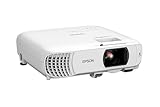
- HOME THEATER PROJECTOR — Bring your entertainment experience to the next level; With detailed 1080p images and fast data processing, the Epson Home Cinema projector is optimized for fast-action sports and more; Also an exciting casual gaming projector
- ULTRA BRIGHT IMAGES — 4,000 Lumens of Color Brightness (IDMS rated) and 4,000 Lumens of White Brightness (ISO Rated)¹; Wall projector for tv and movies delivers clear and crisp images in a variety of lighting conditions
- VIVID AND PRECISE COLOR — Advanced 3LCD technology displays 100% of RGB color signal for every frame, providing precision color accuracy while maintaining vivid color brightness, without distracting "rainbowing" or "color brightness" issues
- VERSATILE CONNECTIVITY — Streaming projector features two HDMI ports and a USB port that functions as a power source for streaming devices²; Connect laptops and devices, including Fire TV, Apple TV, Roku, and Chromecast; Seamless video conferencing
- QUICK AND SIMPLE SETUP — The built-in speaker means you can start using this projector immediately; Easy setup for video and audio right out of the box; Portable projector with speaker can also be easily repositioned
Epson Projector Management Software is Windows-based local management. Epson Projector Management Connected is a browser-based service for remote monitoring and control. These are separate options; use the one supported by the projector and your organization’s setup. Epson’s U.S. support page for the L770U listed Epson Projector Management Software version 5.54 dated January 21, 2026, but that listing is model- and operating-system-dependent, not a universal software requirement: L770U support page.
If both a management platform and the projector’s own network-update setting are active, coordinate their schedules. For Projector Management Connected, follow Epson’s recommendation to turn Firmware Update Set off in the projector’s network settings.
Independent reader supportYour contribution helps us test, update, and keep practical guides available for everyone.Recognize completion and verify the version
During a normal update, indicators may flash and fans may run at high speed. Depending on the model, the projector may enter standby, restart, or display a Reboot command that you must select. Direct Power On may cause some projectors to turn on again after standby. These behaviors are described in Epson’s model instructions and are not, by themselves, proof of failure: Epson USB update behavior example.
- Wait for the completion state in the model’s instructions; do not interrupt the process just because it takes longer than expected.
- If you used a computer, safely eject the projector drive as instructed. Do not remove USB storage or disconnect a cable before Epson says the update is complete.
- Open the projector’s information screen and compare the complete installed version string with the intended release, not just its first number.
- Test the inputs, network, wireless display or other functions named in the release notes. For a managed fleet, record the installed version and release details.
Troubleshoot update problems
The projector does not detect the firmware file
Check the model and regional support page, the file’s original name, root-folder placement, required FAT format, specified USB port and whether the device is connected directly rather than through a hub. If the model requires an otherwise empty device, remove other files. Download the file again from Epson if necessary. Do not force the update; confirm the procedure in the exact user guide before retrying.
Rank #4
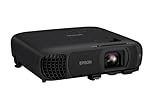
- EXTRA-LARGE SCREEN DISPLAY — Image size reaches up to 300 in, 4x the size of a 75 in flat panel; Color projector with speaker allows you to level up your Zoom video conferencing experience with stunning Full HD 1080p resolution
- ULTRA BRIGHTNESS — 4,100 Lumens of Color Brightness (IDMS rated) and 4,100 Lumens of White Brightness (ISO Rated)¹; Wall projector allows you to display group presentations, spreadsheets and videos, even in well-lit rooms
- CRISP IMAGE QUALITY — Advanced 3-Chip 3LCD technology displays 100% of RGB color signal for every frame, providing precision color accuracy while maintaining vivid color brightness, without distracting "rainbowing" or "color brightness" issues
- WORKS WITH APPLE AIRPLAY — Epson projector with wifi allows you to wirelessly stream videos, music, photos and presentations to your projector from your iPhone, iPad, or Mac², plus screen mirroring with Miracast to stream from your Windows PC³
- VERSATILE CONNECTIVITY — Features two HDMI ports and a USB port that functions as a power source for streaming devices⁴; Easily connect laptops and devices including Fire TV, Apple TV, Roku, and Chromecast; Seamless video conferencing and more
The firmware-update option is missing or unavailable
The model may not support that method, the required file or connection may be absent, or the menu may use a different path. For network updating, check whether Firmware Update Set is off and whether an update is already running. Epson also notes that Update over Network may be unavailable when the latest firmware has not yet been uploaded to its server.
The projector remains in computer update mode
Follow the model’s specific procedure rather than improvising a restart or transferring a file after an unexpected shutdown. One Epson manual documents a 20-minute shutdown timeout when its firmware file has not been copied; other models may behave differently: Epson timeout example.
Indicators keep flashing rapidly or the update appears to have failed
Do not repeatedly power-cycle a projector that may still be updating. If Epson’s instructions identify the state as a failed update and direct you to reconnect power, follow that procedure once: disconnect and reconnect the power cord as specified. If rapid flashing persists, unplug the projector from the outlet and contact Epson support. Epson’s guidance is model-specific; some manuals warn that repair fees may apply after failures caused by power or communication problems, depending on the product and service circumstances.
The projector restarted but the version did not change
Check the complete version string and make sure you opened the correct information screen. The file may not have been accepted, the update may not have completed, the wrong firmware component may have been selected, or the installed version may already be the same or newer. If Epson reported success but the displayed version remains unexpected, stop retrying and ask Epson support to confirm the correct file and next step.
When to contact Epson
Contact Epson support if rapid-flashing indicators persist after the prescribed recovery, power was interrupted during the update, a verified model-specific file repeatedly fails, or you cannot confirm the correct workflow for a professional installation model. Provide the exact model, region, installed version, intended firmware version, update method and any displayed message: Epson Support.
Quick Recap
Product prices and availability are accurate as of the date/time indicated and are subject to change. Any price and availability information displayed on Amazon at the time of purchase will apply.

