The Tool Desk
Outbyte PC Repair FREERepair Windows errors before they cause bigger problemsFix Now →Outbyte Driver Updater FREEFix the driver behind crashes, sound loss and screen glitchesFind Drivers →Some links on this page are affiliate links: if you buy through them we may earn a commission, at no extra cost to you.
To have Windows 11 show the touch keyboard when it detects no physical keyboard, open Settings → Time & language → Typing → Touch keyboard and set Show the touch keyboard to When no keyboard is attached. Choose Never to stop automatic pop-ups, or Always to allow the keyboard to appear even when a physical keyboard is connected.
Turn on the touch keyboard when no keyboard is attached
- Press Windows key + I to open Settings.
- Select Time & language, then Typing.
- Open Touch keyboard.
- For Show the touch keyboard, choose When no keyboard is attached.
- Disconnect or detach the physical keyboard, then tap a text field to test the setting.
Windows uses its device state to decide whether a keyboard is attached. Microsoft says the check can include wired and wireless, including Bluetooth, keyboards. The setting is an automatic-invocation preference, not a guarantee that the keyboard will open in every app or text field. Microsoft’s touch-keyboard guidance describes the available choices and keyboard detection.
Turn off automatic touch-keyboard pop-ups
Go to Settings → Time & language → Typing → Touch keyboard and set Show the touch keyboard to Never. This suppresses automatic invocation; it does not uninstall the touch keyboard.
The current drop-down replaced an older checkbox with similar wording. Microsoft documented the change in its May 24, 2023 Windows configuration update. Depending on your Windows 11 build, you may still see the older checkbox or slightly different labels.
#1 Best Overall

- Take it anywhere. See more: Thin and light design to take anywhere. Flicker-free images on a micro-edge display.
- Reliable performance for every day: Powerful enough for your busiest days, with an Intel processor and increased responsiveness with 128GB Universal Flash Storage (UFS), this PC also includes the Copilot Key for ease of use and enhanced productivity with AI.
- Powered up and productive. All day long: Long battery life and HP Fast Charge technology let you work, watch, and stay connected all day. Integrated precision touchpad with multi-touch support speeds up navigation and productivity.
- Built for a better tomorrow: EPEAT Gold with Climate+ registered, ENERGY STAR certified, and contains sustainable, post-consumer recycled plastics.
- Make the most out of your 365: Bring your ideas to life. Your creativity now gets a boost with Microsoft 365. Office - Word, Excel, and Power Point - now includes smart assistance features that help make your writing more readable, your data clearer and your presentations more visually powerful. One year subscription included.
Automatic display and the taskbar icon are separate settings
The Typing setting governs whether Windows automatically invokes the keyboard. The taskbar setting governs whether you can see its button and open it manually:
- Open Settings → Personalization → Taskbar.
- Under System tray icons, find Touch keyboard.
- Choose Always to keep the icon visible, When no keyboard attached to show it only when Windows detects no keyboard, or Never to hide it.
Selecting the taskbar icon opens the touch keyboard manually. If you want manual access without automatic pop-ups, set the Typing control to Never and the taskbar icon to Always. Hiding the icon alone is not the same as disabling automatic invocation. See Microsoft’s instructions for the touch-keyboard and taskbar controls.
Rank #2

- Efficient Performance for Everyday Computing: Powered by Intel N150 Quad-Core processor (up to 3.6GHz, 6MB cache) with 8GB LPDDR5-4800 RAM and integrated Intel Graphics, delivering smooth multitasking for web browsing, document editing, streaming, and video calls. Pre-installed Windows 11 Home in S mode, English with Microsoft 365 Personal included for productivity right out of the box.
- Immersive 15.6" FHD Display with Privacy Features: Features a 15.6-inch Full HD (1920x1080) anti-glare display with 250 nits brightness and 88% screen-to-body ratio for an expansive viewing experience. HD 720p camera with built-in privacy shutter protects your privacy when not in use, perfect for secure video conferencing and online learning.
- Fast Connectivity and Seamless Wireless Performance: Equipped with Wi-Fi 6 (802.11ax) and Bluetooth 5.2 for faster, more reliable wireless connections. Multiple ports including 2x USB-A 5Gbps, 1x USB-C with Power Delivery and DisplayPort, HDMI 1.4, headphone jack, and SD card reader provide versatile connectivity for all your devices and accessories.
- Portable Design Built for Durability: Weighing just 3.42 lbs with a slim 0.70-inch profile, this laptop is easy to carry anywhere. MIL-STD-810H military-grade tested for reliability and durability. Arctic Grey finish with ergonomic design includes a precision touchpad and full-size keyboard with dedicated AI Copilot hotkey for enhanced productivity.
- All-Day Computing with Energy-Efficient Storage: 128GB UFS 3.1 storage provides fast boot times and quick file access. User-facing stereo speakers (1.5W x2) with HD audio and dual-array microphones deliver clear sound for entertainment and communication. ENERGY STAR 9.0 certified and EPEAT Silver registered for eco-friendly computing with 65W power adapter included.
Test whether the setting is working
- Detach or disconnect the keyboard you normally use.
- If Windows does not seem to notice the change, restart the device or sign out and back in.
- Open a standard text-entry location, such as Notepad or a browser address bar, and tap or click in it.
- If the keyboard does not appear, temporarily set the taskbar icon to Always and select it to check whether the keyboard opens manually.
Microsoft explains that the touch keyboard can be opened by tapping a text-entry location or by selecting its taskbar icon in its touch-keyboard overview.
Do these 3 things before closing this tab:
1Clear out junk files and repair common Windows errors2Scan for outdated or missing drivers - takes under a minute3Repair Windows errors before they cause bigger problemsIf the keyboard does not appear or keeps appearing
Windows may still detect a physical keyboard
Disconnect USB keyboards and wireless receivers, remove a dock if it provides a keyboard connection, and detach a keyboard cover fully. A Bluetooth keyboard may still count as attached even if you are not typing on it; turn Bluetooth off temporarily as a test. Folding a keyboard behind the screen or switching it off does not necessarily make Windows register it as disconnected.
Rank #3

- Efficient Performance for Everyday Tasks: Powered by the Intel Processor and Intel Graphics, this 14-inch laptop delivers smooth performance for browsing, online classes, office tasks, and streaming. Windows 11 Home 64-bit provides a modern, intuitive interface to enhance productivity, huge amounts of storage mean you can save your entire multimedia library on your PC without compromise.
- Key Features:Enjoy faster, more reliable wireless performance with Wi-Fi 6 (2x2) and Bluetooth 5.4. Includes all the essential ports you need: USB-C, 2× USB-A, HDMI 1.4b, SD media card reader, headphone/microphone combo jack, and AC Smart Pin.A soft Rose Gold finish adds a modern and elegant look to your workspace, making it ideal for students, young professionals, and anyone who prefers a clean and aesthetic setup.
- Enhanced Video Calls & Smart Input Features: Stay clear and confident in virtual meetings with the HP True Vision 720p HD camera featuring temporal noise reduction and dual array microphones. Includes a full-size keyboard with a dedicated Microsoft Copilot key and a multi-touch HP Imagepad for effortless navigation.
- Lightweight Design with All-Day Battery Life: Designed for mobility with a sleek Rose Gold chassis weighing just 3.24 lbs. Enjoy up to 11 hours of video playback or 7.5 hours of wireless streaming, making it ideal for school, travel, and everyday use.
Check the app and the taskbar icon
Test a conventional field in Notepad or a browser address bar. Some administrative, remote-desktop, kiosk, legacy, or custom app fields may not trigger the keyboard in the usual way. If automatic display fails, the taskbar icon set to Always can help establish whether manual opening works.
Check the device and Windows behavior
The touch keyboard is intended primarily for touchscreen Windows devices. Windows 11 does not provide the old manual Tablet Mode switch: on supported touch devices, tablet behavior is managed automatically. If you cannot find a Tablet Mode button in Quick Settings, that is expected. See Microsoft’s explanation of Tablet Mode in Windows.
Rank #4
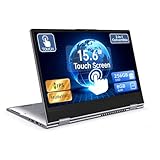
- 【Convertible 2-in-1 Touchscreen latop】: This laptop features a flexible 360 degrees convertible hinge and responsive touchscreen, allowing you to switch easily between laptop and tablet format freely. With Win11 and Built-in WPS perfect for presentations, streaming, studying, or everyday productivity.
- 【Smooth Performance for Daily Tasks】: Powered by an AMD A9 CPU (up to 3.2GHz) with Radeon R5 graphics, this notebook delivers reliable performance for web browsing, document editing, video streaming, and multitasking.
- 【15.6" Full HD IPS Touch screen Display】: The 1920×1080 IPS touchscreen provides clear visuals, vibrant colors, and wide viewing angles. Ideal for watching videos, working on projects, or attending online classes.
- 【8GB RAM and 256GB Big Storage】: Equipped with 8GB RAM and 256GB SSD, up to 1TB TF card expansion, enough space for files, photos, and videos.5G dual band and AC WiFi with high-speed (2x speed) wireless network, enjoying the Internet.
- 【Multiple Connectivity Options】: Stay connected USB-C x 1(for data transfer),USB 3.0 x 2, HDMI x 1, and audio jack x 1,and micro TF slot x 1,fast charger DC port making it easy to connect peripherals, external displays, and other devices.We offer One-year limited warranty. Any questions about our laptops, please contact us our service team for an easy solution.
Use the appropriate setting for the problem
- If you want automatic display only after removing a keyboard, choose When no keyboard is attached under Typing.
- If pop-ups interrupt you, choose Never under Typing. Set the taskbar icon to Never as well only if you also want to remove manual access.
- If you want the keyboard available on demand, set the taskbar icon to Always.
About Registry workarounds
Some Microsoft Q&A troubleshooting discussions mention the registry value HKEY_CURRENT_USERSoftwareMicrosoftTabletTip1.7EnableDesktopModeAutoInvoke for touch-keyboard behavior. For example, see this Microsoft Q&A thread about a Surface Go keyboard issue. This is not the standard solution in Microsoft’s current Settings guidance, and its effect can vary by Windows build and device configuration; it may not fix incorrect hardware-keyboard detection.
Crashes, No Sound, or Screen Glitches?
Random freezes, missing sound and display glitches usually trace back to one bad driver. Find and replace yours safely.Free scan · under a minutePC Slower Than It Used to Be?
A free scan shows the junk files, broken settings and background clutter dragging Windows down - then fixes them in one click.Free scan · Windows 10 & 11Do not start with a registry edit. If you choose to investigate it, first create a restore point or export the relevant key so you can undo the change. No registry value should be treated as a guaranteed override for every device, application, or keyboard state.
Quick Recap
Product prices and availability are accurate as of the date/time indicated and are subject to change. Any price and availability information displayed on Amazon at the time of purchase will apply.

