Recommended Free Tools
Press the Power and Volume down buttons at the same time, then release. Your Pixel 6 Pro saves the image and shows a preview in the lower-left corner. Tap that preview to edit or share it. To find it later, open Google Photos > Collections > On this device > Screenshots.
The fastest way: Power + Volume down
- Open the exact screen you want to capture.
- Press the Power button and Volume down button simultaneously.
- Release both buttons immediately. Holding them can open the power menu or change the volume instead of taking a screenshot.
- Look for the thumbnail preview at the lower left. Tap it if you want to edit or share the image, or leave it alone to dismiss the preview.
This hardware shortcut works regardless of whether you use gesture navigation or 3-button navigation, so it is the best first choice when the buttons are accessible.
Where the Pixel 6 Pro saves screenshots
Open Google Photos, tap Collections, choose On this device, and open Screenshots. The folder contains screenshots captured with the buttons, Assistant, or the Overview screen.
The thumbnail that appears after capture is a quick entry point. Tap Edit to crop, rotate, annotate, or adjust the image with Photos’ editing tools. Tap Share to send it to another app or contact. If you dismissed the thumbnail, the saved copy remains in the Screenshots folder.
What’s actually slowing this PC down?
Pick the symptom - the matching free tool is one click away.
#1 Best Overall

- ✅【Perfect Fit】The case fits the Google Pixel 6 Pro Case 6.7 inches perfectly. Precise hole design fits every button, camera, speaker, charging holes and ports accurately and easy to press and access all functions. ⚠️ Note: Wireless charging function is not available due to the metal ring on the back of the case. 🌈🌈🌈Please remove the front frame (i.e. PC bumper) in the case before installation, it is not appropriate to install the phone directly into the case.
- ✅【Military Grade Protection】 Pixel 6 Pro Case dual layer back bumper(Soft TPU + built-in PC ) + PC front bumper for military-Grade protection, to protect the back and sides of your phone against scratches, shock, bumps, fingerprints and dust. In addition, exterior with 4 reinforced corners can effectively absorb the impact of falling, provide enhanced protection, ensuring that every aspect of your phone is protected.
- ✅【Camera & Screen Protection】 Google Pixel 6 Pro Phone Case is unique camera slider design protects the camera lens from scratches, abrasions, bumps, and shocks. Just slide left and right to protect/use the camera lens. No need to use extra lens protective protector. Pixel 6 Pro Phone Case screen protector will also protect the front screen from scratchs, drops or fingerprints.
- ✅【360°Metal Rotating Kickstand Ring】 Case Pixel 6 Pro is built-in 360° rotating metal stand on the back, easy to swivel, offers multiple adjustable angles (360 degrees horizontally, 180 degrees vertically), allowing you to watch videos and movies and enjoy a comfortable viewing experience at the best angle. Besides, built-in metal magnetic sheet for stable adsorption, which can be directly adsorbed to the magnetic car mount holder. (Not includes the magnetic car mount holder).
- ✅【QUALITY SERVICE】Package includes : 1 x Google 6 Pro Case, 2 x Screen Protector. 👉️The best service and solution will be provided for you. If you have any problem of this product, please CONTACT US via email.
How to take a long or scrolling screenshot
For a page that extends below the visible display, first take a normal screenshot with Power + Volume down. Then tap Capture more in the preview controls.
- Drag the crop handles or guidelines downward until the section you need is included.
- Move the lower handle upward if you selected too much content.
- Tap Save (or the save control shown by your Android version) to store the expanded image.
Google documents scrolling capture for devices running Android 12 and later on most screens that allow scrolling. A screen or app that does not support scrolling capture may not show Capture more at all. This is a compatibility limitation, not a button-timing problem. If the option is absent, use several regular screenshots or the app’s own export feature.
What scrolling capture can and cannot include
- It is intended for vertically scrollable content such as webpages, settings lists, and long messages.
- It cannot extend a screen that has no additional content to scroll.
- Some apps deliberately restrict capture or expose a non-standard scrolling surface; in those cases, Android may omit the control.
- Review the crop before saving so you do not include unrelated content below the section you intended to share.
Screenshot without pressing the buttons
Use Google Assistant by voice
Say exactly: “Hey Google, take a screenshot.” Assistant captures the current screen without requiring a button press. This is useful when the phone is mounted, when one hand is occupied, or when pressing both buttons is awkward.
Use the Overview screen with gesture navigation
- Swipe up from the bottom edge and hold to open the overview of recent apps.
- Select the app window containing the screen you want.
- Tap Screenshot.
This method captures the selected app from Overview rather than relying on the hardware shortcut.
Use the Overview screen with 3-button navigation
- Tap the Overview button in the navigation bar.
- Select the open app you want to capture.
- Tap Screenshot.
The label and placement can vary slightly with Android updates, but the Screenshot control is part of the Overview interface.
Rank #2
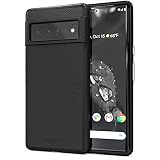
- Premium protection from drops and scratches
- Compact profile allows easy grip and happy pockets
- Tactile buttons provide a crisp and distinct press
- All Crave cases have a lifetime warranty
- Designed for Google Pixel 6 Pro
Invoke Assistant with the power button or a corner swipe
On Pixel 6 and later, including the Pixel 6 Pro, pressing and holding the power button can invoke Assistant, after which you can request a screenshot. With gesture navigation enabled, Google also documents swiping inward from either bottom corner to invoke Assistant. You can then say, “Take a screenshot.”
Which capture method should you use?
| Method | Needs physical buttons | Hands-free | Long-page option | Navigation dependency | Best use |
|---|---|---|---|---|---|
| Power + Volume down | Yes | No | Yes, through Capture more when supported | None | Fast, universal shortcut |
| “Hey Google, take a screenshot” | No | Yes | Use the resulting Capture more control when available | Assistant must be available | One-handed or accessibility-friendly capture |
| Gesture Overview | No | No | Use Screenshot first, then Capture more when offered | Gesture navigation | When buttons are difficult to press |
| 3-button Overview | No | No | Use Screenshot first, then Capture more when offered | 3-button navigation | When you prefer visible navigation buttons |
| Assistant via power hold or corner swipe | Not necessarily | Can be | Use the resulting Capture more control when available | Assistant invocation method | Alternative Assistant access |
Edit, share, and translate a screenshot
Edit or share immediately
Tap the lower-left preview as soon as it appears. Choose Edit to crop or mark up the image, or choose Share to send it through messaging, email, cloud storage, or another installed app.
Reopen it later in Photos
In Google Photos, go to Collections > On this device > Screenshots, select the image, and use the same Edit and Share controls. This is also where you can delete duplicates or organize screenshots after a project.
Outdated Drivers Are Slowing You Down
One free scan finds every outdated or missing driver and matches the right update for your exact hardware.Free scan · exact hardware matchPC Slower Than It Used to Be?
A free scan shows the junk files, broken settings and background clutter dragging Windows down - then fixes them in one click.Free scan · Windows 10 & 11Translate text inside a screenshot
Pixel 3 and later support translating text from a screenshot with Google Lens, so the Pixel 6 Pro is included. Open the screenshot in Photos, tap Lens, and choose Translate. Google lists Chinese, French, German, Hebrew, Hindi, Italian, Japanese, Korean, Portuguese, and Spanish among the supported translation languages. The available source and target choices can depend on Lens and language availability on the device.
Troubleshooting
The power menu appears instead of a screenshot
You likely held the Power button too long or pressed the two buttons sequentially. Place one finger on each button, press together, and release quickly. If the buttons are inconvenient, use Assistant or the Overview method.
Rank #3
![LeYi for Pixel-6-Pro Case [MagSafe Fit] Slim Matte Translucent, Black](https://m.media-amazon.com/images/I/410RdoleelL._SL160_.jpg)
- 𝐍𝐎𝐓 𝐅𝐈𝐓 𝐏𝐢𝐱𝐞𝐥 𝟔/ 𝐏𝐢𝐱𝐞𝐥 𝟔𝐀
- Precision Fit: This case is precisely engineered exclusively for the 𝐏𝐢𝐱𝐞𝐥 𝟔 𝐏𝐫𝐨. It offers a perfect millimeter-accurate fit, seamlessly matching your device's contours for exceptional protection
- Mag-Safe Ready: Unlock next-level convenience with built-in N52 magnets. Securely attach magnetic accessories like wallets, car mounts, ring holders, and chargers—no bulky adapters needed
- Sensory Luxury:The subtly textured surface provides a secure anti-slip grip while showcasing your phone's original color. Stays looking clean and fresh through daily use
- Full Degree Protection:This case delivers military-grade protection without bulk. 0.5mm raised bezels safeguard the screen and cameras from scratches. Quad-corner shock absorption (featuring TPU and air cushion tech) and a reinforced polycarbonate frame ensure survival from 12ft drops tested
The volume changes but no image is saved
The buttons were probably not pressed at exactly the same time, or Volume down was released too early. Try again with the phone awake and the desired app in the foreground. The Overview and Assistant methods avoid this timing issue.
There is no “Capture more” button
Scrolling capture is available on Android 12 and later on most screens that allow scrolling. If the current screen is not scrollable or the app does not expose a compatible scrolling surface, Android may omit the control. Capture separate screenshots or use an export function provided by the app.
Do these 3 things before closing this tab:
1Scan for outdated or missing drivers - takes under a minute2Repair Windows errors before they cause bigger problems3Fix the driver behind crashes, sound loss and screen glitchesThe screenshot preview disappeared
The image should still be saved. Open Google Photos > Collections > On this device > Screenshots to retrieve it.
Overview does not show Screenshot
Open Overview first, select the specific app card, and look for Screenshot in the card actions. If you use gesture navigation, swipe up and hold; if you use 3-button navigation, tap Overview. For a method independent of navigation mode, use Power + Volume down.
Assistant does not respond to the voice command
Use the hardware shortcut or Overview instead. If Assistant is available on your phone, invoke it by holding the power button or swiping inward from a bottom corner when gesture navigation is enabled, then request the screenshot.
Rank #4
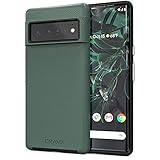
- Premium protection from drops and scratches
- Compact profile allows easy grip and happy pockets
- Tactile buttons provide a crisp and distinct press
- All Crave cases have a lifetime warranty
- Designed for Google Pixel 6 Pro
Practical capture checklist
- Open the exact app, page, or conversation before capturing.
- For a normal image, press Power and Volume down together and release immediately.
- For a long page, look for Capture more and adjust the crop guidelines before saving.
- Use Assistant when you need a hands-free or one-handed method.
- Find saved files in Google Photos under Collections, On this device, Screenshots.
- Use Photos’ Edit, Share, or Lens controls after selecting the image.
Or skip the browser setup
The Pixel methods above capture the phone’s current display. If what you actually need is a repeatable screenshot of a website for documentation, testing, previews, or an AI workflow, ScreenshotNeo takes the shot through one API request instead of a manually operated browser.
Quick wins for a faster PC:
Scan for outdated or missing drivers - takes under a minuteDriver Scan →Clear out junk files and repair common Windows errorsFree Scan →ScreenshotNeo accepts a URL and returns a PNG, JPEG, WebP, or PDF. Before capture, it accepts cookie or consent banners like a visitor and removes more than 60 known consent platforms, newsletter popups, and chat widgets; each cleanup step can be turned off. Bot checks and CAPTCHAs, blank pages, timeouts, failed loads, and cache hits are not billed, and the response identifies the result with X-Page-Verdict and X-Billed headers. Its MCP server provides take_screenshot, get_page_info, and capture_pdf tools for Claude, Cursor, and other MCP clients.
Here is a complete cURL request (see the ScreenshotNeo documentation for all parameters):
curl -G "https://api.screenshotneo.com/v1/shot" -d access_key=YOUR_API_KEY --data-urlencode url=https://stripe.com -o shot.webpPython:
import requests
r = requests.get("https://api.screenshotneo.com/v1/shot", params={"access_key": "YOUR_API_KEY", "url": "https://stripe.com"}, timeout=90)
open("shot.webp", "wb").write(r.content)
Node.js:
const q = new URLSearchParams({ access_key: 'YOUR_API_KEY', url: 'https://stripe.com' });
const res = await fetch(`https://api.screenshotneo.com/v1/shot?${q}`);
The service also supports full-page captures with lazy images loaded, CSS-selector element capture, dark mode, device presets and custom viewports, retina scale, PDF paper and page-range controls, custom CSS and JavaScript, pre-capture clicks, hidden selectors, waits for selectors, delays or network idle, request and resource blocking, custom headers and cookies, user agents, Authorization, timezone and geolocation, transparent backgrounds, resizing, user-selected cache TTLs, signed public-image links, asynchronous jobs with signed webhooks, bulk capture of up to 100 URLs per call, a usage API, and an OpenAPI specification. Parameters commonly used by other screenshot APIs also work when switching.
There is no card requirement for the free allowance of 1,000 screenshots per month. Paid plans start at $5 for 3,000 screenshots; yearly billing provides two months free, and every feature is available on every plan. Create a free ScreenshotNeo account to try it.
Free tools Windows power users keep installed
One-click scans. No signup required.
Quick Recap
Product prices and availability are accurate as of the date/time indicated and are subject to change. Any price and availability information displayed on Amazon at the time of purchase will apply.

