Some links on this page are affiliate links: if you buy through them we may earn a commission, at no extra cost to you.
To share an image template, choose whether the other person should view it, comment on it, edit the original, or start from a reusable copy. Then use the matching sharing control in your app and check the audience and permissions before sending the link. In Canva, for example, ordinary design links and dedicated Template links serve different purposes. The steps and account rules vary by platform.
Choose what the recipient should be able to do
Before creating a link, decide what a successful handoff means. “Share the template” can mean anything from showing someone a finished design to giving them a starting point they can customize. Those outcomes are not interchangeable: an edit permission may let someone change the shared design, while a platform’s dedicated template feature may let them begin with a reusable starting point. Do not assume a link creates a separate copy unless the app says it does.


- View: The recipient can see the design but is not being invited to change it.
- Comment: The recipient can leave feedback without being given full editing access.
- Edit: The recipient can make changes. Check whether those changes affect the design you own or a separate version; that behavior depends on the app and link type.
- Reuse: The recipient gets a starting point for their own work. Look for an explicit template, duplicate, or make-a-copy option rather than relying on an ordinary collaboration link.
Also choose who should have access: specific people, a team, or anyone who has the link. A broad link is convenient, but it can be forwarded beyond the person you originally send it to.
Free tools Windows power users keep installed
One-click scans. No signup required.
Share a Canva design or reusable template
Canva is a useful example because it distinguishes ordinary design sharing from a dedicated Template link. Labels and availability can change, so use the current options shown in your account’s Share menu.
#1 Best Overall
For viewing, commenting, or editing an existing design
- Open the design you want to share and select Share.
- Choose the audience offered by the interface. Canva’s documented options include access limited to the owner, the team, or anyone with the link.
- Set the recipient’s permission to view, comment, or edit, as appropriate. Do not grant edit access if the recipient only needs to inspect the work or leave feedback.
- Copy the link and send it to the intended recipient. If the interface offers sharing by email, use that route when you want to identify recipients individually.
- Return to the Share controls later if you need to change the audience or permission. Canva says these settings can be changed after sharing.
An ordinary edit link is a collaboration method, not proof that the recipient will receive an independent template copy. Canva’s help on link-based collaboration also describes limitations for guests; check the current interface and help guidance if someone outside your team cannot access the design as expected.
For a reusable starting point
- Open the design and select Share.
- Look for Canva’s separate Template link option rather than treating the ordinary edit link as a template link.
- Create and copy the Template link if the option is available to your account, then send it to the recipient.
Canva states that creating and sharing a Template link is available to Canva Pro, Canva Teams, Canva Enterprise, Canva for Education, and Canva for Nonprofits users. If you do not see the option, check your account type and the current Share menu; do not assume that an ordinary edit link provides the same reusable-template behavior.
Rank #2
- Used Book in Good Condition
Prepare the design before sharing broadly
Review what the recipient could see, not just what is visible on the current canvas. Canva specifically advises people preparing a design for public sharing to remove hidden pages, presenter notes, cropped content, and anything else not intended for recipients. Its help also warns that content from earlier revisions may be accessible through public sharing; a copy will not include the original’s previous revisions. Therefore, do not promise that an open link exposes only the visible, current canvas.
Recommended Free Tools
- Remove or verify hidden pages and presenter notes.
- Inspect objects and text that may be cropped outside the visible design area.
- Review the design for confidential material, internal comments, or other content that should not be shared.
- For broad access, consider making a clean copy first and sharing that copy instead of the working file.
- After sending the link, check that its audience and permission still match your intent.
Use the right sharing method in other apps
Other design, storage, and digital-asset platforms may call the relevant feature “share,” “duplicate,” “template,” or something else. The control name alone does not tell you whether the recipient can alter your source file or begin from a separate reusable version. Check the app’s help or test the workflow with a non-sensitive design before distributing it widely.
Rank #3

- Material: These templates are made of acrylic material, sturdy and durable, the products are packed in a carton box to avoid transportation damage.
- Size: There are 3 different sizes in a package, thickness is about 2.5mm, please refer to the pictures for detailed inside and outside dimensions, suitable for most common sticky notes.
- Crafting Tools: These guides are designed for easy placement of cardboard covers when making notebook covers, small planers, etc.
- Wide Usage: This tool guide will help you to make your own perfect note book or mini book with whole pieces of sticky notes, the fixed template is perfect for beginners.
- Specially Gift: You can use this template to make a unique note book for your loved ones, family members or friends that they will never forget.
Compare the available methods on these points:
- Recipient outcome: Can they view, comment, edit, or reuse the design?
- Audience: Is access restricted to named people or a team, or can anyone with the link open it?
- Source behavior: Does the recipient change the original, or does the app provide a separate starting point?
- Eligibility: Does the feature depend on an account plan, organization, or education/nonprofit status?
- Safeguards: Does the service offer link expiration, download restrictions, watermarks, or access monitoring?
These safeguards are not universal. Brandfolder, for example, documents asset-sharing and template-control features that include examples of link-management controls such as expiration, download limits, and watermarking. Treat those as platform-specific possibilities, not features every sharing app provides.
Troubleshoot common sharing problems
The recipient sees an access request or cannot open the link
Check whether the link is limited to you or your team, and whether the recipient is signed in to an account with access. If the app supports sharing with named people, verify the address you invited. Change the audience only if broader access is acceptable; anyone-with-the-link access can be forwarded.
The recipient can view but cannot edit
Reopen the sharing controls and check the permission attached to the recipient or link. View access does not imply edit access. If the recipient only needs a reusable starting point, provide the app’s template or copy workflow instead of granting access to edit the source.
You cannot find a template-link option
Check whether the platform offers a separate reusable-template feature and whether your account is eligible. In Canva, Template links are documented for Canva Pro, Canva Teams, Canva Enterprise, Canva for Education, and Canva for Nonprofits users. Interface labels and account rules can change, so confirm the current options in the Share menu.
Best Value
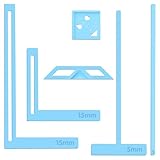
- 【Premium Material】These templates are made of plastic, making them resistant to bending and breaking, and can meet your various crafting needs. These custom-shaped templates are meticulously designed, allowing you to easily create precise and beautiful designs even without advanced drawing skills. Whether you use them as part of a calendar-making kit or as a standalone binding tool, they consistently deliver superior performance.
- 【Features】This elegant blue six-piece plastic template set is a must-have for all journaling enthusiasts and craft lovers creating bookbinding or calendar projects. As an essential journaling tool, these templates include a variety of custom shapes to add personality to your journal, notebook, or calendar, eliminating the hassle of freehand drawing and ensuring a consistent, neat outline every time.
- 【Easy To Use】This six-piece set of custom blue irregular-shaped plastic templates is an essential tool for bookbinders and calendar makers. It combines precision and ease of use. Each template is meticulously designed to allow you to easily add fine details to your journal, calendar, or notebook, saving time and ensuring a consistent style. Furthermore, they help you maintain precise spacing between images and text.
- 【Wide Applications】Whether you're assembling a calendar-making kit or working on a bookbinding project, these templates provide the precision you need. Lightweight and easy to use, they're suitable for craft enthusiasts of all skill levels, allowing you to effortlessly and accurately bring your ideas to life. This kit is a must-have for anyone who loves DIY bookbinding and calendar making.
- 【What You Will Get】You will receive six blue DIY notebook shape plastic templates for your use. Our blue DIY notebook shape plastic templates can be given as gifts to friends to enhance friendship and strengthen relationships.If you have any questions about our products during use, please let us know and we will solve the problem for you as soon as possible. We sincerely hope to bring you a pleasant experience.
You are unsure whether edits affect your original
Do not infer copy behavior from the word “share” or “edit.” Consult the app’s guidance for that specific link type, or test with a disposable design and a second account before sending access to a valuable working file. The available Canva guidance distinguishes an ordinary collaboration link from a Template link, but the exact source-versus-copy behavior should be confirmed for the method you choose.
A public link may reveal more than expected
Stop and review the design for hidden pages, notes, cropped content, and material from earlier revisions before using broad access. If you cannot verify what the public link exposes, make a clean copy and inspect that version before sharing it.
Independent reader supportYour contribution helps us test, update, and keep practical guides available for everyone.Or skip the browser setup
If you also need a clean screenshot of a public template preview or its landing page, ScreenshotNeo can capture that page through one API request. It does not share an editable design or replace the app’s template link; use Canva or your design platform for that.
For a public preview page, replace the example URL with the page you want to capture:
curl -G "https://api.screenshotneo.com/v1/shot" -d access_key=YOUR_API_KEY --data-urlencode url=https://canva.com -o shot.webpSee the ScreenshotNeo API documentation for request options. Python:
Quick Recap
import requests
r = requests.get("https://api.screenshotneo.com/v1/shot", params={"access_key": "YOUR_API_KEY", "url": "https://canva.com"}, timeout=90)
open("shot.webp", "wb").write(r.content)
Node.js:
const q = new URLSearchParams({ access_key: 'YOUR_API_KEY', url: 'https://canva.com' });
const res = await fetch(`https://api.screenshotneo.com/v1/shot?${q}`);
ScreenshotNeo is a website screenshot API and MCP server for developers. It accepts cookie or consent banners before capture and removes more than 60 known consent platforms, newsletter popups, and chat widgets; each cleanup step can be turned off. Bot checks or CAPTCHAs, blank pages, timeouts, failed loads, and cache hits are not billed, and responses indicate the page verdict and billing status in headers. Its MCP server provides take_screenshot, get_page_info, and capture_pdf tools for AI agents and MCP clients. The free plan includes 1,000 screenshots per month with no card; paid plans start at $5 for 3,000 shots. Learn about ScreenshotNeo or sign up for 1,000 free screenshots a month with no card.
Product prices and availability are accurate as of the date/time indicated and are subject to change. Any price and availability information displayed on Amazon at the time of purchase will apply.

