Quick wins for a faster PC:
Repair Windows errors before they cause bigger problemsFix Now →Scan for outdated or missing drivers - takes under a minuteDriver Scan →Clear out junk files and repair common Windows errorsFree Scan →Some links on this page are affiliate links: if you buy through them we may earn a commission, at no extra cost to you.
On most modern Android phones, open Camera, choose the normal Photo mode, and point it at the entire QR code. Wait for the notification or link, then inspect its destination before opening it. You usually do not need to take a picture or install a QR-scanner app. Camera support and menu names vary by phone, so use the alternatives below if nothing appears.
Scan a QR code with your Android camera
- Open the Camera app.
- Select Photo or the standard still-photo mode.
- Frame the complete QR code and hold the phone steady.
- Wait for a notification, URL, or action chip; no photo is normally required.
- Check the domain, app name, or other destination details before tapping it.
Google’s Camera help documents QR recognition in normal or dedicated QR modes on selected devices. Its documented workflow does not support Portrait or Video mode. Availability therefore depends on the phone model and camera software: Google Camera QR-scanning help.
How to scan on a Google Pixel
Current Pixel software can show a QR link directly in the camera viewfinder when scan suggestions are enabled:
Crashes, No Sound, or Screen Glitches?
Random freezes, missing sound and display glitches usually trace back to one bad driver. Find and replace yours safely.Free scan · under a minuteWindows Errors? Fix Them Before They Spread
Repair common Windows errors and clear accumulated junk for a smoother, more stable PC - no reinstall needed.Free scan · no reinstall- Open Camera.
- Tap the camera settings control, then More settings.
- Turn on Camera scan suggestions.
- Return to the viewfinder, show the whole code, and wait for the bubble or link.
- Inspect the destination before continuing.
Labels and paths can change between Pixel software revisions. Google also lists Lens as an alternative: Pixel QR-scanning instructions.
#1 Best Overall
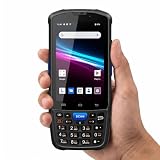
- 【ANDROID 14 WITH TESTED BUSINESS APP COMPATIBILITY】 FARSET F7-WIFI runs Android 14 with GMS and supports popular business applications including Zoho Inventory, inFlow Inventory, Sortly, Orca Scan, Odoo, Ivanti, Scalefusion, SOTI, Zello, Voxer and more. Designed for WMS, inventory, retail and logistics workflows.
- 【FAST & RELIABLE 1D/2D/QR BARCODE SCANNING】 Equipped with the FARSET SE6100 scan engine, the F7-WIFI quickly reads 1D, 2D and QR barcodes, including damaged, faded and on-screen codes. Fast response and flexible scanning help improve efficiency in warehouse, retail, stock checking and inventory operations.
- 【5000mAh HOT-SWAPPABLE BATTERY FOR FULL-SHIFT WORK】 The removable 5000mAh battery supports up to 12 hours of continuous use and allows hot swapping without restarting the device. 10W charging helps reduce downtime and keeps warehouse and inventory teams productive throughout long work shifts.
- 【IP67 RUGGED DESIGN WITH PHYSICAL KEYPAD】 Built for demanding work environments, the F7-WIFI features IP67 dust and water resistance and 2-meter drop protection. The 4-inch display and 22 physical keys make barcode scanning and data entry easier, even when wearing gloves or working in dusty or wet conditions.
- 【BUSINESS CONNECTIVITY, APP TESTING & 2-YEAR WARRANTY】 Supports WiFi, Bluetooth 5.0 and multi-system GPS for daily business operations. Need to use a specific Android business app? Contact FARSET before purchase and we can help test app compatibility. Expandable storage up to 512GB, a 2-year warranty and professional technical support provide added confidence for business deployment. ⚠️Please note: F7-WIFI does not support 4G/5G cellular networks.
How to scan on a Samsung Galaxy
Using Camera
- Open Camera and select PHOTO.
- Point at the QR code.
- If there is no response, open Camera settings and enable Scan QR codes, if that setting is available.
- Return to the viewfinder and try again.
Using Quick Settings
- Swipe down from the top with two fingers.
- Tap Scan QR code.
- Center the code in the scanner.
- If the tile is missing, edit Quick Settings and add it when your model offers it.
Galaxy labels and features differ by model and One UI version. Some devices expose additional Samsung or Bixby tools, but Camera and Quick Settings are the current first choices: Samsung Galaxy QR-scanning support and Samsung Bixby Vision support.
Scan a QR code displayed on your Android phone
A phone cannot use its camera to photograph a code displayed on that same screen. Use an image-based tool instead.
Rank #2

- Budget-Friendly & Durable: Strikes the perfect balance between durability and affordability, making it an excellent economy device for businesses mindful of costs.
- Versatile Scanning Capabilities: Scans 2D, 1D, and QR codes with ease, accommodating a wide range of barcode formats.
- Android 8.1 with Play Store Access: Offers a familiar and user-friendly experience with access to a wide variety of apps for added functionality.
- Wireless & Portable: Built for mobility, the TC56’s wireless capability ensures efficient barcode scanning on the go.
- Charger Included: Comes complete with a charger, so you can keep your device powered and ready for uninterrupted use.
Circle to Search
- Display the QR code.
- Press and hold the Home button, or long-press the navigation handle with gesture navigation.
- When Circle to Search appears, circle or select the code.
- Review the recognized link or information before opening it.
Circle to Search is limited to selected Android devices and the activation gesture can vary: Android’s QR and Circle to Search overview.
The Tool Desk
Outbyte Driver Updater FREEScan for outdated or missing drivers - takes under a minuteDriver Scan →Outbyte PC Repair FREEClear out junk files and repair common Windows errorsFree Scan →Screenshot or saved image with Google Lens
- Take a screenshot containing the QR code or save the image.
- Open the Google app or Google Photos and tap the Lens icon.
- Select the screenshot or image; adjust the selection around the code if needed.
- Review the resulting link or data.
Google documents Lens workflows for uploaded images and screenshots: Google Lens image help.
Rank #3

- 「Smooth Performance」 Runs on Android 12, powered by an Octa-Core 2.0G processor, with 4GB RAM + 64GB ROM for smooth operation and supports Android ERP, WMS, and web-based mobile apps.
- 「Accurate and Efficient」Features a rapid 1D/2D Barcode QR-Code scanner with a built-in 2D Scan Engine for accurate and efficient data capture.
- 「NFC Reader」 Integrated NFC Reader enables reading NFC tags for product tracking, management, and anti-counterfeiting, improving supply chain visibility.
- 「Handheld and Portable」The N77C rugged Android handheld scanner is dustproof and waterproof with an IP66 rating, designed for single-handed operation with ergonomic scanning buttons.
- 「Rugged, Durable & Ergonomic 」TSupports 4G mobile networks and WiFi for real-time data transfer, ideal for warehouse inventory, logistics, retail, and mobile sales.
Chrome Lens
On supported Chrome versions, tap the Lens icon in the search bar, choose the camera/search-with-camera option, and frame the code. For a code embedded in a webpage, press and hold the image and choose Search image with Google Lens: Chrome Lens help.
What a QR scan can do
A QR code can contain a website, plain text, Wi-Fi details, contact information, a map location, an app link, or payment data. The scanner only decodes that content. The next action is handled by Chrome, an installed app, Android’s intent system, or a payment service, and depends on the code and apps on your phone. Recognition does not prove that the destination is legitimate.
Rank #4

- ZEBRA SE6100-2D SCANNING FOR HIGH-VOLUME WORK: Equipped with the Zebra SE6100 scan engine, the F35S quickly captures 1D, 2D and QR codes, including damaged, faded and on-screen barcodes. The pistol-grip design is built for repetitive scanning across receiving, picking, packing, cycle counting and warehouse inventory workflows.
- ANDROID 14 + GOOGLE PLAY/GMS + DEVELOPER SUPPORT: Powered by an octa-core processor up to 2.4GHz with 6GB RAM and 64GB storage, the F35S supports Google Play and GMS services, along with WMS, ERP, inventory and other Android business applications such as Zoho Inventory. Pre-purchase app compatibility testing is available, with SDK and official API documentation for custom integration of barcode scanning and supported hardware functions. FARSET technical engineers can assist with integration, testing and troubleshooting.
- 5G + WI-FI 6 FOR REAL-TIME OPERATIONS: F35S supports 5G, 4G LTE and Wi-Fi 6 connectivity, helping warehouse, logistics and field teams access WMS, inventory and cloud-based data efficiently. Use Wi-Fi 6 across warehouse operations and 5G connectivity for loading docks, delivery, field service and other mobile work environments.
- 6" LARGE SCREEN + IP68 RUGGED DESIGN: The 6-inch HD+ touchscreen provides more room to view item details, orders and inventory data compared with smaller handheld displays. Corning Gorilla Glass, IP68 protection and 2-meter drop resistance help withstand demanding warehouse, manufacturing and logistics environments, while the ergonomic pistol grip supports comfortable one-handed scanning throughout the workday.
- BLUETOOTH 5.2, NFC & GPS FOR BUSINESS WORKFLOWS: Bluetooth 5.2 supports compatible printers and other business peripherals; NFC supports employee identification, asset tracking and contactless applications; multi-system GPS supports logistics, delivery and field workflows. Backed by a 2-year warranty and 24/7 technical assistance for ongoing business support.
When Android will not scan the code
- Use standard Photo mode rather than Portrait or Video.
- Show the entire code and move closer or farther away until it is sharp.
- Hold steady, improve lighting, and avoid reflections or glare.
- Clean the camera lens and avoid extreme zoom.
- When scanning a monitor or another phone, increase that screen’s brightness.
- Try Google Lens or the Quick Settings scanner.
- On Pixel, confirm Camera scan suggestions; on Samsung, confirm Scan QR codes.
- If several codes are visible, isolate the one you intend to scan.
- A tiny, covered, distorted, or damaged code may require a new copy.
Google notes that QR support varies by device and recommends showing the complete code and waiting for recognition: Android Quick Settings help and Camera QR help.
Is scanning a QR code safe?
Scanning is not the same as trusting what the code opens. QR codes conceal the destination and can direct you to phishing pages, malicious downloads, fraudulent payment portals, or requests for personal information. The FBI has specifically warned about unsolicited packages containing QR codes and other “quishing” schemes: FBI July 31, 2025 alert, FBI QR-code guidance, and FBI malicious QR advisory.
Best Value

- Budget-Friendly & Durable: TC21-HC Strikes the perfect balance between durability and affordability, making it an excellent economy device for businesses mindful of costs.
- Versatile Scanning Capabilities: Scans 2D, 1D, and QR codes with ease, accommodating a wide range of barcode formats.
- Android 14 with Play Store Access: Offers a familiar and user-friendly experience with access to a wide variety of apps for added functionality.
- Wireless & Portable: Built for mobility, the wireless capability ensures efficient barcode scanning on the go.
- Charger Included: Comes complete with a USB-C Charger, so you can keep your device powered and ready for uninterrupted use.
- Do not scan unexpected codes in emails, texts, or packages until you verify the sender independently.
- Inspect the displayed address for misspellings, strange domains, and unexpected redirects.
- Do not enter passwords, card numbers, banking details, or one-time codes merely because a QR result requests them.
- Do not install an app or grant unusual permissions from an unexpected QR destination; find the app in Google Play and verify its developer.
- Check physical stickers for a replacement label covering a legitimate code.
- For payments, verify the merchant, recipient, amount, and payment app. When possible, open your financial institution’s official app yourself.
- If a code opens a login page, navigate to the organization’s known website or app manually.
Android’s QR scanner documentation describes a UPI payment implementation for Android 13 with backwards compatibility for Android 12; that is not a guarantee about every U.S. payment app: Android QR scanner documentation.
Do you need a separate QR-scanner app?
Usually not. Built-in Camera, Lens, Quick Settings, and manufacturer tools avoid unnecessary third-party permissions, advertisements, subscriptions, and app clutter. Consider an approved specialist app only for an unusually old phone or for genuine needs such as batch scanning, inventory, export, or enterprise barcode workflows. A single failed camera attempt is not a reason to install a random scanner.
Recommended method by situation
| Situation | Best first choice | Backup |
|---|---|---|
| Printed sign, menu, poster, or package | Camera in Photo mode | Lens or Quick Settings scanner |
| Code on a computer monitor | Camera | Lens |
| Code on the same Android phone | Circle to Search | Screenshot plus Google Lens |
| Pixel | Camera with scan suggestions enabled | Google Lens |
| Samsung Galaxy | Camera or Scan QR code tile | Model-dependent Samsung tools |
| Damaged or difficult code | Lens, improved lighting, or another copy | Request a replacement |
| Payment-related code | Recognize, then independently verify | Open the payment app manually |
| Suspicious email, text, or package | Do not scan until verified | Use the organization’s known site or app |
If you already followed a suspicious QR result
If you entered credentials, change them through the legitimate service and enable multifactor authentication. If payment or financial information was exposed, contact the institution through a verified channel. For suspected online crime, use the FBI’s scam resources and contact information: FBI scams and safety and FBI contact page.
Quick Recap
Product prices and availability are accurate as of the date/time indicated and are subject to change. Any price and availability information displayed on Amazon at the time of purchase will apply.

