Some links on this page are affiliate links: if you buy through them we may earn a commission, at no extra cost to you.
macOS Big Sur can normally read NTFS drives, but its built-in support is effectively read-only. You can open files and copy them to your Mac, but Finder normally will not let you create, edit, rename, move, or delete files on the NTFS volume.
For write access, use a compatible NTFS driver such as Paragon or Tuxera, reformat the drive as exFAT if you can erase it, or choose the more technical FUSE/NTFS-3G route. If the files are stored on a Windows PC or NAS, an SMB network share avoids the need for a local NTFS driver.
First, identify what you are dealing with
NTFS is Microsoft’s filesystem, commonly used by Windows internal disks and external drives. It is separate from the drive’s physical hardware: an HDD, SSD, flash drive, or USB enclosure can be formatted as NTFS, exFAT, APFS, or another filesystem.
Do these 3 things before closing this tab:
1Clear out junk files and repair common Windows errors2Fix the driver behind crashes, sound loss and screen glitches3Repair Windows errors before they cause bigger problemsThat means a USB SSD can still be NTFS-formatted and behave differently on macOS than an exFAT drive.
#1 Best Overall
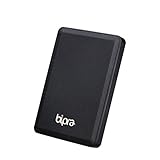
- Storage capacity: Please Select
- Formatted as NTFS file system
- USB 3.0 Hard drive interface
- Support plug and play
- No external power needed
How to check whether a drive is NTFS
Use Finder
- Connect and mount the drive.
- Open Finder and select the volume under Locations.
- Press Command-I, or choose File → Get Info.
- Look for the volume’s format or filesystem information.
Use Terminal
Open Terminal and list connected disks:
diskutil listFind the relevant identifier, such as /dev/disk2, then inspect it:
diskutil info /dev/disk2Useful fields include File System Personality, Type (Bundle), Mounted, Read-Only Media, and Read-Only Volume.
Do not guess the disk identifier. Be especially careful not to run erase or repair commands against the wrong disk.
What’s actually slowing this PC down?
Pick the symptom - the matching free tool is one click away.
How to read an NTFS drive in Big Sur
For normal read-only access:
- Connect the drive directly to your Mac where possible.
- Open Finder.
- Select the NTFS volume under Locations.
- Open files or copy them from the NTFS drive to your Mac or another backup location.
Copying from an NTFS drive to the Mac is different from copying files to the NTFS drive. The first normally works; the second normally fails without additional software.
If the drive does not appear in Finder, open Finder → Settings (or Finder → Preferences on some Big Sur updates), select Sidebar, and ensure external disks are enabled.
Why Finder will not let you write to NTFS
Apple’s normal, supported user-facing NTFS behavior in Big Sur is read-only. Finder may display the files normally while preventing you from:
Rank #2

- Storage capacity: Please Select
- Formatted as NTFS file system
- USB 2.0 Hard drive interface
- Support plug and play
- No external power needed
- Creating a new folder
- Copying files onto the drive
- Saving edits directly to the drive
- Renaming, moving, or deleting files
Disk Utility can identify the volume, but it does not turn macOS’s native NTFS support into a read/write driver. Terminal commands involving remounting NTFS volumes may work in particular configurations, but they are unsupported, version-dependent, and a poor choice for important data.
Recommended Free Tools
Choose the right way to get write access
| Method | Best for | Main advantages | Main drawbacks |
|---|---|---|---|
| Native macOS support | Reading files | Free and already available | Normally read-only |
| Commercial NTFS driver | Keeping the existing NTFS format | Simple Finder integration and write access | Paid; requires compatibility checks and updates |
| exFAT reformat | A removable drive shared between Mac and Windows | Native read/write on both systems | Erases the drive and lacks some NTFS features |
| FUSE/NTFS-3G | Technical users who want a free option | Open-source read/write capability | Complex setup and variable Big Sur compatibility |
| SMB network share | Files stored on a Windows PC or NAS | No local NTFS driver is needed | Requires a working host and network |
Option 1: Install a compatible NTFS driver
A commercial driver is usually the easiest choice when the disk must remain NTFS. Paragon and Tuxera both describe read/write support for NTFS volumes and list macOS Big Sur among their supported systems:
- Paragon NTFS for Mac
- Paragon’s Big Sur compatibility information
- Tuxera NTFS for Mac
- Tuxera system requirements
Installation checklist
- Back up important files from the NTFS drive.
- Download the driver from the vendor’s official website.
- Confirm support for macOS 11 Big Sur.
- Check support for your Mac’s architecture: Intel or Apple silicon.
- Check the exact Big Sur release if the vendor specifies a minimum build.
- Install the software and restart if requested.
- Approve any system extension, kernel extension, or security permission requested by the installer.
- Reconnect the NTFS drive.
- Test with a small folder and a nonessential file before transferring important data.
Test creating a folder, copying a small file to it, renaming the file, copying it back to the Mac, and deleting the test folder. If any step fails, do not begin moving irreplaceable data. Check the driver version, architecture support, security approvals, and whether the volume has been mounted read-only because of filesystem damage.
A driver enables filesystem access; it is not a substitute for backups, Windows filesystem repair, or diagnosing a failing disk. Compatibility and licensing details can change, so verify the vendor’s current terms before purchasing. A Paragon version-15 storefront listing showed $19.95 when checked on August 16, 2026, while Tuxera’s pricing page showed $28.95; these figures should not be treated as permanent prices for every release or region.
Option 2: Reformat the drive as exFAT
If the drive is backed up or empty and will be used for ordinary file sharing between Windows and macOS, exFAT is often the cleanest long-term solution. It provides native read/write access on both operating systems without a third-party driver.
Erasing the drive permanently destroys its existing contents. Copy every file elsewhere before proceeding.
Rank #3

- Ultra Slim and Sturdy Metal Design: Merely 0.4 inch thick. All-Aluminum anti-scratch model delivers remarkable strength and durability, keeping this portable hard drive running cool and quiet.
- Compatibility: It is compatible with Microsoft Windows 7/8/10, and provides fast and stable performance for PC, Laptop.
- Improve PC Performance: Powered by USB 3.0 technology, this USB hard drive is much faster than - but still compatible with - USB 2.0 backup drive, allowing for super fast transfer speed at up to 5 Gbit/s.
- Plug and Play: This external drive is ready to use without external power supply or software installation needed. Ideal extra storage for your computer.
- What's Included: Portable external hard drive, 19-inch(48.26cm) USB 3.0 hard drive cable, user's manual, 3-Year manufacturer warranty with free technical support service.
- Open Disk Utility.
- Choose View → Show All Devices.
- Select the correct physical drive or volume.
- Click Erase.
- Set Format to exFAT.
- Choose GUID Partition Map as the scheme for a modern Mac-and-PC data drive.
- Enter a name and click Erase.
Apple’s Disk Utility guidance is available at Apple Support.
exFAT is convenient for removable cross-platform storage, but it does not provide NTFS’s Windows permission model and other Windows-specific features. It is also not normally the right format for a Mac-only boot or system disk.
Option 3: Use FUSE and NTFS-3G
FUSE and an NTFS-3G implementation can provide a free, open-source read/write route. The NTFS-3G project supports operations such as creating, removing, renaming, moving, and modifying files.
This is an advanced option rather than a universal Big Sur recipe. Compatibility depends on the specific macFUSE or FUSE package, NTFS-3G build, Big Sur release, and Mac architecture. Apple-silicon Macs can require additional compatibility steps, system-extension approvals, or manual mounting. Guides that combine older NTFS-3G, Mounty, and macFUSE instructions may no longer work on every Big Sur installation.
Use this approach only if you are comfortable troubleshooting packages, permissions, extensions, and manual mounts. Do not assume a free configuration is suitable for your only copy of important data.
Option 4: Use a network share instead
If the files remain on a Windows PC or NAS, access them over SMB rather than attaching the physical NTFS disk to the Mac. The Mac communicates with the shared folder and does not need to understand the server’s underlying NTFS filesystem.
Rank #4
- Storage capacity: Please Select
- Formatted as NTFS file system
- USB 2.0 Hard drive interface
- Support plug and play
- No external power needed
This is different from local USB or SATA access. Paragon explains the distinction in its network-share guidance.
Outdated Drivers Are Slowing You Down
One free scan finds every outdated or missing driver and matches the right update for your exact hardware.Free scan · exact hardware matchWindows Errors? Fix Them Before They Spread
Repair common Windows errors and clear accumulated junk for a smoother, more stable PC - no reinstall needed.Free scan · no reinstallSafety rules for NTFS drives
- Back up important data before installing drivers, changing formats, or attempting repairs.
- Do not unplug the drive while files are being copied.
- Closing a Finder window does not necessarily mean the drive is safe to remove.
- Eject the volume using Finder’s eject icon or the Trash/Eject area.
- If Windows used the disk recently, shut Windows down fully before disconnecting it.
Windows Fast Startup and hibernation can leave NTFS metadata in a state that is unsafe to modify from another operating system. The NTFS-3G FAQ documents this issue. If Windows says the disk needs repair, repair it in Windows before attempting write operations from macOS.
Independent reader supportYour contribution helps us test, update, and keep practical guides available for everyone.Troubleshooting
The drive does not appear anywhere
- Try another cable and USB port.
- Connect directly instead of using an unpowered hub.
- Try another powered enclosure or adapter if available.
- Open Disk Utility → View → Show All Devices.
- Run
diskutil listin Terminal. - Test the drive on Windows if possible.
If the drive is absent from both Disk Utility and Windows, possible causes include inadequate power, a failed enclosure, a failing disk, or severe hardware damage. If the data matters, stop repeated repair attempts and make a sector-level or forensic backup before destructive operations.
The drive appears in Disk Utility but not Finder
Check Finder’s external-disk visibility settings. In Disk Utility, select the volume and click Mount if that option is available. If it will not mount, consider cable, enclosure, encryption, partition, and filesystem problems rather than assuming it is simply a Finder setting.
The drive appears but is read-only
This may be normal native NTFS behavior. It can also indicate Windows hibernation or Fast Startup, NTFS metadata inconsistency, physical disk errors, or a driver that intentionally mounted the volume read-only for safety.
The Tool Desk
Outbyte PC Repair FREEClear out junk files and repair common Windows errorsFree Scan →Outbyte Driver Updater FREEFix the driver behind crashes, sound loss and screen glitchesFind Drivers →Back up the data first. Check the volume from Windows and avoid forcing a read/write remount as an initial fix.
Best Value
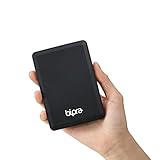
- Storage capacity: Please Select
- Formatted as NTFS file system
- USB 3.0 Hard drive interface
- Support plug and play
- No external power needed
A commercial driver does not provide write access
Verify that it supports Big Sur, your Intel or Apple-silicon Mac, and your exact driver release. Check whether the installer requested a restart or a Security & Privacy approval. Also look for another NTFS driver that could conflict.
The disk was not ejected properly
This can result from unplugging during activity, a faulty cable or enclosure, sleep and power-management behavior, a driver crash, or a failing disk. Secure a backup, then run filesystem checks from the operating system that natively supports the volume—normally Windows for NTFS.
Files are missing or will not open
Possible causes include Windows permissions, BitLocker or other Windows-specific encryption, filesystem damage, Windows-specific filenames or paths, and unusual compressed or sparse files. A commercial driver’s feature claims are vendor claims, not a guarantee that every NTFS feature will behave identically in Finder.
Important Big Sur and Apple-silicon detail
Big Sur was the first macOS generation used on Apple’s M1 Macs. Some older NTFS drivers were designed for Intel Macs or depend on system extensions requiring additional approval. Do not assume an Intel-compatible driver works on an M1 Mac.
Before installing, check the vendor’s current documentation for macOS 11, the exact driver release, processor architecture, restart requirements, and security approvals. Paragon’s compatibility table specifically identifies NTFS for Mac 15 build 15.6.13 and later for Big Sur; do not infer that every older release has the same support.
Which method should you choose?
- Only need to copy files off the drive: use Big Sur’s built-in read-only access.
- Need to preserve the existing NTFS format: install a current driver that explicitly supports Big Sur and your Mac architecture.
- Can erase the drive and share it between Mac and Windows: reformat it as exFAT.
- Want a free technical solution: investigate FUSE/NTFS-3G, accepting compatibility and maintenance risks.
- Files live on a Windows PC or NAS: use an SMB network share.
For most people, exFAT is the best permanent format for a blank shared removable drive. If the existing NTFS data must remain in place, a current, explicitly compatible commercial driver is the more straightforward option.
Quick Recap
Product prices and availability are accurate as of the date/time indicated and are subject to change. Any price and availability information displayed on Amazon at the time of purchase will apply.

